

Why Does My Roku Keep Buffering and Freezing During Streaming
- Weak WiFi signal at the Roku
- Insufficient internet bandwidth
- Network congestion (peak usage)
Problem Description
Your Roku streaming device keeps buffering during video playback. Shows and movies frequently pause to load, the spinning buffer circle appears constantly, and video quality drops to blurry low resolution before returning to HD. The buffering may occur across all streaming apps or primarily affect certain services like Netflix, Hulu, or YouTube TV.
Why This Happens in Real Homes
Roku buffering and freezing during streaming is almost always a bandwidth or signal problem — the Roku can't pull data fast enough to stay ahead of playback, so it pauses to buffer. Weak WiFi where the Roku sits, not enough internet speed (4K needs about 25 Mbps), and network congestion at peak times are the usual causes.
Improve the WiFi signal by moving the Roku closer to the router or adding a mesh node, and on models with an Ethernet port, a wired connection is the most reliable fix. Make sure your plan has enough bandwidth for the quality you're streaming and that other devices aren't saturating it. Restart the router and Roku, reduce 2.4GHz interference (or use 5GHz if the Roku supports it), and lower the stream quality if your connection is genuinely limited.
Symptoms
- Constant buffering
- Freezes during playback
- Spinning loading circle
- Stops to buffer often
- Buffers on 4K especially
- Lower quality then buffers
- Freezes then recovers
- Buffering worse at peak times
Recognize these? Here's what usually causes it.
Common Causes
- Weak WiFi signal at the Roku
- Insufficient internet bandwidth
- Network congestion (peak usage)
- Too far from the router
- 2.4GHz interference
- Router overloaded
- App/server-side issue
- Roku needs a restart
Most fixes happen in the first 3 steps.
Do not place the Roku device on fabric surfaces like tablecloths or carpets. Fabric blocks ventilation and can cause the device to overheat, leading to hardware damage and fire risk.
Tools & Requirements
These tools will help you complete this fix.
As an Amazon Associate we earn from qualifying purchases.
Step-by-Step Solution
Check Internet Speed on Roku
Go to Roku Settings, Network, and select Check Connection. This tests your WiFi signal strength and internet speed. For buffer-free streaming, you need at least 5 Mbps for HD content and 25 Mbps for 4K content. If the speed test shows less than your ISP plan speed, the issue is between your router and the Roku. If the speed matches your plan but is still below 5 Mbps, you need a faster internet plan for reliable streaming.
Improve WiFi Connection
Move the Roku device closer to your WiFi router if possible. Avoid placing the Roku behind the TV where the TV blocks the WiFi signal. If using a Roku Streaming Stick, the HDMI extender cable included in the box moves the device away from the TV for better signal reception. For Roku Ultra or Express, consider using the Ethernet port for a direct wired connection to your router which eliminates WiFi buffering completely.

Needed for this step
Cat 6 Ethernet Cable 25 ft, Cat6 Flat Ethernet ...
This helps complete the fix you are currently reading.
$5.99Check for Overheating
If your Roku displays a temperature warning or starts buffering after an hour or more of use, it may be overheating. Make sure the device has adequate ventilation with at least 2 inches of clearance on all sides. Do not stack the Roku on top of other electronics like cable boxes or game consoles. Remove it from enclosed media cabinets where heat builds up. If using a Roku Streaming Stick, the HDMI extender cable helps by moving the device away from the hot HDMI port area.
Restart and Update the Roku
Go to Settings, System, System Restart, and select Restart. This clears the device cache and temporary data that can cause performance issues. After restarting, go to Settings, System, Software Update, and check for updates. Install any available system updates and then update individual streaming apps by highlighting each app on the home screen, pressing the star button, and selecting Check for Updates.
Optimize Network Settings
On your router, change the DNS servers to Google DNS at 8.8.8.8 and 8.8.4.4 or Cloudflare DNS at 1.1.1.1 and 1.0.0.1. Slow DNS can delay content server connections causing initial buffering. If other people in your household are also streaming or downloading large files simultaneously, the bandwidth competition causes buffering. Consider enabling QoS or Quality of Service on your router and prioritizing the Roku device MAC address for streaming traffic.
Quick Solutions
Still having issues? This is usually the deeper cause below.
Camera issues that start suddenly almost always trace back to an upload bandwidth drop — run a speed test before assuming hardware failure.
If buffering only happens during peak evening hours between 7 and 10 PM, your ISP may be throttling streaming traffic during high-usage periods. A VPN can sometimes bypass ISP throttling.
Live view problems that start suddenly usually trace back to an upload speed drop — the camera itself is fine, the bandwidth path to the cloud isn't.
- Weak WiFi signal at the Roku
- Insufficient internet bandwidth
- Network congestion (peak usage)
- Too far from the router
- 2.4GHz interference
Before you go — try one of these (they fix most cases).
Most popular upgrades chosen by Roku Streaming Device owners.
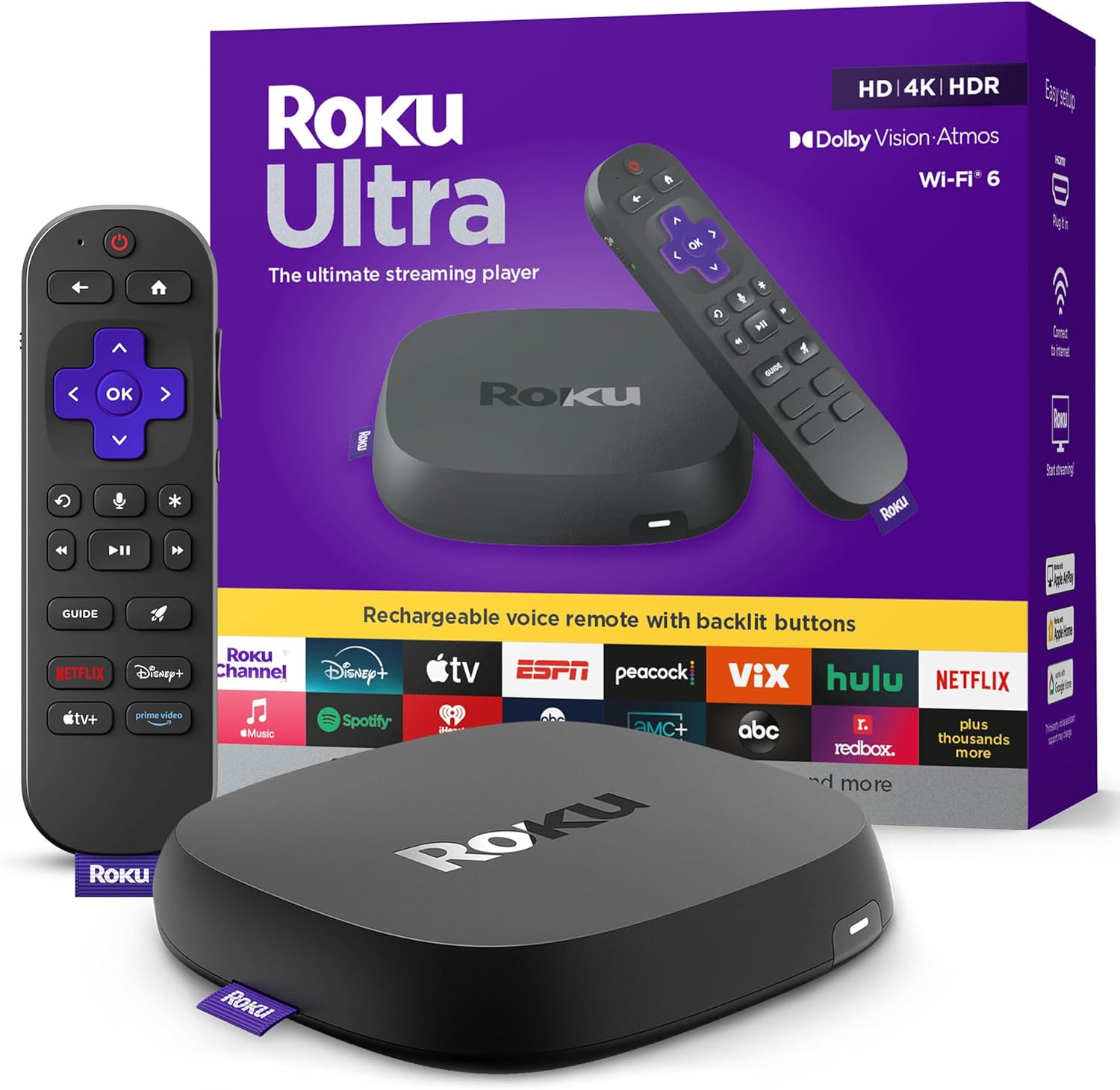
Roku Ultra - Ultimate Streaming Player - 4K Streaming Dev...

Roku Streaming Stick 4K - HDR & D. Vision Roku Streaming ...
As an Amazon Associate we earn from qualifying purchases.
Official Manufacturer Manual
Roku provides official product documentation through their online manual rather than downloadable PDF. Access setup guides, troubleshooting steps, and product specifications for your Roku Streaming Device.
Source: roku.com
Need More Help? Roku Support
Note: The contact information below connects you directly to Roku's official customer support team, not Trunetto. They can help with warranty claims, device replacements, and advanced technical issues.
Accessories owners commonly pair with Roku Streaming Device.

SANDISK 64GB Extreme microSDXC UHS-I Memory Card with Ada...

SANDISK 32GB (Pack of 2) Ultra microSDHC UHS-I Memory Car...

SANDISK 128GB Ultra microSDXC UHS-I Memory Card with Adap...
As an Amazon Associate we earn from qualifying purchases.


