

Why Won't My Roborock S8 Pro Ultra Dock Empty the Dustbin Automatically?
- Dock dust bag full
- Clog in the robot's bin outlet or dock duct
- Bag not seated properly
Problem Description
Your Roborock S8 Pro Ultra returns to the dock after cleaning but does not empty its dustbin into the dock collection bag. The auto-empty feature worked before but now the robot just sits on the dock without the suction sound of dust extraction. Your dustbin fills up requiring manual emptying defeating the purpose of the auto-empty dock.
Why This Happens in Real Homes
When a Roborock S8 Pro Ultra returns to the dock but the dustbin doesn't empty, the airflow path between the robot's bin and the dock's bag is blocked somewhere — most often a full dust bag, a bag that isn't seated, or a clog of hair in the robot's evacuation port or the dock's duct. The dock can't pull the bin empty through an obstructed path.
Open the dock and replace the bag if it's full (seating a new one properly), then check the robot's bin outlet and the dock's suction duct for clogs of hair or debris. Make sure the robot docks fully so the ports line up and the dock lid is closed. A power-cycle of the dock resets a full-bag sensor that's misfiring after a bag change.
Symptoms
- S8 Pro Ultra dock won't empty the bin
- Bin still full after docking
- No auto-empty cycle
- Loud dock but weak suction
- Partial emptying
- Clog/bag-full error
- Dust bag full warning
- No evac sound
Recognize these? Here's what usually causes it.
Common Causes
- Dock dust bag full
- Clog in the robot's bin outlet or dock duct
- Bag not seated properly
- Debris blocking the dock suction path
- Robot's evac port clogged with hair
- Full-bag sensor triggered
- Robot not fully docked
- Dock lid not closed
Most fixes happen in the first 3 steps.
Never stick fingers into the dock suction tube while powered. The suction motor is powerful enough to cause injury. Always unplug the dock before inspecting the suction pathway.
Tools & Requirements
These tools will help you complete this fix.
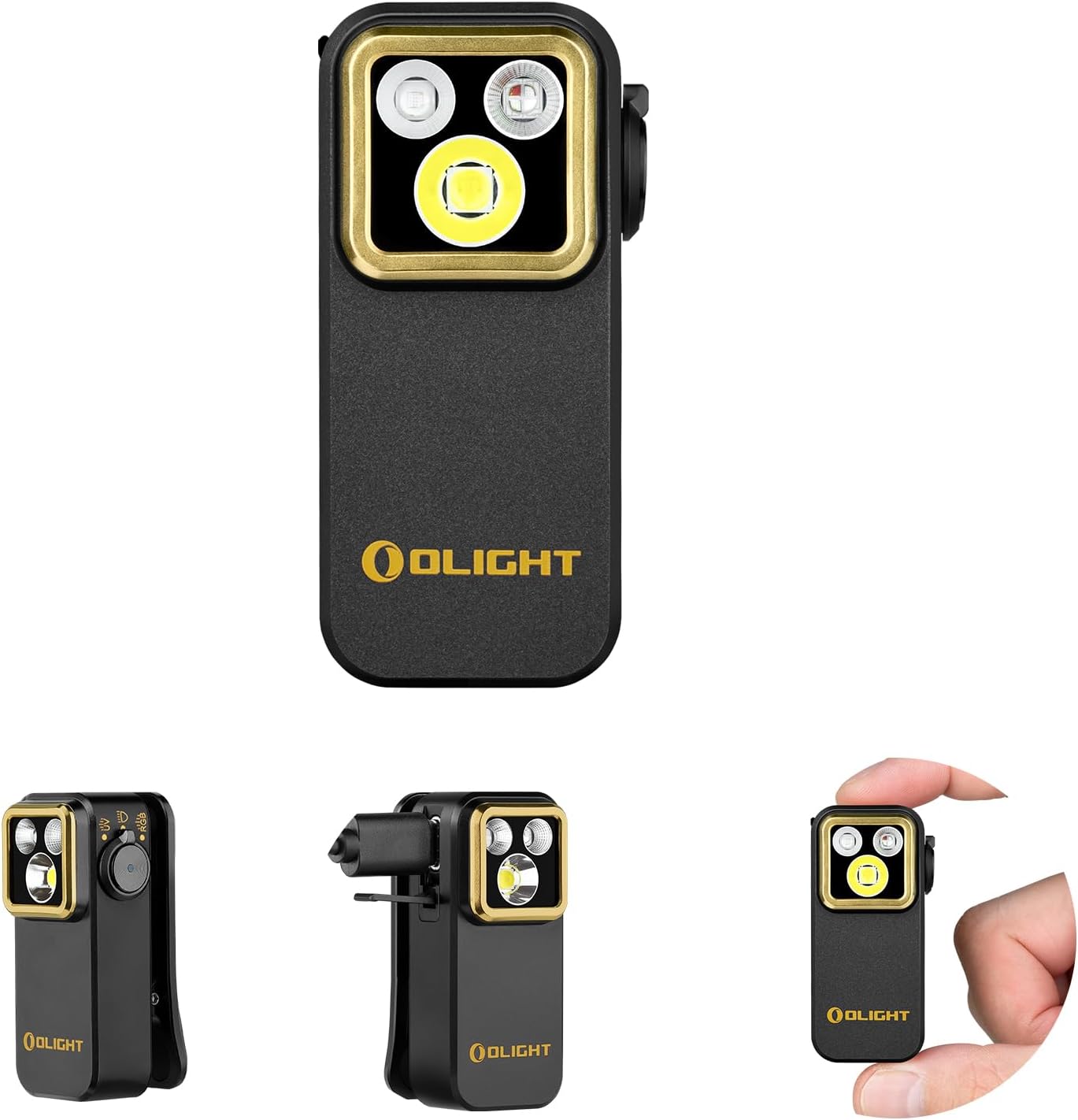
Flashlight to inspect dock tube
OLIGHT Oclip Pro S EDC Flashlight Clip-on Light, 600...

Soft cloth for cleaning
WHOOSH! Pro 16.9 fl oz Refillable TV Screen Cleaner ...
As an Amazon Associate we earn from qualifying purchases.
Step-by-Step Solution
Check Auto-Empty Setting
Open the Roborock app and tap your S8 Pro Ultra. Go to Vacuum Settings and find Auto-Empty Dock. Make sure the toggle is enabled. You can also set when auto-empty triggers such as after every cleaning or when dustbin reaches a certain level. If this setting is off the dock will charge the robot but never extract dust.
Needed for this step
OLIGHT Oclip Pro S EDC Flashlight Clip-on Light...
This helps complete the fix you are currently reading.
$39.99Verify Docking Position
Watch your robot return to the dock. It should back in straight and centered. The dust extraction port on the bottom of the robot must align with the suction inlet on the dock. If the robot docks crooked pick it up and manually place it centered on the dock. Listen for the suction motor to start within 10 seconds.
Clean the Dustbin Extraction Port
Remove the dustbin from the robot and check the rubber gasket around the extraction port opening. This gasket seals against the dock suction inlet. If dirty or folded over it breaks the seal preventing suction. Wipe the gasket clean and make sure it sits flat. Also clean the corresponding suction inlet hole on the dock surface.
Clear Dock Suction Pathway
Remove the collection bag from the dock and look into the suction tube. Use a flashlight to check for clogs. Hair pet fur and larger debris can accumulate here blocking airflow. Use a long brush or compressed air to clear any blockages. Reinstall the bag making sure it clicks into place with the collar sealed.
Clean Dock and Robot Contacts
The dock and robot communicate through metal charging contacts. If these are dirty the dock may not detect the robot properly. Wipe the gold contacts on the dock and the corresponding contacts on the bottom of the robot with a dry cloth. Dirt or oxidation here can cause intermittent connection issues that affect auto-empty triggering.
Needed for this step
WHOOSH! Pro 16.9 fl oz Refillable TV Screen Cle...
This helps complete the fix you are currently reading.
$19.99Quick Solutions
Still having issues? This is usually the deeper cause below.
If this comes back after following these steps, check whether a recent app or firmware update reset a default setting — the fix works, but the setting gets reverted silently.
Run the auto-empty function manually from the app to test if the dock suction motor works. This helps isolate whether the issue is the dock hardware or the automatic trigger.
Robot vacuums that 'stop working' are usually fighting a corrupted map from moved furniture — a fresh floor scan fixes the majority of reported failures.
- Dock dust bag full
- Clog in the robot's bin outlet or dock duct
- Bag not seated properly
- Debris blocking the dock suction path
- Robot's evac port clogged with hair
Before you go — try one of these (they fix most cases).
Official Manufacturer Manual
Roku provides official product documentation through their online manual rather than downloadable PDF. Access setup guides, troubleshooting steps, and product specifications for your Roborock S8 Pro Ultra.
Source: support.roku.com
Need More Help? Roku Support
Note: The contact information below connects you directly to Roku's official customer support team, not Trunetto. They can help with warranty claims, device replacements, and advanced technical issues.


