

Why Can't the Roku App Find My Device on the Home Network?
- Phone and Roku on different networks/bands
- Guest network or VPN in use
- Network access set to restrict control
Problem Description
The official Roku mobile app cannot discover your Roku device on your home network even though the Roku is working and connected to WiFi. The app searches but shows No Rokus Found. The Roku app uses local network broadcast to find devices and will fail if your phone and Roku are on different network segments, if the router blocks device-to-device communication, or if the Roku network settings need a restart.
Why This Happens in Real Homes
The Roku mobile app finds your Roku by discovering it on the same local network, so "can't find device" almost always means the phone and Roku aren't truly on the same network — a common trap being the phone on a guest network or a VPN, or the router isolating clients from each other. A Roku setting can also restrict app control.
Put your phone and Roku on the same WiFi (not a guest network) and turn off any VPN, then check the Roku's Settings > System > Advanced > Network Access is set to Permissive so the app can control it. Disable AP/client isolation on the router and allow multicast/discovery through the firewall. With both on the same network and access permitted, the app finds and controls the Roku.
Symptoms
- Roku app can't find the device
- App won't connect to the Roku
- Device not listed in the app
- App can't control the Roku
- Found then lost
- No devices on the network
- Remote function in the app fails
- Only works sometimes
Recognize these? Here's what usually causes it.
Common Causes
- Phone and Roku on different networks/bands
- Guest network or VPN in use
- Network access set to restrict control
- AP/client isolation on the router
- Firewall blocking discovery
- Weak signal on the phone or Roku
- Router blocking multicast
- App/software out of date
Most fixes happen in the first 3 steps.
Do not connect your Roku to a WiFi guest network to solve discovery problems. Guest networks are designed to block cross-device communication which makes the issue worse.
Step-by-Step Solution
Confirm Same WiFi Network on Both Devices
The Roku app requires your phone and Roku to be on the exact same WiFi network and subnet. If your router broadcasts separate 2.4GHz and 5GHz networks your phone may be on the 5GHz band while the Roku is on 2.4GHz. On your phone temporarily connect to the 2.4GHz network name and reopen the Roku app to test. If the app finds Roku on the 2.4GHz connection the issue is cross-band isolation on your router.
Disable AP Isolation on Router
Log into your router admin panel and look for AP Isolation, Client Isolation, or Wireless Isolation settings on the home WiFi network. These settings prevent WiFi devices from communicating directly with each other as a security measure but they also block the Roku app from reaching the Roku device. Disable isolation for your primary home network. Guest networks typically have isolation enabled by design and the Roku should not be connected to a guest network.
Grant Local Network Permission on iPhone
On iPhone running iOS 14 or later apps must be explicitly granted Local Network permission to discover devices using mDNS and broadcast. Go to iPhone Settings then Privacy then Local Network. Find the Roku app in the list and make sure the toggle is enabled. If it is disabled the Roku app cannot send or receive the broadcast packets it uses to discover Roku devices on your network regardless of whether both are on the same WiFi.
Restart Roku Network Stack
On your Roku go to Settings then System then Restart to perform a software restart. Alternatively go to Settings then Network then Check Connection to force a network reinitialization. After the Roku restarts reopen the Roku mobile app and tap the remote icon to trigger a fresh device scan. A Roku that has been running for many days without restart can accumulate stale network state that prevents it from responding to app discovery broadcasts.
Enter Roku IP Address Manually
If automatic discovery still fails find the Roku IP address by going to Settings then Network then About on the Roku device. Note the IP address shown. In the Roku mobile app tap the remote icon then look for a Connect Manually or Enter IP Address option. Enter the Roku IP address directly. This bypasses broadcast discovery and connects the app to the Roku by direct IP. Also assign a static IP to the Roku in your router DHCP reservations so the address does not change after reboots.
Quick Solutions
Still having issues? This is usually the deeper cause below.
If this comes back after following these steps, check whether a recent app or firmware update reset a default setting — the fix works, but the setting gets reverted silently.
Set a DHCP reservation for your Roku in the router so it always gets the same IP address. This ensures the Roku app manual IP connection always works after router reboots.
This issue almost always looks more complex than it is — the majority of cases trace back to a single setting, a stale credential, or a default that shipped wrong.
- Phone and Roku on different networks/bands
- Guest network or VPN in use
- Network access set to restrict control
- AP/client isolation on the router
- Firewall blocking discovery
Before you go — try one of these (they fix most cases).
Most popular upgrades chosen by Roku Streaming Player owners.
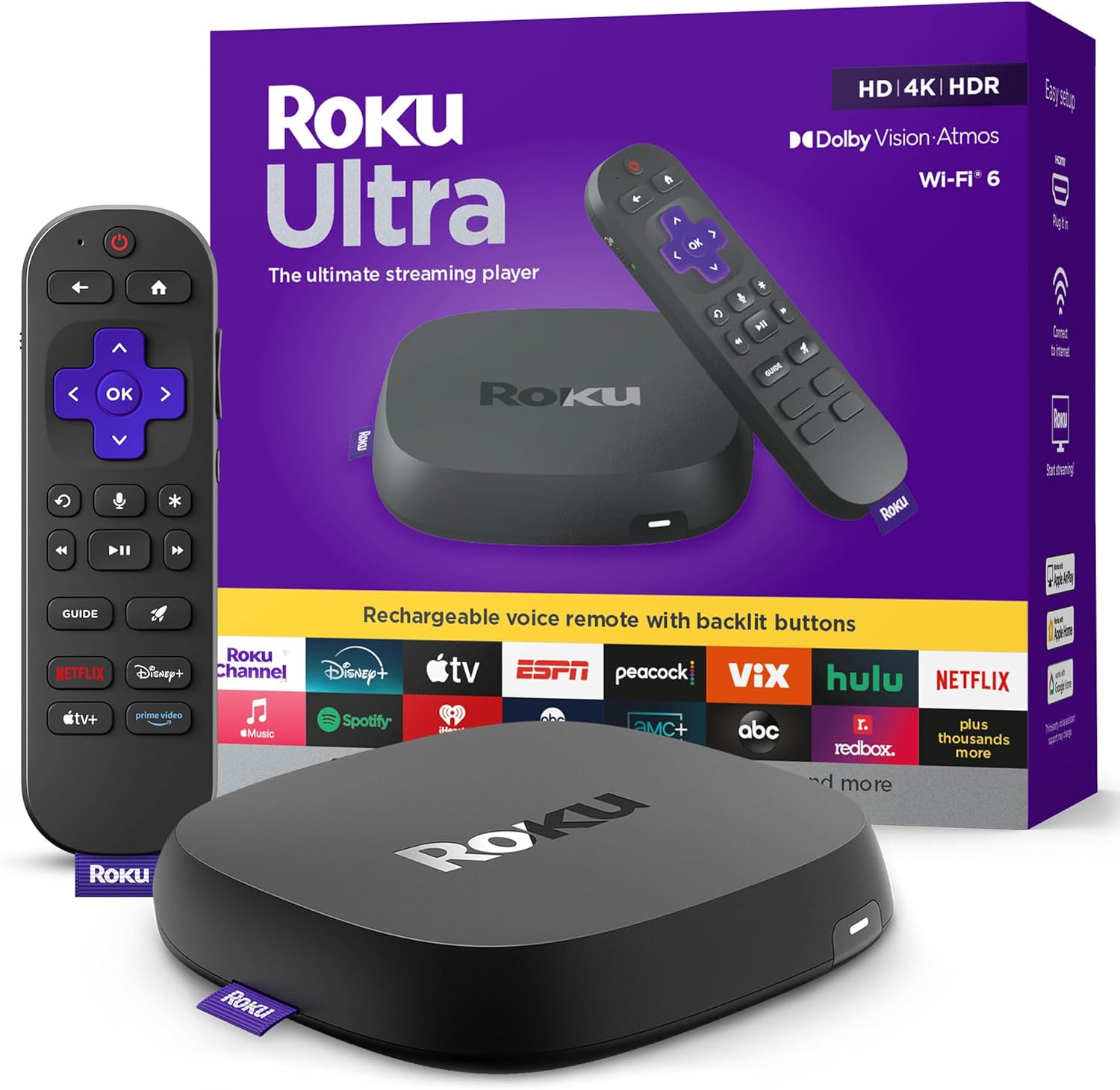
As an Amazon Associate we earn from qualifying purchases.
Official Manufacturer Manual
Roku provides official product documentation through their online manual rather than downloadable PDF. Access setup guides, troubleshooting steps, and product specifications for your Roku Streaming Player.
Source: support.roku.com
Need More Help? Roku Support
Note: The contact information below connects you directly to Roku's official customer support team, not Trunetto. They can help with warranty claims, device replacements, and advanced technical issues.


