Why Is My Roku Remote Not Working and Not Responding to Button Presses
- Weak/dead batteries
- Lost pairing (enhanced remote)
- IR obstruction/line-of-sight (IR remote)
Problem Description
Your Roku remote has stopped responding to button presses. The Roku device does not react when you press navigation buttons, the home button, or any other button on the remote. The remote may have worked fine previously or it may be a new remote that has never connected successfully.
Why This Happens in Real Homes
A Roku remote that stops responding is usually one of three things: dead batteries, a lost pairing (on wireless/enhanced remotes), or the Roku itself being frozen so it ignores input. Which one depends on your remote type — IR remotes also need clear line of sight to the device.
Start with fresh batteries, then re-pair a wireless remote by holding its pairing button (in the battery compartment) for about five seconds. Restart the Roku by unplugging it for ten seconds, which fixes cases where the device, not the remote, is stuck. For IR remotes, ensure nothing blocks the line of sight. As a stopgap, the Roku mobile app has a remote. A remote that's still dead after all that likely needs replacing.
Symptoms
- Remote not responding to presses
- Buttons do nothing
- Remote works intermittently
- Some buttons work, others don't
- Remote unresponsive
- Lag then no response
- Dead remote
- Stopped working suddenly
Recognize these? Here's what usually causes it.
Common Causes
- Weak/dead batteries
- Lost pairing (enhanced remote)
- IR obstruction/line-of-sight (IR remote)
- Roku frozen/needs restart
- Interference
- Stuck button
- Remote firmware issue
- Faulty remote
Most fixes happen in the first 3 steps.
Do not attempt to open the remote casing to clean internal components unless you are comfortable with electronics. Forcing the case open can crack the circuit board and permanently damage the remote.
Tools & Requirements
These tools will help you complete this fix.
As an Amazon Associate we earn from qualifying purchases.
Step-by-Step Solution
Replace Remote Batteries
Remove the battery cover from the back of the remote. Take out the old batteries and insert fresh AA or AAA alkaline batteries depending on your remote model. Make sure the positive and negative ends match the markings inside the battery compartment. Do not use rechargeable batteries as they deliver lower voltage that can cause connectivity issues. After inserting new batteries, press the home button and wait 5 seconds to see if the remote reconnects.

Needed for this step
Duracell Coppertop Double AA Batteries with Pow...
This helps complete the fix you are currently reading.
$6.96Determine Your Remote Type
Roku uses two types of remotes. Simple IR remotes require direct line of sight to the Roku device and have no pairing button. Enhanced or Voice remotes use Bluetooth and WiFi Direct and do not require line of sight. Check for a pairing button inside the battery compartment or on the bottom of the remote. If you have a simple IR remote, make sure nothing is blocking the path between the remote and the front of the Roku device.
Re-pair an Enhanced Remote
If you have an improved or voice remote, press and hold the pairing button inside the battery compartment for 5 seconds until the pairing LED starts flashing. The Roku device should detect the remote and display a pairing notification on screen. If it does not appear, restart the Roku device by unplugging it for 10 seconds, plugging it back in, and then pressing the pairing button again during the boot sequence when the Roku logo appears.
Restart the Roku Device
If the Roku itself is frozen, no remote will work. Unplug the Roku power cable from the wall or the device. Wait 10 seconds, then plug it back in. Wait for the Roku to complete its boot sequence, which takes about 30 to 60 seconds. Once the home screen loads, try the remote again. If you cannot go to restart via the menu, unplugging is the only option when the remote is not working.
Use the Roku App as Backup Remote
Download the Roku app on your smartphone from the App Store or Google Play. Connect your phone to the same WiFi network as the Roku. Open the app and tap the remote icon at the bottom of the screen. You can now control the Roku using your phone as a full remote including navigation, volume, and voice search. This works as a permanent backup while you troubleshoot the physical remote and is especially useful if the physical remote is damaged.
Quick Solutions
Still having issues? This is usually the deeper cause below.
If this comes back after following these steps, check whether a recent app or firmware update reset a default setting — the fix works, but the setting gets reverted silently.
Keep a spare set of batteries near your TV. Roku remotes give very little warning before batteries die, and having spares prevents extended downtime.
This issue almost always looks more complex than it is — the majority of cases trace back to a single setting, a stale credential, or a default that shipped wrong.
- Weak/dead batteries
- Lost pairing (enhanced remote)
- IR obstruction/line-of-sight (IR remote)
- Roku frozen/needs restart
- Interference
Before you go — try one of these (they fix most cases).
Most popular upgrades chosen by Roku Remote owners.
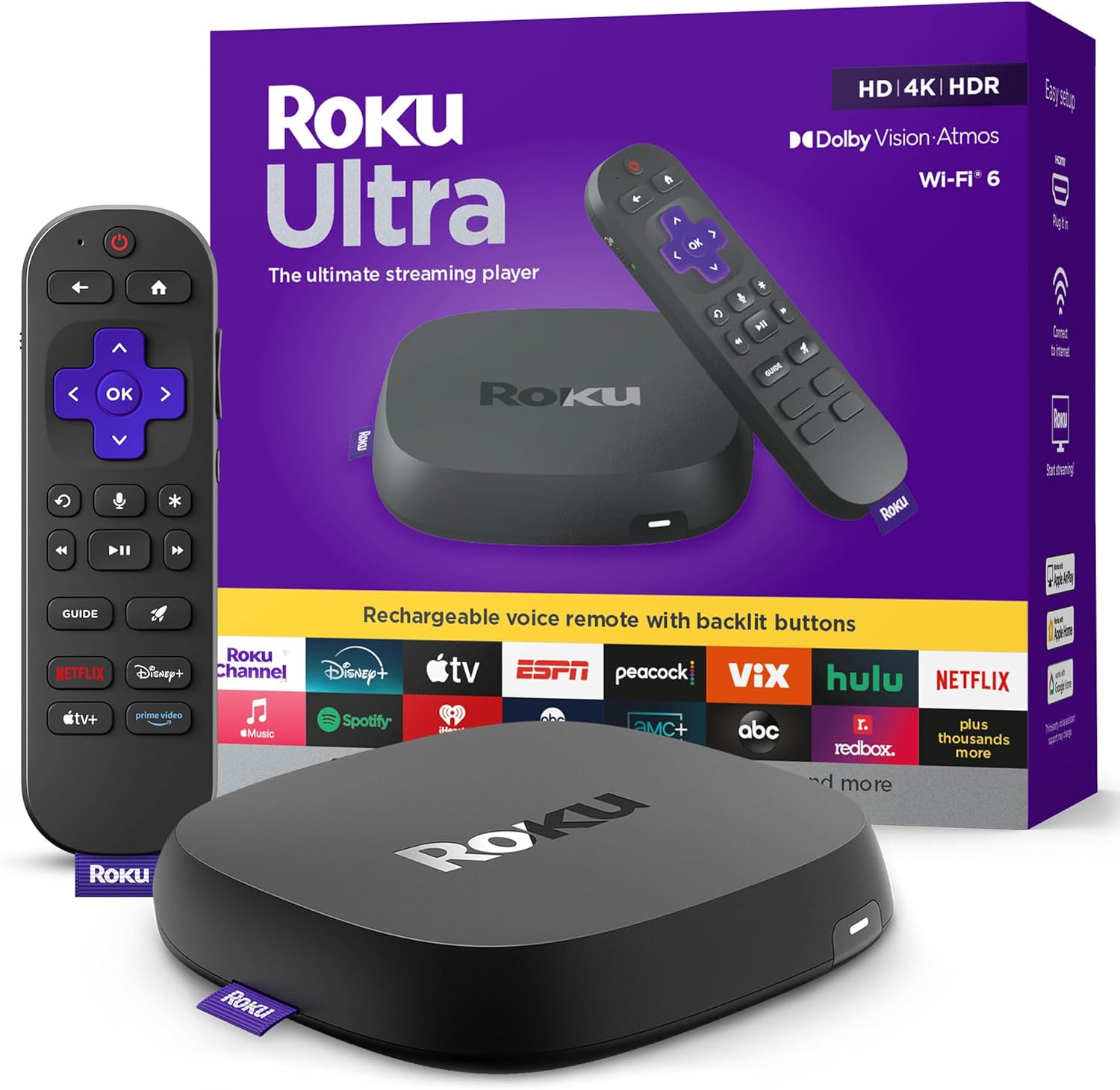
Roku Ultra - Ultimate Streaming Player - 4K Streaming Dev...

Roku Streaming Stick 4K - HDR & D. Vision Roku Streaming ...
As an Amazon Associate we earn from qualifying purchases.
Official Manufacturer Manual
Roku provides official product documentation through their online manual rather than downloadable PDF. Access setup guides, troubleshooting steps, and product specifications for your Roku Remote.
Source: support.roku.com
Need More Help? Roku Support
Note: The contact information below connects you directly to Roku's official customer support team, not Trunetto. They can help with warranty claims, device replacements, and advanced technical issues.