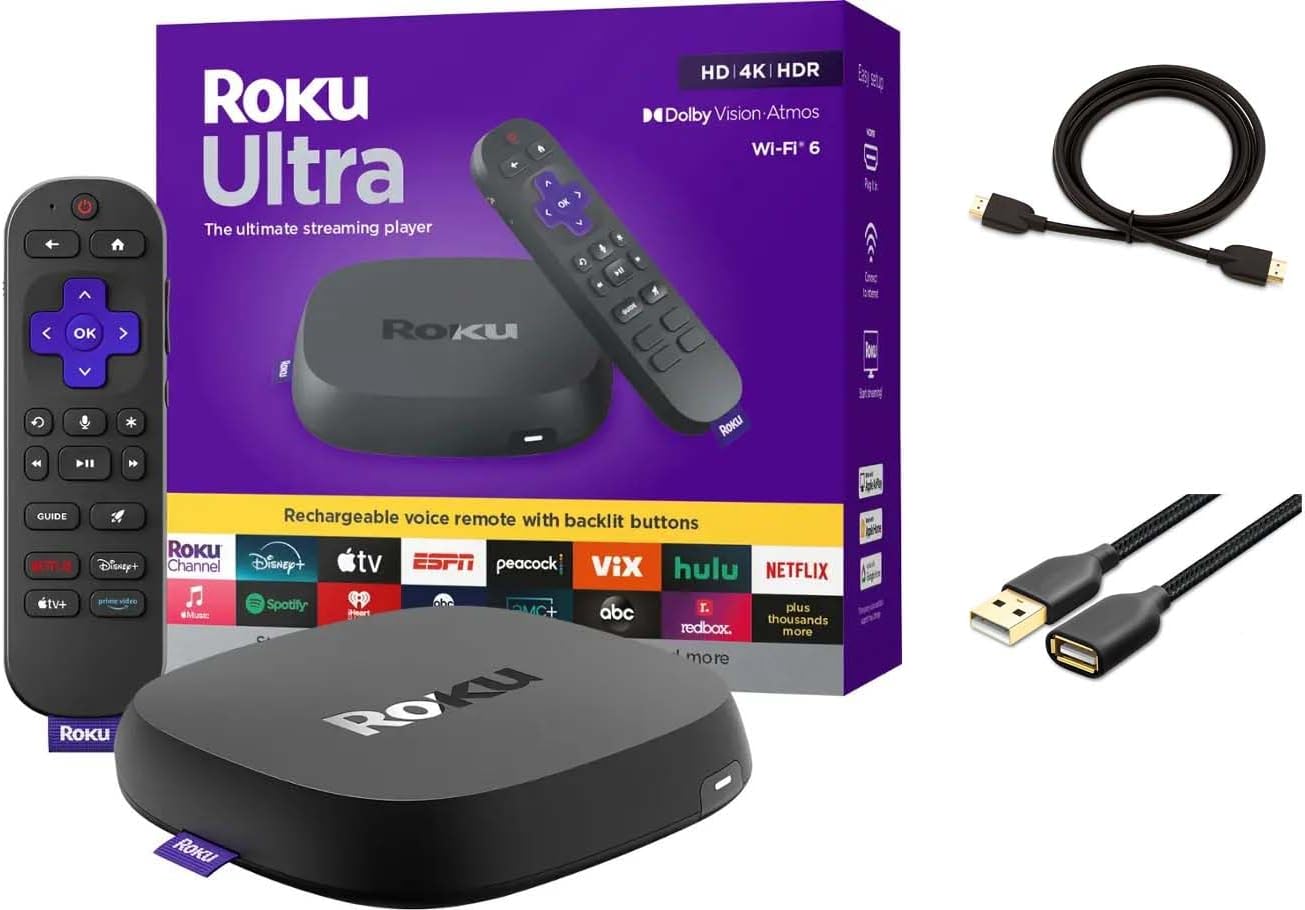
Why Won't My Roku Ultra Play 4K HDR Content on Netflix or Disney Plus
- HDMI port not HDMI 2.0/HDCP 2.2
- Non-high-speed HDMI cable
- TV enhanced-HDMI/HDR setting off
Problem Description
Your Roku Ultra should support 4K HDR streaming but Netflix, Disney Plus, or other apps only show HD quality. The Roku system settings confirm 4K HDR is enabled but specific apps refuse to stream at full resolution. You may see HD or SDR indicators where you expect to see 4K Dolby Vision or HDR10.
Why This Happens in Real Homes
When a Roku Ultra streams Netflix or Disney+ in HD instead of 4K HDR, the cause is usually one of the links in the 4K chain: the streaming plan (Netflix's 4K needs the Premium tier; Disney+ includes it), an HDMI 2.0/HDCP 2.2 port, a high-speed cable, the TV's enhanced-HDMI setting, and enough bandwidth (around 25 Mbps). Any weak link drops it to a lower quality.
Confirm your streaming plan actually includes 4K/HDR, then check the hardware chain: a certified high-speed HDMI cable in an HDMI 2.0 port, the TV's enhanced-HDMI/deep-color (HDR) setting enabled for that port, and the Roku's display type set to 4K HDR. Make sure your internet can sustain 4K, update the Roku, and the apps will serve the higher quality once every piece supports it.
Symptoms
- Ultra not showing 4K HDR on Netflix/Disney+
- Streaming in HD not 4K
- No HDR/Dolby Vision badge
- Content looks lower quality
- 4K only on some apps
- Washed-out picture
- Plays SDR instead of HDR
- No 4K option
Recognize these? Here's what usually causes it.
Common Causes
- HDMI port not HDMI 2.0/HDCP 2.2
- Non-high-speed HDMI cable
- TV enhanced-HDMI/HDR setting off
- Streaming plan doesn't include 4K/HDR
- Display type not set to 4K HDR
- Bandwidth too low for 4K
- TV settings limiting the port
- Firmware out of date
Most fixes happen in the first 3 steps.
Some older TVs have only one HDMI port that supports 4K HDR at full bandwidth. Check your TV manual to ensure you are using the correct port, often labeled HDMI 1 or ARC.
Tools & Requirements
Step-by-Step Solution
Check Your HDMI Cable Rating
4K HDR requires high bandwidth that older HDMI cables cannot provide. Look for Premium High Speed HDMI or Ultra High Speed HDMI certification on your cable. If your cable is more than 3 years old or came bundled with another device, replace it with a certified cable. Use the shortest cable length practical as longer cables are more prone to signal issues.
Enable TV HDMI Enhanced Mode
Many TVs ship with HDMI ports in compatibility mode which limits bandwidth. Go to your TV settings and find HDMI Signal Format or HDMI Deep Color settings for the port your Roku is connected to. Change it to Enhanced or 4K mode. The exact menu location varies by TV brand but is usually under External Inputs or Connection settings.
Verify App Subscription Tier
Netflix Basic and Standard plans do not include 4K streaming. Disney Plus Basic does not include 4K. Check your subscription by logging into each service on a web browser. Upgrade to Netflix Premium or Disney Plus Premium if needed. After upgrading, sign out of the app on Roku and sign back in to refresh your account permissions.
Reset Roku Display Settings
Go to Settings on your Roku, then Display type. Select Auto-detect and let Roku negotiate the best settings with your TV. If auto-detect does not enable 4K HDR, manually select 4K HDR 60Hz or the highest option your TV supports. After changing, restart the Roku from Settings, System, System restart.
Reinstall Problem Apps
Corrupted app data can prevent quality upgrades. Highlight the problem app on your home screen, press the asterisk button on your remote, and select Remove channel. Restart your Roku. Then go to the Roku Channel Store and reinstall the app. Sign in again and test 4K content.
Quick Solutions
Still having issues? This is usually the deeper cause below.
If this comes back after following these steps, check whether a recent app or firmware update reset a default setting — the fix works, but the setting gets reverted silently.
Run the hidden Roku diagnostic by going to Settings, Network, Check connection, then press Home 5 times, Fast Forward, Play, Rewind, Play, Fast Forward. This shows detailed connection and HDCP status.
This issue almost always looks more complex than it is — the majority of cases trace back to a single setting, a stale credential, or a default that shipped wrong.
- HDMI port not HDMI 2.0/HDCP 2.2
- Non-high-speed HDMI cable
- TV enhanced-HDMI/HDR setting off
- Streaming plan doesn't include 4K/HDR
- Display type not set to 4K HDR
Before you go — try one of these (they fix most cases).
Most popular upgrades chosen by Roku Ultra owners.
Roku Ultra - Ultimate Streaming Player - 4K Streaming Dev...

Roku Ultra 2024 (Renewed) – 4K Streaming Device with HDR1...
As an Amazon Associate we earn from qualifying purchases.
Official Manufacturer Manual
Roku provides official product documentation through their online manual rather than downloadable PDF. Access setup guides, troubleshooting steps, and product specifications for your Roku Ultra.
Source: support.roku.com
Need More Help? Roku Support
Note: The contact information below connects you directly to Roku's official customer support team, not Trunetto. They can help with warranty claims, device replacements, and advanced technical issues.