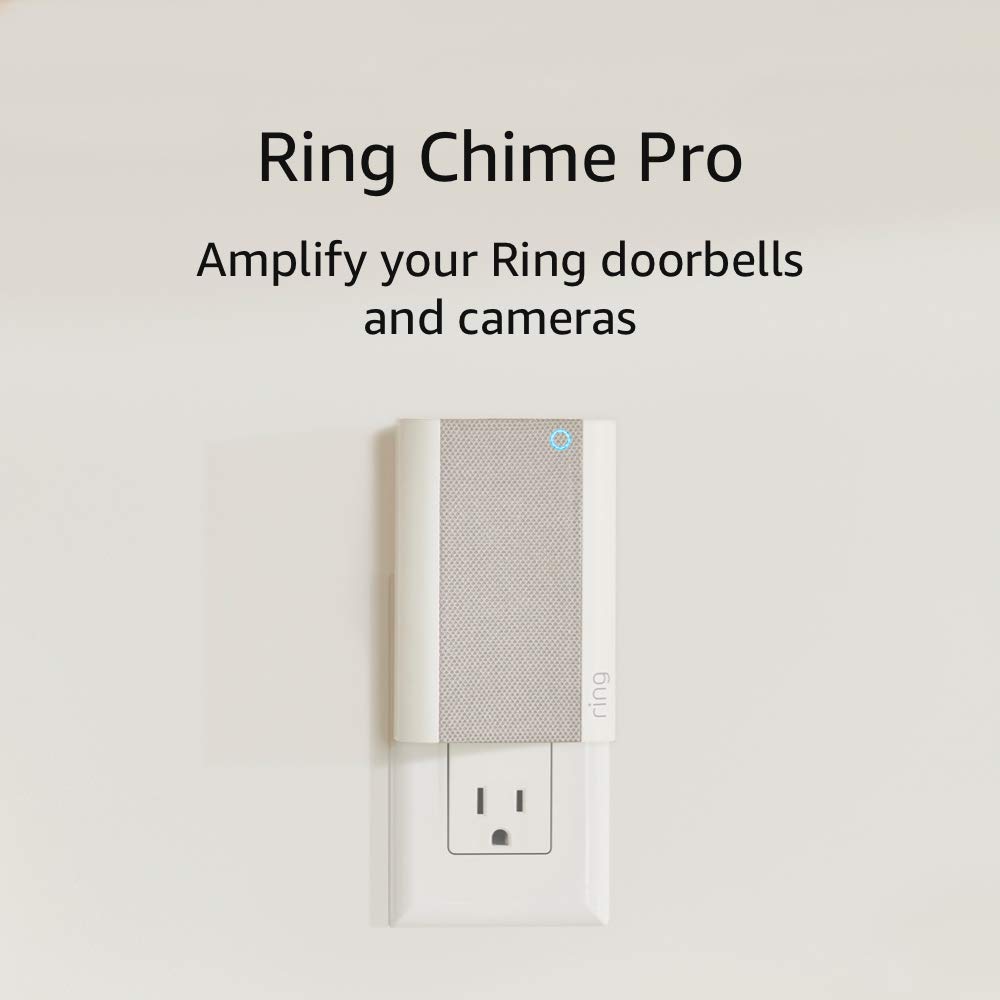
Why Is My Ring Chime Pro Not Extending WiFi to My Doorbell?
- Chime Pro placed too close to router instead of between router and device
- Ring device already connected to router and will not auto-switch to Chime Pro
- Chime Pro WiFi network extender feature disabled during setup
Problem Description
Your Ring Chime Pro is set up and works as a doorbell chime but your Ring doorbell or cameras still show weak WiFi signal as if the Chime Pro WiFi extender feature is not working. The RSSI value in Device Health has not improved after adding the Chime Pro.
Why This Happens in Real Homes
People buy the Chime Pro specifically because their doorbell keeps going offline, expecting it to solve the WiFi problem. But the Chime Pro only extends the signal if the doorbell actually switches to the Chime Pro's network. Check Device Health in the Ring app for your doorbell — if the network name shown is still your main router SSID, the doorbell never connected to the Chime Pro's extended network. You need to remove the doorbell from the Ring app and set it up again, this time selecting the Chime Pro's network during WiFi setup. It will not automatically switch over.
Symptoms
- Doorbell RSSI still shows weak signal after adding Chime Pro
- Chime Pro connected but Ring devices not using its extended network
- Device Health shows same poor signal strength as before Chime Pro
- Chime Pro placed but doorbell keeps connecting to main router
- Ring devices using router WiFi instead of Chime Pro extended network
Recognize these? Here's what usually causes it.
Common Causes
- Chime Pro placed too close to router instead of between router and device
- Ring device already connected to router and will not auto-switch to Chime Pro
- Chime Pro WiFi network extender feature disabled during setup
- Chime Pro itself has weak signal from router limiting extension range
- Physical obstructions like walls blocking Chime Pro signal to Ring device
Most fixes happen in the first 3 steps.
Chime Pro only extends WiFi for Ring devices. Your phones tablets and other smart home devices cannot connect to the Chime Pro network. It is Ring-exclusive.
Tools & Requirements
These tools will help you complete this fix.
As an Amazon Associate we earn from qualifying purchases.
Step-by-Step Solution
Understand Chime Pro WiFi Extension
Chime Pro creates a secondary WiFi network for Ring devices only. It is not a general WiFi extender for phones and laptops. Ring devices must be set up to connect through Chime Pro network. Devices do not automatically switch from router to Chime Pro. You must reconnect Ring devices to the Chime Pro network manually.

Needed for this step
Huepar 395FT Bluetoothed Green Laser Measuring ...
This helps complete the fix you are currently reading.
$89.99Relocate Chime Pro to Best Position
Chime Pro should be placed HALFWAY between router and Ring device. If Chime Pro is next to router it cannot extend signal effectively. Unplug Chime Pro and move it to a middle outlet between router and doorbell. The Chime Pro itself needs strong signal from router to extend. Check Chime Pro Device Health in Ring app shows good signal from router.
Reconnect Ring Device Through Chime Pro
Open Ring app and select your doorbell or camera. Tap Device Health then tap Reconnect to WiFi or Change WiFi Network. During setup you will see available networks including the Chime Pro network. Select the Chime Pro network instead of your main router network. Complete the setup and check Device Health for improved RSSI. RSSI closer to zero like negative 50 is better than negative 70.
Verify Chime Pro Extender Is Enabled
Open Ring app and go to Devices then select Chime Pro. Tap Device Settings then tap WiFi Network. Make sure the setting shows Ring devices can connect through this Chime Pro. If this was disabled during setup the Chime Pro only works as a chime. Re-enable the setting and reconnect your Ring devices.
Quick Solutions
Still having issues? This is usually the deeper cause below.
This usually happens right after a router reboot or ISP change — the device rejoins the network but drops its cloud session silently.
Ideal distance between Chime Pro and Ring device is 15 to 25 feet. Too close provides no benefit and too far means the extended signal is still weak.
Most WiFi drop-offs happen right after a router reboot or ISP swap — the device reconnects to the network but silently loses its cloud registration.
- Chime Pro placed too close to router instead of
- Ring device already connected to router and will not
- Chime Pro WiFi network extender feature disabled during setup
- Chime Pro itself has weak signal from router limiting
- Physical obstructions like walls
Before you go — try one of these (they fix most cases).
Official Manufacturer Manual
If you need the complete manufacturer documentation for advanced setup, wiring diagrams, or detailed specifications, you can download the official manual below. The manual includes full technical instructions directly from the manufacturer and may help if your issue requires deeper troubleshooting.
Download the Official Ring Chime Pro ManualSource: ring.com
Need More Help? Ring Support
Note: The contact information below connects you directly to Ring's official customer support team, not Trunetto. They can help with warranty claims, device replacements, and advanced technical issues.
How Does Ring Compare?
Before replacing your Ring device, see how it stacks up against alternatives in our full comparison guides.
Accessories owners commonly pair with Ring Chime Pro.

SANDISK 64GB Extreme microSDXC UHS-I Memory Card with Ada...

SANDISK 64GB Ultra microSDXC UHS-I Memory Card with Adapt...

SANDISK 256GB Ultra microSDXC UHS-I Memory Card with Adap...
As an Amazon Associate we earn from qualifying purchases.