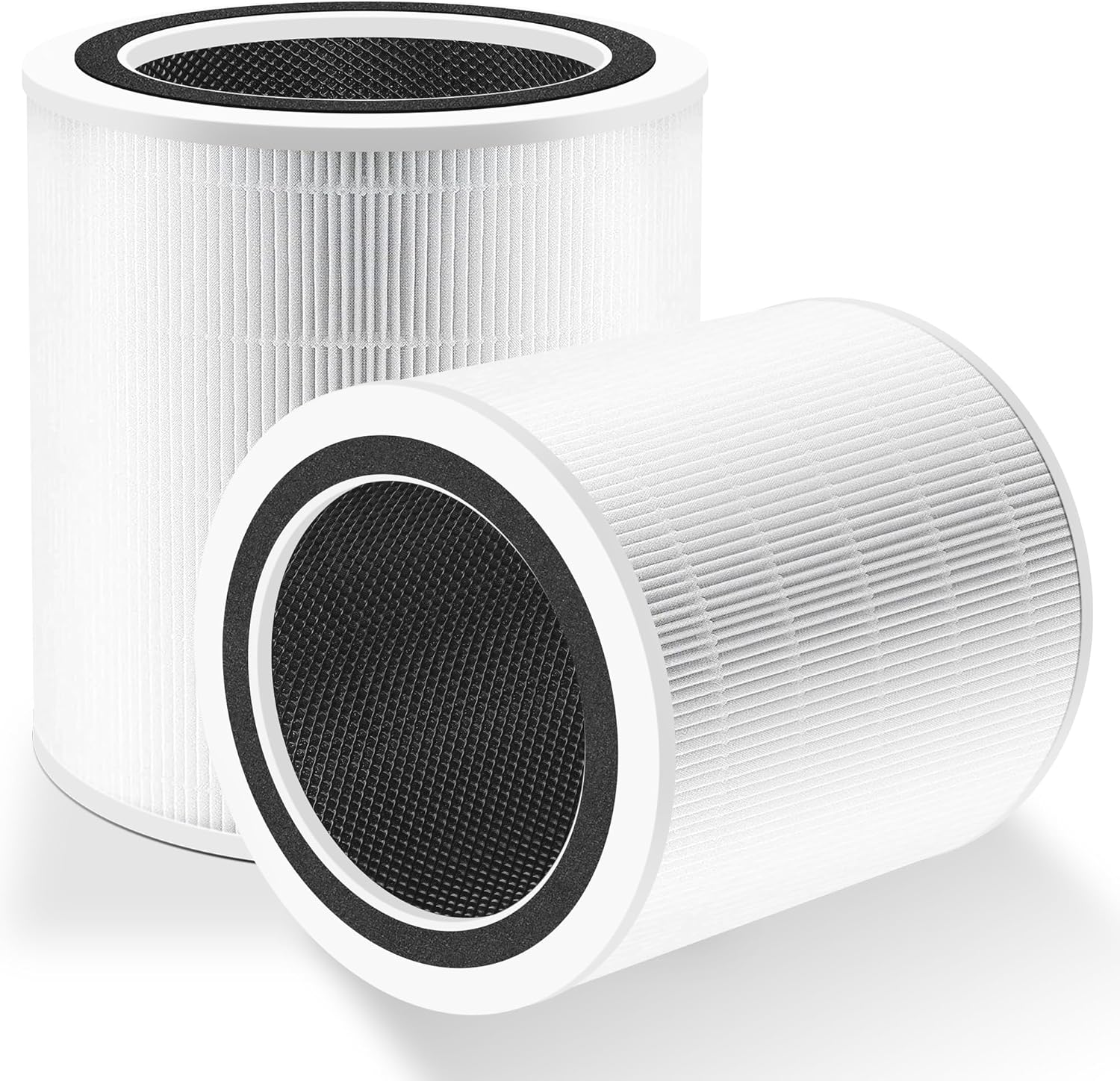
Why Is My Levoit Core 200S Not Responding in the App
- 2.4GHz network disabled
- WiFi password changed
- Device needs a reset
Problem Description
If the Core 200S is not responding in VeSync, it may be on the wrong WiFi band or needs a reset. This guide restores app control.
Why This Happens in Real Homes
If the Core 200S is not responding in VeSync, it may be on the wrong WiFi band or needs a reset. This guide restores app control. In day-to-day use, this usually looks like Commands fail in app; Device shows offline; Buttons work on unit.
Most cases trace back to 2.4GHz network disabled; WiFi password changed; Device needs reset. The fix works best when you go step by step instead of changing multiple settings at once.
A practical order for this issue is: Confirm 2.4GHz -> Reconnect in App -> Power Cycle -> Update VeSync. After each step, test the exact behavior that was failing so you can confirm what actually solved it.
Symptoms
- Commands fail in the app
- Device shows offline
- Buttons work on the unit
- WiFi icon flashing
- Router recently changed
- Other devices online
- Reconnects then drops again
- Alexa/Google say the device is unresponsive
Recognize these? Here's what usually causes it.
Common Causes
- 2.4GHz network disabled
- WiFi password changed
- Device needs a reset
- App outdated
- Router band-steering
- DHCP conflict
- Router on WPA3-only, unsupported
- VeSync session expired
Most fixes happen in the first 3 steps.
Avoid using guest networks that block device discovery.
Tools & Requirements
Step-by-Step Solution
Verify 2.4GHz WiFi is Available
The Levoit Core 200S connects to 2.4GHz WiFi only through the VeSync app. If your router recently changed settings or you switched ISPs, the 2.4GHz band may be disabled or renamed. Log into your router settings and confirm a 2.4GHz SSID is active. If using a combined network name, the purifier may have connected to 5GHz initially and then lost connection.
Remove and Re-add in VeSync App
Open the VeSync app, go to the Core 200S device page, and tap the gear icon > Remove Device. Then tap the plus icon to add a new device. Select Levoit Air Purifier > Core 200S. Press and hold the WiFi indicator button on the purifier control panel (on top of the unit) for 5 seconds until the WiFi LED blinks rapidly. Follow the app wizard to enter your WiFi credentials.
Power Cycle the Purifier
Unplug the Core 200S from the wall outlet for 30 seconds and plug it back in. The purifier will attempt to reconnect to WiFi using saved credentials. Wait 60 seconds and check the VeSync app to see if the purifier appears online. The WiFi LED on the top panel should glow solid when connected (blinking means it is trying to connect).
Update the VeSync App
Open the App Store or Google Play and install the latest VeSync app update. Older app versions may not communicate properly with newer purifier firmware. After updating, force close the app and reopen it. If the purifier still shows offline, try removing and re-adding it as described in step 2.
Test App Control
After reconnecting, test the purifier by changing fan speed from the VeSync app. Tap the fan speed control and switch between speeds 1, 2, and 3. The purifier should respond within 1-2 seconds. If the app shows connected but commands are delayed or fail, check WiFi signal strength at the purifier location — a weak signal causes unreliable control.
Quick Solutions
Still having issues? This is usually the deeper cause below.
If this comes back after following these steps, check whether a recent app or firmware update reset a default setting — the fix works, but the setting gets reverted silently.
Keep the purifier close to the router during setup for a stable connection.
This issue almost always looks more complex than it is — the majority of cases trace back to a single setting, a stale credential, or a default that shipped wrong.
- 2.4GHz network disabled
- WiFi password changed
- Device needs a reset
- App outdated
- Router band-steering
Before you go — try one of these (they fix most cases).
Official Manufacturer Manual
Levoit provides official product documentation through their online manual rather than downloadable PDF. Access setup guides, troubleshooting steps, and product specifications for your Levoit Core 200S.
Source: levoit.com
Need More Help? Levoit Support
Note: The contact information below connects you directly to Levoit's official customer support team, not Trunetto. They can help with warranty claims, device replacements, and advanced technical issues.
Accessories owners commonly pair with Levoit Core 200S.

LEVOIT Evaporative Humidifiers for Bedroom Baby, Dual Air...

LEVOIT Smart Cool Mist Top Fill Humidifiers for Bedroom w...

LEVOIT Classic300S Ultrasonic Smart Top Fill Humidifier, ...
As an Amazon Associate we earn from qualifying purchases.