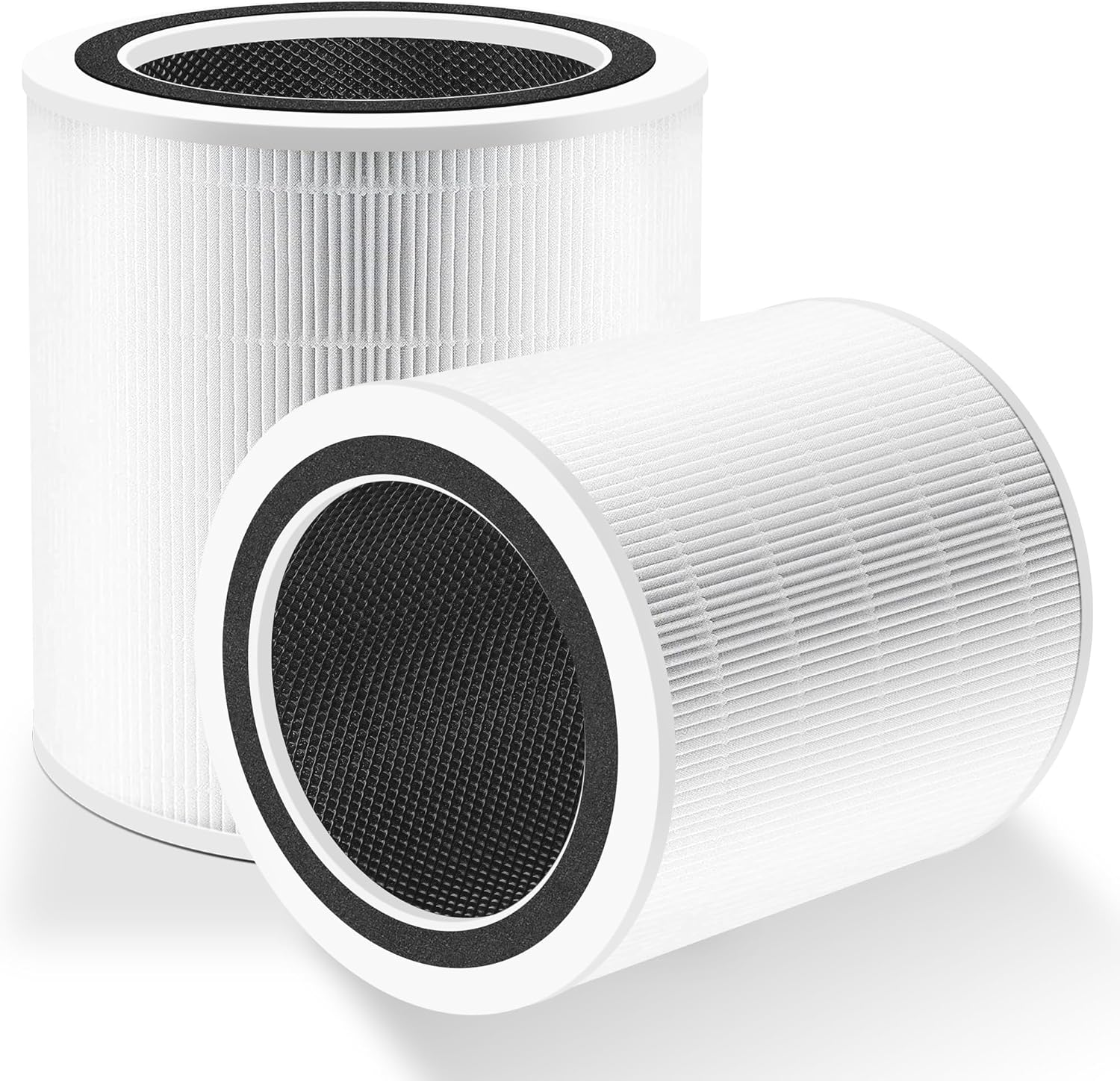
Why Won't My Levoit Smart Air Purifier Change Fan Speed in the App?
- Purifier in Auto mode, which overrides manual speed commands
- VeSync app lost its real-time connection to the device
- Firmware out of date, causing command rejection
Problem Description
Your Levoit smart air purifier does not respond when you change the fan speed in the VeSync app. The slider moves in the app but the physical fan speed does not change, or the speed reverts immediately after you set it. This happens when Auto mode is active overriding manual commands, the purifier is offline, or the VeSync app has lost its real-time connection to the device.
Why This Happens in Real Homes
The most common reason app fan-speed changes 'don't stick' is that the purifier is in Auto mode. In Auto, the device sets its own speed from the air-quality sensor and overrides manual commands - so you slide the app to speed 1, the sensor sees particles, and it immediately jumps back to speed 3. Switching from Auto to Manual mode in VeSync gives your slider authority, and this alone resolves a large share of 'stuck speed' reports. Child Lock is a related blocker: with it on, the unit ignores remote speed changes, so disable it on the physical panel.
The rest are connection problems. VeSync holds a real-time link to the purifier, and when that drops - a weak 2.4GHz signal, the app backgrounded too long, or an expired login session - commands time out or the app and device show different states. Force-closing and reopening the app, logging out and back in to refresh the session, and confirming the purifier is online with a solid signal restore control. A firmware update fixes cases where the device rejects app commands, and a power cycle clears a stuck firmware state. If the app and unit constantly disagree, it's a sync/connectivity issue, not a broken fan.
Symptoms
- App fan-speed slider moves but the purifier doesn't change
- Speed changes briefly then reverts
- App shows speed 1 while the unit runs at speed 3
- Speed change results in a connection timeout
- Physical buttons work but app controls don't
- Purifier changes speed on its own
- Only Auto-related changes stick
- Remote control seems ignored
Recognize these? Here's what usually causes it.
Common Causes
- Purifier in Auto mode, which overrides manual speed commands
- VeSync app lost its real-time connection to the device
- Firmware out of date, causing command rejection
- Air-quality sensor in Auto mode adjusting speed itself
- VeSync session expired, needing re-login
- Child Lock blocking remote speed changes
- Purifier offline / weak WiFi
- App and device state out of sync
Most fixes happen in the first 3 steps.
Do not block the air inlet or outlet of the purifier while it is running at high speed. Restricted airflow causes the motor to overheat and may trigger automatic shutdown.
Step-by-Step Solution
Switch from Auto Mode to Manual Mode
When your Levoit purifier is in Auto mode it uses its built-in air quality sensor to automatically adjust fan speed. This overrides all manual speed commands sent from the VeSync app. Open VeSync and tap the purifier. Look for an Auto or Manual toggle at the top of the control screen. Switch to Manual mode. Once in Manual mode the fan speed slider in the app will control the purifier directly without any automatic overrides from the air quality sensor.
Force Close VeSync and Reconnect
The VeSync app uses a real-time connection to send fan speed commands. If this connection drops the app appears to work but commands do not reach the device. Force close VeSync by swiping it from your app switcher then reopen it. Wait for the app to reconnect shown by the device icon changing from grey to coloured. Try changing the fan speed again. If the app shows Connection Failed check that the purifier is still connected to your 2.4GHz WiFi network.
Log Out and Back Into VeSync
An expired VeSync session can cause the app to appear functional while silently failing to send commands. Tap the profile icon in VeSync and select Log Out. Close the app then reopen and log back in with your VeSync credentials. After logging in navigate back to the purifier control screen and verify the device shows as online. Test the fan speed slider to confirm commands are being accepted by the physical device and reflected in the app.
Check for Child Lock Mode
Levoit purifiers have a Child Lock mode that prevents physical button presses but may also block certain app commands depending on firmware version. Check the purifier panel for a lock icon illuminated in the display. If present hold the lock button for 3 seconds to disable Child Lock mode. After disabling retry the fan speed controls in the VeSync app. On Core 300S models the lock button is located in the top centre of the control panel.
Update Firmware and Power Cycle
Open VeSync app and go to the device settings for your purifier. Look for a Firmware Update option and install any available update. Firmware updates often resolve command rejection bugs that cause the fan speed slider to appear to work without actually changing device speed. After updating power cycle the purifier by unplugging it for 30 seconds then reconnecting. Allow the device 60 seconds to reconnect to VeSync before retesting the fan speed controls.
Quick Solutions
Still having issues? This is usually the deeper cause below.
If this comes back after following these steps, check whether a recent app or firmware update reset a default setting — the fix works, but the setting gets reverted silently.
Use the VeSync Schedule feature to set fan speed automatically at different times of day instead of adjusting manually. Schedules persist even when the app is closed.
This issue almost always looks more complex than it is — the majority of cases trace back to a single setting, a stale credential, or a default that shipped wrong.
- Purifier in Auto mode, which overrides manual speed commands
- VeSync app lost its real-time connection to the device
- Firmware out of date, causing command rejection
- Air-quality sensor in Auto mode adjusting speed itself
- VeSync session expired, needing re-login
Before you go — try one of these (they fix most cases).
Most popular upgrades chosen by Levoit Core Smart Air Purifier owners.

LEVOIT 6000S Smart Whole House Humidifiers, 6 Gal, 72-Hou...

LEVOIT Smart Humidifier (Dual 200S) and Air Purifier (Cor...

Levoit Dual200S Smart Humidifier and Humidifier Filters
As an Amazon Associate we earn from qualifying purchases.
Official Manufacturer Manual
Levoit provides official product documentation through their online manual rather than downloadable PDF. Access setup guides, troubleshooting steps, and product specifications for your Levoit Core Smart Air Purifier.
Source: levoit.com
Need More Help? Levoit Support
Note: The contact information below connects you directly to Levoit's official customer support team, not Trunetto. They can help with warranty claims, device replacements, and advanced technical issues.
Accessories owners commonly pair with Levoit Core Smart Air Purifier.

LEVOIT Evaporative Humidifiers for Bedroom Baby, Dual Air...

LEVOIT Smart Cool Mist Top Fill Humidifiers for Bedroom w...

LEVOIT Classic300S Ultrasonic Smart Top Fill Humidifier, ...
As an Amazon Associate we earn from qualifying purchases.