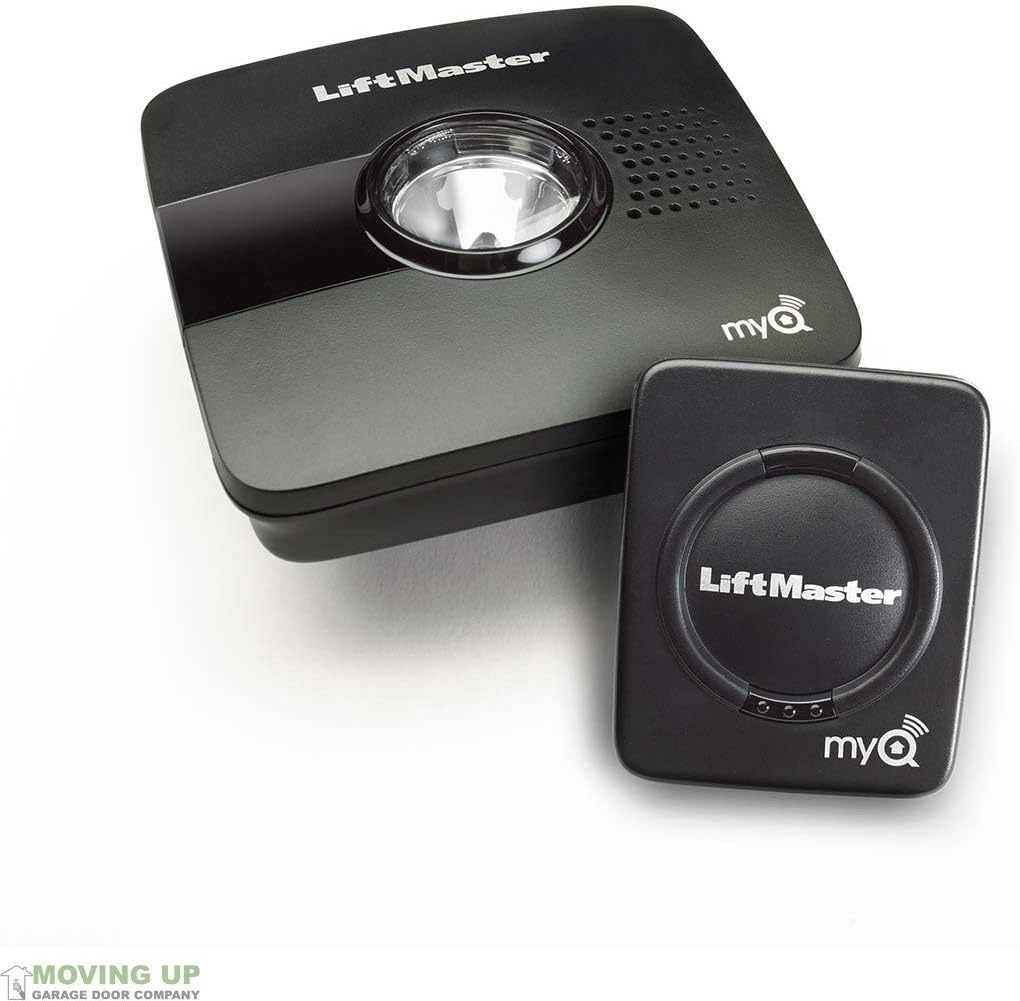
How Do I Set Up the LiftMaster Secure View Camera?
- Phone or camera on 5GHz; the myQ camera needs 2.4GHz
- Weak 2.4GHz signal in the garage
- Opener or Smart Garage Hub model not compatible with Secure View
Problem Description
You are installing the LiftMaster Secure View camera to add video monitoring to your garage door opener. The camera mounts above the garage door inside the garage and streams video through the myQ app. This guide covers checking opener compatibility, mounting the camera, and connecting it to your myQ system.
Why This Happens in Real Homes
LiftMaster's Secure View adds a camera to the garage through the myQ platform, and because it rides the same cloud and 2.4GHz WiFi as the opener, its setup problems mirror the rest of myQ. The garage is the worst WiFi spot in most homes, far from the router and full of metal, so the camera needs a strong 2.4GHz signal, and a mesh node near the garage does more than any in-app tweak. Confirm compatibility first: Secure View is built into some newer LiftMaster openers and available as an add-on for others, but not every opener or Smart Garage Hub supports it, so check your model before installing. During setup keep the phone on 2.4GHz, since band-steering that pushes the camera toward 5GHz is a common failure. Aim the camera to frame the garage interior rather than straight at the door panel, or the infrared LEDs bounce off the door at night and wash the image, and enable motion notifications with an activity zone so you actually get alerts.
Symptoms
- Secure View camera will not pair in the myQ app
- Camera shows offline after setup
- Video is choppy, low resolution, or will not load
- Night view is dark or glares off the garage door
- Camera reports it is not compatible with the opener or hub
- No motion notifications from the camera
- Camera loses its connection intermittently
- Two-way audio does not work
Recognize these? Here's what usually causes it.
Common Causes
- Phone or camera on 5GHz; the myQ camera needs 2.4GHz
- Weak 2.4GHz signal in the garage
- Opener or Smart Garage Hub model not compatible with Secure View
- Camera aimed at the door, bouncing IR back at night
- myQ app or camera firmware out of date
- Motion notifications or the activity zone not enabled
- Router band-steering or AP isolation blocking the camera
- Insufficient upload bandwidth for the video stream
Most fixes happen in the first 3 steps.
Garage doors are extremely heavy and the springs are under high tension. Never attempt to repair or adjust the door springs, cables, or tracks yourself as this can cause serious injury. Only troubleshoot the smart controller and electronic components. Call a professional for any mechanical issues.
Tools & Requirements
Step-by-Step Solution
Check compatibility with your LiftMaster opener
The LiftMaster Secure View camera (model 0635V) integrates with myQ-enabled LiftMaster garage door openers. It mounts inside the garage above the door and provides a live video feed of the garage interior. Check that your opener has myQ connectivity (built-in WiFi or a myQ Smart Garage Hub). The camera connects to the myQ ecosystem and streams through the myQ app — it is not a standalone IP camera.
Mount the camera above the garage door
Mount the Secure View camera on the wall or ceiling above the garage door, pointing inward toward the garage interior. The camera comes with a mounting bracket. Position it centered above the door for the widest view. The camera angle should capture the full garage floor and the entry to the house. The field of view is approximately 140 degrees, so mounting centered gives nearly wall-to-wall coverage.
Connect to the myQ app
In the myQ app, tap + > Add Device > Camera. Follow the setup wizard to connect the camera to your 2.4GHz WiFi. The camera pairs with your myQ account and appears alongside your garage door opener in the app. After connecting, you can view a live feed of the garage whenever you want — useful for checking if the car is in the garage, verifying deliveries (for myQ in-garage delivery), or monitoring for intruders.
Set up motion-triggered recording
The Secure View camera records clips when motion is detected inside the garage. In the myQ app, enable motion alerts. The camera records a clip and sends a push notification when movement is detected. This alerts you when someone enters the garage — whether through the garage door, a side door, or the house entry. Clips are stored in the myQ cloud (subscription required for extended history).
Use the camera for myQ in-garage delivery
If you have Amazon Key or myQ in-garage delivery set up: the Secure View camera records the entire delivery process. When a delivery driver opens the garage door, the camera records them placing the package and leaving. You receive a video clip of the delivery for verification. The camera also deters theft — a visible camera inside the garage discourages anyone from taking packages or entering further.
Quick Solutions
Still having issues? This is usually the deeper cause below.
Camera issues that start suddenly almost always trace back to an upload bandwidth drop — run a speed test before assuming hardware failure.
["Camera built into opener unit", "Requires myQ account", "Stores clips with myQ subscription"]
Live view problems that start suddenly usually trace back to an upload speed drop — the camera itself is fine, the bandwidth path to the cloud isn't.
- Phone or camera on 5GHz; the myQ camera needs
- Weak 2.4GHz signal in the garage
- Opener or Smart Garage Hub model not compatible with
- Camera aimed at the door, bouncing IR back at
- myQ app or camera firmware out of date
Before you go — try one of these (they fix most cases).
Most popular upgrades chosen by LiftMaster Secure View owners.

As an Amazon Associate we earn from qualifying purchases.
Official Manufacturer Manual
LiftMaster provides official product documentation through their online manual rather than downloadable PDF. Access setup guides, troubleshooting steps, and product specifications for your LiftMaster Secure View.
Source: liftmaster.com
Need More Help? LiftMaster Support
Note: The contact information below connects you directly to LiftMaster's official customer support team, not Trunetto. They can help with warranty claims, device replacements, and advanced technical issues.
Accessories owners commonly pair with LiftMaster Secure View.

LiftMaster 882LMW - ONLY Compatible with Security+ 2.0 Li...

Liftmaster myQ Smart Garage Control - Wireless Garage Hub...

LiftMaster Liftmaster 821LMC-SENSOR Additional Door Senso...
As an Amazon Associate we earn from qualifying purchases.