

Why Won't My Nest Protect Smoke Detectors Interconnect or Communicate?
- Nest Protects assigned to different homes in Google Home app
- WiFi signal too weak between distant Nest Protects
- Mix of 1st gen and 2nd gen Nest Protects cannot interconnect
Problem Description
You have multiple Nest Protect smoke detectors but they do not interconnect properly. When one detects smoke the others should announce which room has the alarm but instead they stay silent. This defeats the purpose of having multiple connected smoke alarms throughout your home.
Why This Happens in Real Homes
When one Protect sees smoke, the others should announce the room — if they stay silent, they usually aren't grouped in the same home or can't reach each other. The most common real-home causes are Protects added to different "homes" in the Google Home app, or a mix of 1st-gen and 2nd-gen units, which cannot interconnect with each other. Distant units on a weak WiFi leg also drop out of the group.
Start by confirming every Protect is assigned to the same home and structure in the app, and check that they're all the same generation.
Symptoms
- One Nest Protect alarms but others stay silent
- App shows Nest Protects on different homes or accounts
- Interconnect test in app fails with communication error
- Nest Protects cannot see each other in settings
- Some Nest Protects are wired and some battery causing sync issues
- Added new Nest Protect but it will not join existing group
Recognize these? Here's what usually causes it.
Common Causes
- Nest Protects assigned to different homes in Google Home app
- WiFi signal too weak between distant Nest Protects
- Mix of 1st gen and 2nd gen Nest Protects cannot interconnect
- Nest Protects on different WiFi networks or VLANs
- Google account permissions preventing device communication
- Factory reset Nest Protect lost interconnect settings
Most fixes happen in the first 3 steps.
Do not disable or remove Nest Protects during an actual alarm. This guide is for setup and testing only.
Step-by-Step Solution
Verify All Nest Protects in Same Home
Open the Google Home app. Tap Devices and find all your Nest Protects. Each one should show under the same Home name. If any show under a different home tap the device then Settings then Home and move it to your main home. Nest Protects only interconnect within the same home.
Check WiFi Connectivity
Each Nest Protect needs a stable WiFi connection to communicate with others. In the Google Home app tap each Nest Protect and check its connection strength. If any show weak signal add a mesh WiFi node near that room. Nest Protects communicate through your WiFi network not directly with each other.
Confirm Generation Compatibility
1st generation Nest Protects have a square shape while 2nd generation have a rounded square shape. Only 2nd gen Nest Protects can interconnect wirelessly. If you have a mix of generations the 1st gen units will not participate in interconnect announcements. Replace 1st gen units to enable full interconnection.
Run Interconnect Test
In the Google Home app tap on any Nest Protect then tap Settings then Safety Checkup. Run the test. The app will check if all your Nest Protects can communicate. If any fail the test it will tell you which one. Fix that unit connectivity before testing again.
Factory Reset and Re-Add
If interconnect still fails remove all Nest Protects from Google Home. On each unit press and hold the button until it speaks and follow voice prompts to reset. Then add them back to Google Home one at a time making sure each goes to the same home. Test interconnect after adding all units.
Quick Solutions
Still having issues? This is usually the deeper cause below.
If the sensor still misses events after repositioning, check whether a scheduled 'home' or 'away' mode is overriding the sensitivity setting silently.
Wired Nest Protects have a physical interconnect wire option. If you have wired units connected by wire they will still work even if WiFi fails.
This issue almost always looks more complex than it is — the majority of cases trace back to a single setting, a stale credential, or a default that shipped wrong.
- Nest Protects assigned to different homes in Google Home
- WiFi signal too weak between distant Nest Protects
- Mix of 1st gen and 2nd gen Nest Protects
- Nest Protects on different WiFi networks or VLANs
- Google account permissions preventing device communication
Before you go — try one of these (they fix most cases).
Most popular upgrades chosen by Nest Protect owners.

Google Nest Cam Indoor (Wired, 3rd Gen) - Security Camera...

Google Nest Cam Indoor (Wired, 3rd Gen) - Security Camera...
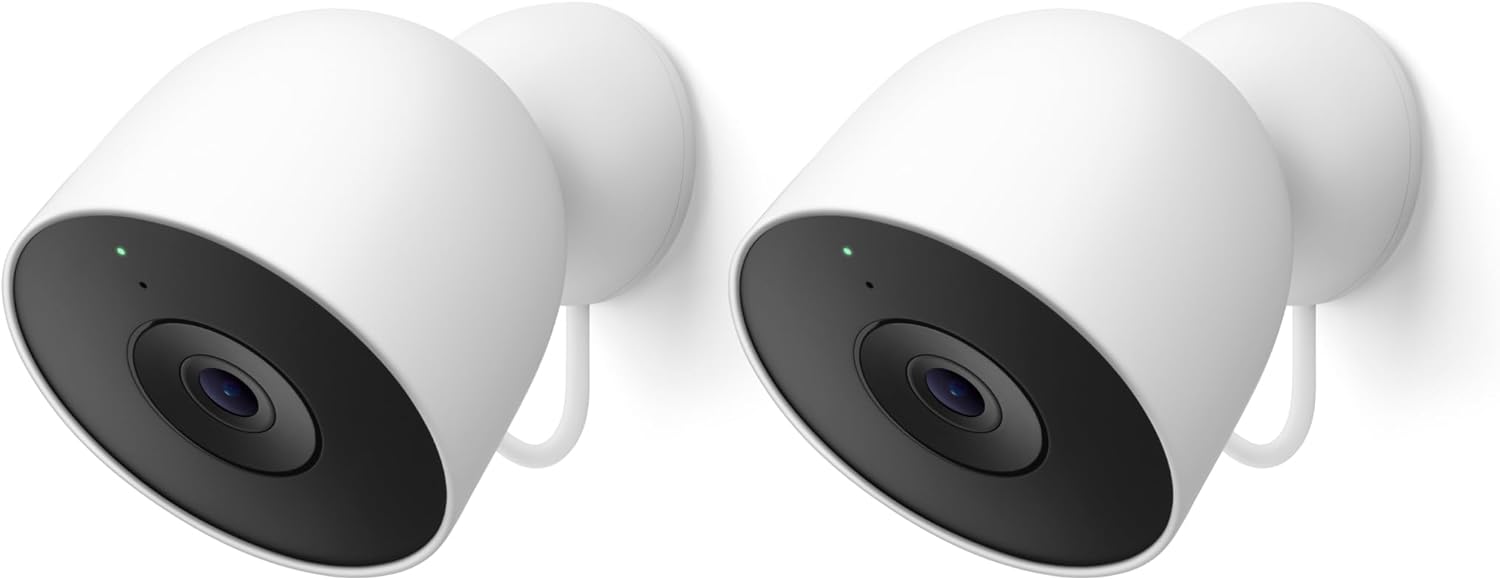
Google Nest Cam Outdoor (Wired, 2nd Gen) - 2 Pack - Secur...
As an Amazon Associate we earn from qualifying purchases.
Official Manufacturer Manual
Google Nest provides official product documentation through their online manual rather than downloadable PDF. Access setup guides, troubleshooting steps, and product specifications for your Nest Protect.
Source: support.google.com
Need More Help? Google Nest Support
Note: The contact information below connects you directly to Google Nest's official customer support team, not Trunetto. They can help with warranty claims, device replacements, and advanced technical issues.
How Does Google Nest Compare?
Before replacing your Google Nest device, see how it stacks up against alternatives in our full comparison guides.
Accessories owners commonly pair with Nest Protect.

Google Nest Wifi - AC2200 - Mesh WiFi System - Wifi Route...

Google Nest WiFi Pro - Wi-Fi 6E - Reliable Home Wi-Fi Sys...

Google Nest WiFi Pro - 6E - Reliable Home Wi-Fi System wi...
As an Amazon Associate we earn from qualifying purchases.





