

How Do I Test My Nest Protect Smoke Alarm?
- Manual test button not held long enough on the center button
- Nest Protect not connected to WiFi so the app alert cannot send
- Other Protects assigned to a different home so they do not join
Problem Description
You want to run a proper test of your Nest Protect to confirm the smoke and CO sensors, speaker, and app alerts all work. The Nest Protect runs a quiet automatic Sound Check monthly and a full Safety Checkup periodically, but you can also start a manual test from the button or the Google Home app. A real test should confirm the horn sounds, the voice announcement plays, any connected Protects respond, and a test alert reaches your phone.
Why This Happens in Real Homes
Most people test their Protect once at install and never again, then wonder whether it still works. The Nest handles part of this itself — a monthly quiet Sound Check verifies the speaker, and a periodic Safety Checkup logs sensor health to the app — but only a manual button test actually fires the horn and confirms interconnected units and phone alerts.
In real homes the test "fails" mainly because the button wasn't held long enough, notifications were off, or Protects live in different homes in the app. Start with a full manual test, confirm every unit and your phone respond, and check the expiry date stamped on the back.
Symptoms
- Not sure whether the alarm actually works
- Want to confirm the horn and voice alerts sound
- Manual test button press seems to do nothing
- Test does not send an alert to the phone
- Other Nest Protects do not join the test
- Monthly Sound Check chirp is unclear
- Unsure how to run a full Safety Checkup
- Test ends before all sensors are checked
Recognize these? Here's what usually causes it.
Common Causes
- Manual test button not held long enough on the center button
- Nest Protect not connected to WiFi so the app alert cannot send
- Other Protects assigned to a different home so they do not join
- Google Home app notifications disabled on the phone
- Wired 120V unit behaves differently from a battery model
- Monthly Sound Check confused with a full manual test
- Battery too low to complete a full alarm test
- Sensor near the end of its 10-year life failing the test
Most fixes happen in the first 3 steps.
Always notify your monitoring provider before performing system tests to prevent dispatching emergency services unnecessarily. Never disable your security system for extended periods. If you smell gas or suspect a real emergency call 911 directly rather than relying on your smart system.
Tools & Requirements
These tools will help you complete this fix.

Ethernet cable
Jadaol Cat 6 Ethernet Cable 25 ft, 10Gbps Support Ca...

Replacement batteries
Duracell Coppertop Double AA Batteries with Power Bo...
As an Amazon Associate we earn from qualifying purchases.
Step-by-Step Solution
Run a Nest Protect self-test
The Nest Protect runs an automatic sound check monthly (it briefly chirps at a low volume to verify the speaker works). You can also trigger a manual test: press and hold the button on the Nest Protect center for 2 seconds. The unit cycles through its alarm sounds — first the spoken alert (Heads up, there is smoke in the hallway), then the horn. All linked Nest Protects in the house sound simultaneously.
Use the Nest app Safety Checkup
In the Google Home app, go to the Nest Protect device and look for Safety Checkup. Tap it to start a full test that checks the smoke sensor, CO sensor, speaker, light ring, and WiFi connection. The app reports the results for each component. Run this monthly to make sure all components are functional.
Test with real smoke carefully
For a thorough test, light a match, blow it out, and hold the smoking match 6-12 inches below the Nest Protect. The smoke should trigger the sensor within 30-60 seconds. The Nest Protect will speak an alert (Heads up, there is smoke) before sounding the full horn. Press the button to silence the alarm after confirming it works. Do not use aerosol test sprays not specifically designed for smoke detectors — they can damage the sensor.
Check the Nest Protect LED ring colors
The Nest Protect LED ring communicates status: green pulse when you walk by or turn off lights means everything is OK. Yellow means there is a warning (low battery, sensor error, or minor smoke detected). Red means an emergency alarm. If you see yellow during your nightly walkby check, open the app to identify the specific warning before it escalates.
Replace the Nest Protect after its rated lifespan
The Nest Protect has a 10-year lifespan for the smoke sensor and a 7-year lifespan for the CO sensor. The unit alerts you in the app and with spoken warnings when it approaches end of life. After the CO sensor expires (7 years), the unit no longer detects carbon monoxide even though the smoke sensor may still work. Replace the entire unit at the 7-year mark for full protection.
Quick Solutions
Still having issues? This is usually the deeper cause below.
If this comes back after following these steps, check whether a recent app or firmware update reset a default setting — the fix works, but the setting gets reverted silently.
Set up geofencing so your system arms automatically when everyone leaves home and disarms when the first person returns. This eliminates the chance of forgetting to arm the system and provides seamless daily security.
This issue almost always looks more complex than it is — the majority of cases trace back to a single setting, a stale credential, or a default that shipped wrong.
- Manual test button not held long enough on the
- Nest Protect not connected to WiFi so the app
- Other Protects assigned to a different home so they
- Google Home app notifications disabled on the phone
- Wired 120V unit behaves differently from a battery model
Before you go — try one of these (they fix most cases).
Most popular upgrades chosen by Nest Protect owners.

Google Nest Cam Indoor (Wired, 3rd Gen) - Security Camera...

Google Nest Cam Indoor (Wired, 3rd Gen) - Security Camera...
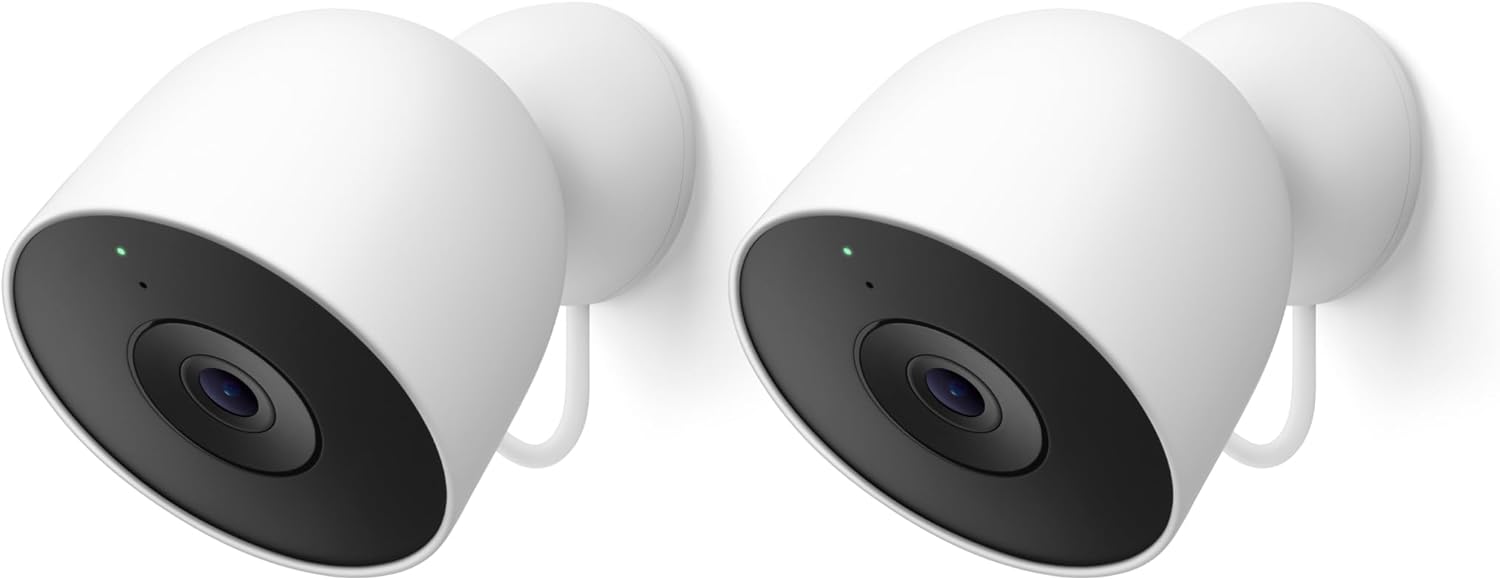
Google Nest Cam Outdoor (Wired, 2nd Gen) - 2 Pack - Secur...
As an Amazon Associate we earn from qualifying purchases.
Official Manufacturer Manual
Google Nest provides official product documentation through their online manual rather than downloadable PDF. Access setup guides, troubleshooting steps, and product specifications for your Nest Protect.
Source: support.google.com
Need More Help? Google Nest Support
Note: The contact information below connects you directly to Google Nest's official customer support team, not Trunetto. They can help with warranty claims, device replacements, and advanced technical issues.
How Does Google Nest Compare?
Before replacing your Google Nest device, see how it stacks up against alternatives in our full comparison guides.
Accessories owners commonly pair with Nest Protect.

Google Nest Wifi - AC2200 - Mesh WiFi System - Wifi Route...

Google Nest WiFi Pro - Wi-Fi 6E - Reliable Home Wi-Fi Sys...

Google Nest WiFi Pro - 6E - Reliable Home Wi-Fi System wi...
As an Amazon Associate we earn from qualifying purchases.





