

How to Set Up Your SimpliSafe Security System
- Check base station location and power
- Activate account and link hardware serials
- Pair sensors one by one with naming convention
- Set entry/exit delays and alert preferences
- Run full alarm test and cellular backup check
Most users complete this in under 60 minutes
Overview
This guide provides a walkthrough for the DIY installation of a SimpliSafe Home Security System. It covers setting up the Base Station and Keypad, placing the various sensors (entry, motion), and activating your professional monitoring plan through the SimpliSafe app.
Why This Happens in Real Homes
A SimpliSafe system goes together in a clear order: get the base station placed centrally and online (WiFi and power, with cellular signal for backup), then add the keypad and sensors one at a time, testing each. The base is the hub everything talks to, so it comes first.
Place it away from metal and electronics for the best RF path to your sensors, add devices within range, and mount entry sensors aligned and motion sensors high in a corner. Then choose monitoring — self-monitoring is free (app alerts only), while professional monitoring and cellular backup need a plan.
What's Included
- Unsure how to set up the whole system
- Base will not come online
- Sensors out of range
- Order of setup unclear
- No monitoring plan question
- Keypad/sensors will not pair
- System will not activate
- Poor coverage
Got your materials ready? Here's what to check first.
Before You Start
- Base not placed centrally with clear RF path
- Base not connected to WiFi/power
- Devices added out of range
- Skipped activation/plan step
- Sensors mispaired or misaligned
- Base in a cellular dead zone
- Wrong order (devices before base)
- AP isolation blocking the base
Don't skip this step — it breaks everything if you do
The SimpliSafe system uses a loud siren. Be prepared for noise during testing. Inform household members before arming.
Tools & Requirements
Installation Steps
Prepare base station location and power
Place the base station centrally with clear RF path to entry sensors and connect reliable power. Initial placement quality determines long-term sensor stability.
Activate account and link hardware serials
Complete app account setup and verify the correct system serial is linked before adding devices. Mislinked accounts cause onboarding confusion later.
Pair sensors one by one with naming convention
Add each sensor individually, assign precise location names, and test supervision status immediately. Structured enrollment simplifies troubleshooting and automation.
Set entry/exit delays and alert preferences
Configure realistic delay timings, siren behavior, and notification routing for household routines. Correct operational settings reduce accidental alarms.
Run full alarm test and cellular backup check
Perform a complete arming/disarming and trigger test, then verify backup path if included in plan. Final validation confirms system readiness.
Installation Tips
Still stuck? This is usually the deeper cause below.
Place Entry Sensors on all main entry doors first. The Motion Detector should be placed in a central hallway or living area for best coverage.
Official Setup Videos
Base Station Setup
Wireless Keypad Setup
Entry Sensors Setup
Motion Sensors Setup
Before you go — these SimpliSafe guides fix most remaining issues.
Most popular upgrades chosen by SimpliSafe Home Security System owners.

SimpliSafe Wireless Keypad - Touch-to-Wake Technology - C...
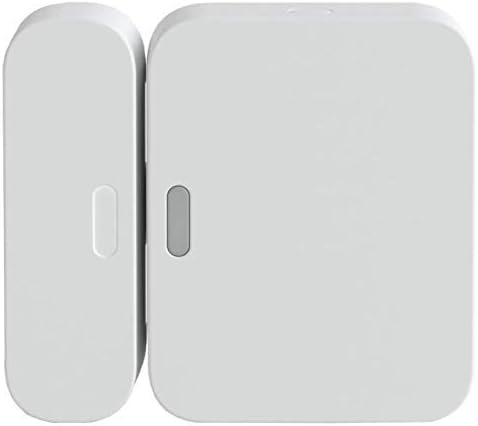
SimpliSafe Entry Sensor - Window and Door Protection - Co...

SimpliSafe 8 Piece Wireless Home Security System
As an Amazon Associate we earn from qualifying purchases.
Official Manufacturer Manual
If you need the complete manufacturer documentation for advanced setup, wiring diagrams, or detailed specifications, you can download the official manual below. The manual includes full technical instructions directly from the manufacturer and may help if your issue requires deeper troubleshooting.
Download the Official SimpliSafe Home Security System ManualSource: simplisafe.com
Need More Help? SimpliSafe Support
Note: The contact information below connects you directly to SimpliSafe's official customer support team, not Trunetto. They can help with warranty claims, device replacements, and advanced technical issues.
How Does SimpliSafe Compare?
Before replacing your SimpliSafe device, see how it stacks up against alternatives in our full comparison guides.
Accessories owners commonly pair with SimpliSafe Home Security System.

SimpliSafe 12 Piece Wireless Home Security System w/HD Ca...

SimpliSafe 11 Piece Wireless Home Security System Gen 3 w...

SimpliSafe Smart Alarm Wireless Indoor Security Camera
As an Amazon Associate we earn from qualifying purchases.


