

Why Does My SimpliSafe Base Station Keep Beeping?
- WiFi connection unstable or device too far from router
- Device firmware or app needs updating
- Device not properly set up during initial pairing
Problem Description
Your SimpliSafe base station keeps beeping and you need to identify the cause. Different beep patterns mean different things — a single beep every few seconds indicates low battery on a sensor, rapid beeping means an alarm was triggered, and a long continuous tone means the base station has lost power or cellular connection. This guide covers identifying each beep pattern.
Why This Happens in Real Homes
The Gen 3 base station beeps for a handful of reasons and people panic because the beep pattern is not documented well. A single beep every few seconds usually means a sensor has a low battery — check the SimpliSafe app under Devices to see which sensor is flagged. Three rapid beeps followed by a voice prompt means cellular or WiFi communication lost. A continuous tone means the alarm is actively triggered. The most common false beep scenario is the base station's own backup battery getting old — the internal rechargeable pack lasts about 3 years before it stops holding a charge, and the base station will beep to tell you it cannot sustain backup power during an outage.
Symptoms
- Device shows as offline in the app
- Device does not respond to commands
- App cannot connect to device
- Features not working as expected
- Device disconnects frequently
- Automations fail to trigger
- Voice commands not recognized
Recognize these? Here's what usually causes it.
Common Causes
- WiFi connection unstable or device too far from router
- Device firmware or app needs updating
- Device not properly set up during initial pairing
- Power supply issue or loose connection
- Account not linked correctly
- Too many devices causing network congestion
- Interference from other wireless devices
Most fixes happen in the first 3 steps.
Always notify your monitoring provider before performing system tests to prevent dispatching emergency services unnecessarily. Never disable your security system for extended periods. If you smell gas or suspect a real emergency call 911 directly rather than relying on your smart system.
Tools & Requirements
These tools will help you complete this fix.

Ethernet cable
Jadaol Cat 6 Ethernet Cable 25 ft, 10Gbps Support Ca...

Replacement batteries
Duracell Coppertop Double AA Batteries with Power Bo...
As an Amazon Associate we earn from qualifying purchases.
Step-by-Step Solution
Identify the beep pattern
The SimpliSafe base station uses different beep patterns for different issues. A single beep every few seconds usually means low battery on the base station or a sensor. A continuous rapid beep means the alarm is triggered. Three beeps may indicate a sensor malfunction or communication error. Listen carefully and count the beeps and interval to narrow the cause.
Check for sensor alerts in the SimpliSafe app
Open the SimpliSafe app and check the notification center or sensor status page. The app shows which sensor is causing the alert — it might be a low battery on a specific sensor, an open entry sensor, or a sensor that has lost communication. The alert details tell you exactly what needs attention without guessing.
Fix low battery beeps
If the beep is from a low battery on the base station backup battery, plug the base station into power. The internal battery charges while plugged in. If the base station is already plugged in, the backup battery may need replacement — it degrades after 3-5 years. For sensor low battery alerts, replace the battery in the flagged sensor (usually CR2032 or CR123A depending on the sensor type).
Needed for this step
Duracell Coppertop Double AA Batteries with Pow...
This helps complete the fix you are currently reading.
$6.96Fix entry sensor open alerts
If the base station beeps when you try to arm because a sensor shows as open, check that all doors and windows are fully closed. The magnet on the entry sensor must be within about 1 inch of the sensor body. If the magnet has shifted (common on settling doors or windows), reposition it. A sensor showing open when the door is closed means the gap is too wide.
Silence the beeping temporarily
If you need to stop the beeping while you troubleshoot, disarm the system from the keypad or app. This silences most alert beeps. For persistent beeps that continue while disarmed (like low base station battery), you may need to press the off button on the keypad or mute the base station volume temporarily. Fix the underlying issue before re-arming.
Quick Solutions
Still having issues? This is usually the deeper cause below.
If this comes back after following these steps, check whether a recent app or firmware update reset a default setting — the fix works, but the setting gets reverted silently.
Set up geofencing so your system arms automatically when everyone leaves home and disarms when the first person returns. This eliminates the chance of forgetting to arm the system and provides seamless daily security. **Product Intelligence:** - Supports 50 sensors - Cellular backup auto-activates - Red flash: 1=sensor, 3=connectivity
This issue almost always looks more complex than it is — the majority of cases trace back to a single setting, a stale credential, or a default that shipped wrong.
- WiFi connection unstable or device too far from router
- Device firmware or app needs updating
- Device not properly set up during initial pairing
- Power supply issue or loose connection
- Account not linked correctly
Before you go — try one of these (they fix most cases).
Most popular upgrades chosen by SimpliSafe Base Station owners.

SimpliSafe Wireless Keypad - Touch-to-Wake Technology - C...

SimpliSafe Wireless Outdoor Security Camera (Renewed)
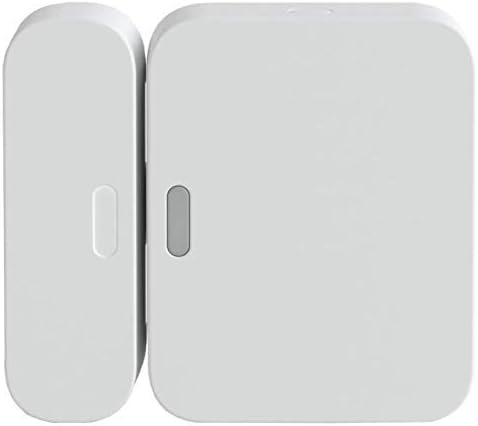
SimpliSafe Entry Sensor - Window and Door Protection - Co...
As an Amazon Associate we earn from qualifying purchases.
Official Manufacturer Manual
If you need the complete manufacturer documentation for advanced setup, wiring diagrams, or detailed specifications, you can download the official manual below. The manual includes full technical instructions directly from the manufacturer and may help if your issue requires deeper troubleshooting.
Download the Official SimpliSafe Base Station ManualSource: simplisafe.com
Need More Help? SimpliSafe Support
Note: The contact information below connects you directly to SimpliSafe's official customer support team, not Trunetto. They can help with warranty claims, device replacements, and advanced technical issues.
How Does SimpliSafe Compare?
Before replacing your SimpliSafe device, see how it stacks up against alternatives in our full comparison guides.
Accessories owners commonly pair with SimpliSafe Base Station.

SimpliSafe 12 Piece Wireless Home Security System w/HD Ca...

SimpliSafe 11 Piece Wireless Home Security System Gen 3 w...

SimpliSafe Smart Alarm Wireless Indoor Security Camera
As an Amazon Associate we earn from qualifying purchases.




