

Why Is My SimpliSafe Base Station Beeping With a Yellow Light?
- Sensor battery is low and needs replacement
- Sensor is not responding or out of range
- WiFi connection lost to the base station
Problem Description
Your SimpliSafe base station emits a three-tone warning beep and displays a flashing yellow light called the Trouble Signal. This feature was introduced in firmware update 2.10 to proactively alert you to system issues that need attention. The trouble signal indicates problems like sensor low battery, sensor not responding, WiFi disconnected, cellular backup failure, or other system errors. The beeping will continue periodically until you resolve the underlying issue or mute the signal through the app or keypad.
Why This Happens in Real Homes
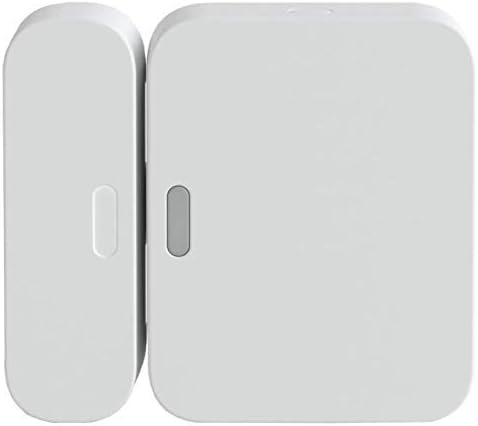
A yellow light on the Gen 3 base station means it has detected a trouble condition but the system is not in full alarm. This is usually a sensor communication failure — one of your 433 MHz RF sensors has stopped checking in with the base station. The base expects a heartbeat signal from each sensor roughly every 3 minutes, and after several missed check-ins it throws the yellow trouble light. Walk through every sensor in your app and look for the one marked offline. Nine times out of ten it is a dead CR-2032 battery in an entry sensor or a motion sensor that got knocked slightly behind furniture where the RF signal cannot reach the base station.
Symptoms
- Base station beeps with three tones repeatedly
- Yellow light flashing on the base station
- Beeping happens in the middle of the night
- App shows system trouble notification
- Keypad displays warning symbol with a number
- Beeping started after a firmware update
Recognize these? Here's what usually causes it.
Common Causes
- Sensor battery is low and needs replacement
- Sensor is not responding or out of range
- WiFi connection lost to the base station
- Cellular backup connection failed
- Entry sensor door or window left open
- Power adapter issue causing battery backup drain
- Firmware update pending or failed
- Environmental sensor triggered like water or freeze
Most fixes happen in the first 3 steps.
Do not permanently mute the trouble signal and ignore it. Issues like sensor not responding mean that sensor will not trigger an alarm. Issues like WiFi disconnected mean you lose remote access and may lose monitoring connectivity. Always resolve the underlying issue as soon as possible.
Tools & Requirements
These tools will help you complete this fix.
As an Amazon Associate we earn from qualifying purchases.
Step-by-Step Solution
Identify the Trouble Cause via App
Open the SimpliSafe app and tap on Overview from the bottom navigation. Pull down on the screen to refresh. The app will display a summary of system errors causing the trouble signal. Tap Learn More to see details about which device or connection is having issues. Common messages include Sensor Low Battery, Sensor Not Responding, WiFi Disconnected, or Power Issue.
Identify the Trouble Cause via Keypad
On the keypad look for a warning triangle symbol on the right side of the screen with a number below it indicating how many issues exist. Press the screen to the right to select the warning symbol. The keypad will display the specific trouble message. Press down on the screen to scroll through multiple messages if the number is greater than one.
Resolve the Underlying Issue
Once you identify the cause take action to fix it. For low battery replace the sensor battery with the correct type. For sensor not responding move the base station closer or re-pair the sensor. For WiFi disconnected check your router and reconnect the base station to WiFi. For power issues make sure the base station is plugged into a working outlet and the backup batteries are fresh.

Needed for this step
Duracell Coppertop Double AA Batteries with Pow...
This helps complete the fix you are currently reading.
$6.96Mute the Trouble Signal Temporarily
If you cannot immediately fix the issue you can mute the beeping. In the app go to Settings then Base Station then Trouble Signal and toggle off the Trouble Signal Tone. On the keypad go to Menu then Settings then Sounds then Trouble Signal and select Off. Remember this only mutes the beeping and does not fix the underlying issue. The yellow light will continue flashing until resolved.
Adjust Trouble Signal Schedule
If the beeping wakes you at night you can set quiet hours. In the app go to Settings then Base Station then Trouble Signal then Schedule. Set times when the trouble signal tone should be muted such as 10 PM to 7 AM. The app will still show notifications and the yellow light will still flash but the audible beeping will be silenced during these hours.
Quick Solutions
Still having issues? This is usually the deeper cause below.
If flickering only happens on dimming, the issue is almost always the dimmer's minimum-load setting, not the bulb — it's drawing less current than the dimmer expects.
The trouble signal is designed to be annoying so you address issues promptly. A system with unresolved trouble conditions may not protect your home properly. Check the app weekly to ensure no trouble signals are pending even if you have muted the audible beep. **Product Intelligence:** - Supports 50 sensors - Cellular backup auto-activates - Red flash: 1=sensor, 3=connectivity
Battery-related failures are almost always flagged too late — the device degrades silently for days before the app catches up to what's actually happening.
- Sensor battery is low and needs replacement
- Sensor is not responding or out of range
- WiFi connection lost to the base station
- Cellular backup connection failed
- Entry sensor door or window left open
Before you go — try one of these (they fix most cases).
Most popular upgrades chosen by SimpliSafe Base Station owners.

SimpliSafe Wireless Keypad - Touch-to-Wake Technology - C...

SimpliSafe Wireless Outdoor Security Camera (Renewed)
SimpliSafe Entry Sensor - Window and Door Protection - Co...
As an Amazon Associate we earn from qualifying purchases.
Official Manufacturer Manual
If you need the complete manufacturer documentation for advanced setup, wiring diagrams, or detailed specifications, you can download the official manual below. The manual includes full technical instructions directly from the manufacturer and may help if your issue requires deeper troubleshooting.
Download the Official SimpliSafe Base Station ManualSource: simplisafe.com
Need More Help? SimpliSafe Support
Note: The contact information below connects you directly to SimpliSafe's official customer support team, not Trunetto. They can help with warranty claims, device replacements, and advanced technical issues.
How Does SimpliSafe Compare?
Before replacing your SimpliSafe device, see how it stacks up against alternatives in our full comparison guides.
Accessories owners commonly pair with SimpliSafe Base Station.

SimpliSafe 12 Piece Wireless Home Security System w/HD Ca...

SimpliSafe 11 Piece Wireless Home Security System Gen 3 w...

SimpliSafe Smart Alarm Wireless Indoor Security Camera
As an Amazon Associate we earn from qualifying purchases.




