

How Do I Hard Reset My SimpliSafe Base Station?
- Firmware update interrupted by power loss corrupting the base station software
- Base station ran continuously for years without reboot causing memory issues
- WiFi configuration corrupted preventing communication with SimpliSafe servers
Problem Description
Your SimpliSafe base station is frozen, unresponsive, or stuck in a non-functional state and you need to perform a hard reset. The base station may not respond to keypad commands, show solid red or orange lights, or fail to arm and disarm. A hard reset returns the base station to factory defaults but does not remove it from your SimpliSafe account. After reset you will need to reconnect to WiFi and re-pair all sensors. This is distinct from a simple reboot which only power cycles the unit.
Why This Happens in Real Homes
Hard resetting the Gen 3 base station wipes everything — WiFi settings, sensor pairings, PIN codes, all of it. You will need to re-pair every single sensor from scratch, which on a 15-sensor system takes a solid 30 minutes. Before you do this, try a soft reboot first by unplugging power and removing the backup battery for 60 seconds. The hard reset button is a small recessed pinhole on the bottom of the base station — hold it with a paperclip for about 15 seconds until the LED ring flashes. After reset you will need to reconfigure through the SimpliSafe app as if it were a brand new system. Your monitoring plan and account stay intact on SimpliSafe's end, only the local base station config is wiped.
Symptoms
- Base station does not respond to keypad arm or disarm commands
- Base station LED shows solid red or orange and will not change
- Base station makes no sound when buttons are pressed on the keypad
- SimpliSafe app shows base station offline and cannot control the system
- Base station beeps continuously without stopping
- System was working but became completely unresponsive
Recognize these? Here's what usually causes it.
Common Causes
- Firmware update interrupted by power loss corrupting the base station software
- Base station ran continuously for years without reboot causing memory issues
- WiFi configuration corrupted preventing communication with SimpliSafe servers
- Power surge damaged the base station internal processor
- Cellular module firmware conflict with base station firmware
- Too many sensor pairing attempts corrupted the radio frequency table
Most fixes happen in the first 3 steps.
A factory reset does not remove the base station from your SimpliSafe account. It only clears the local configuration. If you are selling or giving away the system you must also remove it from your account through the SimpliSafe website or by calling customer service.
Tools & Requirements
Step-by-Step Solution
Try a Simple Reboot First
Before factory resetting unplug the base station power cable from the wall. The base station has an internal battery backup that will keep it running. Press and hold the power button until the base station shuts down completely. Wait 30 seconds. Plug the power back in and press the power button to turn it on. Wait 3 to 5 minutes for a full boot. If it comes back to normal no factory reset is needed.
Perform Factory Reset
If the reboot did not help locate the small recessed reset button on the bottom of the base station. Using a paperclip press and hold this button for 15 to 20 seconds. The base station will beep and the LED will flash indicating the reset is in progress. Release the button and wait 3 to 5 minutes for the base station to fully reset and reboot. The LED will cycle through colors and eventually settle indicating it is ready for setup.
Reconnect to WiFi
After the factory reset open the SimpliSafe app on your phone. The app should detect that the base station needs to be set up. Complete the setup prompts to connect the base station to your WiFi network. Remember that SimpliSafe base station only supports 2.4GHz WiFi. If your router combines 2.4GHz and 5GHz create a separate 2.4GHz SSID. Enter your WiFi password and wait for the connection to establish.
Re-pair All Sensors
After WiFi is connected you need to re-pair each sensor with the base station. In the SimpliSafe app go to Settings then Devices then Add Device. Follow the prompts for each sensor type. Entry sensors require you to open and close the door or window with the sensor. Motion sensors require you to walk in front of them. Keypads need to be paired using their specific code. Re-pair sensors one at a time to avoid conflicts.
Verify System Features
After all sensors are re-paired test the entire system. Arm the system in Home mode and trigger each sensor by opening doors and walking past motion detectors. Verify the base station sounds the alarm and the app sends notifications. Then test Away mode. Finally test the keypad by entering your PIN to disarm. Check the SimpliSafe app event log to confirm all sensor events were recorded.
Quick Solutions
Still having issues? This is usually the deeper cause below.
If this comes back after following these steps, check whether a recent app or firmware update reset a default setting — the fix works, but the setting gets reverted silently.
After the factory reset and re-setup check if professional monitoring is still active. A factory reset should not affect your monitoring subscription but verify by calling SimpliSafe at 888-957-4675 or checking your account status in the app under Settings then Monitoring. **Product Intelligence:** - Supports 50 sensors - Cellular backup auto-activates - Red flash: 1=sensor, 3=connectivity
Battery-related failures are almost always flagged too late — the device degrades silently for days before the app catches up to what's actually happening.
- Firmware update interrupted by power loss corrupting the base
- Base station ran continuously for years without reboot
- WiFi configuration corrupted preventing communication with SimpliSafe servers
- Power surge damaged the base station internal processor
- Cellular module firmware conflict with base station firmware
Before you go — try one of these (they fix most cases).
Most popular upgrades chosen by SimpliSafe Base Station owners.

SimpliSafe Wireless Keypad - Touch-to-Wake Technology - C...

SimpliSafe Wireless Outdoor Security Camera (Renewed)
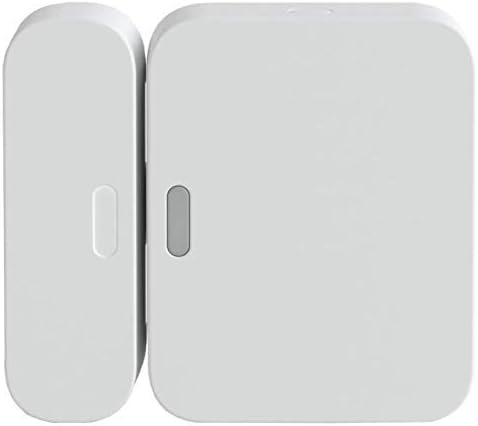
SimpliSafe Entry Sensor - Window and Door Protection - Co...
As an Amazon Associate we earn from qualifying purchases.
Official Manufacturer Manual
If you need the complete manufacturer documentation for advanced setup, wiring diagrams, or detailed specifications, you can download the official manual below. The manual includes full technical instructions directly from the manufacturer and may help if your issue requires deeper troubleshooting.
Download the Official SimpliSafe Base Station ManualSource: simplisafe.com
Need More Help? SimpliSafe Support
Note: The contact information below connects you directly to SimpliSafe's official customer support team, not Trunetto. They can help with warranty claims, device replacements, and advanced technical issues.
How Does SimpliSafe Compare?
Before replacing your SimpliSafe device, see how it stacks up against alternatives in our full comparison guides.
Accessories owners commonly pair with SimpliSafe Base Station.

SimpliSafe 12 Piece Wireless Home Security System w/HD Ca...

SimpliSafe 11 Piece Wireless Home Security System Gen 3 w...

SimpliSafe Smart Alarm Wireless Indoor Security Camera
As an Amazon Associate we earn from qualifying purchases.




