

Why Does My SimpliSafe Entry Sensor Show Offline?
- Sensor battery needs replacement
- Sensor is too far from Base Station
- Sensor fell off or was moved
Problem Description
Your SimpliSafe entry sensor shows as Offline or No Signal in the SimpliSafe app. The sensor is physically in place on the door or window but the base station has lost communication with it. SimpliSafe sensors communicate wirelessly with the base station using a proprietary 433MHz signal. When a sensor goes offline, it means the base station has not received a check-in signal from the sensor within the expected time window. This could mean the sensor battery is dead, the sensor is too far from the base station, there is RF interference blocking the signal, or the sensor hardware has failed.
Why This Happens in Real Homes
SimpliSafe entry sensor offline issues are overwhelmingly caused by dead batteries. The CR2032 battery lasts about 3-5 years under normal conditions, but temperature extremes (sensors on exterior doors in very cold or hot climates) reduce battery life significantly. SimpliSafe sends a low battery alert in the app before the sensor goes offline, but users often dismiss or miss the notification. Checking and replacing sensor batteries annually is the simplest way to prevent offline events.
Symptoms
- Sensor shows offline status in SimpliSafe app
- No alerts when door/window opens
- Base Station not announcing sensor triggers
- Error message about sensor communication
- Sensor worked fine before and suddenly stopped
Recognize these? Here's what usually causes it.
Common Causes
- Sensor battery needs replacement
- Sensor is too far from Base Station
- Sensor fell off or was moved
- Firmware needs updating
- Radio interference from other devices
Most fixes happen in the first 3 steps.
Only use name-brand CR-2032 batteries like Duracell or Energizer. Cheap batteries can leak and damage your sensor.
Tools & Requirements
Step-by-Step Solution
Replace the sensor battery first
A dead battery is the most common cause of an offline sensor. Open the sensor by pressing the tab and sliding the cover. Replace the CR2032 battery with a fresh one (positive side up). Close the sensor. Within 1-2 minutes, the sensor should check in with the base station and show Online in the app. If the battery was dead for a long time, the sensor may need to re-register — if it does not come online after 5 minutes, remove and re-add it in the app.
Check sensor distance from the base station
SimpliSafe sensors have a wireless range of approximately 100 feet from the base station through typical interior walls. If the sensor is in a detached garage, shed, or on the opposite end of a large home, it may be out of range. Move the base station to a more central location temporarily and check if the sensor comes online. If it does, the sensor permanent location is at the edge of range. You can either relocate the base station permanently or add a SimpliSafe range extender (SimpliSafe sells signal boosters for this purpose).
Check for RF interference
The 433MHz frequency used by SimpliSafe can be disrupted by certain electronics. Common sources of interference: baby monitors, wireless weather stations, garage door openers, and some wireless security cameras. If the sensor went offline after you added a new electronic device nearby, try moving or turning off that device to test. Also check if the base station is placed near a microwave, large metal appliance, or in a metal cabinet — these block the wireless signal. Place the base station on a table or shelf in the open, at least 3 feet from other electronics.
Remove and re-add the sensor
If the battery is fresh and the sensor is within range, the sensor pairing may have become corrupted. In the SimpliSafe app, remove the sensor from the sensor list. Open the sensor, remove the battery, wait 10 seconds, and reinsert it. In the app, tap Add Device, select Entry Sensor, and follow the prompts. The sensor should pair within 30 seconds. Assign it to the correct location and test by opening and closing the door or window.
Test for sensor hardware failure
If the sensor will not come online after a fresh battery, re-pairing, and confirming range, the sensor hardware may have failed. Try the sensor next to the base station (within 2 feet). If it still does not pair, it is defective. SimpliSafe sensors have a 3-year limited warranty — contact SimpliSafe support or order a replacement sensor. SimpliSafe will often send a replacement for free if the sensor is within warranty.
Quick Solutions
Still having issues? This is usually the deeper cause below.
This usually happens right after a router reboot or ISP change — the device rejoins the network but drops its cloud session silently.
After replacing a battery or re-adding a sensor, it can take up to 24 hours for the offline error to clear from the app. Be patient! **Product Intelligence:** - CR-2032 battery (2-3yr) - Magnet gap: up to 1 inch
Most WiFi drop-offs happen right after a router reboot or ISP swap — the device reconnects to the network but silently loses its cloud registration.
- Sensor battery needs replacement
- Sensor is too far from Base Station
- Sensor fell off or was moved
- Firmware needs updating
- Radio interference from other devices
Before you go — try one of these (they fix most cases).
Most popular upgrades chosen by SimpliSafe Entry Sensor owners.
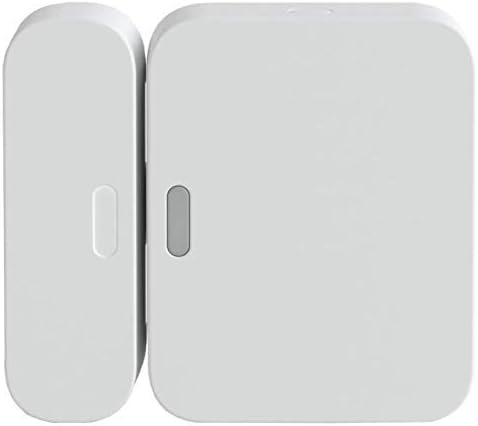
As an Amazon Associate we earn from qualifying purchases.
Official Manufacturer Manual
SimpliSafe provides official product documentation through their online manual rather than downloadable PDF. Access setup guides, troubleshooting steps, and product specifications for your SimpliSafe Entry Sensor.
Source: simplisafe.com
Need More Help? SimpliSafe Support
Note: The contact information below connects you directly to SimpliSafe's official customer support team, not Trunetto. They can help with warranty claims, device replacements, and advanced technical issues.
How Does SimpliSafe Compare?
Before replacing your SimpliSafe device, see how it stacks up against alternatives in our full comparison guides.
Accessories owners commonly pair with SimpliSafe Entry Sensor.

Blink Mini - Compact indoor plug-in smart security camera...
Blink Mini - Compact indoor plug-in smart security camera...

Blink Mini - Compact indoor plug-in smart security camera...
As an Amazon Associate we earn from qualifying purchases.
Guide Improvements
- Updated June 18, 2026
Rewrote to focus on offline status specifically: battery replacement, re-registration, base station connection
Source: SEO cannibalization fix
