

How Does SimpliSafe Fast Response Work?
- Not subscribed to Fast Protect
- No cameras, or cameras not linked for verification
- Camera recording/motion not set up
Problem Description
You want to understand SimpliSafe's Fast Protect monitoring, or your alarm response isn't as fast as expected. Fast Protect is SimpliSafe's premium monitoring plan that adds video verification — monitoring agents can look at your camera clips to confirm a real threat and request priority police dispatch — so "fast response" depends on having that plan and cameras set up.
Why This Happens in Real Homes
Fast Protect is what makes SimpliSafe's response genuinely fast: on an alarm, monitoring agents can pull your camera footage to verify a real break-in, which lets them request priority ("verified") police response instead of a routine queue. Without the plan and cameras, agents are working blind and dispatch is slower.
Start by confirming you're on Fast Protect and that your cameras are set up and linked so agents can see them, with recording and motion enabled. If cameras were offline when the alarm fired, there's nothing to verify — keeping them online is what lets the whole fast-response chain work.
Symptoms
- Response slower than expected
- Unsure what Fast Protect includes
- No video verification
- Agents cannot see camera clips
- Priority dispatch not happening
- Plan features missing
- Cameras not linked to monitoring
- Confused about plan tiers
Recognize these? Here's what usually causes it.
Common Causes
- Not subscribed to Fast Protect
- No cameras, or cameras not linked for verification
- Camera recording/motion not set up
- Plan not covering video verification
- Cameras offline when the alarm triggered
- Monitoring not activated
- Agents lack footage to verify
- Older plan without the feature
Most fixes happen in the first 3 steps.
Always notify your monitoring provider before performing system tests to prevent dispatching emergency services unnecessarily. Never disable your security system for extended periods. If you smell gas or suspect a real emergency call 911 directly rather than relying on your smart system.
Tools & Requirements
These tools will help you complete this fix.

Ethernet cable
Jadaol Cat 6 Ethernet Cable 25 ft, 10Gbps Support Ca...

Replacement batteries
Duracell Coppertop Double AA Batteries with Power Bo...
As an Amazon Associate we earn from qualifying purchases.
Step-by-Step Solution
Understand SimpliSafe Fast Protect monitoring
Fast Protect is SimpliSafe premium monitoring plan that includes verified video confirmation for faster police dispatch. When an alarm triggers, the SimpliSafe monitoring center receives a video clip from your SimpliSafe camera showing what caused the alarm. With visual verification that a break-in is occurring, monitoring agents can request priority police dispatch instead of a standard alarm call.
Set up cameras for video verification
Fast Protect requires at least one SimpliSafe camera positioned to capture entry points. Place the indoor camera facing the front door, back door, or main hallway. When the alarm triggers, the camera automatically records a clip and sends it to the monitoring center. Make sure the camera has a clear, unobstructed view of the area. Good lighting improves video quality for verification.
Configure alarm response settings
In the SimpliSafe app, go to Monitoring Settings and configure your emergency contacts, dispatch preferences, and verbal password. When an alarm triggers, SimpliSafe attempts to call you first. If you do not answer or confirm an emergency, they dispatch authorities. With Fast Protect, the video evidence allows them to escalate the priority level of the dispatch request.
Test the system with SimpliSafe support
Contact SimpliSafe and request a test of your monitoring connection. They can verify that your base station is communicating correctly, cellular backup is working, and video clips are being received from your camera. Run a test alarm (inform SimpliSafe first) to confirm the full chain works — sensor triggers, base station sends alert, camera captures clip, monitoring center receives it.
Maintain the system for reliable fast response
Keep camera lenses clean, sensor batteries fresh, and WiFi/cellular connectivity strong. A camera with a dirty lens or a dead battery cannot provide video verification when needed. Check the SimpliSafe app monthly for any sensor warnings or connectivity issues. Replace sensor batteries proactively rather than waiting for low battery alerts — a dead sensor at the wrong moment defeats the purpose of monitoring.
Needed for this step
Duracell Coppertop Double AA Batteries with Pow...
This helps complete the fix you are currently reading.
$6.96Quick Solutions
Still having issues? This is usually the deeper cause below.
If this comes back after following these steps, check whether a recent app or firmware update reset a default setting — the fix works, but the setting gets reverted silently.
Set up geofencing so your system arms automatically when everyone leaves home and disarms when the first person returns. This eliminates the chance of forgetting to arm the system and provides seamless daily security.
This issue almost always looks more complex than it is — the majority of cases trace back to a single setting, a stale credential, or a default that shipped wrong.
- Not subscribed to Fast Protect
- No cameras, or cameras not linked for verification
- Camera recording/motion not set up
- Plan not covering video verification
- Cameras offline when the alarm triggered
Before you go — try one of these (they fix most cases).
Most popular upgrades chosen by SimpliSafe System owners.

SimpliSafe Wireless Keypad - Touch-to-Wake Technology - C...
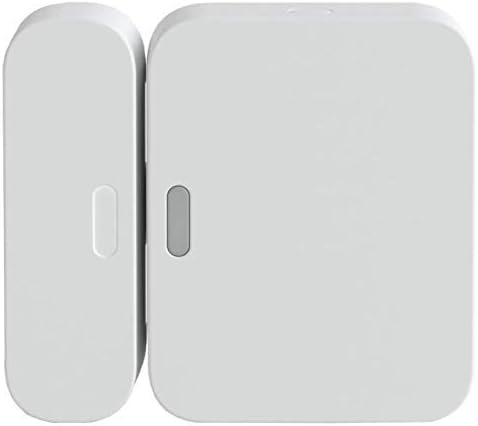
SimpliSafe Entry Sensor - Window and Door Protection - Co...

SimpliSafe 8 Piece Wireless Home Security System
As an Amazon Associate we earn from qualifying purchases.
Official Manufacturer Manual
SimpliSafe provides official product documentation through their online manual rather than downloadable PDF. Access setup guides, troubleshooting steps, and product specifications for your SimpliSafe System.
Source: support.simplisafe.com
Need More Help? SimpliSafe Support
Note: The contact information below connects you directly to SimpliSafe's official customer support team, not Trunetto. They can help with warranty claims, device replacements, and advanced technical issues.
How Does SimpliSafe Compare?
Before replacing your SimpliSafe device, see how it stacks up against alternatives in our full comparison guides.
Accessories owners commonly pair with SimpliSafe System.

Blink Mini - Compact indoor plug-in smart security camera...
Blink Mini - Compact indoor plug-in smart security camera...

Blink Mini - Compact indoor plug-in smart security camera...
As an Amazon Associate we earn from qualifying purchases.





