

How Do I Update SimpliSafe Firmware?
- Automatic updates disabled in settings
- Weak WiFi preventing download completion
- Update interrupted by power loss
Problem Description
You want to update your SimpliSafe system firmware to get the latest features, bug fixes, and security patches. SimpliSafe firmware updates are typically automatic, but you may need to manually trigger or troubleshoot updates. This covers the base station, keypad, cameras, and sensors.
Why This Happens in Real Homes
SimpliSafe firmware updates usually install automatically overnight, so "how do I update" often really means an update isn't applying — commonly because automatic updates are off, the base station's WiFi is weak, or it's mid-cycle. The base does the updating; sensors get firmware through it.
Start by confirming the base station has a solid WiFi connection and power, and check the app/keypad for a pending update to apply. Give it time on a stable connection; a weak signal at the base is the usual reason an update stalls.
Symptoms
- SimpliSafe prompting for firmware update
- New features not appearing on your system
- System behaving erratically after update notice
- Want to check current firmware version
- Update stuck or not completing
- Sensors not working after base station update
Recognize these? Here's what usually causes it.
Common Causes
- Automatic updates disabled in settings
- Weak WiFi preventing download completion
- Update interrupted by power loss
- System too old for latest firmware
- Server issues delaying update rollout
- Not enough free memory on base station
Most fixes happen in the first 3 steps.
Do not unplug or power off your SimpliSafe system while an update is in progress. This can corrupt the firmware and require a warranty replacement. Updates typically complete in 5-15 minutes during which the system remains functional.
Tools & Requirements
Step-by-Step Solution
Check Current Firmware Version
Open the SimpliSafe app and go to Menu then Settings then My System then Base Station. The current firmware version is displayed here. Compare this to the latest version mentioned in SimpliSafe support articles or community forums. If you are behind, an update may be pending or you may need to troubleshoot why updates are not applying.
Enable Automatic Updates
SimpliSafe updates are designed to happen automatically overnight. Make sure automatic updates are enabled by going to Menu then Settings then My System then Base Station then Automatic Updates. Toggle this on if it was disabled. With automatic updates enabled, your system will download and install updates during low-activity periods typically between 2AM and 5AM.
Trigger Manual Update Check
To check for updates immediately, reboot your base station. Unplug the power adapter and wait 30 seconds. Plug it back in and allow the base station to fully restart which takes 3-5 minutes. Upon restart, the base station checks for available updates. If an update is available, it will begin downloading. Keep the system powered and connected during this process.
Make sure Strong WiFi Connection
Firmware updates require a stable internet connection. If your base station has weak WiFi signal, updates may fail to download or install. Stand at your base station location with your phone and check WiFi signal strength. If weak, move your router closer or add a WiFi extender. SimpliSafe base station does not support wired Ethernet so WiFi optimization is essential.
Wait for Staged Rollout
SimpliSafe rolls out firmware updates gradually over days or weeks. Even if a new version is announced, your system may not receive it immediately. This staged approach helps SimpliSafe catch issues before affecting all customers. If you need the update urgently, contact SimpliSafe support who may be able to push it to your system manually.
Quick Solutions
Still having issues? This is usually the deeper cause below.
If the device became unresponsive after a firmware update, a factory reset usually clears the corrupted state — the update itself is rarely the root cause.
SimpliSafe firmware updates rarely require any action from you. The system is designed to update automatically at night. If your system is working properly, you can generally ignore firmware versions unless SimpliSafe support asks about it during troubleshooting.
Firmware updates that wipe settings are more common than brands admit — many devices silently reset to factory defaults on an OTA push with no warning.
- Automatic updates disabled in settings
- Weak WiFi preventing download completion
- Update interrupted by power loss
- System too old for latest firmware
- Server issues delaying update rollout
Before you go — try one of these (they fix most cases).
Most popular upgrades chosen by Simplisafe Device owners.

SimpliSafe Wireless Keypad - Touch-to-Wake Technology - C...

SimpliSafe Wireless Outdoor Security Camera (Renewed)
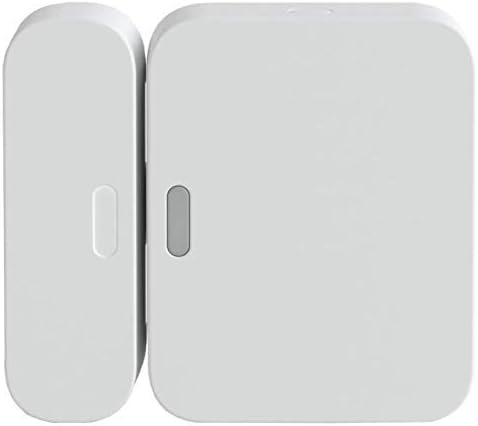
SimpliSafe Entry Sensor - Window and Door Protection - Co...
As an Amazon Associate we earn from qualifying purchases.
Official Manufacturer Manual
SimpliSafe provides official product documentation through their online manual rather than downloadable PDF. Access setup guides, troubleshooting steps, and product specifications for your Simplisafe Device.
Source: support.simplisafe.com
Need More Help? SimpliSafe Support
Note: The contact information below connects you directly to SimpliSafe's official customer support team, not Trunetto. They can help with warranty claims, device replacements, and advanced technical issues.
How Does SimpliSafe Compare?
Before replacing your SimpliSafe device, see how it stacks up against alternatives in our full comparison guides.
Accessories owners commonly pair with Simplisafe Device.

SimpliSafe 12 Piece Wireless Home Security System w/HD Ca...

SimpliSafe 11 Piece Wireless Home Security System Gen 3 w...

SimpliSafe Smart Alarm Wireless Indoor Security Camera
As an Amazon Associate we earn from qualifying purchases.




