

Why Does My SimpliSafe Motion Sensor Keep Triggering False Alarms?
- Direct sunlight hitting the motion sensor
- Heating or cooling vents in the sensor field of view
- Pets getting too close to the sensor within a few feet
Problem Description
Your SimpliSafe motion sensor triggers the alarm when no one is home or detects motion when there is no actual intruder. False alarms from motion sensors are annoying and can result in fines from local police if they respond to too many false calls. SimpliSafe motion sensors use passive infrared technology to detect heat signatures moving across the sensor field of view. Environmental factors like sunlight, heating vents, pets, and even insects can trigger false positives if the sensor is not positioned correctly or configured properly.
Why This Happens in Real Homes
A SimpliSafe motion sensor firing with nobody there is almost always heat on the move reaching its PIR: direct sun crossing the room, a vent or radiator pushing warm air, or a heat source in its field. It senses temperature change, not a person as such.
Start by repositioning it away from windows, vents, and heat sources and mounting at the recommended height, then lower sensitivity if available. Keeping direct sunlight and HVAC airflow out of its detection pattern is what stops the phantom triggers.
Symptoms
- Alarm triggers when no one is home
- Motion detected notifications with no actual movement
- False alarms happen at the same time of day
- Alarm triggers when HVAC system turns on
- Pets triggering the motion sensor despite pet mode
- False alarms during storms or temperature changes
Recognize these? Here's what usually causes it.
Common Causes
- Direct sunlight hitting the motion sensor
- Heating or cooling vents in the sensor field of view
- Pets getting too close to the sensor within a few feet
- Curtains moving near a warm radiator
- Insects crawling directly in front of the sensor
- Sensor pointed at a window detecting outdoor movement
- Sensor mounted on unstable surface causing vibration
- Pet mode not enabled for homes with animals
Most fixes happen in the first 3 steps.
Multiple false alarms can result in fines from your local police department and may cause SimpliSafe monitoring to deprioritize your alerts. Address false alarms promptly. If a motion sensor triggers more than two false alarms in a week remove it from Away mode until you resolve the issue.
Step-by-Step Solution
Enable Pet Mode
For homes with pets under 60 pounds enable pet mode in the app. Go to My System then Device Settings then select the Motion Sensor. Under Motion Sensitivity tap Pet Mode and toggle it on. Tap Save. Pet mode adjusts the detection pattern to ignore movement close to the floor. Note that pets can still trigger alarms if they jump on furniture or get within 3 feet of the sensor.
Check Sensor Placement for Sunlight
Identify when false alarms occur. If they happen at the same time each day sunlight may be the cause as the sun moves across windows. Relocate the sensor to a corner where direct sunlight will not hit it throughout the day. Avoid placing the sensor opposite large windows or glass doors that allow direct sun exposure.
Eliminate HVAC Interference
If false alarms correlate with your heating or cooling system turning on a vent may be in the sensor field of view. Hot or cold air blowing from vents creates temperature changes that PIR sensors detect as motion. Reposition the sensor so no HVAC vents are visible in its detection cone. The sensor has a 90 degree field of view so mount it in a corner pointing away from vents.
Prevent Pet Triggering
Even with pet mode enabled pets can trigger false alarms. Mount the sensor 4 to 5 feet high angled slightly downward. Do not point it at couches, beds, or cat trees where pets climb. Do not point it at pet doors or feeding areas. If your pet weighs over 60 pounds pet mode may not be effective and you may need to exclude that room from motion detection or remove the sensor.
Test After Adjustments
After repositioning or adjusting settings put the system in test mode and verify the sensor detects human movement. Walk through the room at different speeds and from different directions. Then leave the room and monitor for false activations. If false alarms continue try repositioning further or contact SimpliSafe support for a sensor replacement if it may be defective.
Quick Solutions
Still having issues? This is usually the deeper cause below.
If the sensor still misses events after repositioning, check whether a scheduled 'home' or 'away' mode is overriding the sensitivity setting silently.
Motion sensors work best in interior hallways and rooms without large windows. Placing them in entryways where intruders must pass ensures detection while avoiding environmental triggers. If you have persistent false alarms consider using entry sensors on doors and windows as your primary protection and removing problematic motion sensors. **Product Intelligence:** - CR-123A battery (3-5yr) - Mount 4-5ft high - Pet mode <50lbs
False alarms cluster in two windows: the first two weeks of installation, and years later as sensors age. Rarely anything in between.
- Direct sunlight hitting the motion sensor
- Heating or cooling vents in the sensor field of
- Pets getting too close to the sensor within a
- Curtains moving near a warm radiator
- Insects crawling directly in front of the sensor
Before you go — try one of these (they fix most cases).
Most popular upgrades chosen by SimpliSafe Motion Sensor owners.

SimpliSafe Wireless Keypad - Touch-to-Wake Technology - C...

SimpliSafe Wireless Outdoor Security Camera (Renewed)
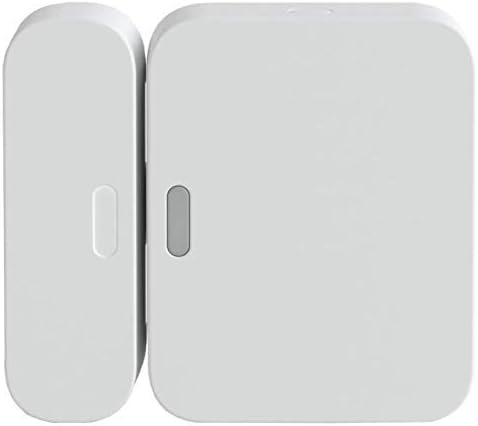
SimpliSafe Entry Sensor - Window and Door Protection - Co...
As an Amazon Associate we earn from qualifying purchases.
Official Manufacturer Manual
SimpliSafe provides official product documentation through their online manual rather than downloadable PDF. Access setup guides, troubleshooting steps, and product specifications for your SimpliSafe Motion Sensor.
Source: support.simplisafe.com
Need More Help? SimpliSafe Support
Note: The contact information below connects you directly to SimpliSafe's official customer support team, not Trunetto. They can help with warranty claims, device replacements, and advanced technical issues.
How Does SimpliSafe Compare?
Before replacing your SimpliSafe device, see how it stacks up against alternatives in our full comparison guides.
Accessories owners commonly pair with SimpliSafe Motion Sensor.

SimpliSafe 8 Piece Wireless Home Security System

SimpliSafe 9 Piece Wireless Home Security System

SimpliSafe 12 Piece Wireless Home Security System w/HD Ca...
As an Amazon Associate we earn from qualifying purchases.

