

How Do I Re-pair All SimpliSafe Sensors After a Base Station Reset?
- Factory reset of base station erased all sensor pairing data
- Base station replacement required fresh sensor pairing
- Firmware corruption required full system re-setup
Problem Description
After a factory reset of your SimpliSafe base station all sensor pairings have been erased and every sensor must be re-paired individually. With a large system this can mean re-pairing 15 to 30 or more sensors plus keypads and sirens. The process requires physically triggering each sensor during pairing such as opening a door for entry sensors or walking past motion detectors. Planning the order and having your sensor placement map ready makes this much faster.
Why This Happens in Real Homes
A factory reset of the base station wipes its sensor table, so every sensor has to be re-added — the sensors themselves are fine, but the base no longer knows them. This is expected after a reset, not a fault.
Start by re-adding each sensor through the app (or keypad menu), one at a time, ideally near the base for a clean pair. Have your device list handy so you can rename and place them as before; there's no shortcut — a reset means rebuilding the sensor roster.
Symptoms
- All sensors show as not connected after base station factory reset
- Keypad shows no sensors paired to the system
- SimpliSafe app shows base station with zero devices
- Opening doors and windows does not trigger any alarm or notification
- Motion detectors do not detect movement or trigger alerts
- System cannot be armed because no sensors are paired
Recognize these? Here's what usually causes it.
Common Causes
- Factory reset of base station erased all sensor pairing data
- Base station replacement required fresh sensor pairing
- Firmware corruption required full system re-setup
- Moving to a new home and reinstalling the system from scratch
- Base station hardware failure required replacement unit
- Previous pairing was corrupted causing unreliable sensor communication
Most fixes happen in the first 3 steps.
Do not pair sensors too quickly in succession. Wait 10 to 15 seconds between each sensor pairing to let the base station radio table update. Rapid-fire pairing can cause the base station to miss a sensor or create a duplicate entry that causes unreliable behavior.
Tools & Requirements
Step-by-Step Solution
Prepare Your Sensor Map
Before starting list all sensors in your home by type and location. Entry sensors on front door, back door, garage door, and windows. Motion sensors in hallways and main rooms. Environmental sensors in basement, kitchen, and utility areas. Keypads at entry points. Having this list lets you work systematically and ensures you do not miss any sensor. Check old SimpliSafe app screenshots if you have them.
Pair Entry Sensors First
Open the SimpliSafe app and go to Settings then Devices then Add Device. Select Entry Sensor. The app will instruct you to remove the sensor from the door or window frame and press the small button on the sensor. Alternatively open and close the door or window to trigger the sensor. The base station will beep confirming the pairing. Name the sensor with its location like Front Door. Repeat for all entry sensors.
Pair Motion Sensors
Select Add Device then Motion Sensor in the app. Walk in front of the motion sensor to trigger it. The base station will beep and the app will confirm the pairing. Name each sensor with its location. Motion sensors take 3 to 4 minutes to warm up after being moved or powered on so wait a few minutes after installing before attempting to pair.
Pair Environmental Sensors
Add smoke detectors, water sensors, freeze sensors, and CO detectors through the same Add Device menu. Each sensor type has a specific pairing trigger. Smoke detectors have a test button. Water sensors require touching the metal contacts with a damp finger. Freeze sensors pair by pressing their button. Follow the app instructions for each type.
Pair Keypads and Siren Last
Add keypads by selecting Add Device then Keypad. Press any button on the keypad to trigger pairing. After pairing set your PIN code through the app. Add the extra siren by selecting Add Device then Siren and pressing its button. After all devices are paired go to the app and configure your security modes. Set which sensors are active in Home mode versus Away mode. Entry sensors on main doors should have entry delay enabled.
Quick Solutions
Still having issues? This is usually the deeper cause below.
If pairing fails after multiple attempts, the device may still be registered to a previous account — factory-reset it before trying to add it to a new one.
After re-pairing all sensors do a full walk test. Arm the system in Away mode and walk through your home triggering every sensor. Open every door and window with a sensor. Walk past every motion detector. Check the SimpliSafe app event log to confirm every sensor reported. This catches any sensors that paired but have weak radio signal to the base station. **Product Intelligence:** - Supports 50 sensors - Cellular backup auto-activates - Red flash: 1=sensor, 3=connectivity
Pairing failures almost always come down to distance during the initial handshake — manufacturers seriously understate how close you actually need to be.
- Factory reset of base station erased all sensor pairing
- Base station replacement required fresh sensor pairing
- Firmware corruption required full system re-setup
- Moving to a new home and reinstalling the system
- Base station hardware failure required replacement unit
Before you go — try one of these (they fix most cases).
Most popular upgrades chosen by SimpliSafe Security System owners.

SimpliSafe Wireless Keypad - Touch-to-Wake Technology - C...
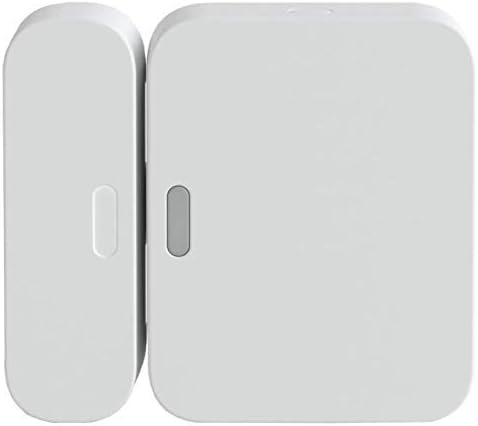
SimpliSafe Entry Sensor - Window and Door Protection - Co...

SimpliSafe 8 Piece Wireless Home Security System
As an Amazon Associate we earn from qualifying purchases.
Official Manufacturer Manual
If you need the complete manufacturer documentation for advanced setup, wiring diagrams, or detailed specifications, you can download the official manual below. The manual includes full technical instructions directly from the manufacturer and may help if your issue requires deeper troubleshooting.
Download the Official SimpliSafe Security System ManualSource: simplisafe.com
Need More Help? SimpliSafe Support
Note: The contact information below connects you directly to SimpliSafe's official customer support team, not Trunetto. They can help with warranty claims, device replacements, and advanced technical issues.
How Does SimpliSafe Compare?
Before replacing your SimpliSafe device, see how it stacks up against alternatives in our full comparison guides.
Accessories owners commonly pair with SimpliSafe Security System.

SimpliSafe 12 Piece Wireless Home Security System w/HD Ca...

SimpliSafe 11 Piece Wireless Home Security System Gen 3 w...

SimpliSafe Smart Alarm Wireless Indoor Security Camera
As an Amazon Associate we earn from qualifying purchases.




