

Why Is My SimpliSafe System Running Slow or Delayed?
- Weak WiFi signal at base station location
- Internet connection slow or unstable
- SimpliSafe servers experiencing high load
Problem Description
Your SimpliSafe system is responding slowly. Commands take several seconds, the app is laggy, sensors have delayed responses, or the keypad takes too long to register input. Performance issues usually stem from WiFi problems, server connectivity, or interference affecting the RF signals between components.
Why This Happens in Real Homes
A slow, laggy SimpliSafe system — commands take a while, status is delayed — usually means the base station has a weak WiFi signal or your internet is congested, so its round-trip to SimpliSafe's servers drags.
Start by improving the base's WiFi (move it closer to the router or reduce obstructions) and checking your internet health, then power-cycle the base. Reserving a fixed IP and keeping firmware current help; a base tucked in a basement corner far from the router is the common reason everything feels sluggish.
Symptoms
- Keypad takes 5+ seconds to respond to codes
- App shows loading spinner frequently
- Sensor triggers delayed by several seconds
- Arm and disarm commands timing out
- Camera live view slow to load or buffering
- Base station status updates delayed in app
Recognize these? Here's what usually causes it.
Common Causes
- Weak WiFi signal at base station location
- Internet connection slow or unstable
- SimpliSafe servers experiencing high load
- RF interference from other wireless devices
- Too many sensors straining the system
- Outdated base station firmware
Most fixes happen in the first 3 steps.
Do not attempt to open or modify the SimpliSafe base station to improve antenna signal. This voids your warranty and may damage the unit. If performance issues persist, contact SimpliSafe for a potential base station replacement.
Tools & Requirements
Step-by-Step Solution
Test WiFi Signal Strength
SimpliSafe base station needs strong WiFi for cloud features and app communication. Stand at the base station location with your phone and check WiFi signal strength. If below 2-3 bars, WiFi is likely the bottleneck. Consider a WiFi extender near the base station or relocating the base station closer to your router. Wired Ethernet is not an option for SimpliSafe.
Check Internet Speed
Run an internet speed test on your phone while near the base station. SimpliSafe requires at least 2 Mbps upload speed for reliable operation. If your speed is below this, contact your ISP. Also restart your modem and router by unplugging for 30 seconds. This clears cached connections that may be slowing down IoT devices.
Reboot the Base Station
A simple reboot often resolves performance issues. Unplug the base station power adapter and wait 30 seconds. Plug it back in and allow 3-5 minutes for full restart. The base station will re-establish connections with all sensors and SimpliSafe servers. Monitor performance for 24 hours after rebooting before taking further action.
Check for RF Interference
SimpliSafe uses 433 MHz RF for sensor communication. This can be interfered with by baby monitors, wireless weather stations, some garage door openers, and other devices. Move the base station away from these devices. Also avoid placing near large metal objects, refrigerators, or inside metal cabinets which block RF signals from reaching sensors.
Verify SimpliSafe Service Status
SimpliSafe occasionally has server issues that affect app responsiveness and command processing. Check status.simplisafe.com for any reported outages. If there is an outage, wait for SimpliSafe to resolve it. Local keypad operation should still work during server outages but app features will be degraded until service is restored.
Quick Solutions
Still having issues? This is usually the deeper cause below.
If this comes back after following these steps, check whether a recent app or firmware update reset a default setting — the fix works, but the setting gets reverted silently.
SimpliSafe works entirely locally for arming, disarming, and sensor monitoring even if internet is slow. Slow internet only affects app control and professional monitoring. If keypad response is slow, the issue is RF interference not internet.
Notification delays over 2 minutes are almost never the device's fault — background app restrictions quietly re-enable themselves after every OS update.
- Weak WiFi signal at base station location
- Internet connection slow or unstable
- SimpliSafe servers experiencing high load
- RF interference from other wireless devices
- Too many sensors straining the system
Before you go — try one of these (they fix most cases).
Most popular upgrades chosen by Simplisafe Device owners.

SimpliSafe Wireless Keypad - Touch-to-Wake Technology - C...

SimpliSafe Wireless Outdoor Security Camera (Renewed)
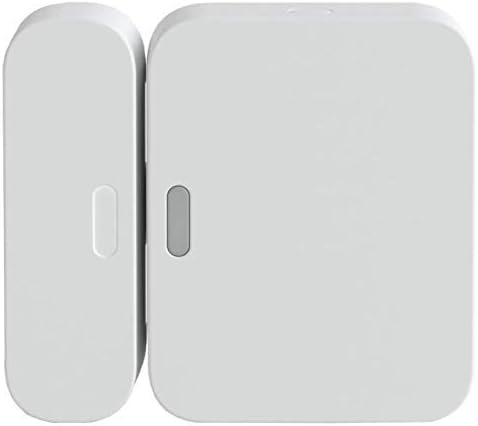
SimpliSafe Entry Sensor - Window and Door Protection - Co...
As an Amazon Associate we earn from qualifying purchases.
Official Manufacturer Manual
SimpliSafe provides official product documentation through their online manual rather than downloadable PDF. Access setup guides, troubleshooting steps, and product specifications for your Simplisafe Device.
Source: support.simplisafe.com
Need More Help? SimpliSafe Support
Note: The contact information below connects you directly to SimpliSafe's official customer support team, not Trunetto. They can help with warranty claims, device replacements, and advanced technical issues.
How Does SimpliSafe Compare?
Before replacing your SimpliSafe device, see how it stacks up against alternatives in our full comparison guides.
Accessories owners commonly pair with Simplisafe Device.

SimpliSafe 12 Piece Wireless Home Security System w/HD Ca...

SimpliSafe 11 Piece Wireless Home Security System Gen 3 w...

SimpliSafe Smart Alarm Wireless Indoor Security Camera
As an Amazon Associate we earn from qualifying purchases.




