

Why Does My SimpliSafe Say WiFi Disconnected Every Night?
- Router DHCP lease time set to a short duration causing frequent renewals
- SimpliSafe base station WiFi chipset handles DHCP renewal poorly
- Router assigns a new IP address during renewal briefly disconnecting the device
Problem Description
Your SimpliSafe base station disconnects from WiFi at the same time every night or every few days then reconnects automatically. You receive WiFi disconnected and WiFi reconnected notifications from the SimpliSafe app. The system falls back to cellular backup during the disconnect maintaining monitoring but the repeated disconnections are concerning. This pattern strongly suggests a DHCP lease renewal issue where your router temporarily drops the base station connection during IP address renegotiation.
Why This Happens in Real Homes
A base station that drops WiFi at the same time nightly is a scheduled-event tell: a short router DHCP lease renewing, a router's nightly auto-reboot, or ISP off-peak maintenance knocks the base off, and it returns by morning.
Start by lengthening the router's DHCP lease time (or reserving a fixed IP for the base) and checking for a scheduled router reboot to disable or move. A consistent nightly disconnect is almost always the network's timing, not the base station.
Symptoms
- SimpliSafe app sends WiFi disconnected notification at the same time nightly
- WiFi reconnected notification follows 1 to 5 minutes after disconnected notification
- Disconnections happen at a consistent interval like every 24 or 48 hours
- System falls back to cellular during WiFi drop then returns to WiFi
- Router logs show DHCP lease renewal for SimpliSafe device at the disconnect time
- No other devices on the network experience disconnections at the same time
Recognize these? Here's what usually causes it.
Common Causes
- Router DHCP lease time set to a short duration causing frequent renewals
- SimpliSafe base station WiFi chipset handles DHCP renewal poorly
- Router assigns a new IP address during renewal briefly disconnecting the device
- Router power saving mode disables 2.4GHz radio during low-usage periods overnight
- Router firmware bug causing DHCP renewal to drop IoT connections
- IP address conflict with another device that comes online overnight
Most fixes happen in the first 3 steps.
Do not disable DHCP entirely on your router as a fix. This will prevent all devices from obtaining IP addresses automatically. Only create a DHCP reservation for the SimpliSafe base station while leaving DHCP enabled for other devices.
Tools & Requirements
Step-by-Step Solution
Find Base Station MAC Address
Open the SimpliSafe app and go to Settings then Base Station then WiFi Network. The MAC address should be listed there. If not check your router connected devices list for a device named SimpliSafe or with manufacturer SimpliSafe. Copy the MAC address which is a 12-character code formatted like AA:BB:CC:DD:EE:FF.
Create DHCP Reservation
Log into your router admin panel and go to DHCP settings. Create a DHCP reservation or static lease for the SimpliSafe MAC address. Assign it a fixed IP outside the dynamic DHCP range. For example if your DHCP range is 192.168.1.100 to 192.168.1.200 assign the base station 192.168.1.210. This ensures the IP never changes during lease renewal eliminating the brief disconnect.
Increase DHCP Lease Time
In your router DHCP settings change the lease duration from the default which is often 2 to 24 hours to 604800 seconds which is 7 days. Fewer lease renewals mean fewer opportunities for the base station to temporarily disconnect. This benefits all IoT devices on your network not just SimpliSafe.
Disable Router Power Saving
Some routers have energy saving or eco modes that reduce WiFi radio power or disable 2.4GHz during low-usage periods typically overnight. This drops all 2.4GHz devices including SimpliSafe. Check your router for features named Eco Mode, Power Saving, WiFi Schedule, or Radio Management and disable them. The 2.4GHz radio should run 24/7 for a security system.
Reboot Base Station After Changes
After making router changes unplug the SimpliSafe base station for 30 seconds and plug it back in. This forces it to obtain a new DHCP lease with the reservation you created. Monitor the SimpliSafe app notifications for the next few days to confirm the nightly disconnections have stopped.
Quick Solutions
Still having issues? This is usually the deeper cause below.
This usually happens right after a router reboot or ISP change — the device rejoins the network but drops its cloud session silently.
Even though WiFi disconnections trigger notifications your SimpliSafe system is still monitored during the brief dropout. The cellular backup activates instantly when WiFi drops ensuring continuous professional monitoring. The WiFi disconnection is an inconvenience not a security gap.
Most WiFi drop-offs happen right after a router reboot or ISP swap — the device reconnects to the network but silently loses its cloud registration.
- Router DHCP lease time set to a short duration
- SimpliSafe base station WiFi chipset handles DHCP renewal poorly
- Router assigns a new IP address during renewal briefly
- Router power saving mode disables 2.4GHz radio during low-usage
- Router firmware bug causing DHCP renewal to drop IoT
Before you go — try one of these (they fix most cases).
Most popular upgrades chosen by SimpliSafe Base Station owners.

SimpliSafe Wireless Keypad - Touch-to-Wake Technology - C...

SimpliSafe Wireless Outdoor Security Camera (Renewed)
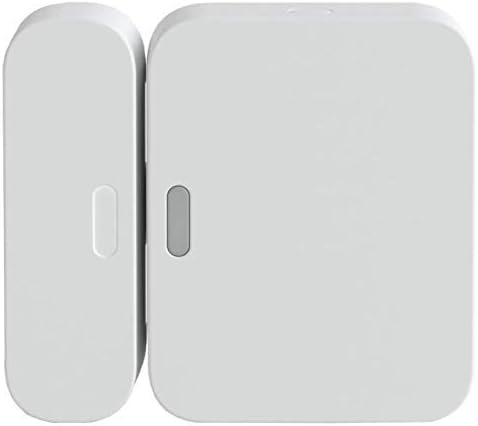
SimpliSafe Entry Sensor - Window and Door Protection - Co...
As an Amazon Associate we earn from qualifying purchases.
Official Manufacturer Manual
If you need the complete manufacturer documentation for advanced setup, wiring diagrams, or detailed specifications, you can download the official manual below. The manual includes full technical instructions directly from the manufacturer and may help if your issue requires deeper troubleshooting.
Download the Official SimpliSafe Base Station ManualSource: simplisafe.com
Need More Help? SimpliSafe Support
Note: The contact information below connects you directly to SimpliSafe's official customer support team, not Trunetto. They can help with warranty claims, device replacements, and advanced technical issues.
How Does SimpliSafe Compare?
Before replacing your SimpliSafe device, see how it stacks up against alternatives in our full comparison guides.
Accessories owners commonly pair with SimpliSafe Base Station.

Blink Mini - Compact indoor plug-in smart security camera...
Blink Mini - Compact indoor plug-in smart security camera...

Blink Mini - Compact indoor plug-in smart security camera...
As an Amazon Associate we earn from qualifying purchases.





