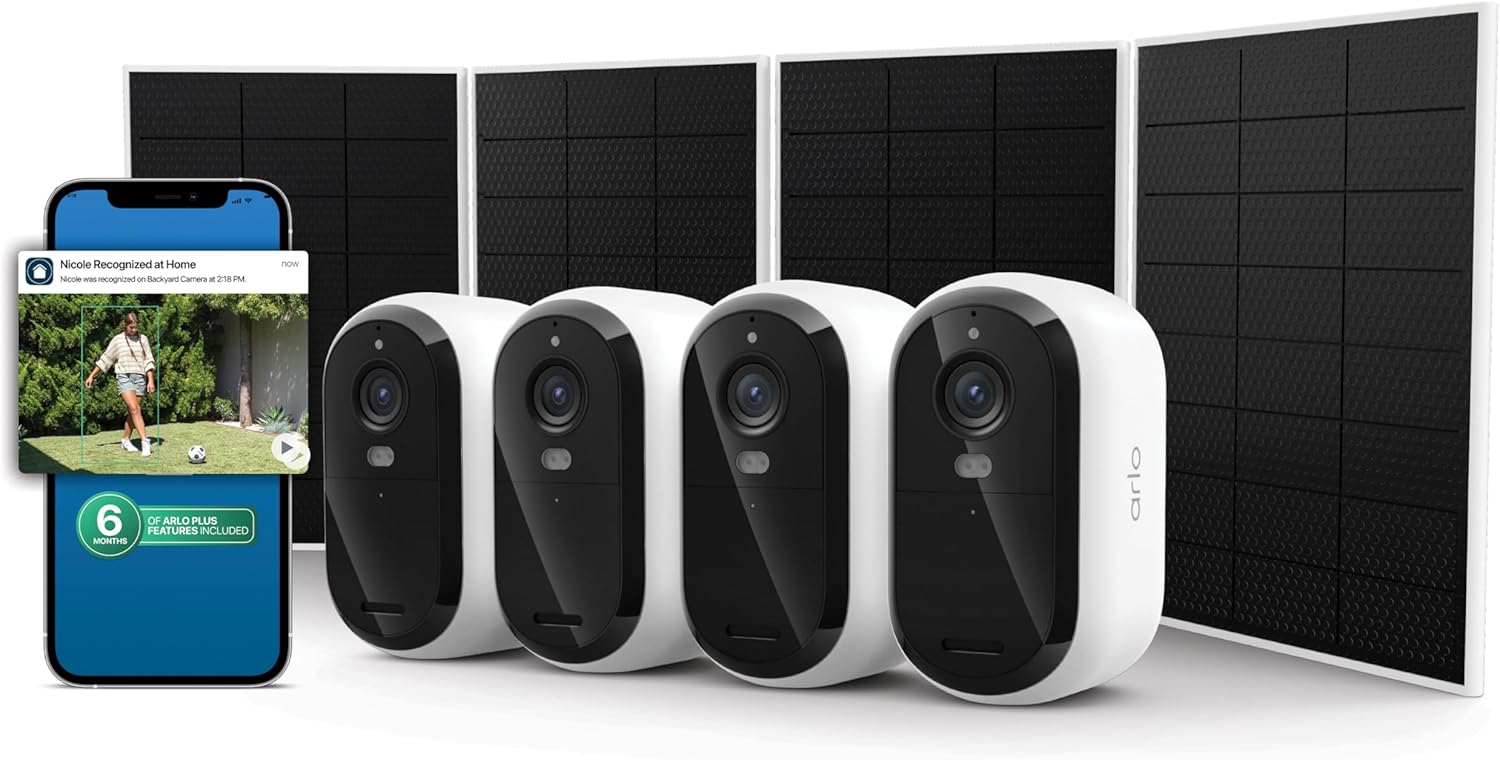
How Do I Connect Arlo to Google Home? Setup Guide
- Open Google Home App
- Link Your Arlo Account
- Assign Cameras to Rooms
- View on Nest Hub or Chromecast
- Use Voice Commands
Most users complete this in under 15 minutes
Overview
This guide shows you how to connect your Arlo cameras to Google Home so you can view live feeds on Nest Hub displays and control your cameras with Google Assistant voice commands.
Why This Happens in Real Homes
Linking Arlo to Google Home works through the Google Home app, and the snags are the Arlo account not linked or a mismatch between accounts. Google's Arlo support is more limited than Alexa's.
Start in Google Home, add and link Arlo, and sign in, then check which features (live view on Nest displays, voice commands) are actually supported for your model. If a feature won't work, it may be a platform limitation rather than your setup.
What's Included
- Arlo not appearing in Google Home app
- Cannot find Arlo in Works with Google list
- Camera feed not casting to Nest Hub display
- Google Assistant says it cannot access Arlo
- Live view shows loading but never connects
- Arlo cameras showing offline in Google Home
Got your materials ready? Here's what to check first.
Before You Start
- Arlo account not linked in Google Home app
- Using wrong Google account for linking
- Camera firmware is outdated
- Arlo subscription not active for streaming
- Network firewall blocking the connection
- Google Home app needs to be updated
Don't skip this step — it breaks everything if you do
Live streaming through Google Home requires a stable WiFi connection. Some advanced features may require an Arlo Secure subscription.
Installation Steps
Open Google Home App
Launch the Google Home app on your phone. Make sure you are signed into the Google account you want to use. Tap the plus icon in the top left corner, then select Set up device. Under Works with Google, tap Have something already set up.
Link Your Arlo Account
Search for Arlo and select it from the list. You will be redirected to the Arlo login page. Enter your Arlo account email and password. If you have two-factor authentication enabled, enter the code sent to your phone. Tap Authorize.
Assign Cameras to Rooms
After linking, Google Home will discover your Arlo cameras. For each camera, tap to assign it to a room in your home. Give each camera a clear, simple name for easier voice control.
View on Nest Hub or Chromecast
To view your Arlo camera feed, say Hey Google show me the camera name. The live feed will appear on your display within a few seconds. To stop viewing, say Hey Google stop.
Use Voice Commands
Google Assistant supports several Arlo voice commands. Say Hey Google is the front door camera on to check status. For Arlo doorbells, you can say Hey Google talk to the front door to use two-way audio.
Installation Tips
Still stuck? This is usually the deeper cause below.
Create a routine in Google Home to automatically show your doorbell camera on your Nest Hub when someone rings.
Before you go — these Arlo guides fix most remaining issues.
Official Manufacturer Manual
Arlo provides official product documentation through their online manual rather than downloadable PDF. Access setup guides, troubleshooting steps, and product specifications for your Arlo Security Cameras.
Source: us.arlo.com
Need More Help? Arlo Support
Note: The contact information below connects you directly to Arlo's official customer support team, not Trunetto. They can help with warranty claims, device replacements, and advanced technical issues.
How Does Arlo Compare?
Before replacing your Arlo device, see how it stacks up against alternatives in our full comparison guides.
Accessories owners commonly pair with Arlo Security Cameras.

As an Amazon Associate we earn from qualifying purchases.