Why Won't My eufy Camera Connect During Setup?
- Connecting to 5GHz instead of 2.4GHz
- Weak WiFi/HomeBase signal at the camera
- QR code at the wrong distance
Problem Description
Setting up a eufy camera means connecting it to your network — either directly to 2.4GHz WiFi or through a HomeBase — and adding it in the eufy Security app. This covers setup failing: the camera won't connect, the app can't find it, or QR scanning fails.
Why This Happens in Real Homes
eufy cameras set up one of two ways: standalone models join your 2.4GHz WiFi directly, while HomeBase-based cameras pair to the HomeBase first — so the setup path depends on your model. Most failures are the classic ones: a 5GHz-only network, weak signal at the camera, or the QR code not scanning because the phone is held wrong.
Put the camera in pairing mode and, for standalone cameras, join a 2.4GHz network (not 5GHz) with the correct password; for HomeBase cameras, pair close to the HomeBase and relocate afterward. Hold the QR code at the distance the app suggests until the camera chimes, ensure decent signal where it'll live, and install any firmware. That covers nearly every setup snag.
Symptoms
- Camera won't connect during setup
- App can't find the camera
- QR code won't scan
- Won't add to HomeBase
- Stuck at the WiFi step
- Times out pairing
- Setup fails repeatedly
- Offline right after setup
Recognize these? Here's what usually causes it.
Common Causes
- Connecting to 5GHz instead of 2.4GHz
- Weak WiFi/HomeBase signal at the camera
- QR code at the wrong distance
- Camera not in pairing mode
- Wrong WiFi password
- Camera not near the HomeBase for pairing
- Firmware update pending
- Router blocking the device
Most fixes happen in the first 3 steps.
HomeBase must stay powered and connected for camera system to work.
Tools & Requirements
Step-by-Step Solution
Check compatibility with your HomeBase
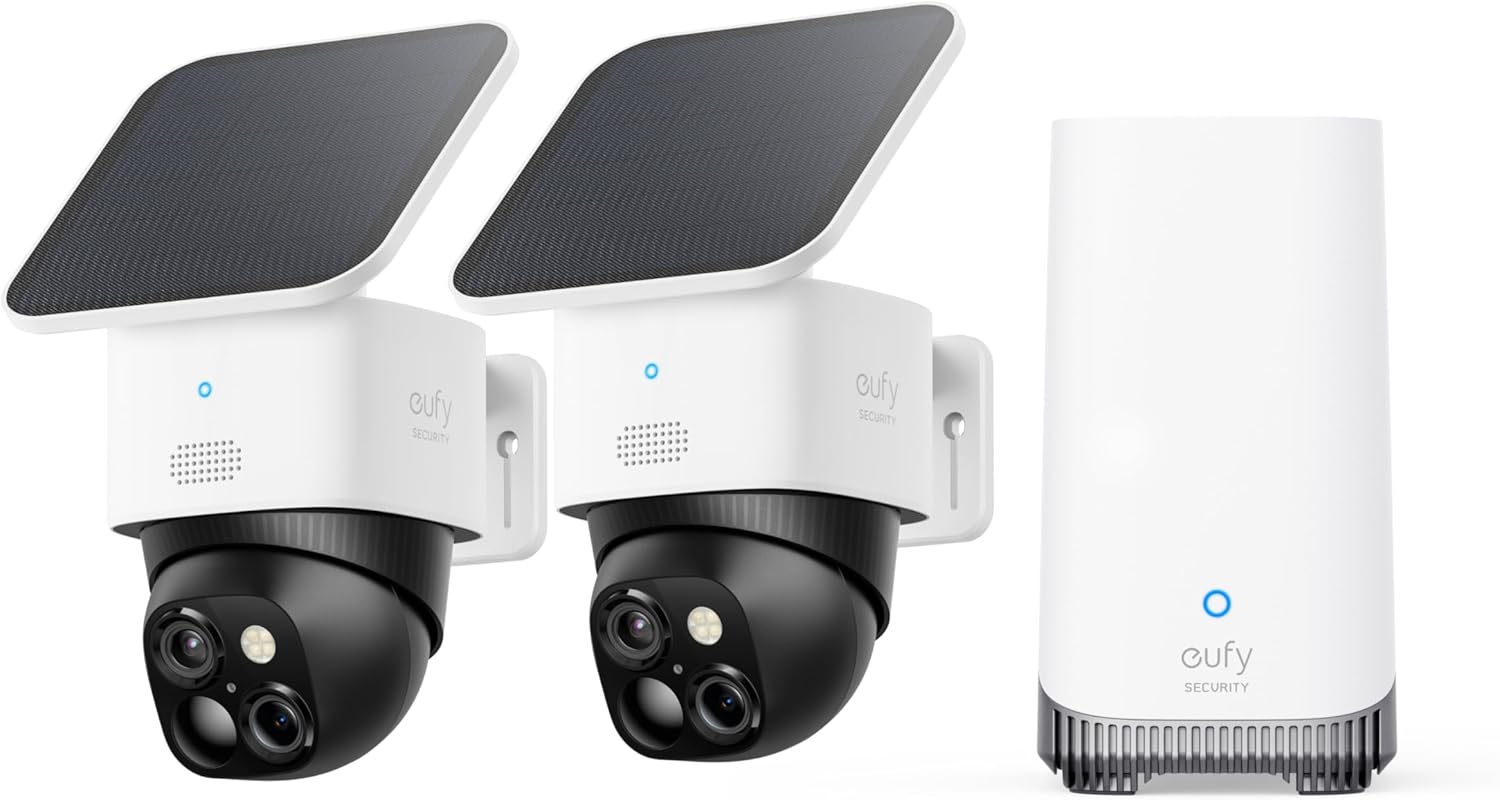
eufy cameras pair with specific HomeBase models. The eufyCam 2, 2C, and 2 Pro work with HomeBase 2 (model T8010). The eufyCam 3 and 3C work with HomeBase 3 (model S380). SoloCam models (E40, S40, S340) do not need a HomeBase — they connect directly to WiFi. In the eufy Security app, check your HomeBase model before trying to add a camera. If you have the wrong HomeBase, the camera will not pair.
Put the camera in pairing mode
For HomeBase cameras: press and hold the Sync button on the camera for 2 seconds until you hear a beep or see the LED flash. In the eufy app, go to the HomeBase > Devices > Add Device. The app scans for the camera. For SoloCam models: press and hold the Sync button for 10 seconds to factory reset, then follow the app setup wizard. The camera announces Ready to connect when in pairing mode.
Fix camera not discovered during setup
If the app does not find the camera: make sure the camera battery is charged (the camera LED flashes blue when powered on). Move the camera within 10 feet of the HomeBase during initial pairing — you can move it to its permanent location after pairing. For WiFi cameras (SoloCam), make sure your phone is on the 2.4GHz WiFi network, not 5GHz — the camera connects on 2.4GHz and setup requires your phone and camera on the same band.
Fix WiFi connection failures during setup
If the camera sees the WiFi network but fails to connect: check the WiFi password (case-sensitive, no special characters at the start/end that might be trimmed). Make sure the 2.4GHz band is active on your router. Check that the router is not at its device limit — some routers cap connected devices at 20-30. Also check for MAC filtering on your router — add the camera MAC address (shown in the eufy app during setup) to the allow list.
Reset and retry if setup fails repeatedly
Factory reset the camera: hold the Sync button for 10+ seconds until you hear a long beep or see rapid LED flashing. The camera clears all settings. Then retry setup from the eufy app. If using a HomeBase, also restart the HomeBase (unplug for 15 seconds). After resetting, delete the old camera entry from the app if it exists, and add it as a new device. Sometimes the old entry blocks re-pairing.
Quick Solutions
Still having issues? This is usually the deeper cause below.
Camera issues that start suddenly almost always trace back to an upload bandwidth drop — run a speed test before assuming hardware failure.
Set up activity zones to monitor only the areas that matter like your front porch and driveway and exclude the street. This dramatically reduces false alerts while ensuring you never miss an actual event at your property.
Live view problems that start suddenly usually trace back to an upload speed drop — the camera itself is fine, the bandwidth path to the cloud isn't.
- Connecting to 5GHz instead of 2.4GHz
- Weak WiFi/HomeBase signal at the camera
- QR code at the wrong distance
- Camera not in pairing mode
- Wrong WiFi password
Before you go — try one of these (they fix most cases).
Most popular upgrades chosen by eufy Security Camera owners.

eufy Security S220 SoloCam 4-Cam Pack with Homebase 3, So...

eufy Security SoloCam S340 with HomeBase 3, Solar Securit...

eufy Security 4K UHD Indoor Camera E30,360° Pan Tilt,AI A...
As an Amazon Associate we earn from qualifying purchases.
Official Manufacturer Manual
eufy Security provides official product documentation through their online manual rather than downloadable PDF. Access setup guides, troubleshooting steps, and product specifications for your eufy Security Camera.
Source: eufy.com
Need More Help? eufy Security Support
Note: The contact information below connects you directly to eufy Security's official customer support team, not Trunetto. They can help with warranty claims, device replacements, and advanced technical issues.
How Does eufy Security Compare?
Before replacing your eufy Security device, see how it stacks up against alternatives in our full comparison guides.
Accessories owners commonly pair with eufy Security Camera.

SANDISK 64GB Extreme microSDXC UHS-I Memory Card with Ada...

SANDISK 128GB Ultra microSDXC UHS-I Memory Card with Adap...

SANDISK 64GB Ultra microSDXC UHS-I Memory Card with Adapt...
As an Amazon Associate we earn from qualifying purchases.