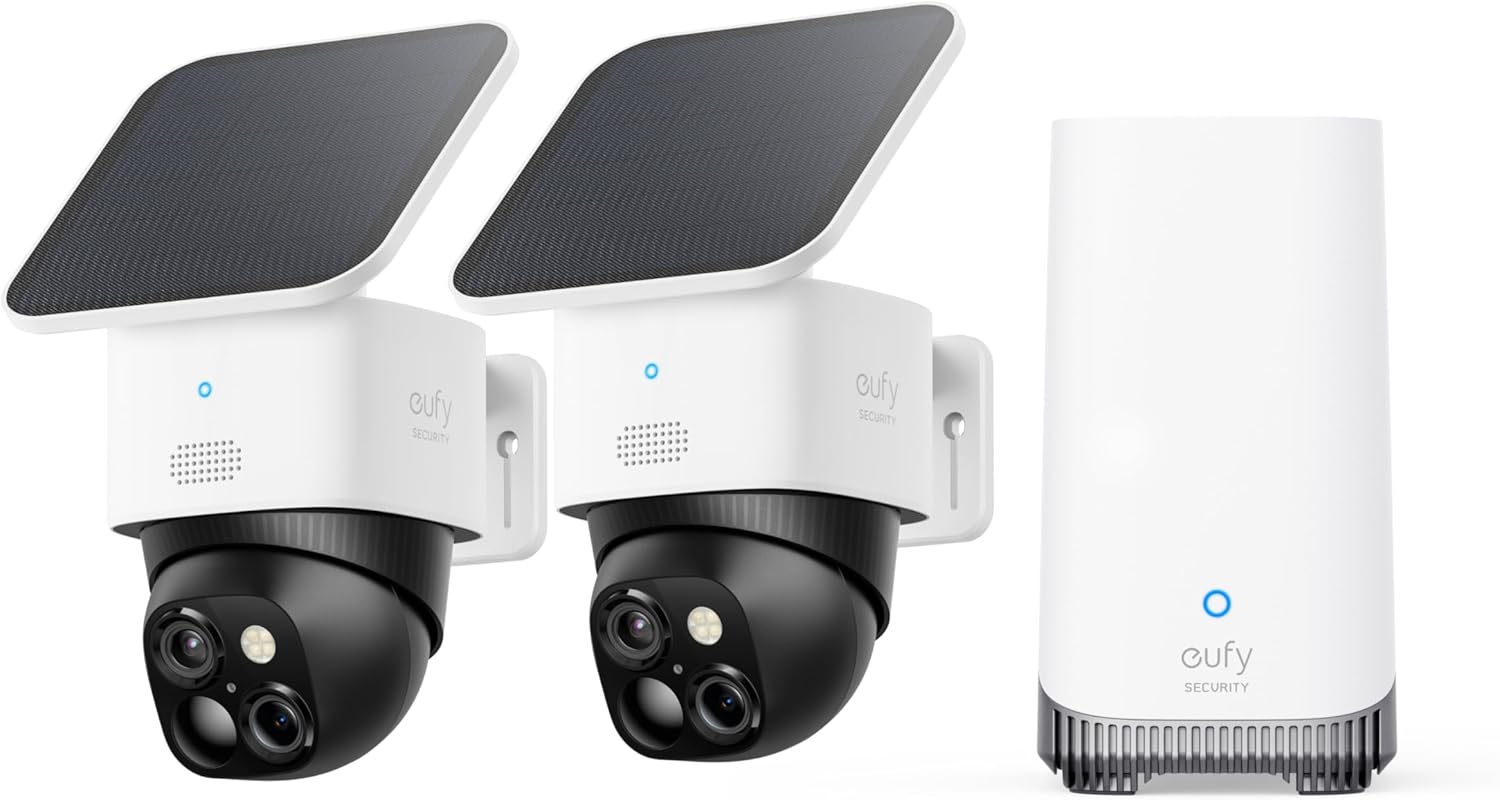
Why Does My eufy HomeBase 2 Keep Going Offline?
- Ethernet cable/port issue
- Router IP/DHCP churn
- Power interruption to the HomeBase
Problem Description
Your eufy HomeBase 2 or HomeBase 3 keeps going offline and disconnecting from your network. When the HomeBase is offline all connected eufy cameras and doorbells stop recording and cannot be accessed remotely. The HomeBase LED may show a flashing red or yellow light instead of the normal steady blue indicating a network communication failure.
Why This Happens in Real Homes
When a eufy HomeBase 2 or 3 keeps dropping offline, everything paired to it goes with it — so it's worth stabilizing the base itself first. It's happiest wired to the router by Ethernet, and most drops trace to a flaky Ethernet cable or port, the router churning its IP, or unstable power.
Reseat or swap the Ethernet cable and try a different router port, reserve a fixed DHCP IP so the router keeps it addressable, and plug it into steady, unswitched power with room to ventilate. If it's on WiFi, move it somewhere with strong signal. Check for scheduled router reboots, update the HomeBase firmware, and reduce network congestion. A solidly wired, fixed-IP HomeBase rarely drops.
Symptoms
- HomeBase keeps going offline
- Cameras all drop when it does
- Reconnects then drops
- Ethernet/WiFi disconnects
- Offline in the app
- Recordings interrupted
- Drops at certain times
- Won't stay connected
Recognize these? Here's what usually causes it.
Common Causes
- Ethernet cable/port issue
- Router IP/DHCP churn
- Power interruption to the HomeBase
- Weak WiFi (if connected wirelessly)
- Router reboots/firmware
- Overheating in a tight space
- Firmware out of date
- Network congestion
Most fixes happen in the first 3 steps.
A factory reset erases all HomeBase settings and camera pairings. Any locally stored recordings on the HomeBase internal storage will also be deleted permanently.
Tools & Requirements
Step-by-Step Solution
Check Ethernet Connection
The eufy HomeBase connects to your router via ethernet cable. Check that the cable is firmly plugged in at both the HomeBase and router ends. Try a different ethernet port on the router. If you have a spare ethernet cable swap it in to rule out a damaged cable. A loose or faulty ethernet connection is the number one cause of HomeBase offline issues and takes 30 seconds to verify.
Restart Router Then HomeBase
Unplug your router and wait 60 seconds. Plug it back in and wait 2 to 3 minutes for it to fully boot and establish an internet connection. Then unplug the eufy HomeBase power adapter wait 30 seconds and plug it back in. Wait 3 to 5 minutes for the HomeBase to boot completely. The LED should turn solid blue indicating a successful network connection. Always restart the router first so the HomeBase has a network to connect to.
Assign Static IP Address
Log into your router admin panel and find the HomeBase in the connected devices list. Create a DHCP reservation or static IP assignment for the HomeBase MAC address. This prevents the router from assigning a different IP address during lease renewals which can cause temporary disconnections. Choose an IP outside the normal DHCP range such as 192.168.1.200 to avoid conflicts with other devices.
Check HomeBase Ventilation and Temperature
The eufy HomeBase generates heat especially when multiple cameras are recording. Place it on a hard surface with at least 2 inches of clearance on all sides for airflow. Do not place it inside a closed cabinet on top of a router or near a heat source. If the HomeBase feels very hot to the touch overheating may be causing it to disconnect and restart as a thermal protection measure.
Update or Reset HomeBase Firmware
Open the eufy app and go to HomeBase settings to check for firmware updates. Install any available updates which often include network stability fixes. If the HomeBase continues disconnecting after all other steps perform a factory reset by pressing and holding the Sync button on the back for 10 seconds until the LED flashes. Then set up the HomeBase again in the eufy app. Your cameras will need to be re-added.
Quick Solutions
Still having issues? This is usually the deeper cause below.
This usually happens right after a router reboot or ISP change — the device rejoins the network but drops its cloud session silently.
Use a high quality Cat5e or Cat6 ethernet cable for the HomeBase connection. Cheap or very old cables can cause intermittent disconnections that are difficult to diagnose.
Most WiFi drop-offs happen right after a router reboot or ISP swap — the device reconnects to the network but silently loses its cloud registration.
- Ethernet cable/port issue
- Router IP/DHCP churn
- Power interruption to the HomeBase
- Weak WiFi (if connected wirelessly)
- Router reboots/firmware
Before you go — try one of these (they fix most cases).
Most popular upgrades chosen by eufy HomeBase 2 owners.

As an Amazon Associate we earn from qualifying purchases.
Official Manufacturer Manual
eufy Security provides official product documentation through their online manual rather than downloadable PDF. Access setup guides, troubleshooting steps, and product specifications for your eufy HomeBase 2.
Source: eufy.com
Need More Help? eufy Security Support
Note: The contact information below connects you directly to eufy Security's official customer support team, not Trunetto. They can help with warranty claims, device replacements, and advanced technical issues.
How Does eufy Security Compare?
Before replacing your eufy Security device, see how it stacks up against alternatives in our full comparison guides.
Accessories owners commonly pair with eufy HomeBase 2.

Amazon Smart Plug, Works with Alexa, Simple Setup, Endles...

TP-Link WiFi Extender with Ethernet Port, Dual Band 5GHz/...

Kasa Smart Plug, Matter Compatible, Energy Monitoring, Co...
As an Amazon Associate we earn from qualifying purchases.