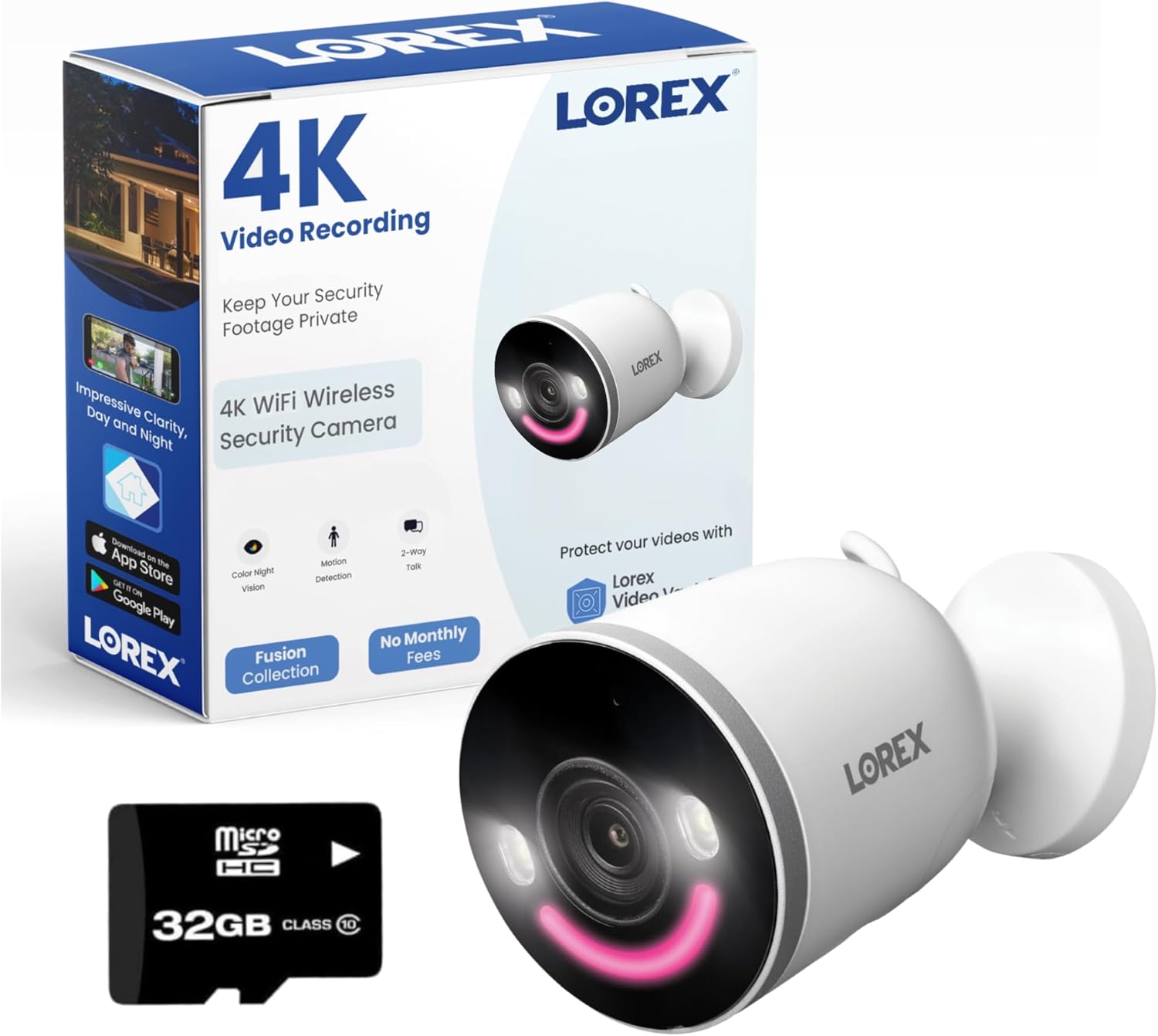
Why Does My Lorex WiFi Camera Keep Going Offline?
- Weak WiFi signal at the camera
- Camera or hub on 5GHz instead of 2.4GHz
- Router band-steering bouncing the camera
Problem Description
Your Lorex WiFi or wire-free camera keeps dropping offline in the app and stops recording. This is usually a weak WiFi signal at the camera, a router band or setting issue, or - on battery models - a low battery.
Why This Happens in Real Homes
A Lorex WiFi camera that keeps going offline is almost always a signal or network problem, and the pattern gives it away - the cameras farthest from the router drop while the close ones stay solid, or a battery model goes offline exactly when its charge runs out. WiFi cameras lean on the 2.4GHz band for range, so a router that band-steers them onto 5GHz, or a weak signal through a couple of walls, drops them repeatedly.
Strengthen the signal at the camera, split your bands so it stays on a dedicated 2.4GHz SSID, and reserve a static IP so it doesn't lose its address on a lease renewal - the classic cause of same-time-every-day drops. Recharge wire-free batteries, clear the WiFi channel, and keep firmware current. After any router change you'll need to reconfigure the camera's WiFi. A strong-signal camera on a reserved IP that still drops needs Lorex support.
Symptoms
- Camera shows offline in the app
- Camera drops off and reconnects
- Offline at the same time each day
- Live view fails but the camera has power
- Battery camera dies and goes offline
- Offline after a router change
- Far cameras drop, near ones stay on
- Recording gaps during offline periods
Recognize these? Here's what usually causes it.
Common Causes
- Weak WiFi signal at the camera
- Camera or hub on 5GHz instead of 2.4GHz
- Router band-steering bouncing the camera
- Low battery on a wire-free camera
- DHCP lease or IP conflict
- Router or channel congestion
- Camera too far from the router or hub
- Firmware out of date
Most fixes happen in the first 3 steps.
Battery wire-free cameras go offline when the charge runs out - check the battery level in the app before chasing a network problem.
Tools & Requirements
Step-by-Step Solution
Check the Signal at the Camera
WiFi cameras drop when the signal is weak, and the tell is that the farthest cameras go offline while nearby ones stay on. Check the camera's signal in the app, and move the router or add a mesh node closer, or relocate the camera to a spot with a stronger signal.
Keep It on 2.4GHz
Lorex WiFi cameras rely on the 2.4GHz band for range. If your router band-steers everything onto 5GHz under one name, it can bounce the camera off. Split the bands into separate SSIDs and keep the camera on the dedicated 2.4GHz network so it holds a stable link.
Recharge a Wire-Free Camera
On battery-powered wire-free cameras, going offline is often just a dead battery. Recharge it with the supplied cable or swap in a charged battery, and check the battery level in the app so you know that's not the cause.
Reserve a Static IP
A camera that drops at the same time each day is usually renewing its DHCP lease or hitting an IP conflict. In the router, reserve a fixed IP for the camera by its MAC address so it keeps one stable address and stops losing the connection.
Still stuck? Ask Trunetto about this exact issue.
Reduce Channel Congestion
The 2.4GHz band gets crowded with neighbors and other devices. Set the router's 2.4GHz channel to 1, 6, or 11 - whichever is clearest - to give the camera a cleaner, steadier connection.
Shorten the Distance
Every wall and floor between the camera and the router or hub cuts the signal. Move the camera closer, add a mesh node nearby, or reposition the hub so the path is more direct, especially through masonry or metal.
Update the Firmware
Connectivity fixes ship in firmware. Update the camera's firmware in the Lorex app, since an out-of-date camera can drop off until it's brought current.
Re-Add After Network Changes
A new router, a changed WiFi name or password, or a new ISP gateway will knock the camera offline. Reconfigure its WiFi or remove and re-add it to the new 2.4GHz network. If a strong-signal camera on a reserved IP still drops, contact Lorex.
Quick Solutions
Still having issues? This is usually the deeper cause below.
This usually happens right after a router reboot or ISP change — the device rejoins the network but drops its cloud session silently.
Decision point
If the fix does not hold, check the matching replacement before another reset cycle.
This is the most relevant replacement path for this Lorex Camera guide. Use it only if the steps above failed, the issue returns, or the part cost is too close to replacing the device.

Prime · in stock · standard · 247 reviews
Check Replacement PriceDo you work with smart-home systems?
Create a Trunetto business profile, list the brands and services you support, and make it easier for customers to find your business.
List Your BusinessIf a camera drops at the same time every day, it's usually a DHCP lease renewal - reserve a static IP for it in your router and the daily drops stop.
Most WiFi drop-offs happen right after a router reboot or ISP swap — the device reconnects to the network but silently loses its cloud registration.
- Weak WiFi signal at the camera
- Camera or hub on 5GHz instead of 2.4GHz
- Router band-steering bouncing the camera
- Low battery on a wire-free camera
- DHCP lease or IP conflict
Before you go — try one of these (they fix most cases).
Most popular upgrades chosen by Lorex Camera owners.
As an Amazon Associate we earn from qualifying purchases.
Official Manufacturer Manual
Lorex provides official product documentation through their online manual rather than downloadable PDF. Access setup guides, troubleshooting steps, and product specifications for your Lorex Camera.
Source: lorex.com
Need More Help? Lorex Support
Note: The contact information below connects you directly to Lorex's official customer support team, not Trunetto. They can help with warranty claims, device replacements, and advanced technical issues.