

Why Is My Nest Cam Battery Draining So Fast?
- Weak WiFi signal at camera location
- Power supply interrupted or adapter failing
- Motion sensitivity set too low or too high
Problem Description
Your Google Nest Nest Cam Battery is experiencing battery drain, power supply issues, or charging problems. Unreliable power affects the Nest Cam Battery performance and can cause it to go offline, miss events, or fail to respond when you need it most. Specifically, the issue involves draining fast. The steps below walk you through diagnosing the root cause and applying proven fixes so your Nest Cam Battery works reliably again.
Why This Happens in Real Homes
Google advertises up to 3 months of battery life but that estimate assumes 10 to 15 motion events per day. Most real-world front door or driveway installations see 30 to 50 events daily — every car, person, animal, and shadow triggers a 30-second recording clip. At that rate the battery dies in 2 to 3 weeks. Each live view session from your phone also drains the battery significantly, and people check their cameras 5 to 10 times a day. The real fix for high-traffic locations is running the included USB-C cable to a weatherproof outlet and keeping it wired full time. Reduce activity zones and lower motion sensitivity in the Google Home app to stretch battery life.
Symptoms
- Camera shows offline in the app
- Live view fails to load or times out
- Motion detection not triggering alerts
- Night vision appears too dark or washed out
- Recorded clips are missing or corrupted
- Two-way audio not working
- Camera keeps disconnecting from WiFi
Recognize these? Here's what usually causes it.
Common Causes
- Weak WiFi signal at camera location
- Power supply interrupted or adapter failing
- Motion sensitivity set too low or too high
- Cloud storage subscription expired
- Camera firmware outdated
- Infrared sensors blocked or dirty
- Bandwidth insufficient for multiple cameras
Most fixes happen in the first 3 steps.
Security cameras should be installed at least 8 feet high to prevent tampering. Check local laws regarding recording audio and video. Never aim cameras at neighboring private property. Outdoor cameras should be rated IP65 or higher for weather resistance.
Tools & Requirements
These tools will help you complete this fix.

Clean cloth
WHOOSH! Pro 16.9 fl oz Refillable TV Screen Cleaner ...

Replacement batteries
Duracell Coppertop Double AA Batteries with Power Bo...

Screwdriver
STREBITO 155 in 1 Electric Screwdriver Set, Small El...
As an Amazon Associate we earn from qualifying purchases.
Step-by-Step Solution
Check daily event count
Open the Google Home app and review the camera event history. Each motion event wakes the camera, connects to WiFi, records, and uploads — this is the biggest battery drain. If you are getting 50+ events per day, the camera is triggering too often. High-traffic areas like busy streets, driveways with constant movement, and windy areas with moving trees drain batteries within weeks.
Needed for this step
Duracell Coppertop Double AA Batteries with Pow...
This helps complete the fix you are currently reading.
$6.96Enable battery saver and reduce video quality
In the Google Home app, go to camera settings and select Battery Usage. Choose More Battery Life to automatically reduce recording quality and sensitivity. Also set video quality to the default level rather than High — high quality uses more power per recording. These two changes combined can nearly double battery life without dramatically affecting recording usefulness.
Narrow activity zones and reduce sensitivity
Draw activity zones that cover only the areas you need to monitor — exclude streets, sidewalks, and areas with constant movement. Reduce motion sensitivity to filter out small movements (animals, shadows, wind-blown objects). This is the single most effective battery saver. A well-zoned camera can last 3-6 months instead of 2-4 weeks on the same battery charge.
Avoid frequent live view streaming
Every time you open live view in the app, the camera wakes and streams continuously, using significant battery. If you check the live view several times per day out of habit, this drains the battery faster than motion events. Check recordings in the event history instead of live view when possible. Reserve live view for when you actually need real-time video.
Account for cold weather and WiFi signal
Cold temperatures reduce battery capacity — a camera that lasts 3 months in summer may last 6 weeks in winter. Weak WiFi signal forces the camera to transmit at higher power, draining the battery faster. Check the signal strength in the Google Home app. If it shows poor signal, add a WiFi extender near the camera. Consider the Nest solar panel accessory for cameras in locations that get good sun exposure.
Quick Solutions
Still having issues? This is usually the deeper cause below.
If drain continues after replacing batteries, check the event history — a stuck-open sensor or rapid polling loop burns through batteries in days.
Set up activity zones to monitor only the areas that matter like your front porch and driveway and exclude the street. This dramatically reduces false alerts while ensuring you never miss an actual event at your property.
App battery indicators run 15–20% behind actual charge levels — by the time the low warning appears, the device has been struggling for days.
- Weak WiFi signal at camera location
- Power supply interrupted or adapter failing
- Motion sensitivity set too low or too high
- Cloud storage subscription expired
- Camera firmware outdated
Before you go — try one of these (they fix most cases).
Most popular upgrades chosen by Nest Cam Battery owners.

Google Nest Cam Indoor (Wired, 3rd Gen) - Security Camera...

Google Nest Cam Indoor (Wired, 3rd Gen) - Security Camera...
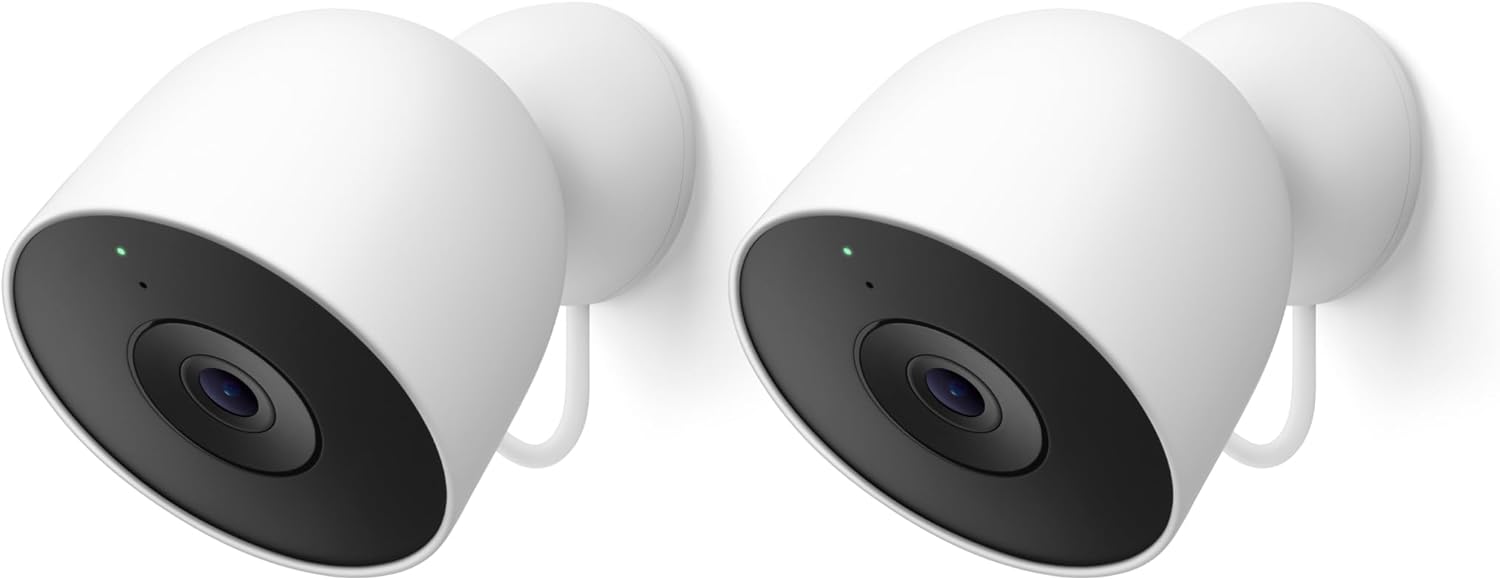
Google Nest Cam Outdoor (Wired, 2nd Gen) - 2 Pack - Secur...
As an Amazon Associate we earn from qualifying purchases.
Official Manufacturer Manual
If you need the complete manufacturer documentation for advanced setup, wiring diagrams, or detailed specifications, you can download the official manual below. The manual includes full technical instructions directly from the manufacturer and may help if your issue requires deeper troubleshooting.
Download the Official Nest Cam Battery ManualSource: support.google.com
Need More Help? Google Nest Support
Note: The contact information below connects you directly to Google Nest's official customer support team, not Trunetto. They can help with warranty claims, device replacements, and advanced technical issues.
How Does Google Nest Compare?
Before replacing your Google Nest device, see how it stacks up against alternatives in our full comparison guides.
Accessories owners commonly pair with Nest Cam Battery.

Google Nest Cam Outdoor or Indoor, Battery - 2nd Generati...

Google Nest Cam Outdoor or Indoor/Battery - 2nd Generatio...
As an Amazon Associate we earn from qualifying purchases.


