

Why Is My Nest Cam (Battery) Not Charging or Holding a Charge?
- Faulty charging cable or adapter
- Dirty charging port
- Extreme temperatures affecting battery
Problem Description
Your Google Nest Cam (Battery) is failing to charge or is not holding a charge for its expected duration, leading to frequent power outages and interruptions in your security monitoring. This can be due to power source issues, cable problems, or battery degradation.
Why This Happens in Real Homes
Your Nest Cam (Battery) may stop charging or lose charge quickly when the cable, adapter, charging contacts, or temperature conditions are not ideal. In day-to-day use, this usually looks like battery percentage not increasing, the camera going offline again shortly after charging, or the charging light staying off or red.
Most cases trace back to a faulty cable or adapter, a dirty charging port, cold or hot weather, or battery wear over time. Work through one fix at a time so you can clearly see what changes the behavior.
A practical order for this issue is: inspect the charging cable and adapter, clean the charging port, charge in a stable room-temperature environment, update firmware, then run a full power cycle. After each step, test charging progress before moving on.
Symptoms
- Camera battery percentage doesn't increase
- Camera dies quickly after charging
- Charging indicator light is off or red
- Camera shows 'Offline' due to low battery
- Charging cable feels loose
- Happens in cold weather
Recognize these? Here's what usually causes it.
Common Causes
- Faulty charging cable or adapter
- Dirty charging port
- Extreme temperatures affecting battery
- Outdated firmware
- Battery degradation
- Power outlet issue
Most fixes happen in the first 3 steps.
Do not attempt to open the Nest Cam or replace the internal battery yourself, as this can damage the device, void your warranty, and pose a safety risk. Contact Google Nest Support for battery issues.
Tools & Requirements
These tools will help you complete this fix.

Power adapter
JcBlaon Outlet Extender Surge Protector - 6 Outlet S...

USB-C cable
Amazon Basics USB-C to USB-C Fast Charger Cable, 480...
As an Amazon Associate we earn from qualifying purchases.
Step-by-Step Solution
Inspect Charging Cable and Adapter
Carefully examine your Nest Cam's charging cable and power adapter for any signs of damage, fraying, or bent pins. Try using a different USB-C cable and a different power adapter (make sure it meets Nest's power requirements, typically 7.5W or 15W) to rule out a faulty accessory. Make sure connections are snug.
Needed for this step
JcBlaon Outlet Extender Surge Protector - 6 Out...
This helps complete the fix you are currently reading.
$9.99Clean the Charging Port
Over time, dust, lint, or debris can accumulate in the USB-C charging port on your Nest Cam, preventing a proper connection. Gently clean the port using a dry, non-metallic tool like a wooden toothpick or a blast of compressed air. Avoid using anything sharp or metallic that could damage the pins.
Needed for this step
Amazon Basics USB-C to USB-C Fast Charger Cable...
This helps complete the fix you are currently reading.
$5.85Protect from Extreme Temperatures
Lithium-ion batteries, like those in the Nest Cam, are highly sensitive to extreme cold and heat. Operating or charging the camera in temperatures below 0°C (32°F) or above 40°C (104°F) can severely impact battery performance and charging efficiency. Relocate the camera to a more temperate spot if possible.
Update Device Firmware
Make sure your Google Home app is up to date, as firmware updates for your Nest Cam are often pushed automatically through the app and can include battery management improvements. If an update is pending, make sure your camera has a stable connection to allow it to complete.
Perform a Power Cycle or Factory Reset
Unplug the Nest Cam from its power source for 30 seconds, then plug it back in. If issues persist, a factory reset might be necessary (press and hold the reset button for 5 seconds until the light pulses yellow). Note that a factory reset will require you to set up the camera again in the Google Home app.
Quick Solutions
Still having issues? This is usually the deeper cause below.
If drain continues after replacing batteries, check the event history — a stuck-open sensor or rapid polling loop burns through batteries in days.
For outdoor installations, consider the optional weatherproof power cable for continuous power, eliminating the need for battery charging and ensuring uninterrupted monitoring.
App battery indicators run 15–20% behind actual charge levels — by the time the low warning appears, the device has been struggling for days.
- Faulty charging cable or adapter
- Dirty charging port
- Extreme temperatures affecting battery
- Outdated firmware
- Battery degradation
Before you go — try one of these (they fix most cases).
Most popular upgrades chosen by Google Nest Cam (Battery) owners.

Google Nest Cam Indoor (Wired, 3rd Gen) - Security Camera...

Google Nest Cam Indoor (Wired, 3rd Gen) - Security Camera...
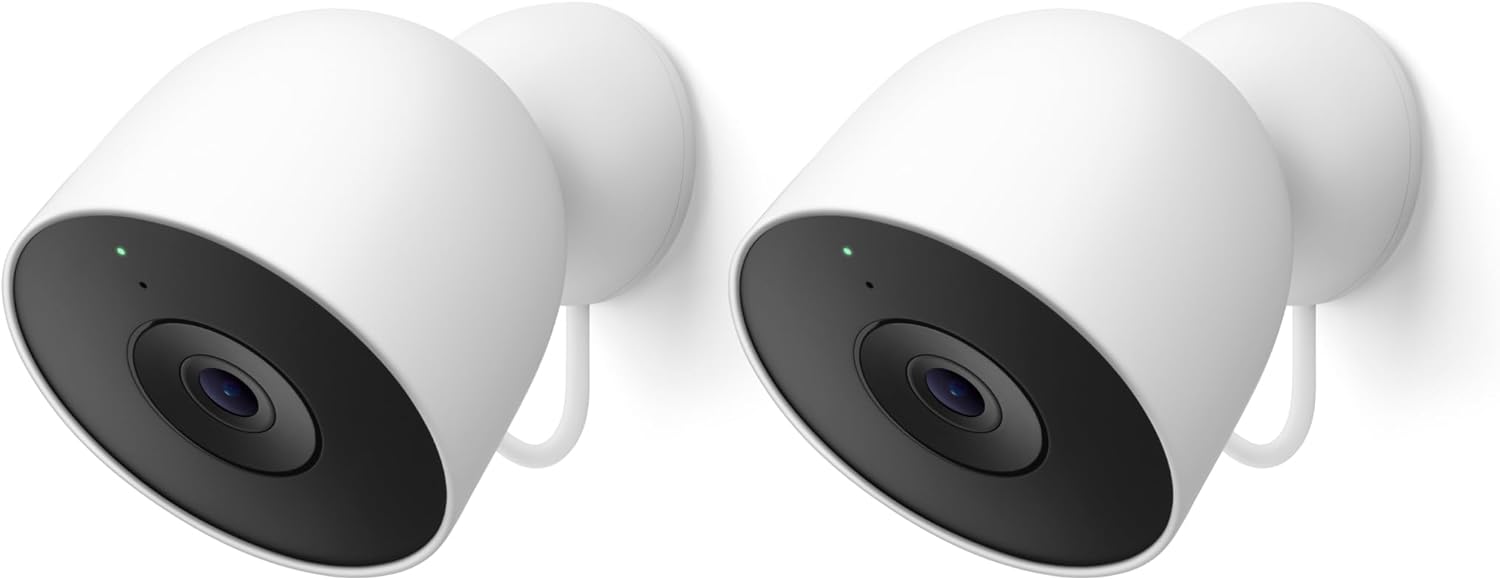
Google Nest Cam Outdoor (Wired, 2nd Gen) - 2 Pack - Secur...
As an Amazon Associate we earn from qualifying purchases.
Official Manufacturer Manual
If you need the complete manufacturer documentation for advanced setup, wiring diagrams, or detailed specifications, you can download the official manual below. The manual includes full technical instructions directly from the manufacturer and may help if your issue requires deeper troubleshooting.
Download the Official Google Nest Cam (Battery) ManualSource: support.google.com
Need More Help? Google Nest Support
Note: The contact information below connects you directly to Google Nest's official customer support team, not Trunetto. They can help with warranty claims, device replacements, and advanced technical issues.
How Does Google Nest Compare?
Before replacing your Google Nest device, see how it stacks up against alternatives in our full comparison guides.
Accessories owners commonly pair with Google Nest Cam (Battery).

Google Nest Cam Outdoor or Indoor, Battery - 2nd Generati...

Google Nest Cam Outdoor or Indoor/Battery - 2nd Generatio...
As an Amazon Associate we earn from qualifying purchases.





