

Why Is My Nest Cam Battery Draining Faster Than Expected?
- High traffic area triggering hundreds of motion events daily
- Cold weather below 32 degrees reducing battery capacity
- Weak WiFi signal forcing camera radio to work harder
Problem Description
Your Google Nest Cam battery is draining much faster than the advertised battery life. Instead of lasting weeks or months the camera may die within days requiring frequent recharging. Rapid battery drain reduces the reliability of your security coverage and is typically caused by high activity detection cold weather or WiFi signal issues that force the camera to work harder.
Why This Happens in Real Homes
Google's 3-month battery estimate is based on ideal lab conditions — moderate temperature, 10 to 15 events per day, minimal live viewing. Nobody lives in a lab. A camera facing a busy street or a driveway near a sidewalk easily gets 40 to 50 events daily. Each event records about 30 seconds of 1080p video, and the camera's processor and radio stay active the entire time. Reduce the activity zone in Google Home to cover only your property, not the sidewalk or street. Drop motion sensitivity from high to medium. Turn off person-only alerts if you do not need them, since the on-device AI processing burns extra battery analyzing each clip.
Symptoms
- Battery drops from full to empty within 2 to 3 days
- Camera goes offline frequently due to dead battery
- Battery percentage decreases rapidly overnight
- Charging takes longer than normal 5 hour cycle
- Camera records excessive motion events daily
- Battery health shows degraded in Google Home app
Recognize these? Here's what usually causes it.
Common Causes
- High traffic area triggering hundreds of motion events daily
- Cold weather below 32 degrees reducing battery capacity
- Weak WiFi signal forcing camera radio to work harder
- Live View used frequently draining battery rapidly
- Camera recording quality set to highest resolution
- Activity zones too broad capturing unnecessary motion
Most fixes happen in the first 3 steps.
Do not charge the Nest Cam battery in temperatures below freezing or above 113 degrees Fahrenheit. Charging outside this range can permanently damage the lithium battery cells.
Tools & Requirements
These tools will help you complete this fix.

Clean cloth
WHOOSH! Pro 16.9 fl oz Refillable TV Screen Cleaner ...

Replacement batteries
Duracell Coppertop Double AA Batteries with Power Bo...

Screwdriver
STREBITO 155 in 1 Electric Screwdriver Set, Small El...
As an Amazon Associate we earn from qualifying purchases.
Step-by-Step Solution
Check Daily Event Count
Open the Google Home app and select the Nest Cam. Go to event history and count how many motion events are being recorded per day. If the camera records more than 20 to 30 events daily the battery will drain in days not weeks. High traffic areas like busy streets or areas with frequent animal movement generate excessive events. You may need to reposition the camera or adjust detection zones to reduce this number significantly.
Tighten Activity Zones
In the Google Home app go to camera settings and select Activity Zones. Draw zones that only cover the specific areas you care about such as walkways and entry points. Exclude roads sidewalks and areas with trees or bushes that move in wind. The smaller and more focused your activity zones the fewer events trigger recording and the longer your battery lasts. This is the single most effective battery-saving adjustment.
Reduce Video Quality and Features
Go to camera settings in the Google Home app and lower the recording quality from high to low if that option is available. Disable features you do not actively use such as familiar face detection and continuous recording preview. Each active feature requires additional processing power which drains the battery. On the Nest Cam Battery the quality difference between high and low is minimal on a small camera sensor.
Improve WiFi Signal at Camera
Check the WiFi signal strength in the camera settings within the Google Home app. If the signal is weak the camera radio transmitter works at maximum power to maintain connection which is a major battery drain. Add a WiFi mesh node or extender within 15 to 20 feet of the camera. A strong WiFi signal allows the camera to transmit data using less power extending battery life by days or even weeks.
Address Temperature and Placement
Lithium batteries lose significant capacity in cold temperatures. Below 32 degrees Fahrenheit the Nest Cam battery may lose 20 to 40 percent of its normal capacity. If possible mount the camera under an eave or overhang to protect it from direct cold exposure. In extreme cold consider running a weatherproof USB-C cable to the camera for continuous wired power instead of relying on the battery.
Needed for this step
Duracell Coppertop Double AA Batteries with Pow...
This helps complete the fix you are currently reading.
$6.96Quick Solutions
Still having issues? This is usually the deeper cause below.
If drain continues after replacing batteries, check the event history — a stuck-open sensor or rapid polling loop burns through batteries in days.
The biggest battery drain is excessive motion events. Tightening activity zones to exclude busy areas can double or triple your battery life with no reduction in useful security coverage.
App battery indicators run 15–20% behind actual charge levels — by the time the low warning appears, the device has been struggling for days.
- High traffic area triggering hundreds of motion events daily
- Cold weather below 32 degrees reducing battery capacity
- Weak WiFi signal forcing camera radio to work harder
- Live View used frequently draining battery rapidly
- Camera recording quality set to highest resolution
Before you go — try one of these (they fix most cases).
Most popular upgrades chosen by Google Nest Cam owners.

Google Nest Cam Indoor (Wired, 3rd Gen) - Security Camera...

Google Nest Cam Indoor (Wired, 3rd Gen) - Security Camera...
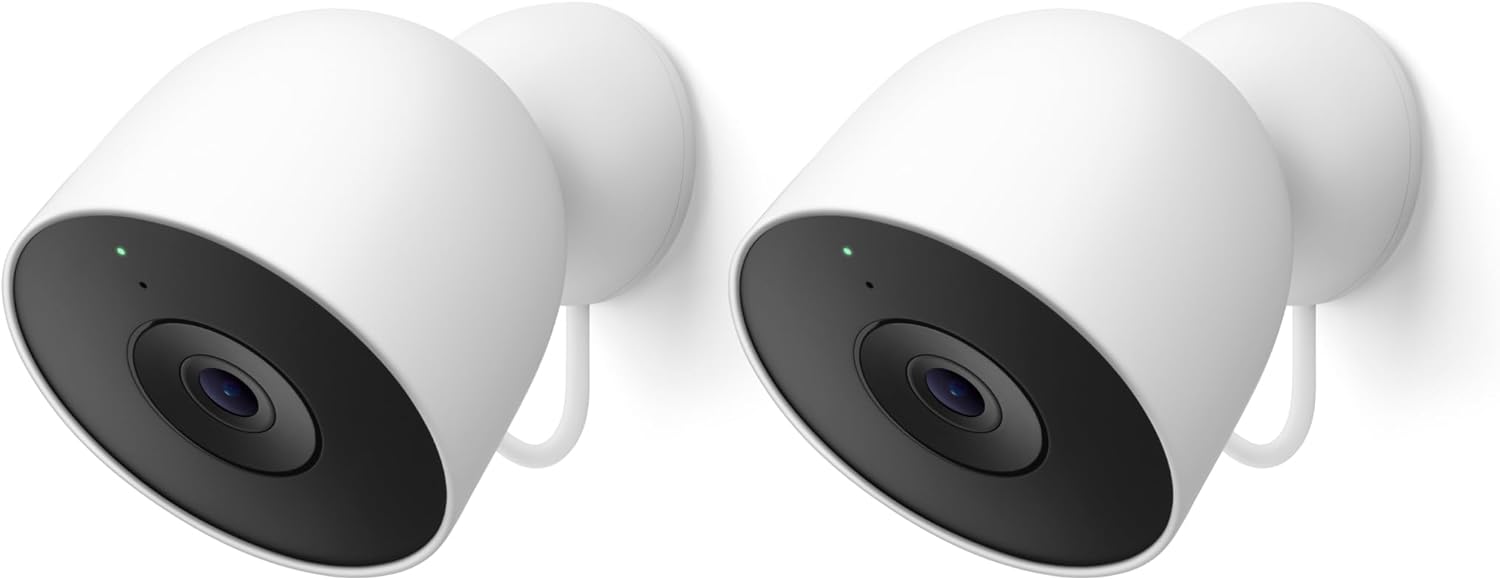
Google Nest Cam Outdoor (Wired, 2nd Gen) - 2 Pack - Secur...
As an Amazon Associate we earn from qualifying purchases.
Official Manufacturer Manual
If you need the complete manufacturer documentation for advanced setup, wiring diagrams, or detailed specifications, you can download the official manual below. The manual includes full technical instructions directly from the manufacturer and may help if your issue requires deeper troubleshooting.
Download the Official Google Nest Cam ManualSource: support.google.com
Need More Help? Google Nest Support
Note: The contact information below connects you directly to Google Nest's official customer support team, not Trunetto. They can help with warranty claims, device replacements, and advanced technical issues.
How Does Google Nest Compare?
Before replacing your Google Nest device, see how it stacks up against alternatives in our full comparison guides.
Accessories owners commonly pair with Google Nest Cam.

Google Nest Cam Outdoor or Indoor, Battery - 2nd Generati...

Google Nest Cam Outdoor or Indoor/Battery - 2nd Generatio...
As an Amazon Associate we earn from qualifying purchases.





