

Why Does My Nest Cam Battery Drain So Fast in Cold Weather
- Lithium battery chemistry degraded by cold
- Frequent motion events using more power in winter
- Camera heater circuit drawing extra power
Problem Description
Nest Cam battery drains from 100 to 0 percent in 1-2 days during cold weather instead of the normal 1-3 months. Camera goes offline constantly requiring frequent recharging. Battery performance drops dramatically below 32F.
Why This Happens in Real Homes
Lithium-ion batteries hate cold weather and the Nest Cam battery is no exception. Google lists the minimum operating temperature as -4°F but battery performance starts degrading well above that — around 32°F you will notice significantly shorter life. In a northern winter where temperatures sit in the teens for weeks, users report the battery lasting 2 days instead of 2 months. The battery chemistry literally cannot deliver full capacity when the cells are cold. There is no software fix for this. Either run USB-C power to the camera for winter months, bring the camera inside to charge more frequently, or accept that outdoor battery cameras are seasonal products in cold climates.
Symptoms
- Battery drains from full to dead in days
- Camera offline constantly in winter
- Battery percentage drops rapidly overnight
- Charging takes longer in cold weather
- Camera reboots repeatedly low battery
- Normal battery life in warm months
Recognize these? Here's what usually causes it.
Common Causes
- Lithium battery chemistry degraded by cold
- Frequent motion events using more power in winter
- Camera heater circuit drawing extra power
- Longer night hours more IR usage
- Cold slows chemical reaction reducing capacity
- Snow reflections triggering constant motion
Most fixes happen in the first 3 steps.
Do not try to heat the camera with external heat sources. Heat tape or enclosed heaters can melt the camera housing or create fire hazard.
Tools & Requirements
These tools will help you complete this fix.

Clean cloth
WHOOSH! Pro 16.9 fl oz Refillable TV Screen Cleaner ...

Replacement batteries
Duracell Coppertop Double AA Batteries with Power Bo...

Screwdriver
STREBITO 155 in 1 Electric Screwdriver Set, Small El...
As an Amazon Associate we earn from qualifying purchases.
Step-by-Step Solution
Reduce Motion Events
Lower motion sensitivity in Nest app. Winter wind snow and wildlife trigger constant recordings draining battery. Set Activity Zones to exclude areas with blowing snow or tree branches.
Enable Battery Saver
In camera Settings enable any power saving options. Reduce video quality from highest setting. Turn off continuous recording if enabled. Each recording uses significant battery.
Shelter the Camera
Mount camera under eave overhang or in weatherproof housing. Direct wind chill makes battery perform worse. Even partial shelter from wind and snow helps significantly.
Charge at Room Temperature
Bring battery inside to charge. Cold batteries charge slower and may not reach full capacity. Charge at room temp then reinstall. Battery will last longer starting from true 100 percent.
Needed for this step
Duracell Coppertop Double AA Batteries with Pow...
This helps complete the fix you are currently reading.
$6.96Add Solar Panel
Connect Nest compatible solar panel for continuous trickle charging. In winter with shorter days panel may not fully offset drain but extends time between manual charges significantly.
Quick Solutions
Still having issues? This is usually the deeper cause below.
If drain continues after replacing batteries, check the event history — a stuck-open sensor or rapid polling loop burns through batteries in days.
Below 20F expect 50-75 percent reduction in battery life. This is normal lithium battery chemistry. Plan for more frequent charging December through February.
App battery indicators run 15–20% behind actual charge levels — by the time the low warning appears, the device has been struggling for days.
- Lithium battery chemistry degraded by cold
- Frequent motion events using more power in winter
- Camera heater circuit drawing extra power
- Longer night hours more IR usage
- Cold slows chemical reaction reducing capacity
Before you go — try one of these (they fix most cases).
Most popular upgrades chosen by Google Nest Cam Battery owners.

Google Nest Cam Indoor (Wired, 3rd Gen) - Security Camera...

Google Nest Cam Indoor (Wired, 3rd Gen) - Security Camera...
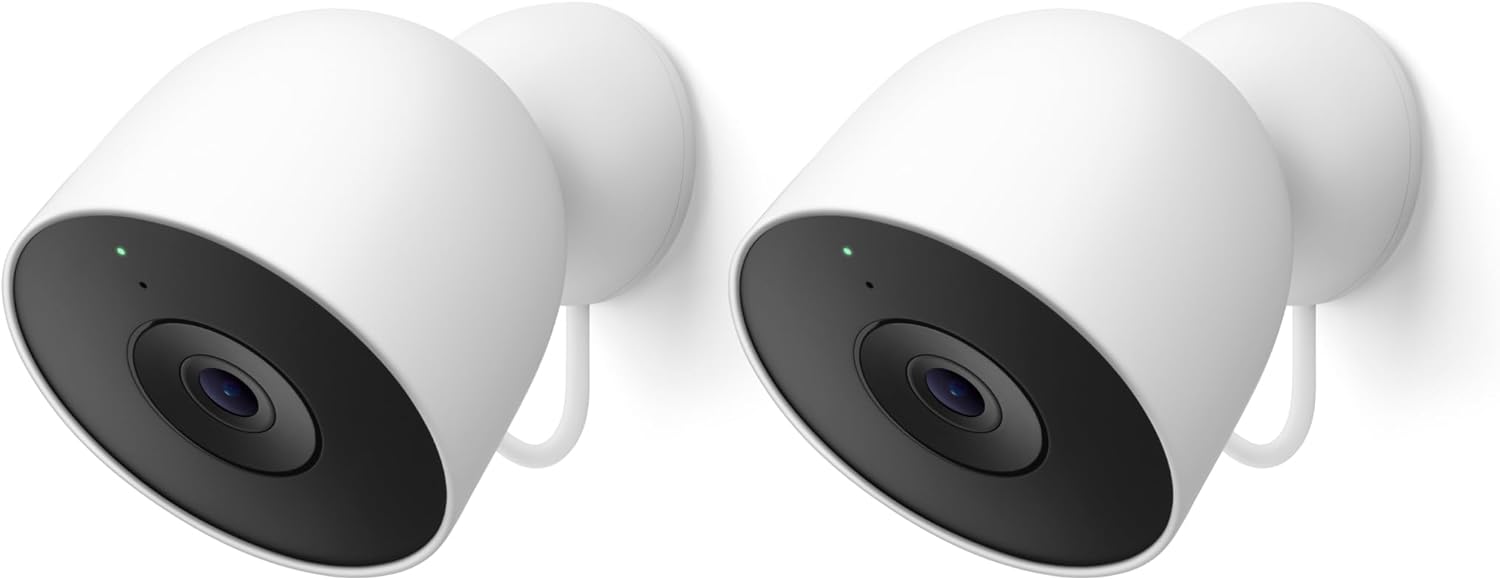
Google Nest Cam Outdoor (Wired, 2nd Gen) - 2 Pack - Secur...
As an Amazon Associate we earn from qualifying purchases.
Official Manufacturer Manual
If you need the complete manufacturer documentation for advanced setup, wiring diagrams, or detailed specifications, you can download the official manual below. The manual includes full technical instructions directly from the manufacturer and may help if your issue requires deeper troubleshooting.
Download the Official Google Nest Cam Battery ManualSource: support.google.com
Need More Help? Google Nest Support
Note: The contact information below connects you directly to Google Nest's official customer support team, not Trunetto. They can help with warranty claims, device replacements, and advanced technical issues.
How Does Google Nest Compare?
Before replacing your Google Nest device, see how it stacks up against alternatives in our full comparison guides.
Accessories owners commonly pair with Google Nest Cam Battery.

Google Nest Cam Outdoor or Indoor, Battery - 2nd Generati...

Google Nest Cam Outdoor or Indoor/Battery - 2nd Generatio...
As an Amazon Associate we earn from qualifying purchases.





