

Why Does My Nest Cam Keep Sending False Person Alerts With No One There
- Camera positioned where shadows mimic human silhouettes
- Headlights and reflections creating person-shaped patterns
- Tree branches or tall plants swaying in the camera frame
Problem Description
Your Google Nest Cam sends person detected alerts multiple times a day but when you check the clip there is no person visible. The camera may be triggered by shadows tree branches car headlights reflections or animals that the AI misidentifies as people. You get so many false alerts that you start ignoring real ones. This is caused by the camera AI incorrectly classifying non-person motion as a person detection event.
Why This Happens in Real Homes
False person alerts with nobody there are almost always the scene fooling detection: shadows, headlights, or swaying branches forming person-like shapes. In real homes a camera aimed at a tree line or a road gets them constantly. Re-aim or tighten activity zones away from the trigger, and lower sensitivity to cut the false hits.
Symptoms
- Person detected alerts but no person visible in the clip
- Multiple false person alerts per day or per hour
- Alerts triggered by shadows moving across the camera view
- Car headlights at night triggering person detection
- Tree branches or bushes swaying cause person alerts
- Pets or animals being identified as person by the camera
Recognize these? Here's what usually causes it.
Common Causes
- Camera positioned where shadows mimic human silhouettes
- Headlights and reflections creating person-shaped patterns
- Tree branches or tall plants swaying in the camera frame
- Camera sensitivity too high for the environment
- Activity zones not configured to exclude problem areas
- IR night vision reflecting off surfaces creating false shapes
Most fixes happen in the first 3 steps.
Do not disable all person detection to stop false alerts. Instead use activity zones to narrow the detection area. Disabling person detection means you will miss real security events when they happen.
Step-by-Step Solution
Review False Alert Patterns
Before making changes look at the last 10 to 15 false person alerts in the Google Home app and note what triggered them. Do they happen at the same time of day when the sun is low and casts long shadows. Do they happen at night when headlights sweep across the view. Are they always from the same area like a tree or flag. Understanding the pattern tells you exactly what to fix. Most users find 80 percent of false alerts come from one or two specific triggers.
Configure Activity Zones
Activity zones tell the camera which areas to monitor and which to ignore. In Google Home go to your Nest Cam and tap Settings then Activity Zones. Create a zone covering only areas where people walk such as walkway porch or driveway. Exclude areas with swaying trees flagpoles street traffic or reflective surfaces. Name each zone clearly. The camera will only send person alerts for activity within your defined zones. This is the most effective way to eliminate false alerts.
Adjust Camera Position and Angle
Sometimes the best fix is moving the camera. If it faces a busy road tilt down so the road is out of frame. If branches sway through the bottom angle up slightly. If headlights reflect off a window at night adjust the angle so reflective surfaces are outside field of view. Even a 10 to 15 degree tilt can dramatically reduce false triggers. For Nest Cam Battery use the magnetic mount to test different angles before committing.
Optimize Notification Settings
In Google Home go to your Nest Cam then Notifications. You can set notification sensitivity and choose which types of events trigger alerts. Select Only Person alerts and disable general motion notifications. If you have a Nest Aware subscription you can also enable Familiar Face detection which only alerts for unrecognized faces reducing alerts from household members. Set notification frequency to reduce alert fatigue from repeated triggers.
Address Environmental Triggers
For shadow triggers add an outdoor light near the camera so shadows have less contrast. A motion-activated floodlight near a Nest Cam Outdoor eliminates most shadow-based false alerts. For vegetation trim branches so no leaves or branches are within 10 feet of the camera field of view. For headlight reflections install the camera higher and angle it further downward. For IR reflection issues at night switch to a camera position where the IR does not bounce off walls windows or vehicles.
Quick Solutions
Still having issues? This is usually the deeper cause below.
Notification delays almost always return after a major iOS or Android update — background app refresh gets reset to restricted on every major OS version.
Set up a test by walking through the camera view at different times of day after making changes. This confirms your activity zones and angle adjustments catch real people while ignoring the false trigger sources.
Notification delays over 2 minutes are almost never the device's fault — background app restrictions quietly re-enable themselves after every OS update.
- Camera positioned where shadows mimic human silhouettes
- Headlights and reflections creating person-shaped patterns
- Tree branches or tall plants swaying in the camera
- Camera sensitivity too high for the environment
- Activity zones not configured to exclude problem areas
Before you go — try one of these (they fix most cases).
Most popular upgrades chosen by Google Nest Cam owners.

Google Nest Cam Indoor (Wired, 3rd Gen) - Security Camera...

Google Nest Cam Indoor (Wired, 3rd Gen) - Security Camera...
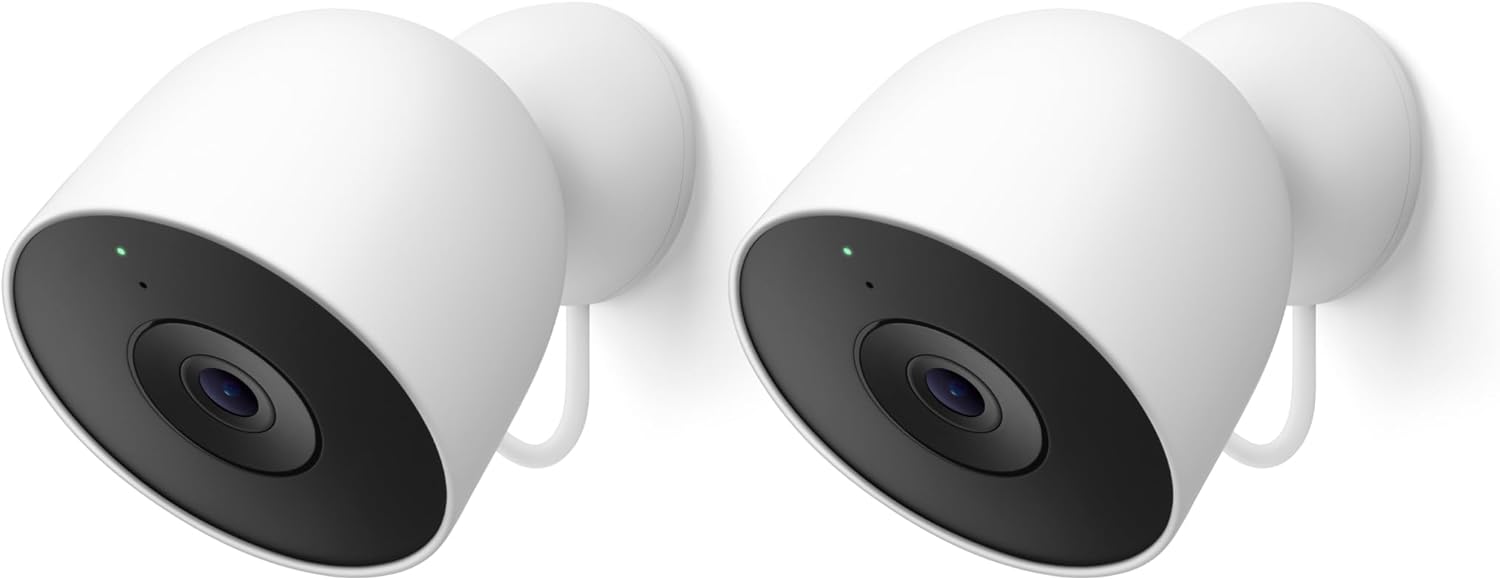
Google Nest Cam Outdoor (Wired, 2nd Gen) - 2 Pack - Secur...
As an Amazon Associate we earn from qualifying purchases.
Official Manufacturer Manual
If you need the complete manufacturer documentation for advanced setup, wiring diagrams, or detailed specifications, you can download the official manual below. The manual includes full technical instructions directly from the manufacturer and may help if your issue requires deeper troubleshooting.
Download the Official Google Nest Cam ManualSource: support.google.com
Need More Help? Google Nest Support
Note: The contact information below connects you directly to Google Nest's official customer support team, not Trunetto. They can help with warranty claims, device replacements, and advanced technical issues.
How Does Google Nest Compare?
Before replacing your Google Nest device, see how it stacks up against alternatives in our full comparison guides.
Accessories owners commonly pair with Google Nest Cam.

Google Nest Cam Outdoor or Indoor, Battery - 2nd Generati...

Google Nest Cam Outdoor or Indoor/Battery - 2nd Generatio...
As an Amazon Associate we earn from qualifying purchases.





