

Why Won't My Nest Cam Recognize Familiar Faces?
- Familiar Faces requires a Nest Aware subscription
- Feature not enabled for this camera
- Faces not yet added or labeled in the library
Problem Description
Your Google Nest Nest Cam has stopped working properly or is malfunctioning. The Nest Cam is not performing its core functions as expected, which disrupts your smart home routine and leaves you without the automation and control features you depend on. Specifically, the issue involves familiar face not working. The steps below walk you through diagnosing the root cause and applying proven fixes so your Nest Cam works reliably again.
Why This Happens in Real Homes
Nest Familiar Face recognition needs a Nest Aware subscription, the feature enabled, and faces actually added to the library, so a camera that will not recognize people usually has one of those missing, not a hardware fault. In real homes people expect it without Nest Aware, or the angle and lighting hide faces. Confirm Nest Aware, enable the feature, and label faces from clear, well-lit clips.
Symptoms
- Camera shows offline in the app
- Live view fails to load or times out
- Motion detection not triggering alerts
- Night vision appears too dark or washed out
- Recorded clips are missing or corrupted
- Two-way audio not working
- Camera keeps disconnecting from WiFi
Recognize these? Here's what usually causes it.
Common Causes
- Familiar Faces requires a Nest Aware subscription
- Feature not enabled for this camera
- Faces not yet added or labeled in the library
- Poor lighting or angle hiding faces
- Face too far from the camera
- Region where Familiar Faces is unavailable
- Face library needs more sample images
- Camera firmware out of date
Most fixes happen in the first 3 steps.
Security cameras should be installed at least 8 feet high to prevent tampering. Check local laws regarding recording audio and video. Never aim cameras at neighboring private property. Outdoor cameras should be rated IP65 or higher for weather resistance.
Tools & Requirements
These tools will help you complete this fix.

Clean microfiber cloth
MR.SIGA Microfiber Cleaning Cloth,Pack of 12,Size:12...

Ethernet cable
Jadaol Cat 6 Ethernet Cable 25 ft, 10Gbps Support Ca...

Level
9 Inch Torpedo Level Magnetic, Shock-Proof Small Lev...

Power adapter
JcBlaon Outlet Extender Surge Protector - 6 Outlet S...

Replacement batteries
Duracell Coppertop Double AA Batteries with Power Bo...
As an Amazon Associate we earn from qualifying purchases.
Step-by-Step Solution
Verify Nest Aware subscription and feature availability
Familiar face detection requires an active Nest Aware subscription. In the Google Home app, go to Settings, Subscriptions, and verify Nest Aware is active. Also check availability — familiar face detection is not available in Illinois due to state biometric privacy law. If you are in Illinois, the feature is disabled regardless of subscription status.
Enable familiar faces for each camera
Familiar face detection must be turned on individually for each camera. In the Google Home app, go to the camera settings, then Notifications, and enable Familiar Face Detection. If you have multiple cameras, repeat for each one. The feature does not enable globally — each camera needs its own setting toggled on.
Optimize camera placement for face detection
The camera needs a clear view of faces to identify people. Mount it at 6-8 feet high, angled slightly downward, within 10 feet of where people walk toward it. The camera needs to see the face directly — a camera mounted too high looking down at the tops of heads cannot identify faces. Good lighting is critical — check the camera view at different times of day for glare or deep shadows that obscure facial features.
Train the familiar faces library
When the camera detects a face, it appears in the Familiar Faces section of the Google Home app. Review new faces regularly during the first few weeks. Label each face with the person name. When the same person is detected again, the app asks if it is the same person — confirm to improve accuracy. The system gets better over time as it sees the same person from different angles and in different lighting.
Fix persistent detection failures
If faces are not being detected at all (no unknown face entries in the library), restart the camera and your WiFi router to refresh the connection to Google servers — face processing happens in the cloud. Check that your camera firmware is up to date. If the camera only detects faces during daytime but not at night, the IR night vision may not provide enough detail for facial recognition. Add ambient lighting near the camera for better night detection.
Quick Solutions
Still having issues? This is usually the deeper cause below.
If this comes back after following these steps, check whether a recent app or firmware update reset a default setting — the fix works, but the setting gets reverted silently.
Set up activity zones to monitor only the areas that matter like your front porch and driveway and exclude the street. This dramatically reduces false alerts while ensuring you never miss an actual event at your property.
This issue almost always looks more complex than it is — the majority of cases trace back to a single setting, a stale credential, or a default that shipped wrong.
- Familiar Faces requires a Nest Aware subscription
- Feature not enabled for this camera
- Faces not yet added or labeled in the library
- Poor lighting or angle hiding faces
- Face too far from the camera
Before you go — try one of these (they fix most cases).
Most popular upgrades chosen by Nest Cam owners.

Google Nest Cam Indoor (Wired, 3rd Gen) - Security Camera...

Google Nest Cam Indoor (Wired, 3rd Gen) - Security Camera...
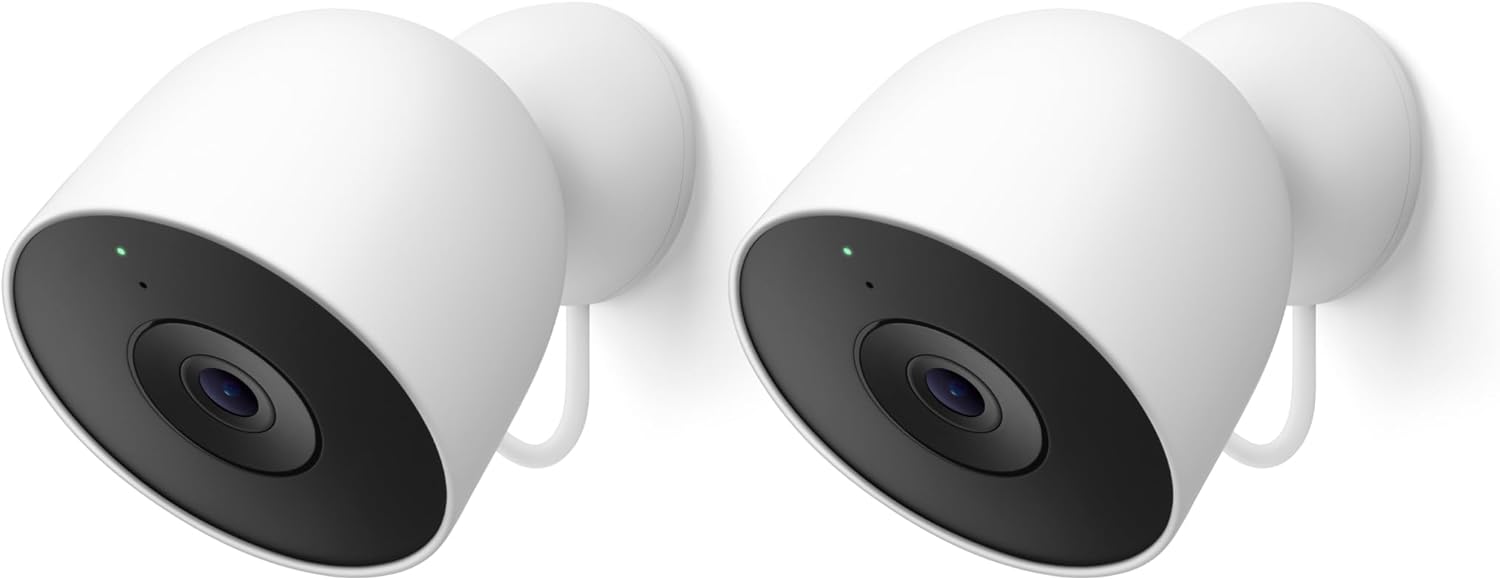
Google Nest Cam Outdoor (Wired, 2nd Gen) - 2 Pack - Secur...
As an Amazon Associate we earn from qualifying purchases.
Official Manufacturer Manual
If you need the complete manufacturer documentation for advanced setup, wiring diagrams, or detailed specifications, you can download the official manual below. The manual includes full technical instructions directly from the manufacturer and may help if your issue requires deeper troubleshooting.
Download the Official Nest Cam ManualSource: support.google.com
Need More Help? Google Nest Support
Note: The contact information below connects you directly to Google Nest's official customer support team, not Trunetto. They can help with warranty claims, device replacements, and advanced technical issues.
How Does Google Nest Compare?
Before replacing your Google Nest device, see how it stacks up against alternatives in our full comparison guides.
Accessories owners commonly pair with Nest Cam.

Google Nest Cam Outdoor or Indoor, Battery - 2nd Generati...

Google Nest Cam Outdoor or Indoor/Battery - 2nd Generatio...
As an Amazon Associate we earn from qualifying purchases.


