

How Do I Set Up the Nest Cam with Floodlight?
- Bluetooth off during pairing
- Weak WiFi at the eave or fixture
- Wiring not completed or breaker still off
Problem Description
Your Google Nest Nest Cam Floodlight is having trouble during initial setup, installation, or configuration. Getting the Nest Cam Floodlight properly connected and configured is essential before it can be controlled through the Google Nest app or integrated with your smart home system. Specifically, the issue involves nest cam with floodlight setup. The steps below walk you through diagnosing the root cause and applying proven fixes so your Nest Cam Floodlight works reliably again.
Why This Happens in Real Homes
Setting up the Nest Cam Floodlight after wiring is adding it in Google Home over Bluetooth then WiFi, and tuning the light and motion. In real homes weak WiFi at the eave or Bluetooth off during pairing stalls it. Pair close with Bluetooth on, confirm solid WiFi at the fixture, then set the floodlight and motion zones.
Symptoms
- Camera shows offline in the app
- Live view fails to load or times out
- Motion detection not triggering alerts
- Night vision appears too dark or washed out
- Recorded clips are missing or corrupted
- Two-way audio not working
- Camera keeps disconnecting from WiFi
Recognize these? Here's what usually causes it.
Common Causes
- Bluetooth off during pairing
- Weak WiFi at the eave or fixture
- Wiring not completed or breaker still off
- Google Home account not linked
- Not on the required 2.4GHz band
- Camera not in setup mode
- App out of date
- Firmware update needed on first setup
Most fixes happen in the first 3 steps.
Security cameras should be installed at least 8 feet high to prevent tampering. Check local laws regarding recording audio and video. Never aim cameras at neighboring private property. Outdoor cameras should be rated IP65 or higher for weather resistance.
Tools & Requirements
These tools will help you complete this fix.

Clean microfiber cloth
MR.SIGA Microfiber Cleaning Cloth,Pack of 12,Size:12...

Ethernet cable
Jadaol Cat 6 Ethernet Cable 25 ft, 10Gbps Support Ca...

Level
9 Inch Torpedo Level Magnetic, Shock-Proof Small Lev...

Power adapter
JcBlaon Outlet Extender Surge Protector - 6 Outlet S...

Replacement batteries
Duracell Coppertop Double AA Batteries with Power Bo...
As an Amazon Associate we earn from qualifying purchases.
Step-by-Step Solution
Complete the physical installation first
The Nest Cam Floodlight must be mounted and wired before app setup. Connect it to existing outdoor light fixture wiring (hot, neutral, ground) at a junction box. Turn on the breaker and verify the unit powers on — the camera LED and floodlights should briefly activate during boot. If nothing happens, check the breaker, wiring connections, and transformer compatibility.
Add the device in Google Home
Open the Google Home app, tap + then Set up device, and select Nest Cam with Floodlight. The app scans for the device via Bluetooth. Scan the QR code on the camera body or included card. Connect to your 2.4GHz WiFi network. The setup process takes 2-3 minutes. If the camera is not found, restart it by toggling the breaker off and on, then retry.
Configure floodlight behavior
In the Google Home app, go to the camera settings and find Floodlight Settings. Set the brightness level (adjustable from low to maximum 2400 lumens). Choose when the lights activate: on motion, on a schedule, or manual only. Set the light duration after motion — how long the lights stay on after motion stops. You can also set different behaviors for day and night.
Needed for this step
9 Inch Torpedo Level Magnetic, Shock-Proof Smal...
This helps complete the fix you are currently reading.
$6.99Set up motion detection zones
Draw activity zones in the camera settings to define where motion triggers recording and floodlight activation. The camera and floodlights share the same motion zones. Exclude the street and areas with constant movement. Enable person detection with Nest Aware to filter out non-person events — the floodlights only turn on for people, not for animals or cars.
Link to other Nest and Google Home devices
Create automations in Google Home that connect the floodlight to other devices. For example: when the floodlight detects motion, announce Somebody is outside on all Nest speakers. Or when the Nest Doorbell rings, turn on the floodlight for additional illumination. The floodlight integrates with the Google Home ecosystem for coordinated responses.
Quick Solutions
Still having issues? This is usually the deeper cause below.
If flickering only happens on dimming, the issue is almost always the dimmer's minimum-load setting, not the bulb — it's drawing less current than the dimmer expects.
Set up activity zones to monitor only the areas that matter like your front porch and driveway and exclude the street. This dramatically reduces false alerts while ensuring you never miss an actual event at your property.
This issue almost always looks more complex than it is — the majority of cases trace back to a single setting, a stale credential, or a default that shipped wrong.
- Bluetooth off during pairing
- Weak WiFi at the eave or fixture
- Wiring not completed or breaker still off
- Google Home account not linked
- Not on the required 2.4GHz band
Before you go — try one of these (they fix most cases).
Most popular upgrades chosen by Nest Cam Floodlight owners.

Google Nest Cam Indoor (Wired, 3rd Gen) - Security Camera...

Google Nest Cam Indoor (Wired, 3rd Gen) - Security Camera...
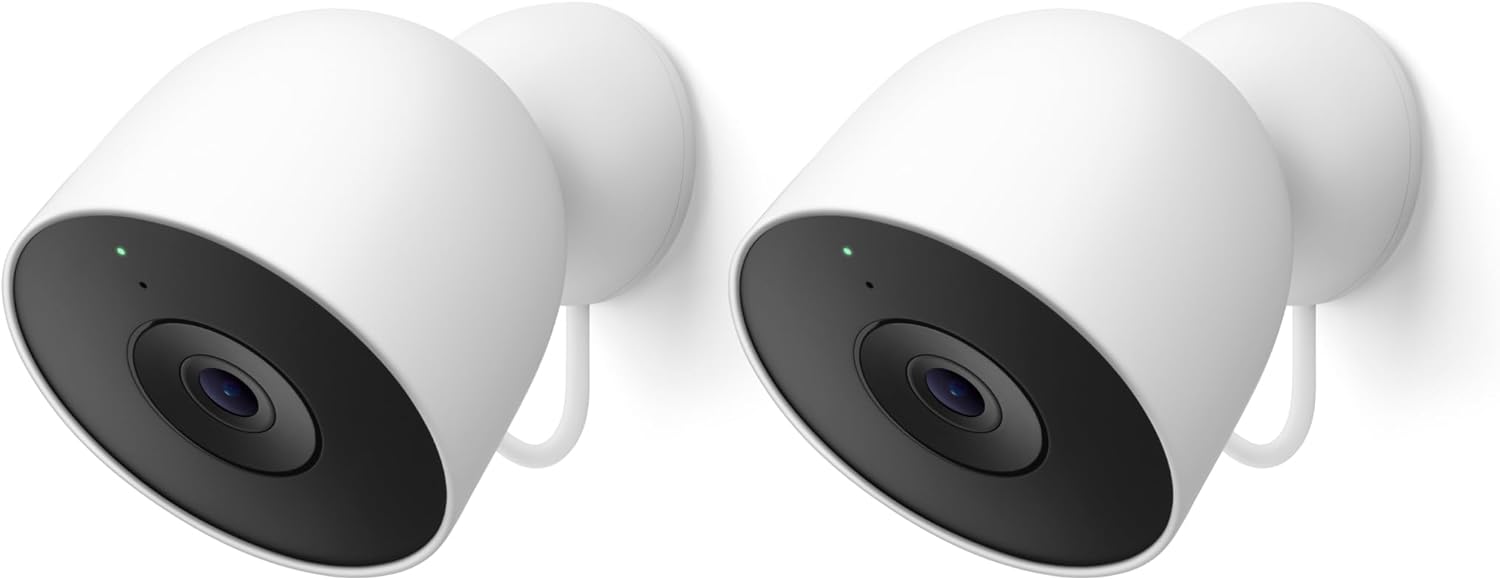
Google Nest Cam Outdoor (Wired, 2nd Gen) - 2 Pack - Secur...
As an Amazon Associate we earn from qualifying purchases.
Official Manufacturer Manual
Google Nest provides official product documentation through their online manual rather than downloadable PDF. Access setup guides, troubleshooting steps, and product specifications for your Nest Cam Floodlight.
Source: support.google.com
Need More Help? Google Nest Support
Note: The contact information below connects you directly to Google Nest's official customer support team, not Trunetto. They can help with warranty claims, device replacements, and advanced technical issues.
How Does Google Nest Compare?
Before replacing your Google Nest device, see how it stacks up against alternatives in our full comparison guides.
Accessories owners commonly pair with Nest Cam Floodlight.

Google Nest Cam Outdoor or Indoor, Battery - 2nd Generati...

Google Nest Cam Outdoor or Indoor/Battery - 2nd Generatio...
As an Amazon Associate we earn from qualifying purchases.


