

Why Does My Nest Cam Indoor Wired Have Echo and Feedback During Two-Way Audio
- Phone speaker audio picked up by phone mic
- Camera speaker audio picked up by camera mic
- Processing delay creating audible loop
Problem Description
When using two-way audio on your Nest Cam Indoor Wired, there is an annoying echo or feedback loop. You hear your own voice repeated back, or the person at the camera hears themselves with a delay. This makes conversations difficult and the audio quality unusable for meaningful communication.
Why This Happens in Real Homes
Echo on Nest two-way audio is an acoustic loop, not a fault: the phone mic picks up its own speaker, or the camera mic picks up the camera speaker. In real homes holding the phone speaker near its mic causes it. Lower the volume, use headphones on the phone, and speak in turns rather than talking over the returning audio.
Symptoms
- Your voice echoes back during two-way talk
- Person at camera hears delayed feedback
- Audio becomes screechy or loops
- Echo worse when phone volume is high
- Two-way audio worked before but now has echo
- Echo only happens with certain phones
Recognize these? Here's what usually causes it.
Common Causes
- Phone speaker audio picked up by phone mic
- Camera speaker audio picked up by camera mic
- Processing delay creating audible loop
- Phone case covering microphone
- Camera placed in acoustically reflective space
- Bluetooth audio device adding delay
Most fixes happen in the first 3 steps.
If echo only started recently and no settings changed, check if the camera has a pending firmware update. Some firmware versions have had audio processing bugs that are fixed in updates.
Step-by-Step Solution
Use Headphones or Earbuds
The most effective fix is using headphones or earbuds when initiating two-way audio. This prevents your phone speaker output from being picked up by your phone microphone and transmitted back to the camera. Any wired or wireless earbuds with a microphone will work.
Lower Phone Speaker Volume
High speaker volume increases the chance of audio being picked up by your microphone. Before starting two-way audio, lower your phone volume to 30-40%. You can still hear clearly but there is less audio leaking to create feedback loops.
Reposition the Camera
If the camera is in a small room or near hard reflective surfaces like windows or tiles, audio bounces back to the camera microphone. Move the camera to a location with more soft furnishing like carpet, curtains, or upholstered furniture that absorbs sound rather than reflecting it.
Disconnect Bluetooth Audio
If your phone is connected to Bluetooth speakers or headphones, there can be processing delay that creates echo. Disconnect Bluetooth audio devices before using two-way talk. Use the phone built-in speaker and microphone for lowest latency.
Update Google Home App
Echo cancellation algorithms are improved in app updates. Make sure your Google Home app is fully updated to the latest version. Check your app store for updates. After updating, test two-way audio again as improvements may fix the problem.
Quick Solutions
Still having issues? This is usually the deeper cause below.
If this comes back after following these steps, check whether a recent app or firmware update reset a default setting — the fix works, but the setting gets reverted silently.
Test two-way audio in the Google Home app with only one person at the camera. Background conversations at the camera location can create additional audio feedback that complicates the issue.
This issue almost always looks more complex than it is — the majority of cases trace back to a single setting, a stale credential, or a default that shipped wrong.
- Phone speaker audio picked up by phone mic
- Camera speaker audio picked up by camera mic
- Processing delay creating audible loop
- Phone case covering microphone
- Camera placed in acoustically reflective space
Before you go — try one of these (they fix most cases).
Most popular upgrades chosen by Nest Cam Indoor Wired owners.

Google Nest Cam Indoor (Wired, 3rd Gen) - Security Camera...

Google Nest Cam Indoor (Wired, 3rd Gen) - Security Camera...
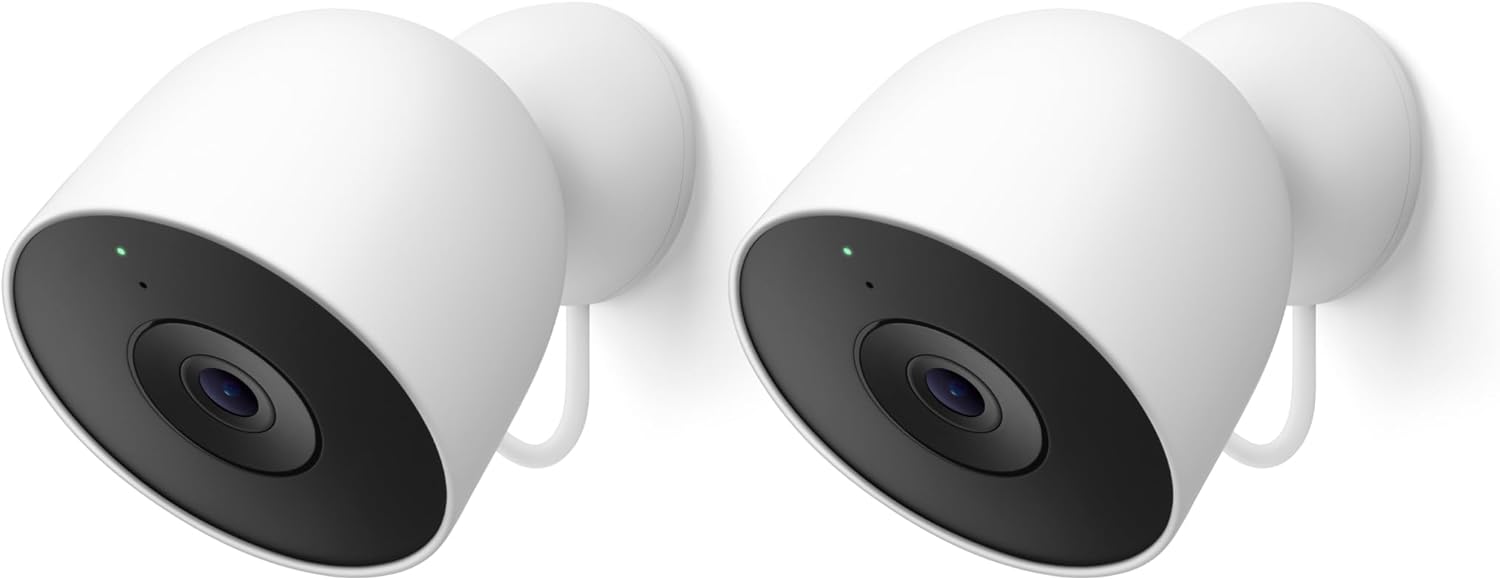
Google Nest Cam Outdoor (Wired, 2nd Gen) - 2 Pack - Secur...
As an Amazon Associate we earn from qualifying purchases.
Official Manufacturer Manual
Google Nest provides official product documentation through their online manual rather than downloadable PDF. Access setup guides, troubleshooting steps, and product specifications for your Nest Cam Indoor Wired.
Source: support.google.com
Need More Help? Google Nest Support
Note: The contact information below connects you directly to Google Nest's official customer support team, not Trunetto. They can help with warranty claims, device replacements, and advanced technical issues.
How Does Google Nest Compare?
Before replacing your Google Nest device, see how it stacks up against alternatives in our full comparison guides.
Accessories owners commonly pair with Nest Cam Indoor Wired.

Google Nest Cam Outdoor or Indoor, Battery - 2nd Generati...

Google Nest Cam Outdoor or Indoor/Battery - 2nd Generatio...
As an Amazon Associate we earn from qualifying purchases.


