

Why Does My Nest Cam Wired Keep Disconnecting and Reconnecting in a Loop
- WiFi channel interference from neighboring networks
- Router DHCP lease expiring and reassigning IP address
- USB power cable or adapter not supplying stable voltage
Problem Description
Your Nest Cam Wired repeatedly goes offline then comes back online every few minutes or hours creating a cycle of disconnect and reconnect notifications. The camera feed cuts out during these drops and recorded event history has frequent gaps.
Symptoms
- Camera shows offline then online notifications repeatedly
- Google Home app shows camera as unavailable intermittently
- Live feed drops and shows reconnecting message frequently
- Event history has gaps where no recordings exist
- Camera status light blinks yellow then returns to solid
- Issue started after a router change or firmware update
Recognize these? Here's what usually causes it.
Common Causes
- WiFi channel interference from neighboring networks
- Router DHCP lease expiring and reassigning IP address
- USB power cable or adapter not supplying stable voltage
- Router band steering cycling camera between 2.4 and 5GHz
- Firmware bug in recent camera or router update
- Too many devices on the same WiFi network congesting bandwidth
Most fixes happen in the first 3 steps.
Do not use USB extension cables or hubs with the Nest Cam Wired. These introduce voltage drops and connection instability that directly cause the disconnecting behavior you are trying to fix.
Tools & Requirements
Step-by-Step Solution
Check Power Supply
Swap the USB-C cable and power adapter with known good ones. A faulty cable with intermittent connection causes the camera to lose power briefly then restart. Use the original Nest adapter rated at 5V 1.5A minimum. Third-party cables especially longer ones can drop voltage below what the camera needs causing cyclical restarts that appear as WiFi disconnects.
Set DHCP Reservation
Log into your router admin panel and find the Nest Cam in the connected devices list. Note its MAC address and current IP. Create a DHCP reservation assigning that MAC address a permanent IP. When DHCP leases expire some routers temporarily drop the device while reassigning an address. A reservation prevents this disconnect cycle entirely.
Disable Band Steering
If your router has one SSID for both 2.4GHz and 5GHz bands band steering may be cycling the camera between them causing brief disconnects during each handoff. In router settings either disable band steering or create a separate 2.4GHz SSID and connect the camera to that network only. The 2.4GHz band is more stable for IoT devices.
Optimize WiFi Channel
Download a WiFi analyzer app on your phone and scan near the camera. If your router channel overlaps heavily with neighbors the camera struggles to maintain a stable connection. Switch to the least congested channel. For 2.4GHz use channels 1 6 or 11 only. For 5GHz try channels in the DFS range if your router supports them.
Reboot Router and Camera
Unplug the router and the camera simultaneously. Wait 60 seconds. Plug in the router first and wait for full boot about 2 to 3 minutes. Then plug in the camera. This forces both devices to negotiate a fresh clean WiFi connection. Monitor for 24 hours. If disconnects resume the issue may be with the camera hardware and you should contact Google support.
Quick Solutions
Still having issues? This is usually the deeper cause below.
If this comes back after following these steps, check whether a recent app or firmware update reset a default setting — the fix works, but the setting gets reverted silently.
After fixing the connection issue monitor the camera status in Google Home for 48 hours. If it stays online continuously the fix is confirmed. One or two brief disconnects during that period suggest the fix only partially helped.
Most WiFi drop-offs happen right after a router reboot or ISP swap — the device reconnects to the network but silently loses its cloud registration.
- WiFi channel interference from neighboring networks
- Router DHCP lease expiring and reassigning IP address
- USB power cable or adapter not supplying stable voltage
- Router band steering cycling camera between 2.4 and 5GHz
- Firmware bug in recent camera or router update
Before you go — try one of these (they fix most cases).
Most popular upgrades chosen by Google Nest Cam Wired owners.

Google Nest Cam Indoor (Wired, 3rd Gen) - Security Camera...

Google Nest Cam Indoor (Wired, 3rd Gen) - Security Camera...
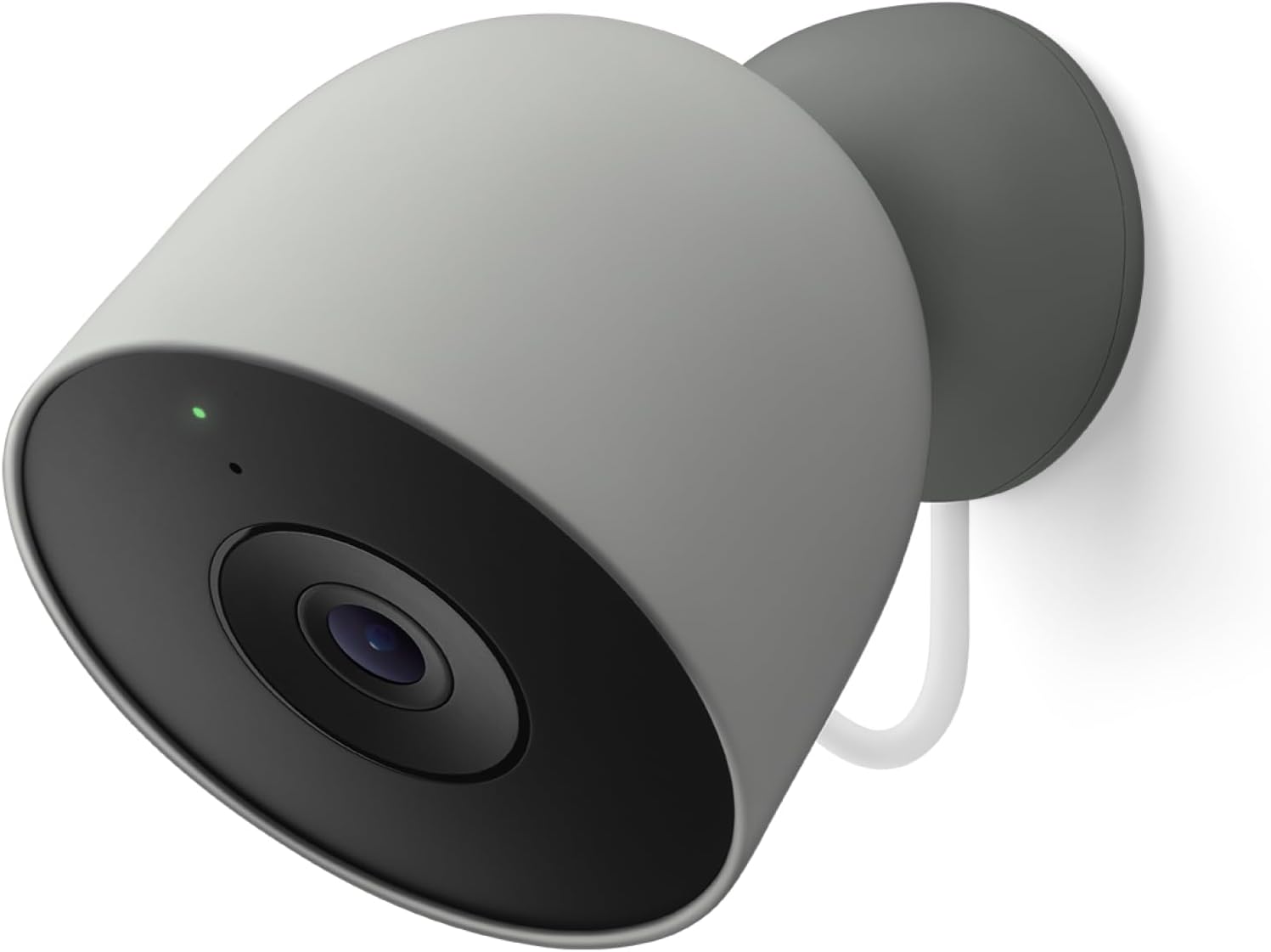
Google Nest Cam Outdoor (Wired, 2nd Gen) - Security Camer...
As an Amazon Associate we earn from qualifying purchases.
Official Manufacturer Manual
If you need the complete manufacturer documentation for advanced setup, wiring diagrams, or detailed specifications, you can download the official manual below. The manual includes full technical instructions directly from the manufacturer and may help if your issue requires deeper troubleshooting.
Download the Official Google Nest Cam Wired ManualSource: support.google.com
Need More Help? Google Nest Support
Note: The contact information below connects you directly to Google Nest's official customer support team, not Trunetto. They can help with warranty claims, device replacements, and advanced technical issues.
How Does Google Nest Compare?
Before replacing your Google Nest device, see how it stacks up against alternatives in our full comparison guides.





