

Why Does My Nest Camera Have Recording Gaps and Missing Footage?
- WiFi connection dropping intermittently at camera
- Nest Aware subscription does not include 24/7 recording
- Camera lost power briefly during recording gap
Problem Description
Your Nest camera has gaps in its recording timeline where footage is missing. You may find that a specific time period has no video even though continuous recording or event recording should have captured it. When you check the timeline for an incident there is simply nothing there. This is extremely annoying for security purposes and is typically caused by WiFi drops subscription tier limitations or camera power issues.
Why This Happens in Real Homes
Gaps in a Nest camera timeline are usually WiFi dropping at the camera, a Nest Aware plan without 24/7 recording, or a brief power loss during the gap. In real homes weak WiFi at an outdoor camera drops the upload. Confirm your Nest Aware tier includes continuous recording, and firm up WiFi and power at the camera to close the gaps.
Symptoms
- Timeline shows gray gaps where recordings should exist
- Specific time periods have no video footage available
- Events show as detected but video clip is missing
- Recording works for hours then has a gap then resumes
- Only some cameras have gaps while others record fine
- Gaps occur more frequently during high-traffic times
Recognize these? Here's what usually causes it.
Common Causes
- WiFi connection dropping intermittently at camera
- Nest Aware subscription does not include 24/7 recording
- Camera lost power briefly during recording gap
- Internet upload bandwidth insufficient for continuous stream
- Google cloud servers dropped the recording temporarily
- Camera entered battery saving mode reducing recording
Most fixes happen in the first 3 steps.
Nest Aware 24/7 recording stores footage on Google cloud servers. If you cancel your subscription all stored cloud recordings become inaccessible after the subscription period ends. Download important clips before canceling.
Tools & Requirements
These tools will help you complete this fix.

Power adapter
JcBlaon Outlet Extender Surge Protector - 6 Outlet S...

Replacement batteries
Duracell Coppertop Double AA Batteries with Power Bo...

USB cable
Amazon Basics USB-A to Micro USB Charging Cable, 480...
As an Amazon Associate we earn from qualifying purchases.
Step-by-Step Solution
Verify plan tier and recording mode are truly continuous
Check Google Home settings and subscription entitlement for continuous recording, because event-only mode is often mistaken for continuous timeline behavior.
Inspect camera bandwidth and signal quality
Measure WiFi strength and upload stability at camera location, since sustained upstream weakness can create intermittent timeline gaps during high-motion periods.
Review outage history and router logs for correlation
Match gap timestamps against WAN/router disruptions, because short network interruptions can leave missing footage even when camera appears online afterward.
Reboot camera and refresh cloud session state
Restart the camera and network stack to rebuild streaming sessions, since stale long-lived connections can degrade into intermittent write failures over time.
Run controlled continuous test over a fixed window
Record a known activity period and verify full timeline coverage, then escalate with timestamps if gaps persist under stable power and network conditions.
Needed for this step
JcBlaon Outlet Extender Surge Protector - 6 Out...
This helps complete the fix you are currently reading.
$9.99Quick Solutions
Still having issues? This is usually the deeper cause below.
Camera issues that start suddenly almost always trace back to an upload bandwidth drop — run a speed test before assuming hardware failure.
Enable camera status notifications in the Google Home app. This alerts you immediately when a camera goes offline so you can investigate before a long recording gap accumulates.
Live view problems that start suddenly usually trace back to an upload speed drop — the camera itself is fine, the bandwidth path to the cloud isn't.
- WiFi connection dropping intermittently at camera
- Nest Aware subscription does not include 24/7 recording
- Camera lost power briefly during recording gap
- Internet upload bandwidth insufficient for continuous stream
- Google cloud servers dropped the recording temporarily
Before you go — try one of these (they fix most cases).
Most popular upgrades chosen by Google Nest Camera owners.

Google Nest Cam Indoor (Wired, 3rd Gen) - Security Camera...

Google Nest Cam Indoor (Wired, 3rd Gen) - Security Camera...
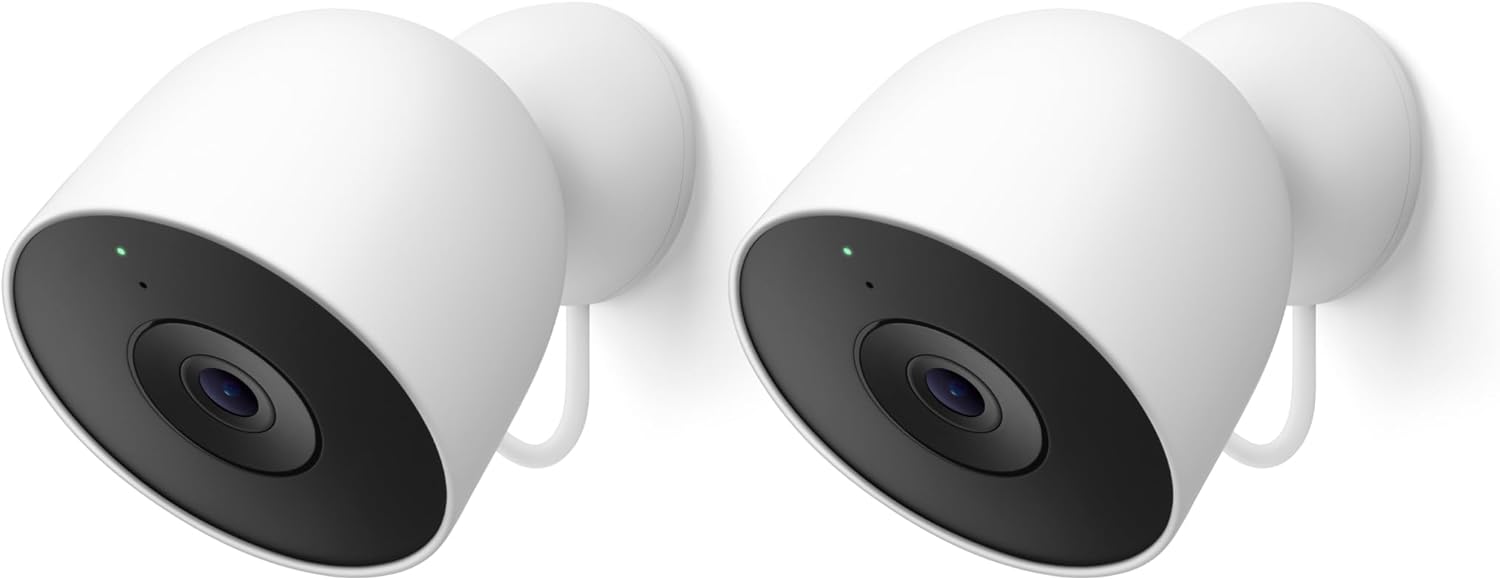
Google Nest Cam Outdoor (Wired, 2nd Gen) - 2 Pack - Secur...
As an Amazon Associate we earn from qualifying purchases.
Official Manufacturer Manual
If you need the complete manufacturer documentation for advanced setup, wiring diagrams, or detailed specifications, you can download the official manual below. The manual includes full technical instructions directly from the manufacturer and may help if your issue requires deeper troubleshooting.
Download the Official Google Nest Camera ManualSource: support.google.com
Need More Help? Google Nest Support
Note: The contact information below connects you directly to Google Nest's official customer support team, not Trunetto. They can help with warranty claims, device replacements, and advanced technical issues.
How Does Google Nest Compare?
Before replacing your Google Nest device, see how it stacks up against alternatives in our full comparison guides.
Accessories owners commonly pair with Google Nest Camera.

Google Nest Cam Outdoor or Indoor, Battery - 2nd Generati...

Google Nest Cam Outdoor or Indoor/Battery - 2nd Generatio...
As an Amazon Associate we earn from qualifying purchases.


