

Why Is My Nest Hub Showing Wrong Information?
- Wrong home or room assigned to the hub
- Location set incorrectly for weather and traffic
- Linked account showing another person's data
Problem Description
Your Google Nest Nest Hub is not communicating with its hub, bridge, or gateway correctly. Hub connectivity issues affect all devices that depend on it, potentially taking multiple smart home devices offline simultaneously. Specifically, the issue involves display showing wrong info. The steps below walk you through diagnosing the root cause and applying proven fixes so your Nest Hub works reliably again.
Why This Happens in Real Homes
A Nest Hub showing wrong information, weather, calendar, or commute, is usually the wrong location, home, or linked account, not a hardware fault. In real homes the hub's set location or the linked Google account is off. Set the correct address and room, confirm the right account and Voice Match, and refresh by restarting it.
Symptoms
- Display screen stays black or does not turn on
- Touch screen unresponsive to taps
- Video calls fail to connect
- Display shows wrong time or weather
- Voice assistant does not respond
- Photos not displaying from linked accounts
- Display keeps restarting on its own
Recognize these? Here's what usually causes it.
Common Causes
- Wrong home or room assigned to the hub
- Location set incorrectly for weather and traffic
- Linked account showing another person's data
- Calendar or account not linked
- Cached data needs a refresh
- Time zone set wrong
- Voice Match attributing to the wrong person
- Software needs updating
Most fixes happen in the first 3 steps.
Smart displays have always-on microphones and cameras. Use the physical camera shutter when privacy is needed. Review your voice and video call history periodically in the app privacy settings. Keep the display away from steam and grease which damage the screen.
Tools & Requirements
These tools will help you complete this fix.

Power adapter
JcBlaon Outlet Extender Surge Protector - 6 Outlet S...
As an Amazon Associate we earn from qualifying purchases.
Step-by-Step Solution
Fix wrong weather or location
The Nest Hub displays weather based on the device address set in Google Home. Open the Google Home app, select the Nest Hub, go to Settings > Device information > Device address, and verify it shows your correct location. If it shows a different address, update it. The weather card should update within a few minutes. If it still shows wrong weather, say "Hey Google, what is the weather" to force a refresh.
Fix wrong time or time zone
Go to the Nest Hub settings by swiping down on the screen, then tapping the gear icon. Go to Date and Time. Set the time zone to Automatic if it is not already. If automatic detection picks the wrong zone, set it manually to your correct time zone. The time syncs with Google servers, so if the time is slightly off even with the correct time zone, restart the device to force a re-sync.
Fix photo frame showing wrong or no photos
The Nest Hub ambient display pulls photos from Google Photos or curated art. In the Google Home app, select the Nest Hub, tap the photo frame icon or go to Display settings. Check which album or source is selected. If photos are not appearing, make sure the selected Google Photos album contains photos and that the Google account linked to the device matches the account owning the album. Live albums (like People & Pets) update automatically but can take hours to reflect changes.
Fix calendar showing wrong events
The Nest Hub shows calendar events from the Google account linked to the device. If events are missing or wrong, verify which Google account is the primary account on the device. In the Google Home app, check Settings > Recognition and sharing and confirm the correct account is linked. If you have multiple Google accounts, calendar events only display from the account matched to your voice profile on that device.
Fix smart home device status showing incorrectly
If the Nest Hub dashboard shows devices as offline or in the wrong state, the issue is usually sync delay between the device and Google Home. Pull down on the Nest Hub screen and tap the refresh icon. If a device consistently shows the wrong status, remove it from Google Home and re-add it. For devices connected through third-party integrations (SmartThings, Alexa), re-link the integration in the Google Home app.
Quick Solutions
Still having issues? This is usually the deeper cause below.
If the hub reconnects then drops every few minutes, check for an IP conflict — two devices sharing the same DHCP address fight each other continuously.
Use Do Not Disturb mode or set a nighttime schedule so the display dims automatically and stops announcements during sleeping hours. Place it where you can see the screen from across the room for at-a-glance weather, time, and calendar.
Hub disconnections that cycle repeatedly are almost always IP conflicts — two devices fighting over the same DHCP lease after a router restart.
- Wrong home or room assigned to the hub
- Location set incorrectly for weather and traffic
- Linked account showing another person's data
- Calendar or account not linked
- Cached data needs a refresh
Before you go — try one of these (they fix most cases).
Official Manufacturer Manual
If you need the complete manufacturer documentation for advanced setup, wiring diagrams, or detailed specifications, you can download the official manual below. The manual includes full technical instructions directly from the manufacturer and may help if your issue requires deeper troubleshooting.
Download the Official Nest Hub ManualSource: support.google.com
Need More Help? Google Nest Support
Note: The contact information below connects you directly to Google Nest's official customer support team, not Trunetto. They can help with warranty claims, device replacements, and advanced technical issues.
How Does Google Nest Compare?
Before replacing your Google Nest device, see how it stacks up against alternatives in our full comparison guides.
Accessories owners commonly pair with Nest Hub.

Amazon Smart Plug, Works with Alexa, Simple Setup, Endles...
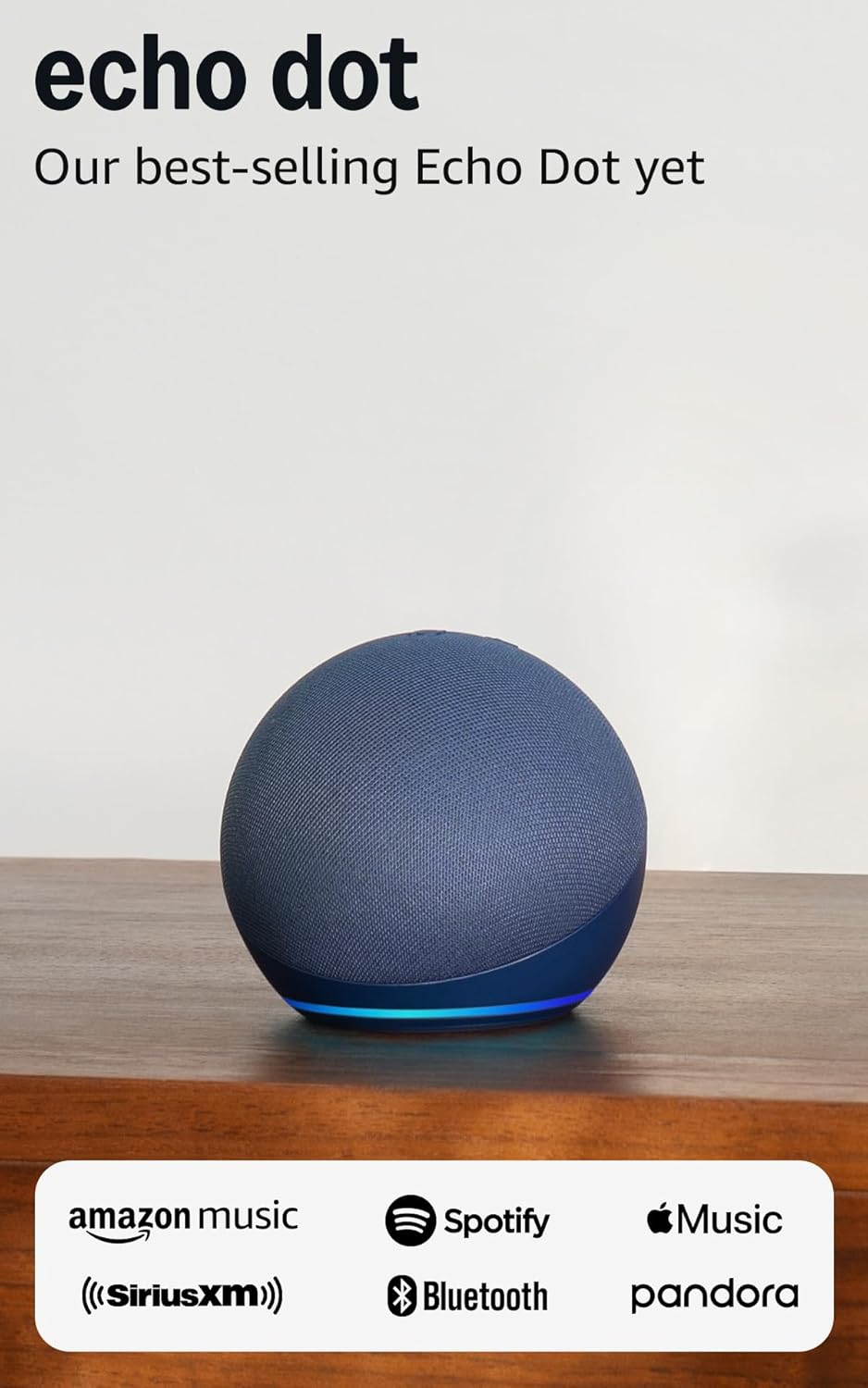
Amazon Echo Dot (newest model) - Vibrant sounding speaker...
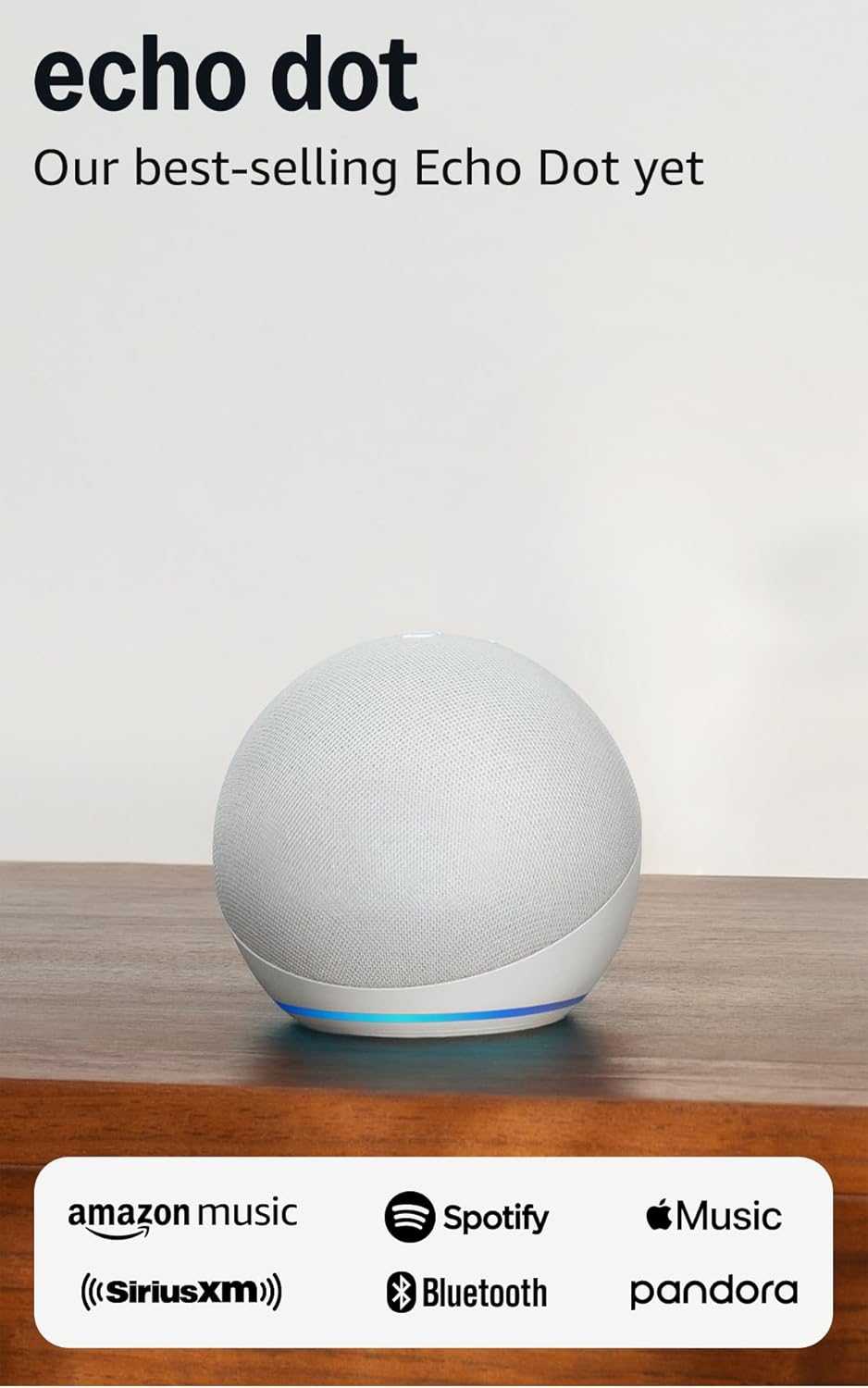
Amazon Echo Dot (newest model) - Vibrant sounding speaker...
As an Amazon Associate we earn from qualifying purchases.





