

Why Won't My Feit Electric Smart Bulb Connect to WiFi?
- Router not broadcasting separate 2.4GHz network
- Bulb not properly in pairing mode
- Feit app location and Bluetooth permissions not granted
Problem Description
Your Feit Electric smart bulb will not connect to WiFi or the Feit Electric app during setup. The bulb may blink rapidly indicating pairing mode but the app fails to discover it. Feit smart bulbs are very popular at Home Depot and this connectivity issue is the number one complaint typically caused by WiFi band problems router settings or incorrect pairing mode entry.
Why This Happens in Real Homes
The 2.4GHz issue is the number one setup failure for Feit bulbs. Users with modern mesh routers that combine bands have the most trouble. Creating a separate 2.4GHz SSID fixes the majority of setup failures. The difference between AP mode and EZ mode trips up many users — if one does not work, switching to the other often does. Feit bulbs also have more trouble than other brands with special characters in WiFi passwords.
Symptoms
- Feit app cannot discover bulb during setup
- Bulb blinks but app says device not found
- Setup progress bar reaches halfway then fails
- Bulb connected once but now shows offline
- App says connection timed out during pairing
- Alexa cannot discover the Feit smart bulb
Recognize these? Here's what usually causes it.
Common Causes
- Router not broadcasting separate 2.4GHz network
- Bulb not properly in pairing mode
- Feit app location and Bluetooth permissions not granted
- Router WPA3 security incompatible with bulb
- Too many devices on network exceeding router limit
- WiFi password contains special characters
Most fixes happen in the first 3 steps.
Do not rapidly power cycle the bulb more than 10 times trying to get it into pairing mode — this triggers a factory reset and clears any existing WiFi connection. If the bulb was already working and you just want to reconnect it, a single power cycle (off-wait 10 seconds-on) is enough. The rapid on-off sequence is only for initial pairing mode.
Tools & Requirements
Step-by-Step Solution
Put the bulb in pairing mode
Turn the bulb on and off 3 times rapidly (on-off-on-off-on) with about 1 second between each toggle. The bulb should start blinking rapidly, indicating pairing mode. If it does not blink, try the sequence again with slightly longer pauses. Some Feit models need 5 on-off cycles instead of 3. If the bulb just turns on normally, it may already be paired to another account — factory reset it by repeating the on-off cycle 10 times.
Connect to 2.4GHz WiFi only
Feit Electric smart bulbs only connect to 2.4GHz WiFi. If your router uses a combined SSID for both bands, the bulb will fail to connect. In the Feit Electric app during setup, make sure you select your 2.4GHz network. If you only see one network name, temporarily disable 5GHz on your router or create a separate 2.4GHz SSID for smart home devices.
Make sure your phone is on the same 2.4GHz network
During setup, your phone must be on the same 2.4GHz network that the bulb will connect to. If your phone is on 5GHz (or a different SSID), the setup will fail even if you enter the correct 2.4GHz credentials. Connect your phone to the 2.4GHz network first, then open the Feit app and start the Add Device process.
Disable VPN and enable location permissions
The Feit app requires location permissions to discover WiFi networks during setup. If you denied location access, the app cannot find networks. Go to phone settings > Apps > Feit Electric > Permissions and enable Location. Also disable any VPN apps on your phone during setup — VPNs can interfere with the local network discovery process.
Check your WiFi password
Re-enter your WiFi password carefully during setup. The Feit app does not show a clear error when the password is wrong — the bulb just fails to connect and the app says something generic like Setup Failed. Double check for typos, case sensitivity, and spaces. Try typing the password into a notes app first to verify it, then copy-paste into the Feit app if possible.
Check router device limits and security settings
Consumer routers have a WiFi client limit (typically 20-32 devices). If you are adding many smart bulbs, you may hit this limit. Check your router admin panel for connected device count. Also verify: WPA2 Personal security (not WPA3-only or enterprise), no MAC address filtering (or add the bulb MAC), and AP isolation disabled. The Feit app setup will fail silently if any of these block the connection.
Try a different phone or the EZ mode setup
If setup keeps failing, try on a different phone — some Android models have Bluetooth or WiFi compatibility issues with the Feit setup process. Also try switching between AP mode and EZ mode in the Feit app during Add Device setup. EZ mode uses a different pairing method that works better on some router configurations. If the bulb blinks slowly (one blink per second) instead of rapidly, it is in EZ mode; if it blinks rapidly, it is in AP mode.
Quick Solutions
Still having issues? This is usually the deeper cause below.
This usually happens right after a router reboot or ISP change — the device rejoins the network but drops its cloud session silently.
Feit smart bulbs are one of the most affordable smart bulb options but they are pickier about WiFi setup than brands like Hue or LIFX. A dedicated 2.4GHz SSID is almost mandatory for reliable setup. Once connected, Feit bulbs are generally stable — the setup process is where most people struggle. If you are setting up multiple bulbs, add them one at a time with 30-second gaps between each.
Most WiFi drop-offs happen right after a router reboot or ISP swap — the device reconnects to the network but silently loses its cloud registration.
- Router not broadcasting separate 2.4GHz network
- Bulb not properly in pairing mode
- Feit app location and Bluetooth permissions not granted
- Router WPA3 security incompatible with bulb
- Too many devices on network exceeding router limit
Before you go — try one of these (they fix most cases).
Most popular upgrades chosen by Feit Electric Smart Bulb owners.

Feit Electric 60W LED Multicolor WiFi Smart Bulb (2 Pack)

Feit Electric Smart Bulb, 100W Equivalent Color Changing ...
As an Amazon Associate we earn from qualifying purchases.
Official Manufacturer Manual
Feit Electric provides official product documentation through their online manual rather than downloadable PDF. Access setup guides, troubleshooting steps, and product specifications for your Feit Electric Smart Bulb.
Source: feit.com
Need More Help? Feit Electric Support
Note: The contact information below connects you directly to Feit Electric's official customer support team, not Trunetto. They can help with warranty claims, device replacements, and advanced technical issues.
Accessories owners commonly pair with Feit Electric Smart Bulb.
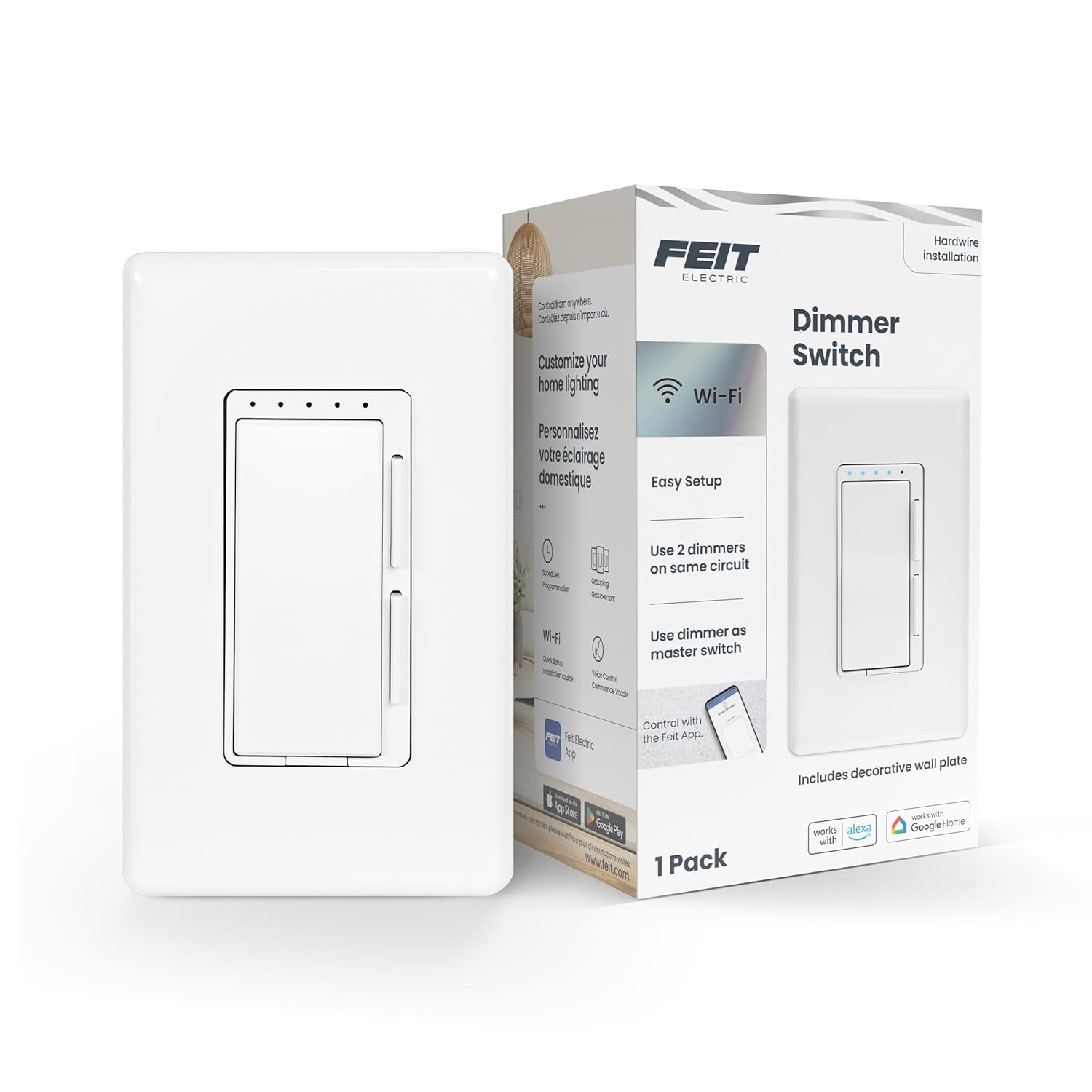
Feit Electric Smart Dimmer Switch, Neutral Wire Required ...

Feit Electric Smart WiFi Dimmer Switch with Remote, Singl...

Feit Electric Smart WiFi Rotary Dimmer Switch, Neutral Wi...
As an Amazon Associate we earn from qualifying purchases.
Guide Improvements
- Updated June 16, 2026
Added pairing mode on-off sequence, 2.4GHz requirement, AP vs EZ mode setup, and location permissions troubleshooting.
What changed:- Added on-off pairing mode sequence (3 or 5 cycles)
- Added 2.4GHz requirement with dedicated SSID workaround
- Added AP mode vs EZ mode setup switching
- Added location permissions and VPN troubleshooting
- Added real-world context about dual-band router issues
Source: Trunetto editorial update

