

Why Is My Feit Electric Smart Bulb Flashing or Not Responding After Power Outage?
- Bulb entered pairing mode from power cycle
- WiFi credentials lost from surge
- Router changed IP after restart
Problem Description
After a power outage your Feit Electric smart bulb continuously flashes or fails to respond to the Feit Electric app. The bulb may be stuck in pairing mode flashing rapidly or simply remain offline. Power fluctuations can corrupt the WiFi configuration requiring reconnection or factory reset.
Symptoms
- Bulb flashing rapidly nonstop
- Bulb offline in Feit Electric app
- Bulb turns on but ignores commands
- Multiple bulbs offline after outage
- Bulb worked before power went out
- Alexa or Google says device not responding
Recognize these? Here's what usually causes it.
Common Causes
- Bulb entered pairing mode from power cycle
- WiFi credentials lost from surge
- Router changed IP after restart
- Bulb firmware corrupted from surge
- Too many bulbs reconnecting overwhelmed router
- Smart switch upstream cycling power
Most fixes happen in the first 3 steps.
Frequent power cycling can shorten smart bulb lifespan. If your area has frequent outages consider a whole-house surge protector or UPS for critical circuits.
Tools & Requirements
These tools will help you complete this fix.

Clean cloth
WHOOSH! Pro 16.9 fl oz Refillable TV Screen Cleaner ...

Replacement batteries
Duracell Coppertop Double AA Batteries with Power Bo...

Screwdriver
STREBITO 155 in 1 Electric Screwdriver Set, Small El...
As an Amazon Associate we earn from qualifying purchases.
Step-by-Step Solution
Stop the Flashing
Rapid flashing means the bulb is in pairing mode waiting for WiFi setup. To exit pairing mode turn the bulb off for 10 seconds then turn it back on. It should return to its last known state. If it continues flashing the bulb lost its WiFi configuration.
Factory Reset the Bulb
To force factory reset turn the bulb on for 1 second off for 1 second and repeat 5 times ending with on. The bulb should flash rapidly indicating pairing mode. Now you can add it as a new device in the Feit Electric app.
Re-Add to Feit Electric App
Open the Feit Electric app and tap Add Device. Select Smart Bulb and follow the prompts. Make sure your phone is connected to your 2.4GHz WiFi network as Feit bulbs do not support 5GHz. The app will find and configure the bulb.
Power Cycle Sequentially
If multiple bulbs are offline wait for your router to fully boot after power restoration. Then turn each bulb off and on one at a time with 30 seconds between each. This staggers reconnection attempts preventing router DHCP exhaustion.
Re-Link Voice Assistants
After re-adding bulbs to the Feit app you may need to rediscover devices in Alexa or Google Home. Go to the Alexa or Google Home app and run device discovery. The bulbs should appear. You may need to reassign them to rooms.
Quick Solutions
Still having issues? This is usually the deeper cause below.
If drain continues after replacing batteries, check the event history — a stuck-open sensor or rapid polling loop burns through batteries in days.
Feit bulbs have a default power-on state setting in the app. Set this to your preference so after outages bulbs return to on or off or last state as desired.
Battery-related failures are almost always flagged too late — the device degrades silently for days before the app catches up to what's actually happening.
- Bulb entered pairing mode from power cycle
- WiFi credentials lost from surge
- Router changed IP after restart
- Bulb firmware corrupted from surge
- Too many bulbs reconnecting overwhelmed router
Before you go — try one of these (they fix most cases).
Most popular upgrades chosen by Feit Electric Smart Bulb owners.

Feit Electric 60W LED Multicolor WiFi Smart Bulb (2 Pack)

Feit Electric Smart Bulb, 100W Equivalent Color Changing ...
As an Amazon Associate we earn from qualifying purchases.
Official Manufacturer Manual
Feit Electric provides official product documentation through their online manual rather than downloadable PDF. Access setup guides, troubleshooting steps, and product specifications for your Feit Electric Smart Bulb.
Source: feit.com
Need More Help? Feit Electric Support
Note: The contact information below connects you directly to Feit Electric's official customer support team, not Trunetto. They can help with warranty claims, device replacements, and advanced technical issues.
Accessories owners commonly pair with Feit Electric Smart Bulb.
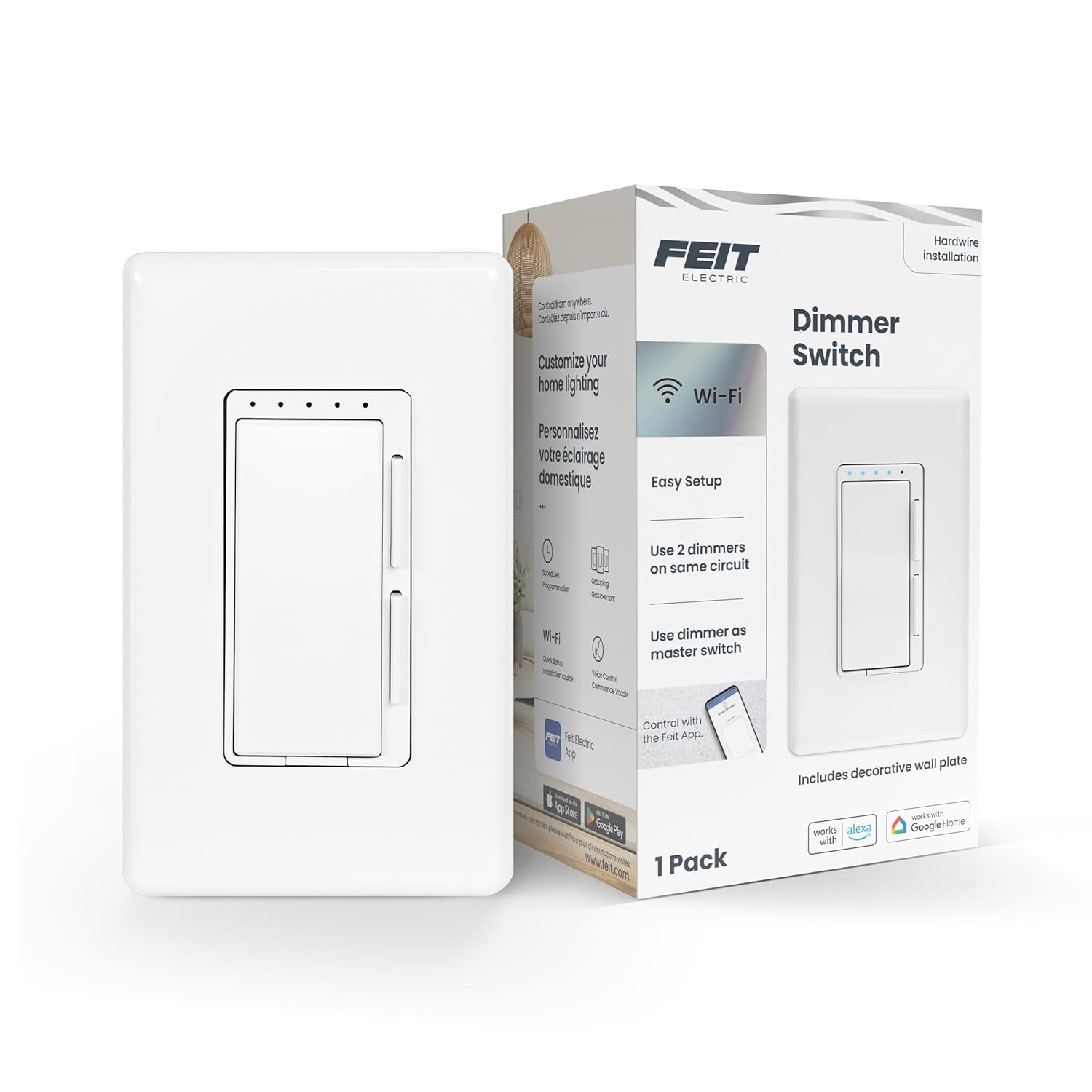
Feit Electric Smart Dimmer Switch, Neutral Wire Required ...

Feit Electric Smart WiFi Dimmer Switch with Remote, Singl...

Feit Electric Smart WiFi Rotary Dimmer Switch, Neutral Wi...
As an Amazon Associate we earn from qualifying purchases.

