

Why Won't My Feit Electric Smart Bulb Connect to WiFi During Setup
- Router broadcasting merged 2.4 and 5GHz SSID
- Phone connected to 5GHz during setup
- Router using WPA3 security incompatible with bulb
Problem Description
Your Feit Electric smart bulb is stuck in pairing mode blinking but will not connect to WiFi during setup. The Feit Electric app finds the bulb but fails at the WiFi connection step every time. This is one of the most common smart bulb setup frustrations. Feit bulbs only connect to 2.4GHz WiFi and most modern routers merge both bands making setup fail silently.
Symptoms
- Bulb blinks rapidly in pairing mode but app cannot connect
- WiFi setup fails at connecting step
- App says cannot find device during setup
- Bulb connects briefly then disconnects
- Setup worked on old router but not new one
- Bulb paired once but cannot re-pair after reset
Recognize these? Here's what usually causes it.
Common Causes
- Router broadcasting merged 2.4 and 5GHz SSID
- Phone connected to 5GHz during setup
- Router using WPA3 security incompatible with bulb
- Bulb not in pairing mode properly
- Too many devices on 2.4GHz network
- App permissions not granted for local network access
Most fixes happen in the first 3 steps.
Do not cycle the bulb on and off more than 10 times rapidly trying to enter pairing mode. Excessive power cycling can stress the electronics. If 3 or 5 cycles do not trigger pairing mode wait 5 minutes then try again.
Tools & Requirements
Step-by-Step Solution
Confirm bulb is in pairing mode and rapidly blinking
Reset the bulb until it enters documented pairing blink pattern, because setup cannot begin if the bulb remains in normal run state.
Use supported 2.4GHz SSID and security mode
Connect phone to compatible 2.4GHz network and avoid guest isolation, since Feit onboarding fails on unsupported or segmented WiFi configurations.
Keep phone and bulb close to router during setup
Perform onboarding near the access point to reduce packet loss during credential exchange, because weak signal is a frequent setup failure trigger.
Disable VPN and network privacy controls temporarily
Turn off VPN and strict privacy relays during onboarding, because these can interfere with local discovery and cloud registration handshake.
Update app/firmware and verify stable control
After pairing, update available firmware and test on-off and color commands repeatedly, so you can confirm the connection remains stable beyond initial join.
Quick Solutions
Still having issues? This is usually the deeper cause below.
This usually happens right after a router reboot or ISP change — the device rejoins the network but drops its cloud session silently.
If setup keeps failing try at a time when fewer people are using WiFi. During peak usage hours WiFi congestion can cause setup timeouts. Early morning setups tend to succeed more reliably.
Most WiFi drop-offs happen right after a router reboot or ISP swap — the device reconnects to the network but silently loses its cloud registration.
- Router broadcasting merged 2.4 and 5GHz SSID
- Phone connected to 5GHz during setup
- Router using WPA3 security incompatible with bulb
- Bulb not in pairing mode properly
- Too many devices on 2.4GHz network
Before you go — try one of these (they fix most cases).
Most popular upgrades chosen by Feit Electric Smart Bulb owners.

Feit Electric 60W LED Multicolor WiFi Smart Bulb (2 Pack)

Feit Electric Smart Bulb, 100W Equivalent Color Changing ...
As an Amazon Associate we earn from qualifying purchases.
Official Manufacturer Manual
Feit Electric provides official product documentation through their online manual rather than downloadable PDF. Access setup guides, troubleshooting steps, and product specifications for your Feit Electric Smart Bulb.
Source: feit.com
Need More Help? Feit Electric Support
Note: The contact information below connects you directly to Feit Electric's official customer support team, not Trunetto. They can help with warranty claims, device replacements, and advanced technical issues.
Accessories owners commonly pair with Feit Electric Smart Bulb.
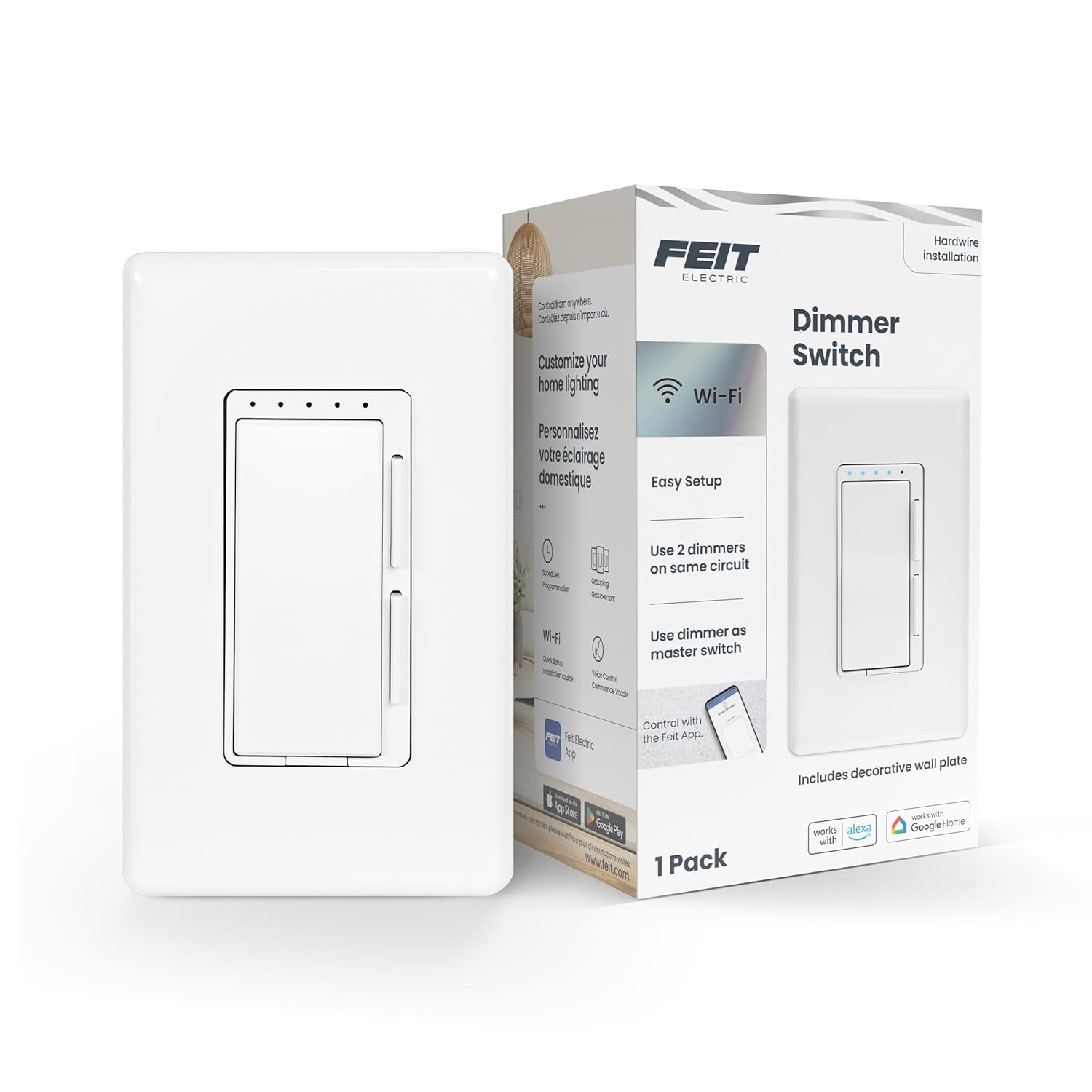
Feit Electric Smart Dimmer Switch, Neutral Wire Required ...

Feit Electric Smart WiFi Dimmer Switch with Remote, Singl...

Feit Electric Smart WiFi Rotary Dimmer Switch, Neutral Wi...
As an Amazon Associate we earn from qualifying purchases.

