

Why Won't My Govee Floor Lamp 2 Connect to WiFi or Stay Connected?
- Router using WPA3 security incompatible with lamp
- 5GHz WiFi network selected instead of 2.4GHz
- Too far from router with weak signal
Problem Description
Your Govee Floor Lamp 2 will not connect to WiFi during setup or keeps disconnecting after working for a while. The lamp works fine with Bluetooth but WiFi setup fails or connection drops daily. Without WiFi you cannot use voice control or control the lamp when away from home.
Why This Happens in Real Homes
Floor Lamp 2 WiFi problems usually hit the band/security limits — it needs 2.4GHz, so a WPA3-only network or 5GHz steering blocks it, along with the usual wrong-password and weak-signal causes.
Start by making a 2.4GHz band available on WPA2 (Govee doesn't do WPA3-only) and re-entering the password, setting it up near the router. Bluetooth works locally regardless; the WiFi is what gives you remote control, so band and security are the things to fix.
Symptoms
- WiFi setup fails at connecting step
- Lamp connects then disconnects within hours
- Works on Bluetooth but not WiFi
- Cannot find lamp during WiFi setup
- Connected but shows offline in app
- Alexa or Google cannot find the lamp
Recognize these? Here's what usually causes it.
Common Causes
- Router using WPA3 security incompatible with lamp
- 5GHz WiFi network selected instead of 2.4GHz
- Too far from router with weak signal
- Router firewall blocking Govee cloud connection
- Too many devices on network causing congestion
- Lamp firmware outdated causing connection bugs
Most fixes happen in the first 3 steps.
Changing router settings may affect other devices. Note your original settings before making changes.
These tools will help you complete this fix.
As an Amazon Associate we earn from qualifying purchases.
Step-by-Step Solution
Use 2.4GHz Network Only
Govee devices only connect to 2.4GHz WiFi not 5GHz. If your router broadcasts both bands with the same name the lamp may try to connect to 5GHz and fail. Create a separate 2.4GHz network with a different name or temporarily disable 5GHz during setup.

Needed for this step
Amazon eero 6+ mesh wifi system with 1 month fr...
This helps complete the fix you are currently reading.
$239.99Check WiFi Security Protocol
Many Govee products do not support WPA3 security. Log into your router and check WiFi security settings. Change from WPA3 to WPA2 or WPA2/WPA3 mixed mode. This allows older IoT devices to connect while maintaining security for newer devices.
Improve Signal Strength
WiFi signal must be strong where the lamp is placed. If far from router the connection will be unstable. Use a WiFi analyzer app to check signal strength at lamp location. Add a WiFi extender or mesh node if signal is weak. Signal should show at least 3 bars.
Update Firmware via Bluetooth
Connect to the lamp via Bluetooth in the Govee app. Check for firmware updates. Install any available updates. Firmware updates often fix WiFi connection bugs. After updating try WiFi setup again. The lamp may connect more reliably with newer firmware.
Reset and Retry Setup
Factory reset the lamp by pressing and holding the power button for 10 seconds until it flashes. Remove the lamp from your Govee app. Re-add it as a new device following WiFi setup steps exactly. A fresh setup often resolves stubborn connection issues.
Quick Solutions
Still having issues? This is usually the deeper cause below.
This usually happens right after a router reboot or ISP change — the device rejoins the network but drops its cloud session silently.
If WiFi remains problematic Bluetooth control still works when you are in the same room. You can also use schedules set via Bluetooth.
Most WiFi drop-offs happen right after a router reboot or ISP swap — the device reconnects to the network but silently loses its cloud registration.
- Router using WPA3 security incompatible with lamp
- 5GHz WiFi network selected instead of 2.4GHz
- Too far from router with weak signal
- Router firewall blocking Govee cloud connection
- Too many devices on network causing congestion
Before you go — try one of these (they fix most cases).
Most popular upgrades chosen by Govee Floor Lamp 2 owners.

Govee Floor Lamp 2 with Matter, RGBIC, Warm Cool White LE...
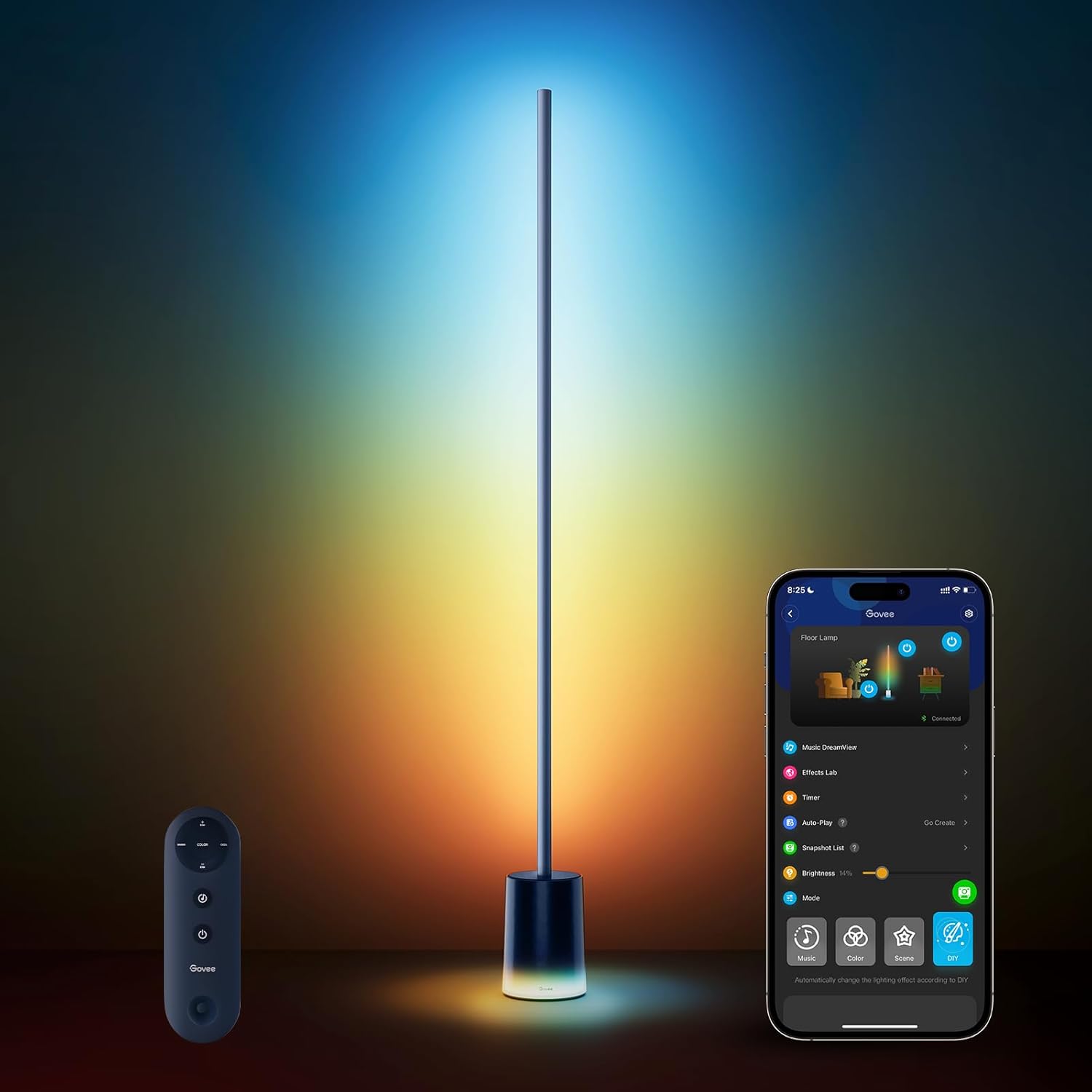
Govee Floor Lamp 2 with Matter, RGBIC, Warm Cool White LE...

Govee Floor Lamp 2 with Matter, RGBIC, Warm Cool White LE...
As an Amazon Associate we earn from qualifying purchases.
Official Manufacturer Manual
Govee provides official product documentation through their online manual rather than downloadable PDF. Access setup guides, troubleshooting steps, and product specifications for your Govee Floor Lamp 2.
Source: govee.com
Need More Help? Govee Support
Note: The contact information below connects you directly to Govee's official customer support team, not Trunetto. They can help with warranty claims, device replacements, and advanced technical issues.
How Does Govee Compare?
Before replacing your Govee device, see how it stacks up against alternatives in our full comparison guides.
Accessories owners commonly pair with Govee Floor Lamp 2.
As an Amazon Associate we earn from qualifying purchases.


