Why Won't My Govee LED Strip Connect?
- Not in Bluetooth pairing range/mode
- On 5GHz (needs 2.4GHz)
- Not reset before pairing
Problem Description
Your Govee LED strip won't connect to the Govee app. Govee strips pair via Bluetooth first, then optionally connect to WiFi for remote control and voice assistant integration. Make sure Bluetooth is enabled on your phone and you're within 10 feet of the strip controller. This guide covers Bluetooth pairing and WiFi setup.
Why This Happens in Real Homes
Govee strips pair over Bluetooth first, then join WiFi (2.4GHz only), so connection problems split by stage: if it won't pair at all, it's Bluetooth range/reset; if it pairs but won't go online, it's the WiFi band, password, or signal.
Start by pairing over Bluetooth with the phone close and the strip reset, then connect to a 2.4GHz network on WPA2 (it can't use 5GHz). Improve the signal where the strip lives and reserve a fixed IP if it drops; those cover almost all connection issues.
Symptoms
- Will not connect to the app
- Bluetooth will not pair
- Will not join WiFi
- Connects then drops
- App cannot find the strip
- 5GHz not accepted
- Weak signal
- Offline in the app
Recognize these? Here's what usually causes it.
Common Causes
- Not in Bluetooth pairing range/mode
- On 5GHz (needs 2.4GHz)
- Not reset before pairing
- Weak WiFi at the strip
- Wrong password
- Controller power issue
- Router AP isolation
- Firmware pending
Most fixes happen in the first 3 steps.
Do not attempt to open or modify the light hardware. Smart lights contain electronic components that can be damaged by moisture or physical tampering. Always power off at the wall switch before removing or repositioning a smart light.
Tools & Requirements
Step-by-Step Solution
Check Bluetooth pairing first
Govee LED strips pair via Bluetooth before connecting to WiFi. Make sure Bluetooth is enabled on your phone and you are within 10 feet of the strip controller. Open the Govee Home app and tap + to add a device. If the strip does not appear, power cycle the controller by unplugging it for 10 seconds. The controller re-enters pairing mode on startup.
Connect to 2.4GHz WiFi only
After Bluetooth pairing, the app prompts you to connect the strip to WiFi. Govee strips only support 2.4GHz networks. If your router combines 2.4 and 5GHz under one SSID, temporarily separate them or disable 5GHz during setup. Enter your WiFi password carefully — it is case-sensitive. Special characters in the password can cause connection failures on some Govee models.
Grant app permissions
The Govee Home app needs Location permission to scan for Bluetooth devices (required by Android and iOS for BLE scanning). On Android, also enable Nearby Devices permission. Without these, the app cannot discover the strip controller even if it is powered on and in range. Check your phone settings under Govee Home app permissions.
Reset the controller
If the strip was previously connected to a different WiFi network or account, it may not pair with your current setup. Factory reset the controller: press and hold the power button for 5-10 seconds (varies by model) until the LED indicator flashes rapidly. The controller clears its stored network credentials and returns to pairing mode.
Check for app and firmware updates
Outdated Govee Home app versions sometimes fail to discover newer hardware models. Update the app to the latest version from your app store. After connecting, check for firmware updates in the device settings — Govee pushes fixes for connection stability regularly. If the strip connects but drops frequently, a firmware update often resolves the instability.
Quick Solutions
Still having issues? This is usually the deeper cause below.
If this comes back after following these steps, check whether a recent app or firmware update reset a default setting — the fix works, but the setting gets reverted silently.
Group your smart lights by room in the app and assign clear names like Kitchen Ceiling and Bedroom Lamp. This makes voice commands more reliable and lets you create scenes that control multiple lights at once with a single command.
This issue almost always looks more complex than it is — the majority of cases trace back to a single setting, a stale credential, or a default that shipped wrong.
- Not in Bluetooth pairing range/mode
- On 5GHz (needs 2.4GHz)
- Not reset before pairing
- Weak WiFi at the strip
- Wrong password
Before you go — try one of these (they fix most cases).
Most popular upgrades chosen by Govee LED Strip owners.

Govee 32.8ft LED Strip Lights RGBIC App Control, Smart LE...
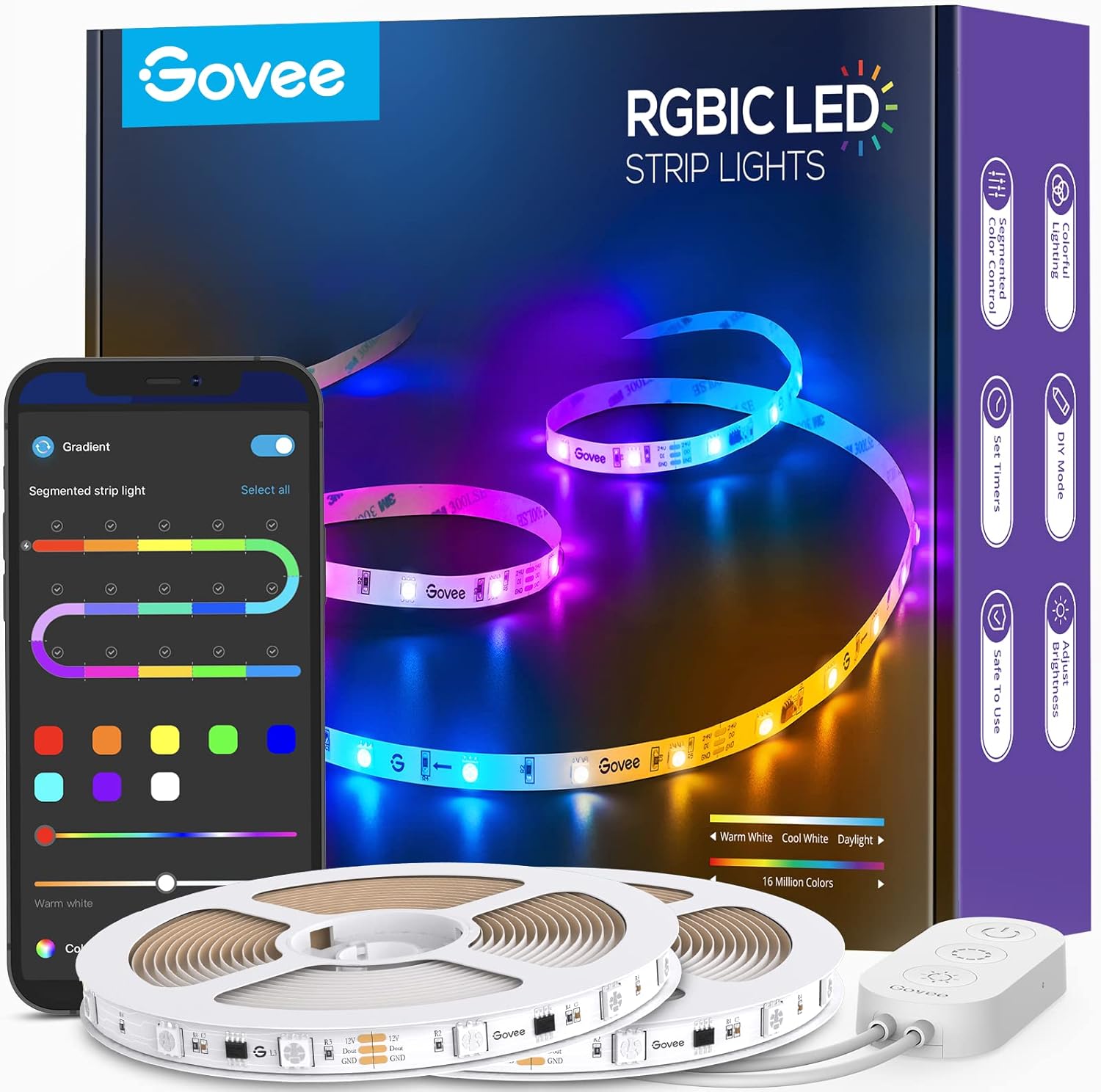
Govee 65.6ft RGBIC LED Strip Lights, Color Changing LED S...

Govee Smart Wi-Fi RGBIC LED Strip Lights & Light Bars, Dr...
As an Amazon Associate we earn from qualifying purchases.
Official Manufacturer Manual
Govee provides official product documentation through their online manual rather than downloadable PDF. Access setup guides, troubleshooting steps, and product specifications for your Govee LED Strip.
Source: govee.com
Need More Help? Govee Support
Note: The contact information below connects you directly to Govee's official customer support team, not Trunetto. They can help with warranty claims, device replacements, and advanced technical issues.
How Does Govee Compare?
Before replacing your Govee device, see how it stacks up against alternatives in our full comparison guides.
Accessories owners commonly pair with Govee LED Strip.

Amazon Smart Plug, Works with Alexa, Simple Setup, Endles...

Ring Rechargeable Quick Release Battery Pack

Kasa Smart Plug HS103P2, Smart Home Wi-Fi Outlet Works wi...
As an Amazon Associate we earn from qualifying purchases.