

Why Won't My Govee Lights Connect or Show the Right Colors?
- On 5GHz (needs 2.4GHz)
- Not reset before pairing
- Weak WiFi
Problem Description
Your Govee lights won't connect to the Govee app or display incorrect colors. If WiFi connection is lost, re-pair through Bluetooth first — open the Govee app, go to the device, and reconnect via Bluetooth. Color issues may be caused by the wrong device profile or DIY scene settings overriding normal color selection.
Why This Happens in Real Homes
Govee "connection or color" problems split cleanly: connection issues are the WiFi band (2.4GHz only), password, or a missed Bluetooth pairing; color issues are usually the strip length/type set wrong in the app or a loose connector so data doesn't reach a segment.
Start by getting it online — Bluetooth pair, then 2.4GHz WiFi on WPA2 — then for color problems confirm the strip length/type matches your hardware and reseat the connectors. Setting a solid color is the quickest test for whether wrong colors are a scene, a data break, or a config mismatch.
Symptoms
- Lights will not connect
- Offline in the app
- Wrong colors
- Bluetooth will not pair
- Will not join WiFi
- Connects then drops
- Colors do not match commands
- Weak signal
Recognize these? Here's what usually causes it.
Common Causes
- On 5GHz (needs 2.4GHz)
- Not reset before pairing
- Weak WiFi
- Wrong password
- Strip length/type set wrong (colors)
- Loose connector (wrong colors)
- Router AP isolation
- Firmware pending
Most fixes happen in the first 3 steps.
Light strips can't be repaired - damaged sections require replacement.
Tools & Requirements
Step-by-Step Solution
Re-pair through Bluetooth if WiFi is lost
If your Govee lights show in the app as offline, the WiFi connection dropped. You can still control them locally via Bluetooth if you are within range. Open the Govee Home app and tap the device — if it connects via Bluetooth, you will see a Bluetooth icon. To restore WiFi, go to device settings and reconfigure the WiFi connection with your 2.4GHz network credentials.
Power cycle the controller
Unplug the Govee light controller for 10 seconds and plug it back in. This forces a fresh WiFi connection attempt and clears any temporary firmware glitches. Many color display issues (stuck colors, wrong colors, no response to app commands) resolve with a simple power cycle. Wait 30 seconds after power-on for the controller to fully reconnect.
Check if the wrong scene is active
If the lights are showing unexpected colors, a scene or schedule may be overriding your manual color selection. Open the Govee Home app and check what scene is currently active. Tap a simple solid color to override. Also check your schedules — a timed scene change may be switching colors at specific times without you realizing it.
Update firmware for color accuracy
Govee pushes firmware updates that fix color calibration issues. If your lights recently started showing wrong colors (whites look pink, blues look purple), check for available firmware updates in the Govee Home app device settings. Apply the update and test the colors again. Calibration fixes are common in Govee firmware updates.
Check the LED strip or bulb hardware
If specific LEDs are permanently stuck on one color regardless of what you set in the app, those LEDs have a hardware failure. On RGBIC strips, a failed IC chip causes a small section to show the wrong color or go dark. On bulbs, a dead color channel (red, green, or blue LED failing) shifts all colors — whites become tinted, and you cannot produce colors that require the dead channel. Hardware failures require replacement.
Quick Solutions
Still having issues? This is usually the deeper cause below.
If flickering only happens on dimming, the issue is almost always the dimmer's minimum-load setting, not the bulb — it's drawing less current than the dimmer expects.
Govee WiFi models need 2.4GHz network. Bluetooth models work with phone proximity only.
This issue almost always looks more complex than it is — the majority of cases trace back to a single setting, a stale credential, or a default that shipped wrong.
- On 5GHz (needs 2.4GHz)
- Not reset before pairing
- Weak WiFi
- Wrong password
- Strip length/type set wrong (colors)
Before you go — try one of these (they fix most cases).
Most popular upgrades chosen by Govee LED Lights owners.

Govee Glide Y RGBIC LED Wall Lights, Smart Wi-Fi Gaming L...

Govee 32.8ft LED Strip Lights RGBIC App Control, Smart LE...
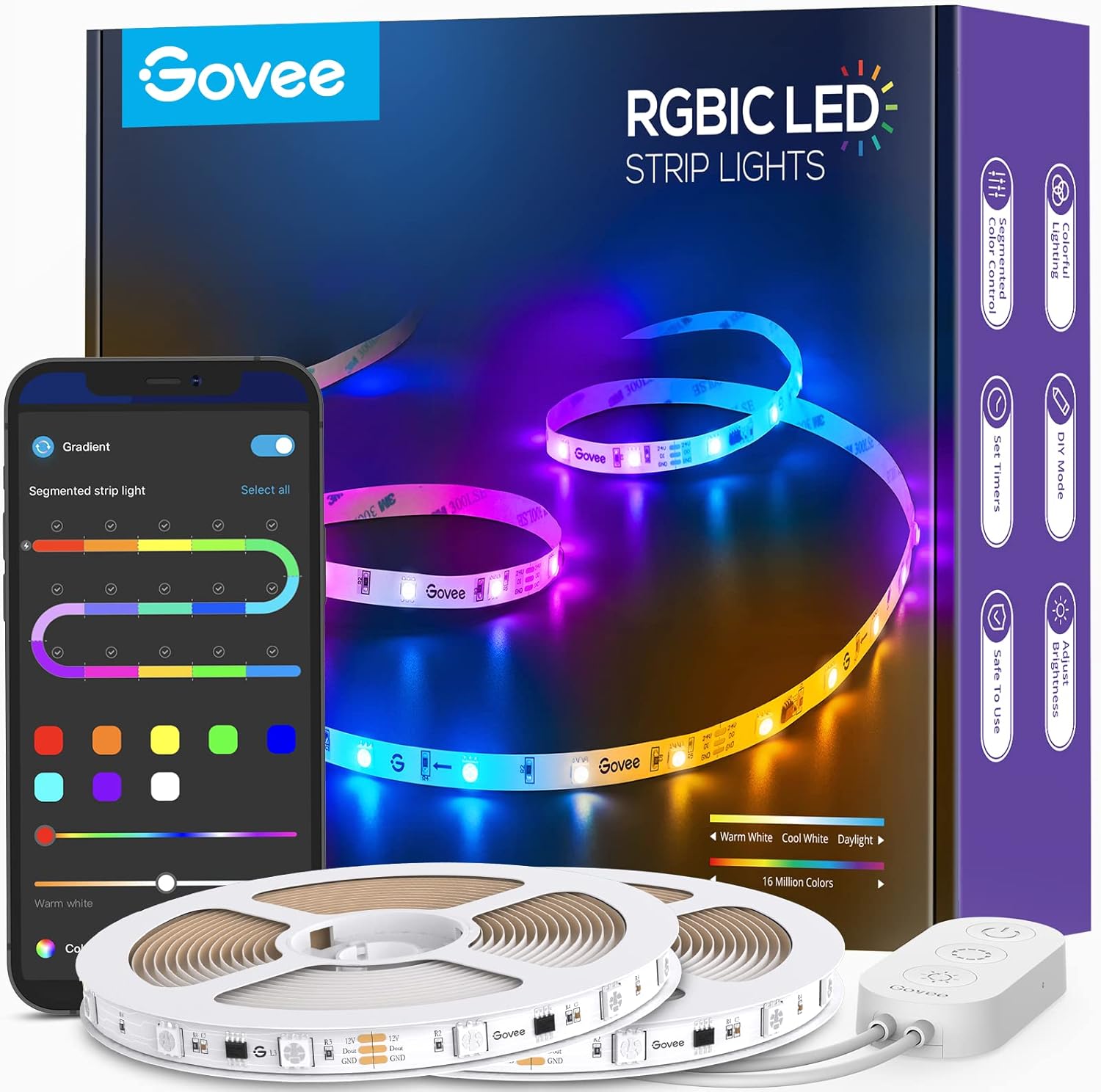
Govee 65.6ft RGBIC LED Strip Lights, Color Changing LED S...
As an Amazon Associate we earn from qualifying purchases.
Official Manufacturer Manual
Govee provides official product documentation through their online manual rather than downloadable PDF. Access setup guides, troubleshooting steps, and product specifications for your Govee LED Lights.
Source: govee.com
Need More Help? Govee Support
Note: The contact information below connects you directly to Govee's official customer support team, not Trunetto. They can help with warranty claims, device replacements, and advanced technical issues.
How Does Govee Compare?
Before replacing your Govee device, see how it stacks up against alternatives in our full comparison guides.
Accessories owners commonly pair with Govee LED Lights.

Amazon Smart Plug, Works with Alexa, Simple Setup, Endles...

Ring Rechargeable Quick Release Battery Pack

Kasa Smart Plug HS103P2, Smart Home Wi-Fi Outlet Works wi...
As an Amazon Associate we earn from qualifying purchases.


