How Do I Set Up Nanoleaf Elements?
- Connecting to 5GHz not 2.4GHz
- Weak WiFi at the controller
- Linkers not seated (panels not detected)
Problem Description
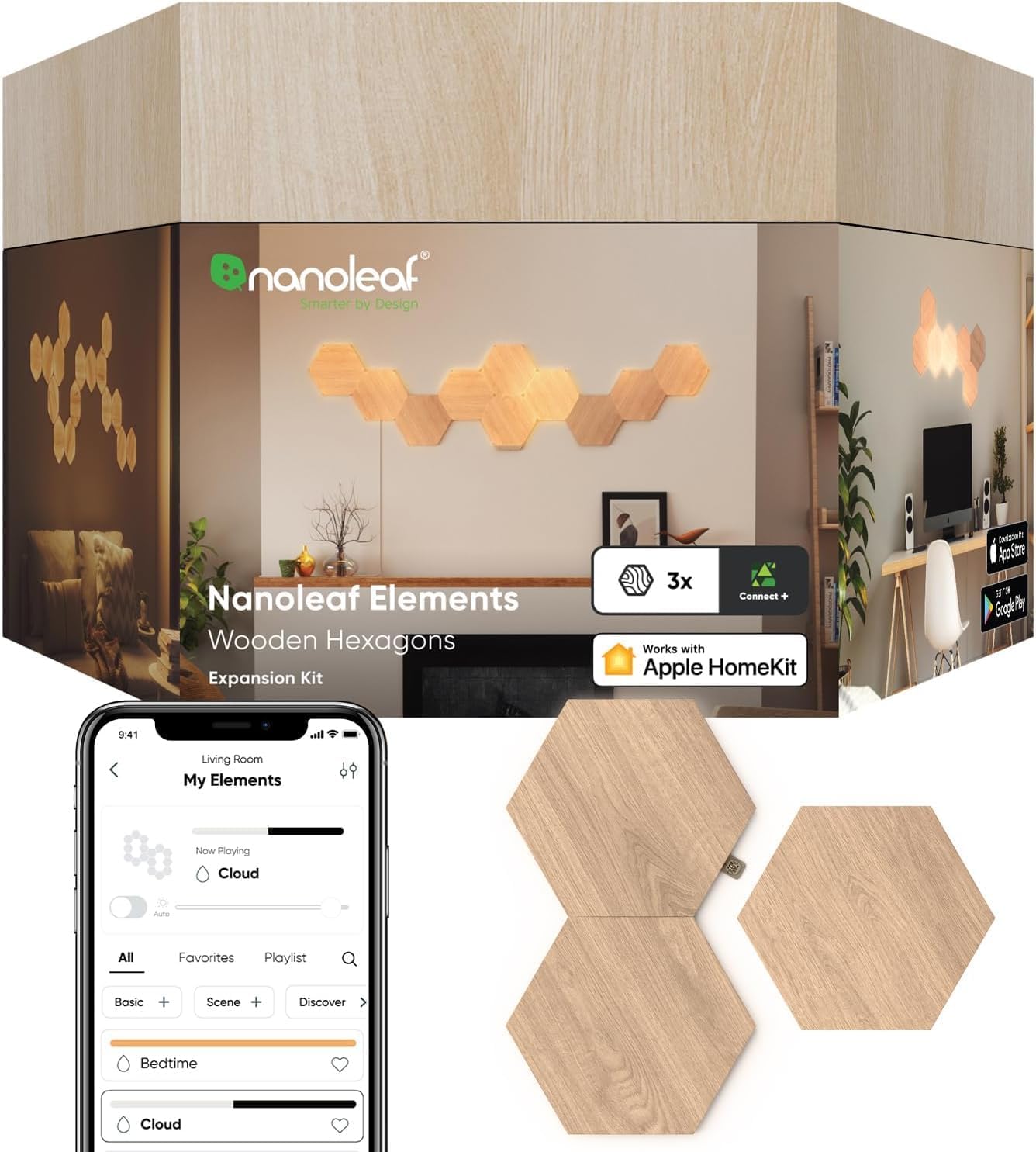
You are setting up Nanoleaf Elements hexagonal wood-look light panels. Plan your layout before mounting — each power supply supports up to 22 panels connected in a chain via linkers. Elements mount with adhesive pads on smooth walls. This guide covers layout planning, mounting, connecting panels, and WiFi pairing in the Nanoleaf app.
Why This Happens in Real Homes
Nanoleaf Elements are wood-look hexagon panels that snap together with linkers and run off a controller connected to your WiFi (2.4GHz) — plus Thread and Matter. Setup is mounting/linking the panels and pairing the controller, and the usual snags are a 5GHz-only network or linkers that aren't fully seated so panels don't register.
Connect the controller to a 2.4GHz network with the correct password, making sure every linker is fully seated so all panels are detected, and put the controller in pairing mode with your phone nearby. Stay within the maximum panels one power supply can drive (add another PSU for large layouts), install any firmware, and pair to the app. Strong WiFi at the controller keeps it reliably online.
Symptoms
- Setting up Elements panels
- Won't connect to WiFi
- App can't find panels
- Pairing fails
- Layout/linker questions
- Controller placement
- Offline after setup
- Firmware update during setup
Recognize these? Here's what usually causes it.
Common Causes
- Connecting to 5GHz not 2.4GHz
- Weak WiFi at the controller
- Linkers not seated (panels not detected)
- Controller not in pairing mode
- Wrong WiFi password
- Too many panels for one PSU
- Firmware update pending
- Router blocking the device
Most fixes happen in the first 3 steps.
Do not attempt to open or modify the light hardware. Smart lights contain electronic components that can be damaged by moisture or physical tampering. Always power off at the wall switch before removing or repositioning a smart light.
Step-by-Step Solution
Plan your layout — up to 22 panels per power supply
Nanoleaf Elements hexagons connect together using linking connectors, with one controller panel connected to the power supply. You can chain up to 22 panels on a single power supply. Lay out your design on the floor first to confirm the pattern works and you have enough panels and connectors. Each panel has 3 connection ports.
Mount the panels on a smooth wall
Clean the wall surface with isopropyl alcohol. Apply mounting tape to each panel mounting plate, press the plate against the wall for 30 seconds, then snap the panel onto the plate. Start with the controller panel (the one with the power supply cable) and build outward. Elements are heavier than standard Shapes panels due to the wood-look veneer, so firm adhesion is important.
Connect to the Nanoleaf app
Plug in the power supply. The controller panel lights up and enters pairing mode. Open the Nanoleaf app, tap +, and select Elements. The app discovers the panels via WiFi (2.4GHz). Follow the prompts to name the device and assign it to a room. The controller also acts as a Thread border router, which benefits other Thread devices in your home like Nanoleaf Essentials bulbs.
Understand the white-only light output
Unlike Nanoleaf Shapes or Canvas, Elements do not produce RGB colors. They display warm to cool white light only (1500K to 4000K). The appeal is the organic wood-look texture and subtle dynamic lighting effects — individual panel corners can illuminate independently, creating a gentle flowing light pattern. The panels look like decorative wood tiles when turned off.
Set up scenes and schedules
In the Nanoleaf app, browse the Scene gallery for Elements-specific scenes designed for warm white ambiance. Create schedules to turn the panels on in the evening and off at bedtime. Elements work with Apple HomeKit, Google Home, and Alexa, so you can include them in voice-controlled routines and whole-home scenes alongside other smart devices.
Quick Solutions
Still having issues? This is usually the deeper cause below.
If this comes back after following these steps, check whether a recent app or firmware update reset a default setting — the fix works, but the setting gets reverted silently.
Group your smart lights by room in the app and assign clear names like Kitchen Ceiling and Bedroom Lamp. This makes voice commands more reliable and lets you create scenes that control multiple lights at once with a single command.
This issue almost always looks more complex than it is — the majority of cases trace back to a single setting, a stale credential, or a default that shipped wrong.
- Connecting to 5GHz not 2.4GHz
- Weak WiFi at the controller
- Linkers not seated (panels not detected)
- Controller not in pairing mode
- Wrong WiFi password
Before you go — try one of these (they fix most cases).
Most popular upgrades chosen by Nanoleaf Elements owners.

As an Amazon Associate we earn from qualifying purchases.
Official Manufacturer Manual
Nanoleaf provides official product documentation through their online manual rather than downloadable PDF. Access setup guides, troubleshooting steps, and product specifications for your Nanoleaf Elements.
Source: nanoleaf.me
Need More Help? Nanoleaf Support
Note: The contact information below connects you directly to Nanoleaf's official customer support team, not Trunetto. They can help with warranty claims, device replacements, and advanced technical issues.
How Does Nanoleaf Compare?
Before replacing your Nanoleaf device, see how it stacks up against alternatives in our full comparison guides.