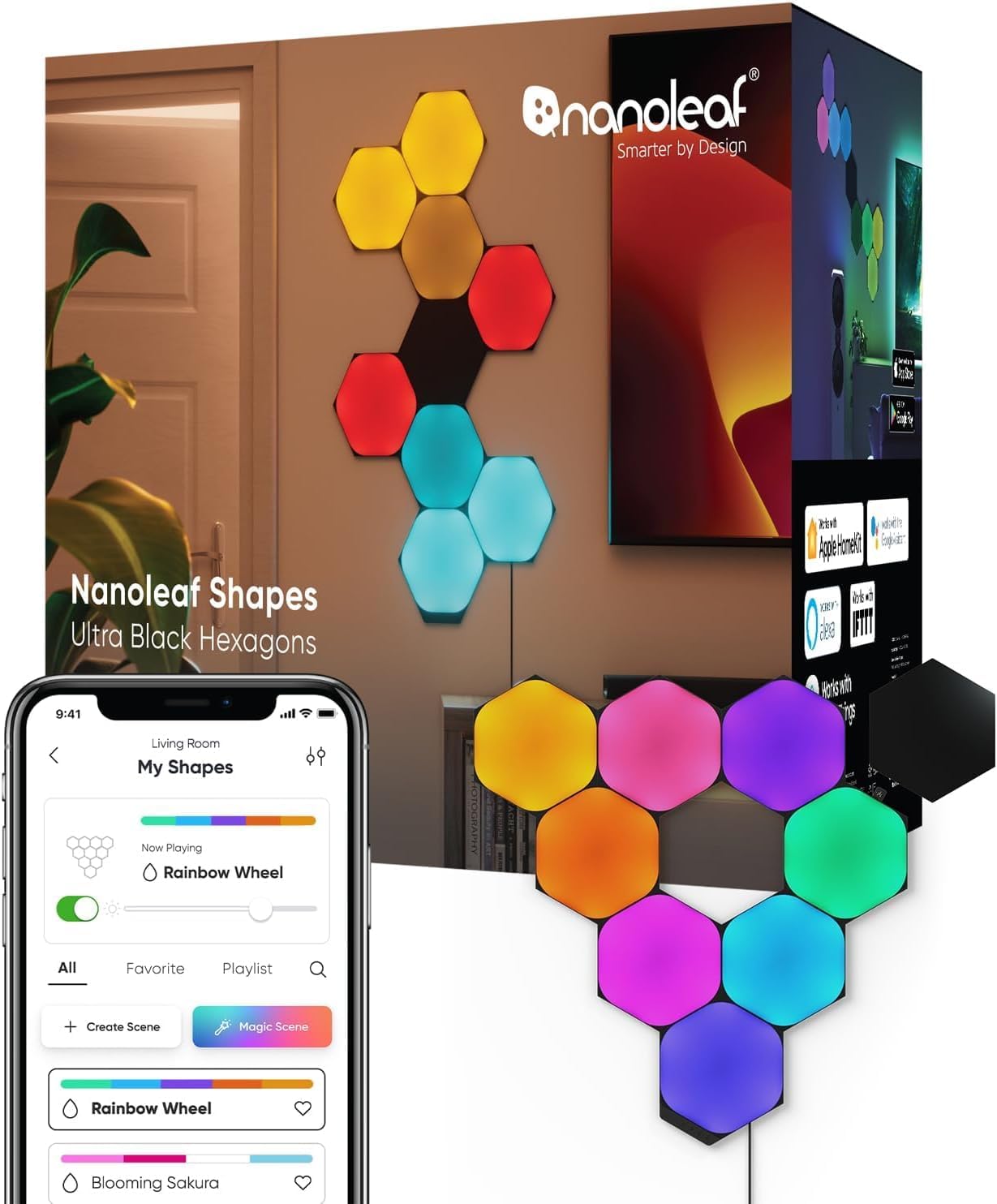
How Do I Set Up Touch Actions on Nanoleaf Shapes?
- Touch actions not set up in the app
- Touch disabled
- Panels loosely mounted (poor touch)
Problem Description
Nanoleaf Shapes panels have built-in touch controls — tap and gesture on a panel to change scenes, adjust brightness, or trigger actions. This covers touch actions not working: unresponsive panels, wrong actions, or gestures not registering.
Why This Happens in Real Homes
Nanoleaf Shapes have touch sensing built in, but the gestures do nothing until you assign touch actions in the app — tap to cycle scenes, swipe to dim, and so on. So "touch not working" is often just unconfigured touch, or panels that aren't firmly mounted enough to register a solid tap.
Open the Nanoleaf app and set up (and enable) the touch actions you want, then make sure the panels are pressed firmly to the wall and all linkers are seated so every panel registers. Clean the surface, keep firmware current, and use the specific gestures you configured. A well-mounted, updated set with touch actions assigned responds reliably to taps and swipes.
Symptoms
- Touch not responding
- Wrong action on tap
- Gestures not registering
- Only some panels respond to touch
- Touch inconsistent
- Touch actions not configured
- Double-tap/swipe fails
- Touch stopped working
Recognize these? Here's what usually causes it.
Common Causes
- Touch actions not set up in the app
- Touch disabled
- Panels loosely mounted (poor touch)
- Firmware out of date
- Controller/panel link issue
- Dirty panel surface
- Gesture done incorrectly
- Panel not registering as touch-capable
Most fixes happen in the first 3 steps.
Do not attempt to open or modify the light hardware. Smart lights contain electronic components that can be damaged by moisture or physical tampering. Always power off at the wall switch before removing or repositioning a smart light.
Tools & Requirements
Step-by-Step Solution
Enable touch actions in the Nanoleaf app
Open the Nanoleaf app, select your Shapes panels, and go to the device settings. Find Touch Actions and enable them. Touch actions let you tap individual panels to trigger different responses — changing colors, toggling scenes, activating smart home routines, or playing specific sound effects. Each panel can be assigned a different touch action.
Assign actions to individual panels
In the Touch Actions menu, the app shows a map of your panel layout. Tap a panel in the map to assign it an action. Options include: change to a specific color, trigger a scene, cycle through a playlist of scenes, toggle lights on or off, or trigger a HomeKit, Alexa, or Google Home routine. You can assign different actions to different panels — for example, tap the top panel for a bright work scene and the bottom panel for a dim relax scene.
Set the touch sensitivity
If touches are not registering or are triggering too easily, adjust the touch sensitivity in the settings. Higher sensitivity means lighter touches register — useful if the panels are mounted high and you can only graze them. Lower sensitivity requires a firmer press — useful if the panels are in a high-traffic area where accidental brushes trigger unwanted changes.
Use double-tap and swipe gestures
Nanoleaf Shapes support multiple gesture types beyond single tap. Double-tap and swipe left or right across panels can trigger different actions. This gives you more control options without needing extra panels. Set up double-tap to toggle power and single-tap to cycle scenes for a two-action panel. Swipe gestures work by detecting sequential touches across adjacent panels.
Fix unresponsive touch
If touch actions stop working, first check that they are still enabled in the app settings — firmware updates sometimes reset touch preferences. Next, check if the panel is receiving power correctly — a panel with a weak linker connection may light up but lose touch sensitivity. Finally, restart the panels by unplugging the power supply for 10 seconds. Touch sensors occasionally need a reboot to recalibrate.
Quick Solutions
Still having issues? This is usually the deeper cause below.
If this comes back after following these steps, check whether a recent app or firmware update reset a default setting — the fix works, but the setting gets reverted silently.
Group your smart lights by room in the app and assign clear names like Kitchen Ceiling and Bedroom Lamp. This makes voice commands more reliable and lets you create scenes that control multiple lights at once with a single command.
This issue almost always looks more complex than it is — the majority of cases trace back to a single setting, a stale credential, or a default that shipped wrong.
- Touch actions not set up in the app
- Touch disabled
- Panels loosely mounted (poor touch)
- Firmware out of date
- Controller/panel link issue
Before you go — try one of these (they fix most cases).
Most popular upgrades chosen by Nanoleaf Shapes owners.

Nanoleaf Shapes WiFi and Thread Smart RGBW 16M+ Color LED...
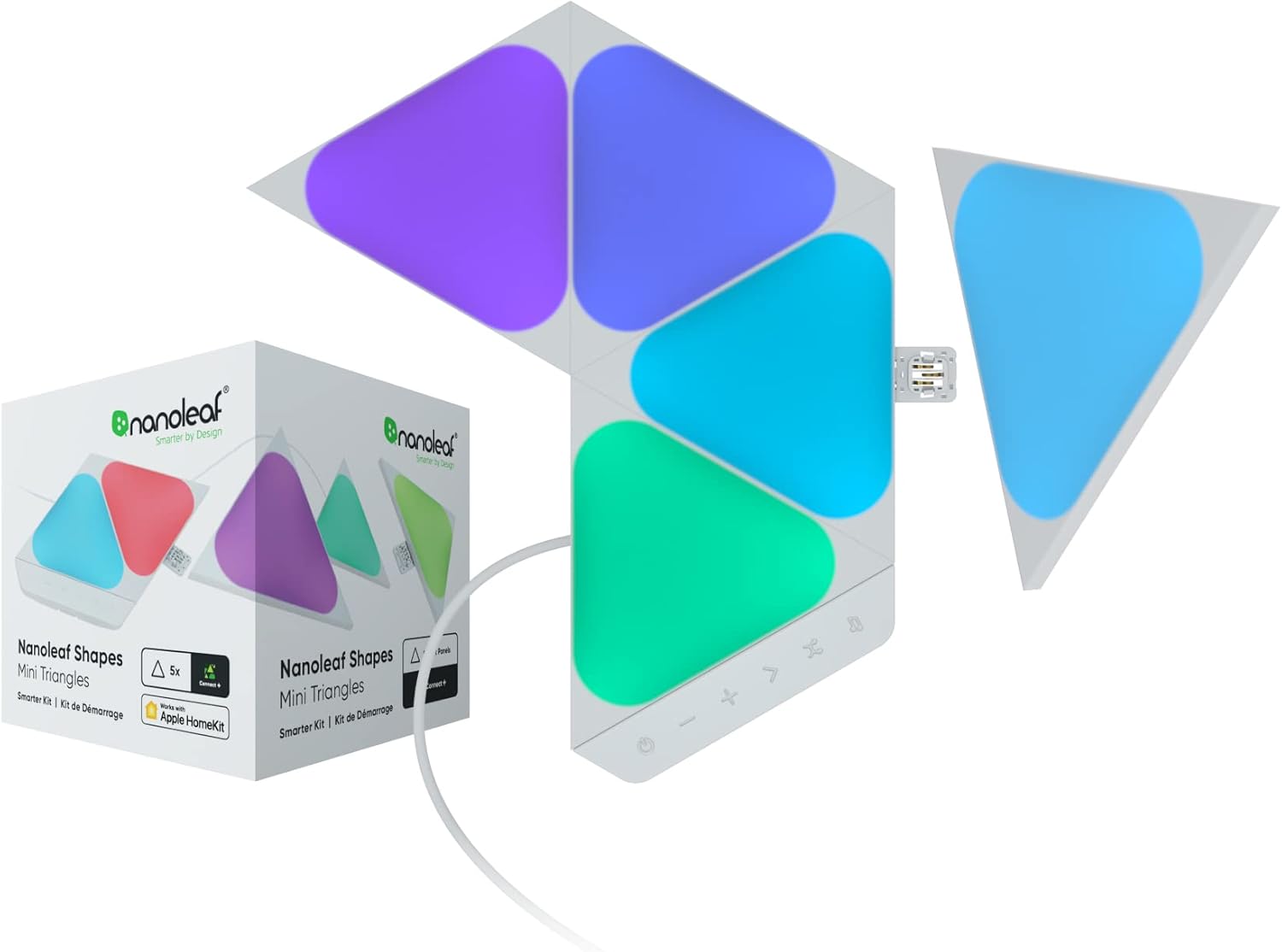
Nanoleaf Shapes WiFi and Thread Smart RGBW 16M+ Color LED...
As an Amazon Associate we earn from qualifying purchases.
Official Manufacturer Manual
Nanoleaf provides official product documentation through their online manual rather than downloadable PDF. Access setup guides, troubleshooting steps, and product specifications for your Nanoleaf Shapes.
Source: nanoleaf.me
Need More Help? Nanoleaf Support
Note: The contact information below connects you directly to Nanoleaf's official customer support team, not Trunetto. They can help with warranty claims, device replacements, and advanced technical issues.
How Does Nanoleaf Compare?
Before replacing your Nanoleaf device, see how it stacks up against alternatives in our full comparison guides.
Accessories owners commonly pair with Nanoleaf Shapes.

Amazon Smart Plug, Works with Alexa, Simple Setup, Endles...

Ring Rechargeable Quick Release Battery Pack

Kasa Smart Plug HS103P2, Smart Home Wi-Fi Outlet Works wi...
As an Amazon Associate we earn from qualifying purchases.