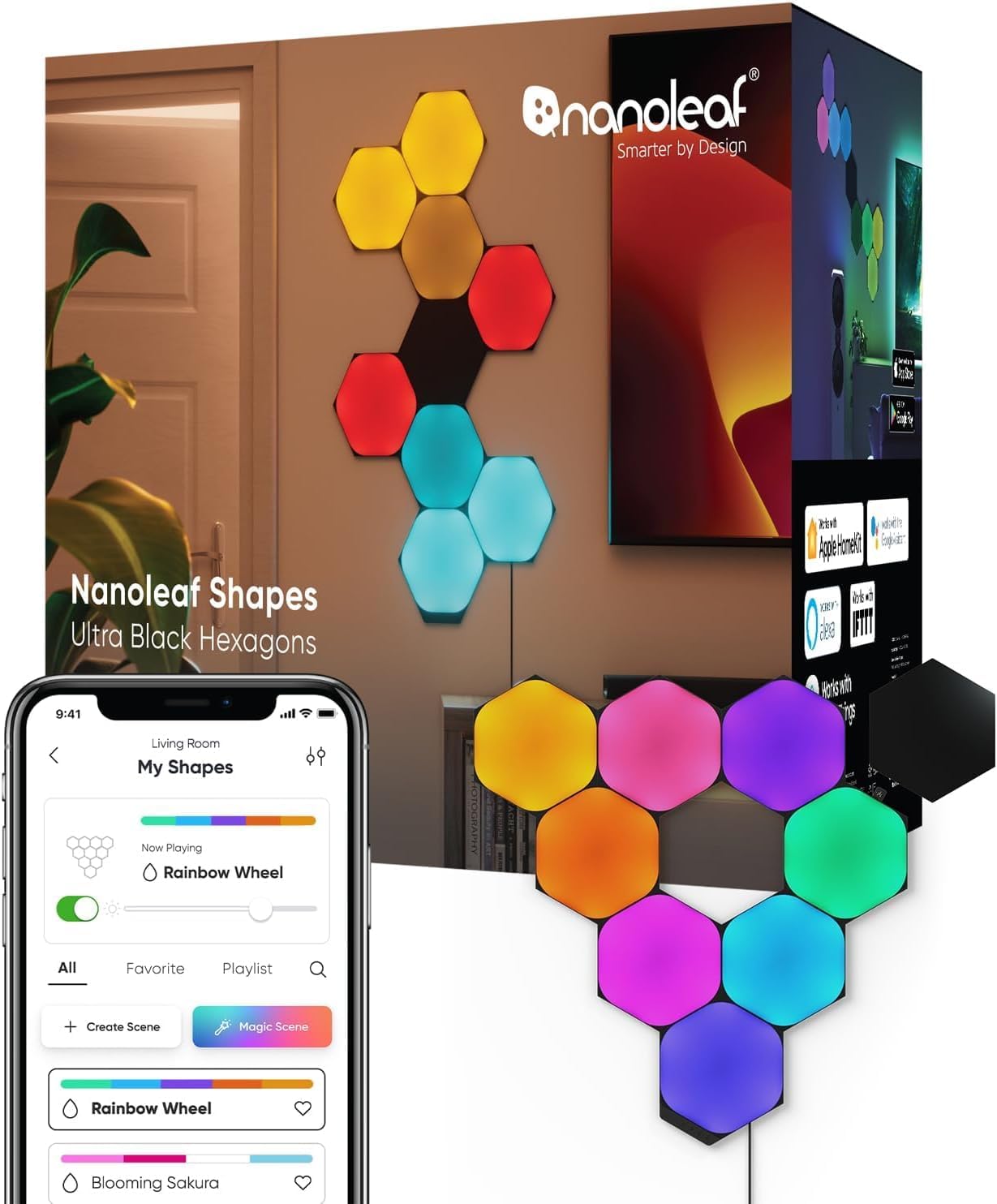
Nanoleaf Shapes Showing Wrong Colors in Scenes
- App layout doesn't match the physical arrangement
- Controller position not set correctly
- Panels reordered without updating the layout
Problem Description
Your Nanoleaf Shapes panels are displaying incorrect colors when you select a scene from the Nanoleaf app. Instead of the vibrant, accurate colors shown in the scene preview, the actual panels show washed-out, different, or inconsistent colors across the layout.
Why This Happens in Real Homes
When Nanoleaf Shapes show the wrong colors or scenes flow oddly, the app's layout usually doesn't match your physical panel arrangement — Nanoleaf maps effects across panels based on the layout you set, so if the app thinks the panels are arranged differently than they are, colors land on the wrong panels and motion flows the wrong way.
In the Nanoleaf app, recreate your layout to match the actual physical arrangement, including the controller's position, and re-detect the panel order after any changes to which panels connect where. Reseat linkers so the order registers correctly, update firmware, and pick scenes designed for your layout. Once the app's map matches the wall, colors and motion line up as intended.
Symptoms
- Panels show wrong colors
- Scenes look off
- Colors don't match the design
- Panels out of order color-wise
- Effect flows the wrong way
- Layout doesn't match physical arrangement
- Colors on the wrong panels
- Scene mapping wrong
Recognize these? Here's what usually causes it.
Common Causes
- App layout doesn't match the physical arrangement
- Controller position not set correctly
- Panels reordered without updating the layout
- Firmware out of date
- Scene designed for a different layout
- Linker/order detection off
- Panel positions not calibrated
- Effect direction mapped wrong
Most fixes happen in the first 3 steps.
If a single panel consistently shows different colors than its neighbors, it may have a hardware defect. Contact Nanoleaf support for a potential replacement under warranty.
Tools & Requirements
These tools will help you complete this fix.
As an Amazon Associate we earn from qualifying purchases.
Step-by-Step Solution
Adjust Brightness Level
In the Nanoleaf app, increase the brightness slider to 100 percent. At lower brightness levels, colors can appear washed out or different because the LEDs are not outputting their full range. This is especially true for deep colors like reds and blues. Check if the colors look correct at full brightness before proceeding with other troubleshooting.

Needed for this step
9 Inch Torpedo Level Magnetic, Shock-Proof Smal...
This helps complete the fix you are currently reading.
$6.99Check Panel Model Consistency
If you have mixed generations of Nanoleaf panels (e.g., original Shapes mixed with newer Shapes), they may have slightly different LED calibrations, which can cause color inconsistency. Check the app to see the model of each panel. For the best color consistency, make sure all panels in a scene are from the same product line and generation.
Recreate or Re-Download the Scene
Sometimes scene data can become corrupted. Go to the Discover tab in the Nanoleaf app and find the scene you are trying to use. Re-download it to your layout. Alternatively, if it is a custom scene, delete it and recreate it from scratch, paying close attention to the colors you select on the color wheel for each panel or zone.
View in a Controlled Environment
Ambient light can significantly affect how you perceive the colors of your panels. Turn off all other lights in the room and close curtains or blinds. View the scene in a completely dark environment. This will show you the true color output of the panels, free from any external light pollution.
Update Firmware
Nanoleaf occasionally releases firmware updates that can improve LED color accuracy and calibration. Open the Nanoleaf app, go to the light settings, and check for firmware updates. Install any available updates and then retest your scenes. If issues persist, contact Nanoleaf support, as a panel may be defective.
Quick Solutions
Still having issues? This is usually the deeper cause below.
If this comes back after following these steps, check whether a recent app or firmware update reset a default setting — the fix works, but the setting gets reverted silently.
When creating custom scenes, use the color wheel rather than pre-selected color swatches. The wheel gives you more precise control over hue and saturation, resulting in more accurate colors on your panels.
This issue almost always looks more complex than it is — the majority of cases trace back to a single setting, a stale credential, or a default that shipped wrong.
- App layout doesn't match the physical arrangement
- Controller position not set correctly
- Panels reordered without updating the layout
- Firmware out of date
- Scene designed for a different layout
Before you go — try one of these (they fix most cases).
Most popular upgrades chosen by Nanoleaf Shapes owners.

Nanoleaf Shapes WiFi and Thread Smart RGBW 16M+ Color LED...
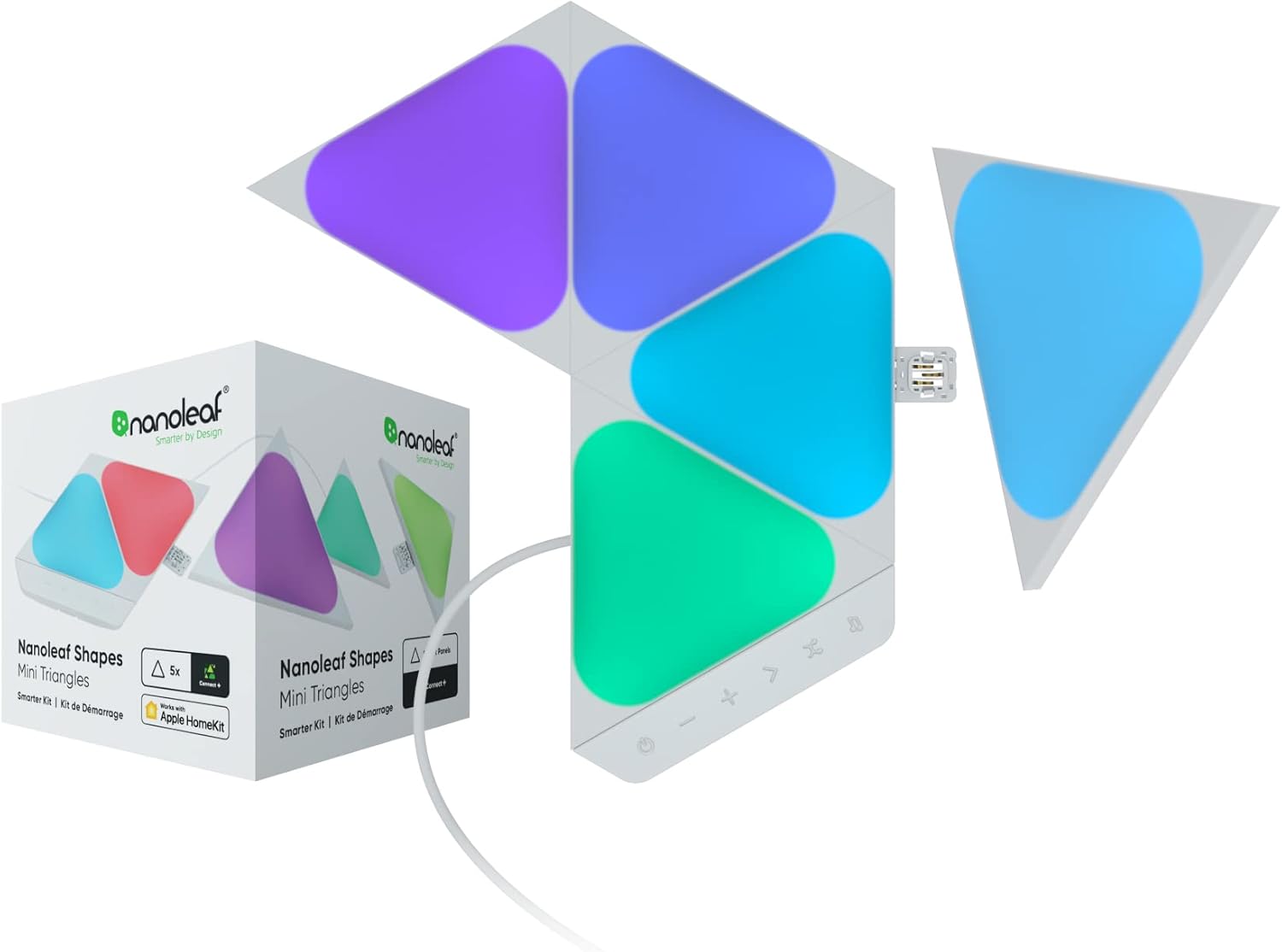
Nanoleaf Shapes WiFi and Thread Smart RGBW 16M+ Color LED...
As an Amazon Associate we earn from qualifying purchases.
Official Manufacturer Manual
Nanoleaf provides official product documentation through their online manual rather than downloadable PDF. Access setup guides, troubleshooting steps, and product specifications for your Nanoleaf Shapes.
Source: nanoleaf.me
Need More Help? Nanoleaf Support
Note: The contact information below connects you directly to Nanoleaf's official customer support team, not Trunetto. They can help with warranty claims, device replacements, and advanced technical issues.
How Does Nanoleaf Compare?
Before replacing your Nanoleaf device, see how it stacks up against alternatives in our full comparison guides.