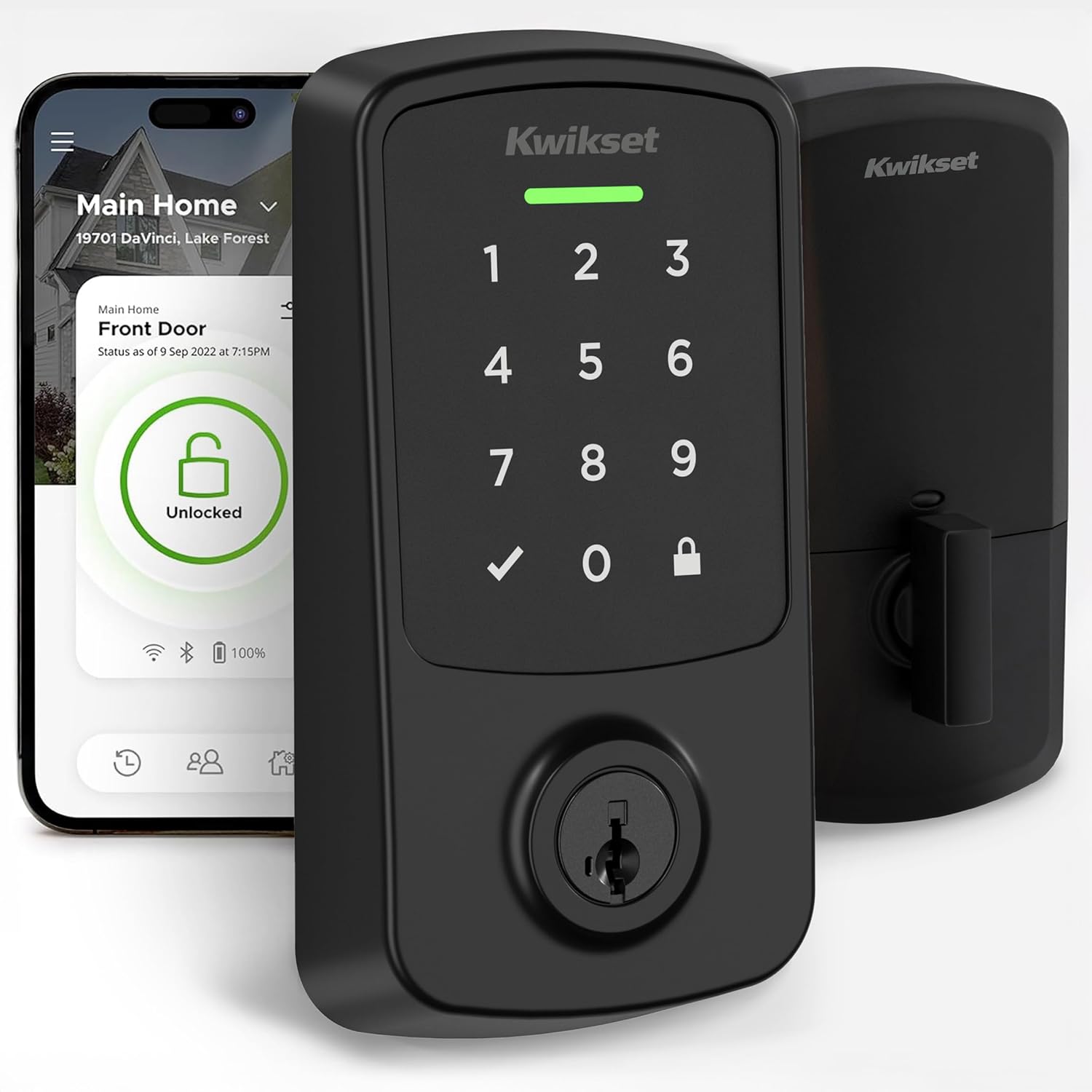
Why Won't My Kwikset Aura Connect via Bluetooth?
- Bluetooth turned off on the phone
- Phone out of Bluetooth range of the lock
- Another paired phone holding the connection
Problem Description
Your Kwikset Aura won't connect to your phone over Bluetooth, so the Kwikset app can't reach the lock to control it or manage codes. The Aura is a Bluetooth-only lock with no WiFi or hub, so connection problems come down to Bluetooth being off, the phone being out of range, another phone holding the pairing, or low batteries. This guide covers restoring a stable Bluetooth link.
Why This Happens in Real Homes
The Kwikset Aura talks to your phone over Bluetooth and nothing else - no WiFi, no hub, no bridge - so every connection issue is a Bluetooth issue. The basics catch most cases: Bluetooth has to be on, you have to be within range of the lock (Bluetooth reaches roughly 30 to 100 feet but a thick metal door cuts that down), and the Kwikset app needs both Bluetooth and Location permission, because phones require Location access to scan for Bluetooth Low Energy devices. A missing Location permission is a surprisingly common reason the app 'can't find' a perfectly good lock.
Beyond permissions, two things cause the most trouble. Bluetooth locks generally hold one active connection at a time, so if another household phone is already linked, your phone can't connect until that one disconnects. And low batteries weaken the Bluetooth radio, making the link drop or refuse to form even though the keypad still works - a fresh set of name-brand AA alkaline often fixes an intermittent connection outright. If it still won't pair, toggle the phone's Bluetooth or restart it to clear the stack, and as a last resort factory reset the lock and pair it again from scratch.
Symptoms
- App can't find or connect to the lock
- Bluetooth pairing drops repeatedly
- Lock only connects when you're right next to it
- App spins on connecting and times out
- Works on one phone but not another
- Connection lost after an app or phone update
- Lock unresponsive to app commands
- Re-pairing fails during setup
Recognize these? Here's what usually causes it.
Common Causes
- Bluetooth turned off on the phone
- Phone out of Bluetooth range of the lock
- Another paired phone holding the connection
- Batteries low, weakening the Bluetooth radio
- App lacks Bluetooth/Location permission (needed for BLE scanning)
- Phone Bluetooth stack glitching after an update
- Lock needs re-pairing after a reset
- Interference or a thick metal door reducing range
Most fixes happen in the first 3 steps.
Add Kwikset Premis Connectivity Bridge for remote access.
Tools & Requirements
Step-by-Step Solution
Check Bluetooth is enabled on your phone
The Kwikset Aura connects exclusively via Bluetooth — it has no WiFi or Z-Wave. On your phone, go to Settings and make sure Bluetooth is turned on. On iPhone, also check Settings > Privacy > Bluetooth and make sure the Kwikset app has Bluetooth permission. On Android, check Settings > Apps > Kwikset > Permissions > Nearby Devices. Without Bluetooth permission, the app cannot discover or connect to the lock.
Stay within Bluetooth range
Bluetooth range for the Kwikset Aura is approximately 40 feet with direct line of sight. Walls, doors, and floors reduce this to 15-25 feet in practice. You must be within range for the Kwikset app to connect to the lock. If you walk away and lose connection, you will not be able to control the lock remotely — there is no remote access without a hub or bridge (the Aura does not have WiFi). Walk closer to the lock and try the app again.
Force close and reopen the Kwikset app
If the app shows the lock but commands time out or do not execute, the Bluetooth session may be stale. Force close the Kwikset app completely (swipe it away from the app switcher). Reopen the app and wait for it to reconnect to the lock. This takes 5-10 seconds. If the lock does not appear, toggle Bluetooth off and on in your phone settings, then reopen the app.
Remove and re-pair the lock in the app
If the lock consistently fails to connect, delete it from the Kwikset app and re-pair it. In the app, go to lock settings and select Remove Lock. Then add it back: tap Add Lock, select Aura, and follow the Bluetooth pairing steps. You may need to press the A button on the interior side of the lock to put it in pairing mode. After re-pairing, your existing keypad codes are preserved — only the Bluetooth connection is re-established.
Check for interference from other Bluetooth devices
If you have many Bluetooth devices nearby (speakers, headphones, fitness trackers, other locks), they can cause congestion on the Bluetooth channels. Turn off unused Bluetooth devices and try connecting to the lock again. Also check if another phone is currently connected to the lock — the Kwikset Aura allows only one active Bluetooth connection at a time. If another family member app is connected, they need to disconnect or close their app first.
Quick Solutions
Still having issues? This is usually the deeper cause below.
If this comes back after following these steps, check whether a recent app or firmware update reset a default setting — the fix works, but the setting gets reverted silently.
Set up auto-lock to engage 30 seconds after the door closes so you never accidentally leave it unlocked. Create temporary access codes for guests and service workers that automatically expire after a set time period.
This issue almost always looks more complex than it is — the majority of cases trace back to a single setting, a stale credential, or a default that shipped wrong.
- Bluetooth turned off on the phone
- Phone out of Bluetooth range of the lock
- Another paired phone holding the connection
- Batteries low, weakening the Bluetooth radio
- App lacks Bluetooth/Location permission (needed for BLE scanning)
Before you go — try one of these (they fix most cases).
Most popular upgrades chosen by Kwikset Aura owners.

Kwikset 99420-002 Aura Bluetooth Programmable Keypad Door...

Kwikset 99420-003 Aura Bluetooth Programmable Keypad Door...
As an Amazon Associate we earn from qualifying purchases.
Official Manufacturer Manual
Kwikset provides official product documentation through their online manual rather than downloadable PDF. Access setup guides, troubleshooting steps, and product specifications for your Kwikset Aura.
Source: kwikset.com
Need More Help? Kwikset Support
Note: The contact information below connects you directly to Kwikset's official customer support team, not Trunetto. They can help with warranty claims, device replacements, and advanced technical issues.