

How Do I Factory Reset a Kwikset Smart Lock and Reprogram All Codes?
- Previous owner's codes still active on the lock
- Master code forgotten after initial setup
- Firmware glitch causing code-recognition failures
Problem Description
You need to factory reset your Kwikset smart lock because you forgot the master code, inherited a lock from a previous homeowner, the lock is behaving erratically, or you want to clear all user codes and start fresh. A factory reset erases all programmed user codes, the master code, and any smart home integrations returning the lock to its out-of-box state. After reset you need to create a new master code and reprogram all user codes. This guide covers the reset process for all Kwikset smart lock models and the complete reprogramming procedure.
Why This Happens in Real Homes
A factory reset is the clean-slate move for a Kwikset smart lock: it wipes every user code, the Mastercode, and any smart-home pairing, returning the lock to its out-of-box state. It's the right call when you've forgotten the Mastercode, inherited a lock whose codes you don't know, or the lock is behaving erratically and ignoring codes. The reset procedure varies by model (typically pressing and holding the interior reset button while reinserting a battery, or a specific button sequence), so follow the steps for your exact model and hold long enough for the confirmation.
Two things save you grief afterward. First, reset and reprogram with fresh name-brand AA alkaline batteries installed - a lot of 'erratic, won't accept codes' behavior that drives people to reset is actually a weak battery set, and low power during reprogramming causes dropped presses. Second, after the reset the lock needs its door handing set again so the bolt turns the correct way, and each new code's first four digits must be unique. Program your new Mastercode and user codes, re-pair to your hub if you use one, and test every code with the door open before you close it - so a mis-saved code doesn't lock you out.
Symptoms
- Forgot the master programming code
- Inherited a lock with unknown codes
- Lock behaving erratically, ignoring all codes
- Want to remove all existing user codes at once
- Lock won't pair with a hub after a previous setup
- Need to hand the lock to a new owner cleanly
- Old codes from a previous owner still work
- Lock stuck in a bad state after firmware or config changes
Recognize these? Here's what usually causes it.
Common Causes
- Previous owner's codes still active on the lock
- Master code forgotten after initial setup
- Firmware glitch causing code-recognition failures
- Too many codes programmed causing conflicts
- Lock still bound to a previous smart-home system
- Handing lost or wrong after a reset
- Batteries low, causing erratic behavior mistaken for a glitch
- Reset button/sequence not held long enough
Most fixes happen in the first 3 steps.
A factory reset erases everything including smart home hub pairing. If your lock was connected to SmartThings, Apple HomeKit, or another hub you need to remove it from the hub and re-pair after the reset. The lock cannot be controlled by the hub until re-paired. Also note that WiFi-connected Kwikset locks like Halo will need to rejoin your WiFi network.
Tools & Requirements
These tools will help you complete this fix.

As an Amazon Associate we earn from qualifying purchases.
Step-by-Step Solution
Perform Factory Reset — SmartCode Models
Remove the battery pack from the interior side of the lock. Press and hold the Program button which is a small button on the interior assembly. While holding the Program button reinstall the battery pack. Continue holding the Program button for 30 seconds. You will hear one long beep confirming the reset. Release the button. All user codes and the master code are now erased. The lock is in factory default state.
Perform Factory Reset — Halo and Aura Models
For Kwikset Halo and Aura WiFi locks remove the battery pack. Press and hold the Program button on the interior. While holding reinstall the battery pack. Continue holding for 30 seconds until you hear one long beep. Release. For Halo models you also need to reset the WiFi connection. Open the Kwikset app and remove the lock from your account then re-add it after the reset. The lock will need to reconnect to WiFi during setup.
Create New Master Code
Immediately after factory reset you must create a new master code. Press the Program button once. Enter your desired master code which should be 4 to 8 digits. Press the Lock button. If you hear one beep the master code is set. If you hear three beeps try again with a different code. Choose a code that is not easily guessable but memorable. Write it down and store in a secure location. You need this code to add user codes and change settings.
Add User Codes
Press the Program button once. Enter your master code. Press the Lock button. Press the Program button again. Enter the new user code which should be 4 to 8 digits. Press the Lock button. One beep confirms the code was added. Repeat for each household member. Most Kwikset models support 16 to 30 user codes depending on the model. Give each person a unique code so you can track who locked and unlocked in the app history.
Test All Codes
With the door open test every code you programmed. Enter each code and verify the lock responds with one beep and the bolt moves. Test from both the exterior keypad and any connected app. Do not close the door until all codes are verified working. If any code does not work delete it and reprogram. Testing with the door open prevents lockout if a code was not saved properly.
Quick Solutions
Still having issues? This is usually the deeper cause below.
If the keypad rejects valid codes, a lockout timer may be running — five failed entries locks most keypads silently for 5–10 minutes.
After factory reset and reprogramming set the lock handedness if your model requires it. With the door open press the Program button then press 9 then press the Lock button. The lock will auto-detect whether it is installed on a left or right-handed door. This ensures the motor rotates in the correct direction for locking and unlocking.
Most smart lock failures people label as hardware issues turn out to be a code wiped during a sync, or a setting reset nobody remembers triggering.
- Previous owner's codes still active on the lock
- Master code forgotten after initial setup
- Firmware glitch causing code-recognition failures
- Too many codes programmed causing conflicts
- Lock still bound to a previous smart-home system
Before you go — try one of these (they fix most cases).
Most popular upgrades chosen by Kwikset Smart Lock owners.
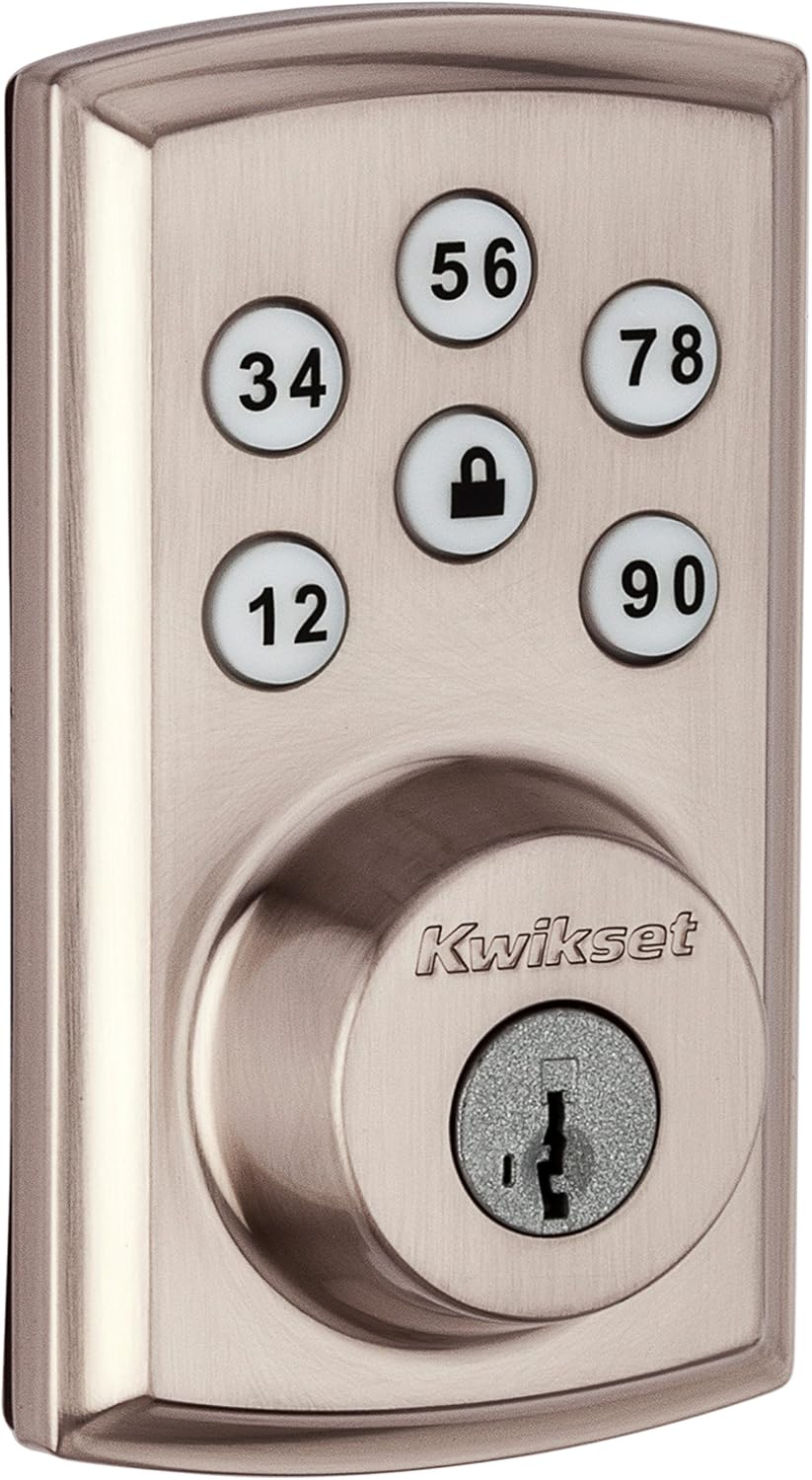
Kwikset 98880-004 SmartCode 888 Smart Lock Touchpad Elect...
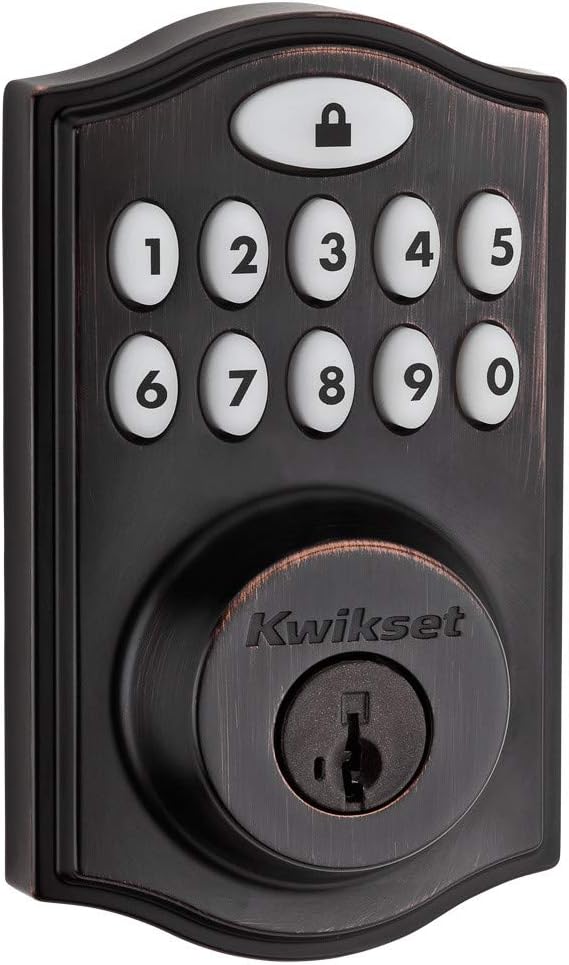
Kwikset 99140-024 SmartCode 914 Traditional Smart Lock Ke...

Kwikset 99140-023 SmartCode 914 Traditional Smart Lock Ke...
As an Amazon Associate we earn from qualifying purchases.
Official Manufacturer Manual
Kwikset provides official product documentation through their online manual rather than downloadable PDF. Access setup guides, troubleshooting steps, and product specifications for your Kwikset Smart Lock.
Source: kwikset.com
Need More Help? Kwikset Support
Note: The contact information below connects you directly to Kwikset's official customer support team, not Trunetto. They can help with warranty claims, device replacements, and advanced technical issues.


