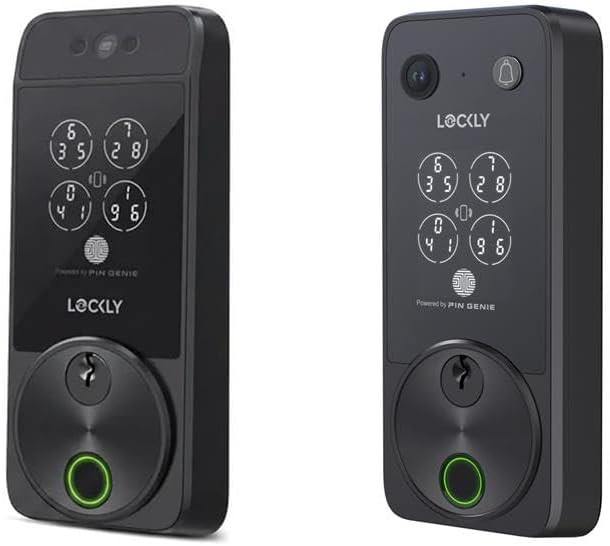
Why Won't My Lockly Smart Lock Connect to the App or Update Firmware?
- Phone moved too far from the lock during firmware update causing Bluetooth disconnect
- Lock batteries too low to complete the firmware update process
- Phone Bluetooth or location permissions not granted to the Lockly app
Problem Description
Your Lockly smart lock will not connect to the Lockly app via Bluetooth, or a firmware update started but failed partway through — leaving the lock unresponsive or stuck in update mode. Lockly locks (Secure, Secure Pro, Secure Link, Vision, Guard) connect via Bluetooth first, then optionally through a WiFi hub for remote access. Bluetooth pairing failures are usually caused by distance (stay within 3 feet), OS permission issues, or the lock being paired to another phone. Firmware update failures can leave the lock in a recovery state that requires a specific reset sequence to restore.
Why This Happens in Real Homes
Lockly firmware update failures are the single most reported Lockly support issue. The lock requires an uninterrupted Bluetooth connection for the entire 5-15 minute update process, which is fragile — any phone notification, WiFi handoff, or distance increase can break it. Lockly has improved the update reliability in recent app versions with resume capability, but older app versions would fail silently and leave the lock in a bad state. Always update the Lockly app first before attempting a lock firmware update.
Symptoms
- Lockly app shows Disconnected or Cannot find lock
- Firmware update started but stuck at a percentage and never completed
- Lock stopped responding to app after a failed firmware update
- App says Update available but the update fails to download or install
- Lockly Bluetooth connection drops repeatedly during firmware update
- Lock keypad and fingerprint still work but app cannot connect
- WiFi Bridge shows offline after a lock firmware update attempt
- Lockly app crashes during firmware update process
Recognize these? Here's what usually causes it.
Common Causes
- Phone moved too far from the lock during firmware update causing Bluetooth disconnect
- Lock batteries too low to complete the firmware update process
- Phone Bluetooth or location permissions not granted to the Lockly app
- Firmware update interrupted by a phone call, notification, or app switch
- Lock firmware partially written — stuck between old and new versions
- Lockly app version outdated and incompatible with the firmware update package
- Multiple Bluetooth devices nearby causing interference during update
- WiFi Bridge lost connection during a bridge firmware update
Most fixes happen in the first 3 steps.
Never remove the lock from the door during a firmware update — the update writes to the lock controller and a power interruption (from disconnecting the battery during the update) can brick the lock firmware beyond recovery. If you must stop the update, let it time out naturally rather than removing batteries. A factory reset erases all access codes, fingerprints, and programming — you will need to reprogram everything from scratch.
Tools & Requirements
Step-by-Step Solution
Prepare for firmware update success
Firmware updates are the #1 source of Lockly connection issues because they require a sustained Bluetooth connection for 5-15 minutes. Before starting: install 4 fresh AA alkaline batteries in the lock (do not attempt an update with batteries below 50%). Update the Lockly app to the latest version from the App Store or Google Play. Turn off WiFi on your phone — this prevents your phone from switching between WiFi and cellular during the update, which can interrupt Bluetooth. Turn off Do Not Disturb or silence notifications so a phone call does not interrupt the process. Stand within 3 feet of the lock and do not walk away or switch apps during the update.
Fix a stuck or failed firmware update
If a firmware update failed partway through, the lock may be in an intermediate state. Open the Lockly app and go to the lock settings. If the lock appears in the app, look for a Firmware Update or Retry Update option. Tap it to attempt the update again — many partial updates can be completed on a retry. If the app shows the lock as disconnected, stand directly next to the lock, force close the Lockly app, wait 10 seconds, reopen it, and see if it reconnects. The lock Bluetooth may need a moment to reset after a failed update. Try 3 complete update attempts before moving to a factory reset.
Recover from a completely failed firmware update
If the lock will not connect to the app at all after a failed firmware update, but the keypad and fingerprint reader still work at the door, the lock firmware is partially corrupted but the hardware is fine. Try a soft reset: remove the battery tray, wait 60 seconds, reinstall fresh batteries. Open the Lockly app and immediately try to connect. If it connects, it may prompt you to resume or restart the firmware update. If it does not connect after a soft reset, perform a factory reset: locate the reset pinhole on the interior assembly near the battery compartment, press and hold with a paperclip for 15 seconds until you hear multiple beeps. The lock will erase all codes and return to setup state. Re-pair it in the app and the firmware update should be offered again.
Fix Lockly app not finding the lock via Bluetooth
If the lock never appears in the app (not a firmware issue but a pairing issue): on iPhone, go to Settings, Privacy & Security, Bluetooth, and verify the Lockly app has permission. Also check Settings, Lockly, and confirm both Bluetooth and Local Network are enabled. On Android, go to Settings, Apps, Lockly, Permissions, and enable Bluetooth, Location (Nearby Devices on Android 12+), and make sure Location services are turned on globally. Delete the lock from the Lockly app if it shows as a stale entry, force close the app, then reopen and tap Add Device. Select your Lockly model and follow the pairing prompts. You may need to press a pairing button on the lock interior or enter the programming code from your setup card.
Replace batteries and confirm lock hardware is working
Lockly locks use 4 AA batteries — the Secure Pro and Vision models drain batteries faster due to camera features. Low batteries cause Bluetooth to become unreliable before the lock keypad stops working. Open the interior cover and check for corroded contacts (white or green residue). Clean contacts with a dry cloth if needed. Install 4 fresh Energizer or Duracell alkaline batteries. Do not use rechargeable NiMH batteries — their 1.2V is below the Lockly minimum. After battery replacement, wait 30 seconds for the lock to boot. The keypad should illuminate when touched. Then try connecting from the app.
Configure or fix the Lockly WiFi Bridge
The Lockly Secure Link WiFi Bridge enables remote access — without it, you can only control the lock when standing next to it. Plug the bridge into an outlet within 30 feet of the lock with line-of-sight if possible. The bridge LED should be solid blue (connected) or blinking blue (pairing mode). If the bridge shows solid red, it has lost WiFi. In the Lockly app, go to Bridge settings and run WiFi Setup — connect it to your 2.4GHz network only. After a lock firmware update, the bridge may need to re-pair with the lock: in the app, go to Bridge settings and tap Re-pair. If the bridge firmware also needs updating, do the bridge update separately from the lock update — never update both simultaneously.
Contact Lockly support for unrecoverable firmware failures
If you have tried 3 firmware update attempts, a factory reset, and fresh batteries, and the lock still will not connect to the app or complete the update, the lock may need a direct firmware flash from Lockly support. Contact Lockly at [email protected] or through the Lockly app Help section. Have your lock serial number ready — it is on a sticker on the interior assembly or on the original box. Lockly support can sometimes push a recovery firmware package to your app that bypasses the normal update process. In rare cases, the lock needs to be sent in for service. During this time, the lock keypad and fingerprint reader continue to work normally for physical access — only app connectivity is affected.
Quick Solutions
Still having issues? This is usually the deeper cause below.
If the keypad rejects valid codes, a lockout timer may be running — five failed entries locks most keypads silently for 5–10 minutes.
The Lockly app stores a local backup of your lock access codes. If you factory reset the lock and re-pair it to the same Lockly account, your existing user codes and fingerprints will need to be re-enrolled — they are stored on the lock hardware and erased during a factory reset. Before factory resetting, note which users have codes and fingerprints so you can re-add them. Firmware updates typically add new features and fix Bluetooth stability — always complete them when offered, but prepare properly first.
Firmware updates that wipe settings are more common than brands admit — many devices silently reset to factory defaults on an OTA push with no warning.
- Phone moved too far from the lock during firmware
- Lock batteries too low to complete the firmware update
- Phone Bluetooth or location permissions not granted to the
- Firmware update interrupted by a phone call, notification, or
- Lock firmware partially written — stuck between old and
Before you go — try one of these (they fix most cases).
Most popular upgrades chosen by Lockly Smart Lock owners.

Lockly Vision Elite with Model 7S, WiFi Video Smart Lock ...
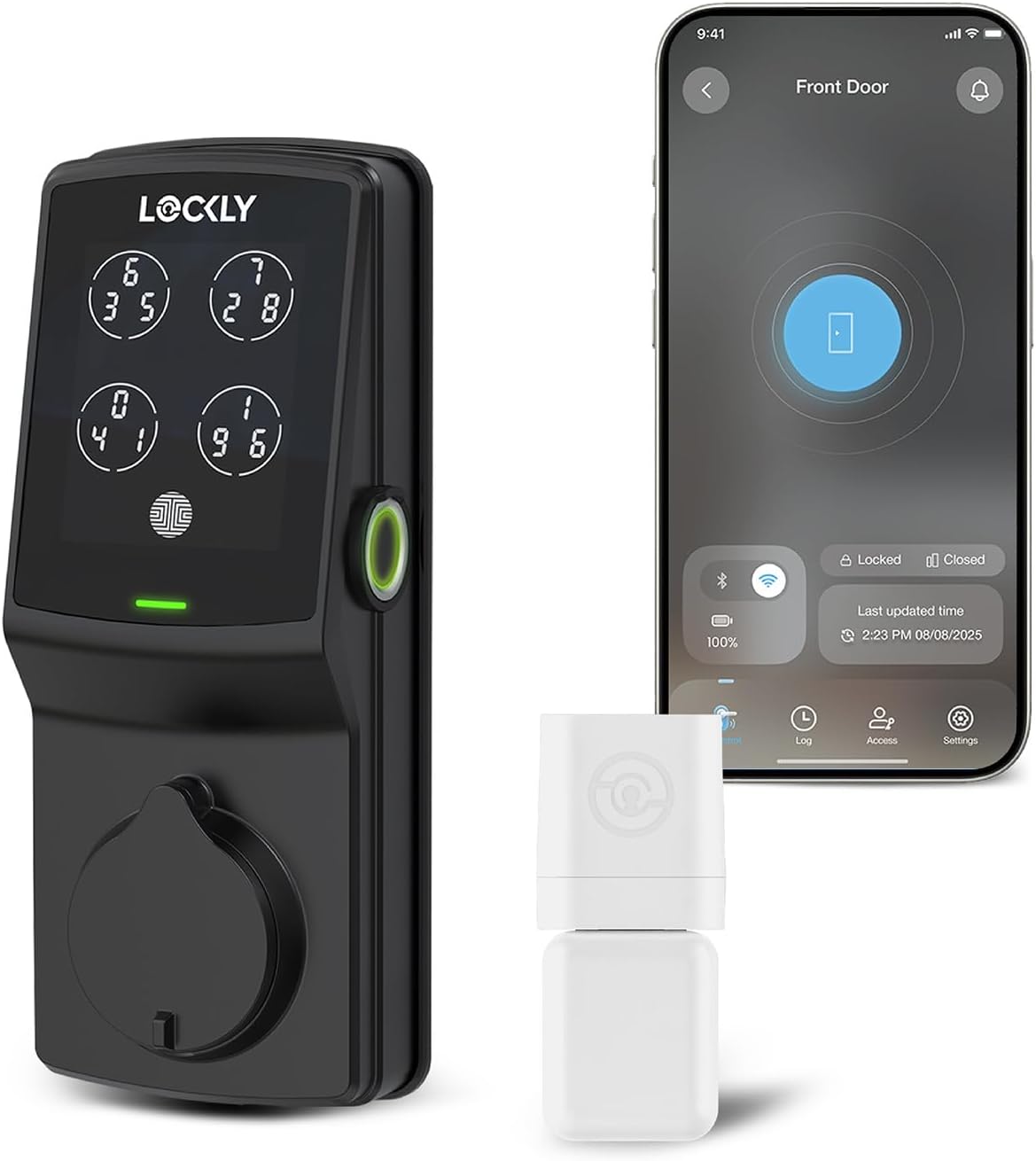
Lockly Guard Deadbolt PGD728WPU Commercial Smart Lock – U...
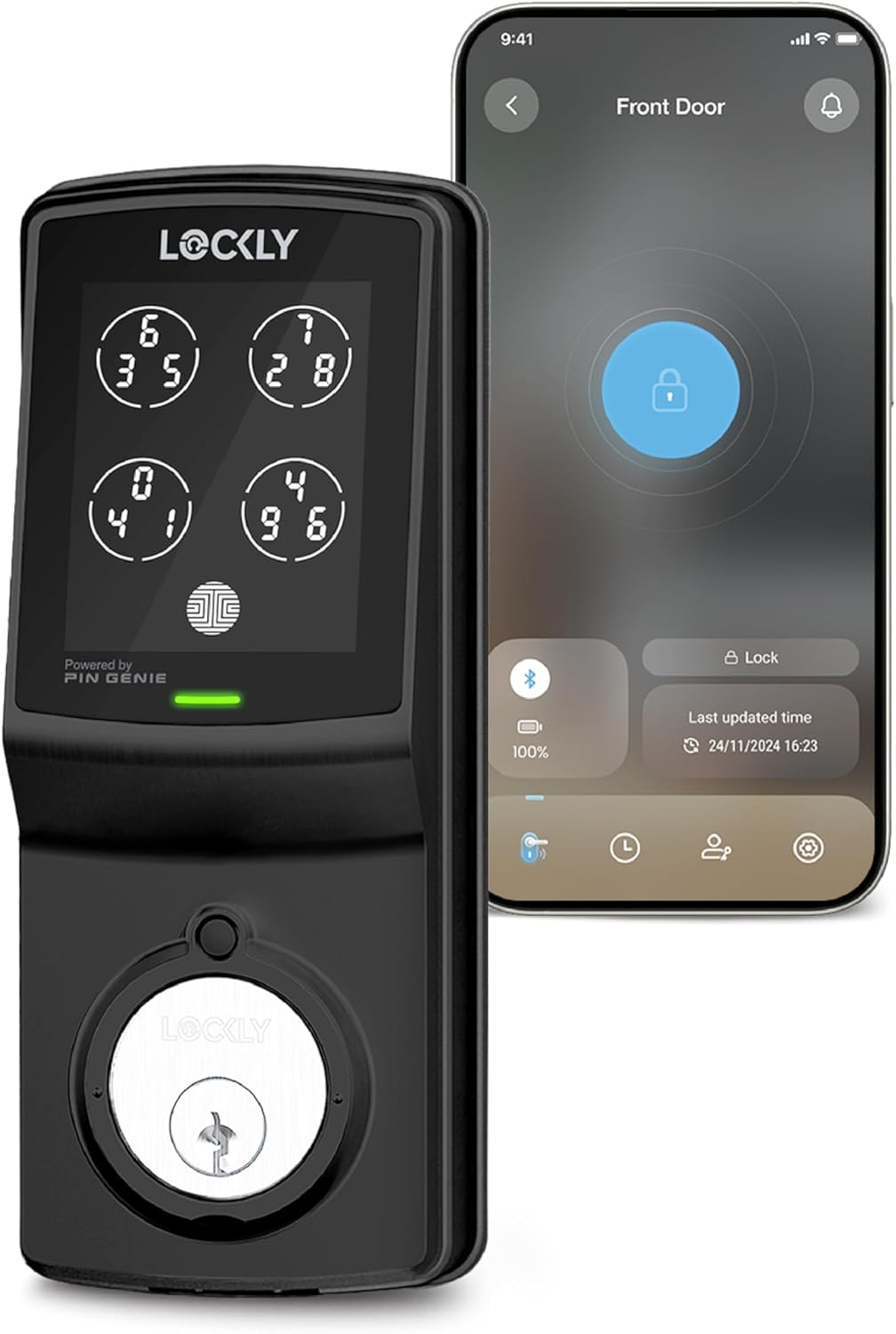
Lockly Smart Lock Model 7S, Bluetooth Smart Door Lock, Ke...
As an Amazon Associate we earn from qualifying purchases.
Official Manufacturer Manual
Lockly provides official product documentation through their online manual rather than downloadable PDF. Access setup guides, troubleshooting steps, and product specifications for your Lockly Smart Lock.
Source: lockly.com
Need More Help? Lockly Support
Note: The contact information below connects you directly to Lockly's official customer support team, not Trunetto. They can help with warranty claims, device replacements, and advanced technical issues.
Accessories owners commonly pair with Lockly Smart Lock.

Amazon Basics 20-Pack AA Alkaline High-Performance Batter...

Amazon Basics CR2032 3V Lithium Coin Cell Batteries for K...

Duracell Coppertop Double AA Batteries with Power Boost I...
As an Amazon Associate we earn from qualifying purchases.
Guide Improvements
- Updated June 18, 2026
Added comprehensive firmware update failure troubleshooting — the top search query (90 impressions) is about firmware update failures but the guide only covered Bluetooth pairing
Source: SEO keyword-intent mismatch fix