How to Fix a Lockly Firmware Update That Failed or Won't Complete
- Factory reset interrupted or incomplete — lock stuck in half-reset state
- Bluetooth connection dropped during firmware transfer
- Phone Bluetooth settings conflicting with Lockly pairing (old pairing cached)
Problem Description
Lockly firmware update failures occur when update transfer or validation does not complete, leaving the lock stuck updating, offline, or partially responsive. This is distinct from setup or generic connectivity issues.
Why This Happens in Real Homes
The most common Lockly firmware failure we see is the factory reset loop — you reset it, it spins, asks to try again, and never actually completes. The fix is almost always a full battery-out power drain for 2+ minutes followed by a proper reset button hold during battery reinsertion. The other big one is people thinking Bluetooth mode is wrong — Lockly requires Bluetooth for firmware updates, that is normal. Clear old pairings from your phone first, then re-pair fresh.
Symptoms
- Lockly firmware update fails or gets stuck mid-update
- Factory reset spins on loading wheel and never completes
- Lock asks to enter Bluetooth mode but firmware update will not start in Bluetooth mode
- App shows update error or update stuck on progress bar
- Lock will not pair after failed firmware update or reset attempt
- Lock becomes unresponsive or partially functional after interrupted update
Recognize these? Here's what usually causes it.
Common Causes
- Factory reset interrupted or incomplete — lock stuck in half-reset state
- Bluetooth connection dropped during firmware transfer
- Phone Bluetooth settings conflicting with Lockly pairing (old pairing cached)
- Battery level too low to complete firmware write
- App session expired or crashed during firmware commit
- Lock toggling between Bluetooth mode and normal mode during update
- Phone OS background restrictions killing the Lockly app mid-transfer
Most fixes happen in the first 3 steps.
Do not attempt to force open or manually override a Lockly lock that is stuck in a firmware loop. The lock may be in a partial state where the motor or latch behavior is unpredictable. If you are locked out, use the physical backup key (included with all Lockly models) to access your home while troubleshooting.
Tools & Requirements
Step-by-Step Solution
Force a full power-drain reset
Remove all batteries from the lock. Wait at least 2 full minutes — this clears the lock internal state including any stuck firmware process. Do not rush this step. If the lock has been stuck in a reset loop or firmware loop, the 2-minute drain is what breaks the cycle.
Do a proper factory reset with the reset button
With batteries still out, locate the small reset button inside the battery compartment (on most Lockly models it is a tiny pinhole button). Press and hold the reset button, then reinsert the batteries while still holding it. Keep holding for 10 seconds after batteries are in, then release. The lock should beep or flash to confirm reset. If it goes back to the spinning wheel, repeat the power drain for 5 minutes and try again.
Clear old Bluetooth pairing from your phone
Before trying to pair again, go to your phone Bluetooth settings (not the Lockly app). Find any Lockly device in your paired/saved devices list and forget/remove it. Also force close the Lockly app completely. This prevents the phone from trying to reconnect to a stale pairing that no longer matches the reset lock.
Re-pair the lock through the Lockly app
Open the Lockly app fresh and start the Add Device flow. The lock DOES need Bluetooth to pair and update firmware — this is normal. Keep your phone within 3 feet of the lock. When the app finds the lock, follow the on-screen pairing steps. If the lock asks you to enter Bluetooth mode, press the Lockly button on the keypad to confirm. Bluetooth mode is required for the initial setup and firmware updates.
Run the firmware update immediately after pairing
Once paired, check for firmware updates in the Lockly app (Settings > Firmware Update). Make sure batteries are fresh (above 80 percent), keep the phone right next to the lock, and do not lock/unlock or leave the app during the update. The transfer can take 5-15 minutes depending on the update size. Do not close the app or walk away.
If the update still fails — try a different phone
Some phone models have aggressive Bluetooth power management that kills the transfer mid-update. If possible, try pairing and updating from a different phone (borrow one temporarily). Android phones with battery optimization enabled are a common culprit — disable battery optimization for the Lockly app in your phone settings before retrying.
Contact Lockly support if stuck in a loop
If the lock keeps returning to the spinning wheel after multiple full resets, or if firmware update fails repeatedly after clean pairing, contact Lockly support at [email protected] or through the app. Have your lock model (printed inside the battery compartment), current firmware version (shown in app if paired), and a description of the failure ready. Some firmware failures require a replacement unit or a special recovery firmware from Lockly.
Quick Solutions
Still having issues? This is usually the deeper cause below.
If the keypad rejects valid codes, a lockout timer may be running — five failed entries locks most keypads silently for 5–10 minutes.
Bluetooth mode IS required for Lockly firmware updates — this is by design, not an error. The lock uses Bluetooth to transfer the firmware file from your phone. If your phone says Bluetooth is off, turn it on. If the Lockly app says "enter Bluetooth mode" on the lock, press the Lockly button on the keypad to confirm. Keep the phone within arm reach of the lock for the entire update.
Firmware updates that wipe settings are more common than brands admit — many devices silently reset to factory defaults on an OTA push with no warning.
- Factory reset interrupted or incomplete — lock stuck in
- Bluetooth connection dropped during firmware transfer
- Phone Bluetooth settings conflicting with Lockly pairing (old pairing
- Battery level too low to complete firmware write
- App session expired or crashed during firmware commit
Before you go — try one of these (they fix most cases).
Most popular upgrades chosen by Lockly Smart Lock owners.

Lockly Vision Elite with Model 7S, WiFi Video Smart Lock ...
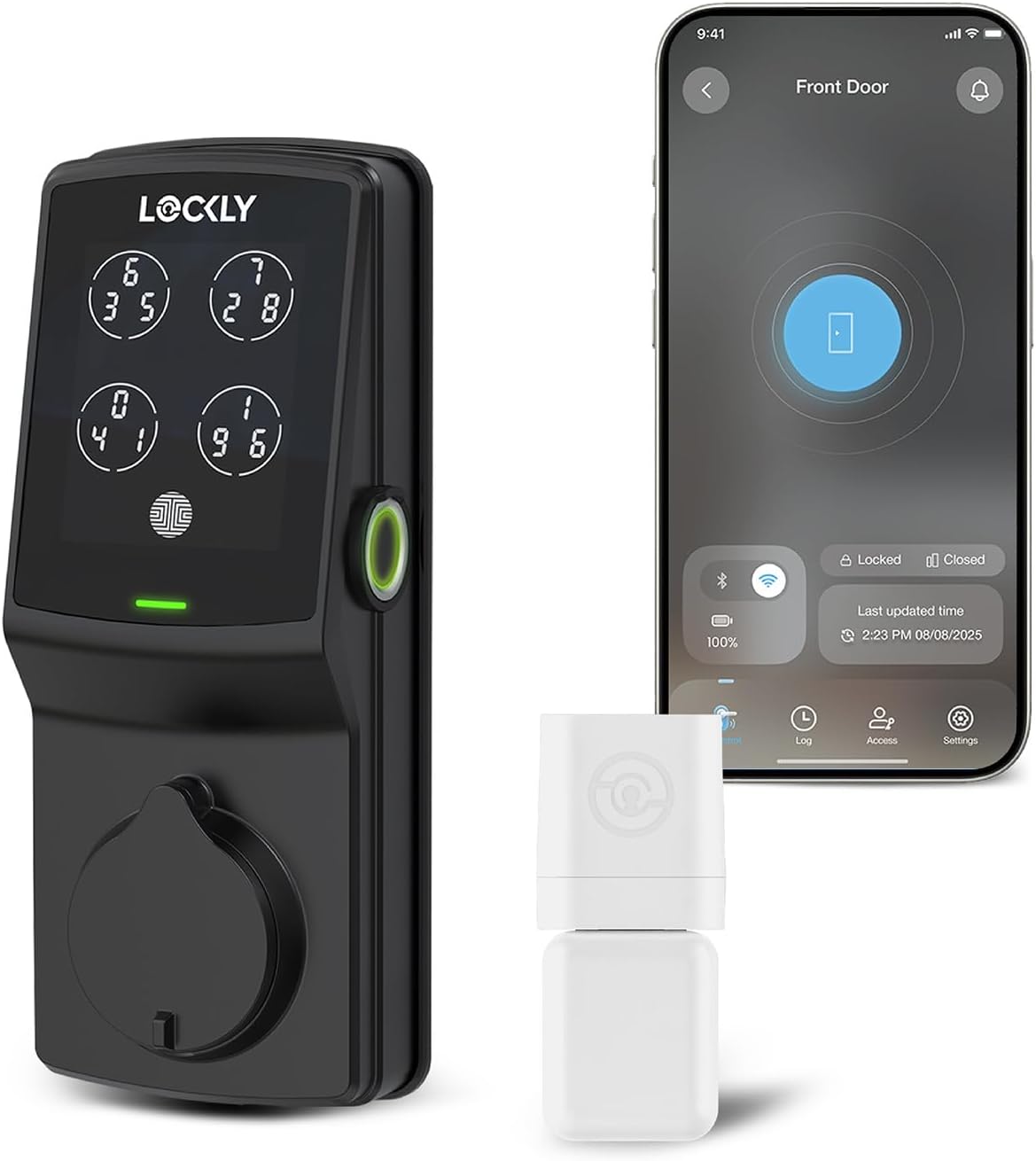
Lockly Guard Deadbolt PGD728WPU Commercial Smart Lock – U...
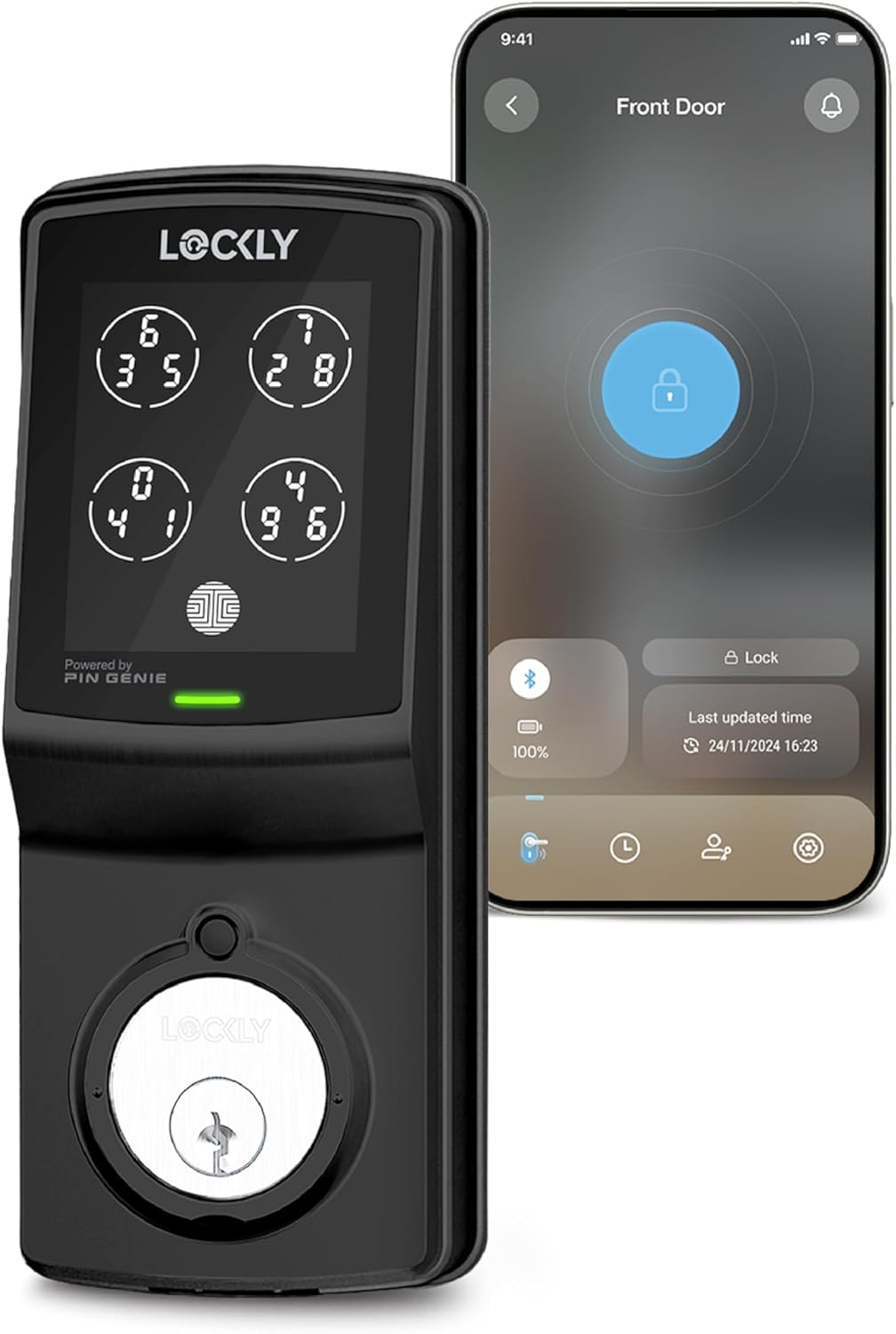
Lockly Smart Lock Model 7S, Bluetooth Smart Door Lock, Ke...
As an Amazon Associate we earn from qualifying purchases.
Official Manufacturer Manual
Lockly provides official product documentation through their online manual rather than downloadable PDF. Access setup guides, troubleshooting steps, and product specifications for your Lockly Smart Lock.
Source: lockly.com
Need More Help? Lockly Support
Note: The contact information below connects you directly to Lockly's official customer support team, not Trunetto. They can help with warranty claims, device replacements, and advanced technical issues.
Guide Improvements
- Updated June 16, 2026
Rewrote with specific recovery steps for firmware update failures, including factory reset loop fix and Bluetooth pairing clarification.
What changed:- Added power-drain reset procedure (remove batteries for 2+ minutes)
- Added factory reset with physical button hold instructions
- Clarified that Bluetooth IS required for firmware updates
- Added steps for clearing stale Bluetooth pairings
- Added real-world context about factory reset loop and Bluetooth confusion
Source: Trunetto editorial update